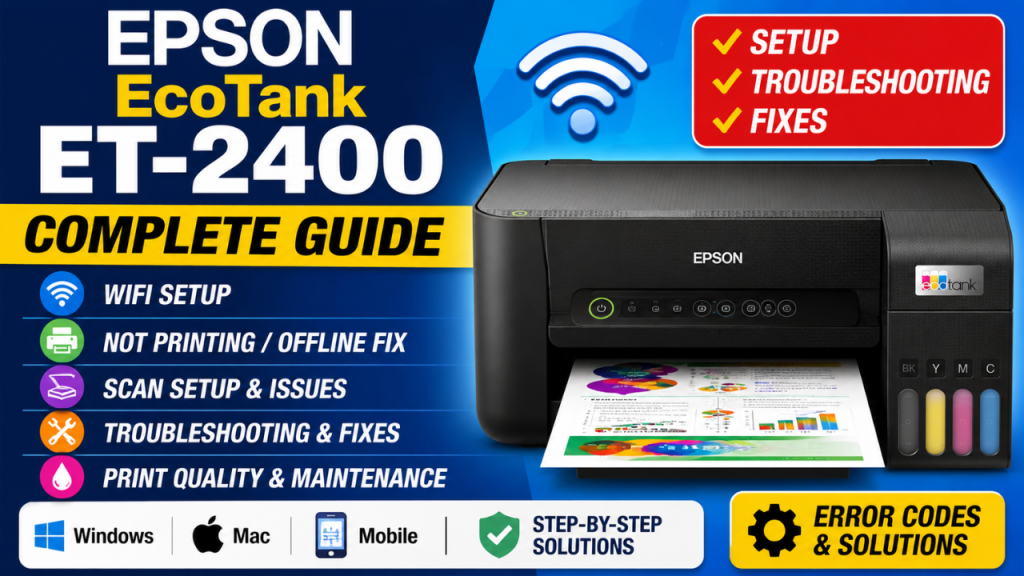
Epson ET-2400 WiFi Setup, Not Printing & Troubleshooting – Complete Guide
Complete Setup & Troubleshooting Guide
Epson EcoTank ET-2400
WiFi Setup · Not Printing · Scan · Troubleshooting Fixes
The complete resource for your Epson ET-2400 All-in-One EcoTank printer — WiFi setup, scan issues, offline errors, print quality fixes, error codes, and maintenance tips all in one place.
🖨️
Epson ET-2400 EcoTank All-in-One
The Epson EcoTank ET-2400 is a wireless all-in-one inkjet printer that offers print, scan, and copy functionality with Epson’s celebrated cartridge-free EcoTank system. Powered by Micro Piezo Heat-Free Technology and using Epson 522 ink bottles, the ET-2400 is built for home users who want to eliminate the cost and waste of traditional ink cartridges. With up to 4,500 pages of black ink and 7,500 pages of color ink per bottle set, it delivers exceptional value — and with a built-in flatbed scanner at 1200 x 2400 dpi, it’s more versatile than the entry-level ET-1913.
That said, many ET-2400 users encounter WiFi setup challenges, scanning errors, print quality problems, and driver issues — especially on Windows 11 or after a router change. This guide covers every issue from first-time WiFi setup to advanced troubleshooting, with clear step-by-step instructions for Windows, Mac, iOS, and Android.
🆚 ET-2400 vs ET-1913 — Key Differences
ET-2400 Advantage
✅ Built-in flatbed scanner & copier
ET-2400 Advantage
✅ Uses 522 ink (higher yield)
ET-2400 Advantage
✅ Voice-activated printing support
Same as ET-1913
⚠️ 2.4GHz WiFi only — no 5GHz
📦
Section 1
What’s in the Box & Initial Setup
The ET-2400 box includes the printer, four Epson 522 ink bottles (65mL each — Black, Cyan, Magenta, Yellow), a power cord, and a Quick Start guide. Note that a USB cable is not included — only the power cord. Do NOT connect USB during WiFi setup.
✅Epson ET-2400 All-in-One Printer
✅4× Epson 522 Ink Bottles (BCMY)
✅Power Cord (US 110V)
✅Quick Start Guide
✅Warranty Card
❌USB Cable (NOT included)
⚠️ Critical Note:
The ET-2400 supports 2.4GHz WiFi only. It does not work on 5GHz networks. If your router uses a combined SSID for both bands, log into your router settings and split them into two separate networks before setup.
💡 Before you fill ink:
Remove ALL blue shipping tape — including tape inside the printer. The 522 ink bottles are color-keyed and have a locking tip to prevent spills. Fill each tank fully before powering on for the first time.
📶
Section 2
Epson ET-2400 WiFi Setup — Step by Step
The ET-2400 has no touchscreen. All setup is done via physical buttons on the control panel, guided by the Epson Smart Panel app on your phone or the Epson Setup Utility on your computer. The app method is recommended as it’s the easiest.
📱 Method A: Epson Smart Panel App (Recommended)
1
Download Epson Smart Panel from the App Store or Google Play on your iPhone or Android device.
2
Power on your ET-2400. Press and hold the WiFi button for 5 seconds until the WiFi light blinks.
3
Open the Epson Smart Panel app → tap “+ Product is not selected” → tap No on the pop-up → follow the chat-style setup wizard.
4
Select your 2.4GHz WiFi network name → tap Yes → tap Next → enter your WiFi password → tap OK → confirm.
✓
Wait 1–2 minutes. The WiFi light will become solid when connected. Print a test page to confirm.
💻 Method B: Windows or Mac Setup Utility
1
Visit epson.com/support/et2400 and download the Epson Printer Setup Utility for your OS (Windows/Mac).
2
Run the installer as Administrator → when prompted for connection type, choose Wireless (WiFi).
3
Select your 2.4GHz SSID, enter your password → the utility sends credentials to the printer wirelessly.
4
Install the full driver package, then print a test page from your computer.
🔗 WiFi Direct Setup (No Router Required)
Connect devices directly to the printer without any router using WiFi Direct.
- Press and hold the WiFi button and the Information (i) button simultaneously until both lights blink.
- Then press and hold the Information (i) button for 10 seconds — the printer will print a WiFi Direct password sheet.
- On your device, go to WiFi settings → connect to the “DIRECT-XXXX-ET-2400” network using the printed password.
- Open Epson Smart Panel or Epson iPrint to start printing directly.
🔘 WPS Push-Button Setup (If Your Router Supports It)
If your router has a WPS button, this is the fastest setup method — no password needed.
- On the printer: press and hold the WiFi button for 3 seconds (WiFi light blinks).
- Within 2 minutes, press the WPS button on your router.
- Wait — the printer will connect automatically. WiFi light turns solid when done.
The Epson ET-2400 stands out in the budget all-in-one category because of its flatbed scanner and copier functionality — features that the lower-end ET-1913 lacks. For students, small home offices, and families, the ability to scan documents and make copies without a separate device is a significant convenience. The 522 ink bottle system is also noteworthy: one full set of replacement bottles can yield up to 7,500 color pages, dramatically reducing cost per page compared to cartridge printers. Most users report that the Epson Smart Panel app makes initial WiFi setup faster and more intuitive than any previous Epson model — though 5GHz compatibility remains the most common source of confusion during setup.
❌
Section 3
ET-2400 WiFi Not Connecting — Fixes
If the ET-2400 WiFi light keeps blinking, the printer can’t find your network, or the Smart Panel app shows connection errors — work through these proven fixes in order:
📡
5GHz Band Selected
Log into your router (192.168.1.1 or 192.168.0.1) and separate your 2.4GHz and 5GHz networks with different names. Connect the printer only to the 2.4GHz SSID.
🔐
Incorrect Password in Smart Panel
If the Smart Panel password field is unresponsive, update the app, restart your phone, and try again. The password is case-sensitive — double-check for typos.
🔄
Changed Router / New Router
After replacing your router, you must reset the printer’s WiFi settings and go through setup again. The printer stores old credentials and won’t auto-connect to a new router.
🔒
AP Isolation / MAC Filtering
Disable AP Isolation in router settings. If MAC filtering is on, add the printer’s MAC address (printed on a Network Status Sheet — hold the info button 7 seconds).
📶
Weak WiFi Signal
Move the printer within 15–20 feet of the router during initial setup. Thick walls, microwaves, and baby monitors can interfere with 2.4GHz. Use a WiFi extender if needed.
♻️
Reset Network Settings
Hold the Network Status + WiFi buttons simultaneously and restart the printer while holding. Hold for ~10 seconds until the WiFi light flashes alternately. Release and redo setup.
💡 Print a Network Status Sheet:
Hold the Information (i) button for 7 seconds to print a sheet showing your printer’s IP address, MAC address, connected SSID, and WiFi signal strength — essential for diagnosing connection issues.
🖨️
Section 4
Epson ET-2400 Not Printing — Diagnosis & Fixes
Connected to WiFi but still can’t print? Jobs stuck in queue? Printer shows offline in Windows 11 or Mac? Here are the most common causes and exactly how to fix each one:
PROBLEM
Printer Shows “Offline” on Windows 10/11
- Go to Settings → Bluetooth & devices → Printers & scanners → click ET-2400.
- Click Open print queue → Printer menu → uncheck “Use Printer Offline”.
- Cancel all pending jobs. Right-click ET-2400 → Set as Default Printer.
- If still offline, restart the Print Spooler: run
services.msc → Print Spooler → Restart.
PROBLEM
Printer Offline After Replacing Router
- Reset WiFi settings on the printer (hold Network Status + WiFi buttons, restart).
- Re-run WiFi setup from scratch using Epson Smart Panel or setup utility.
- On your PC: go to Printers → ET-2400 properties → Ports tab → update IP address to match new network.
PROBLEM
Print Jobs Stuck / Queue Won’t Clear
- Press Win + R → type
services.msc → find Print Spooler → click Stop.
- Navigate to C:\Windows\System32\spool\PRINTERS and delete all files inside (not the folder itself).
- Return to services and Start Print Spooler again. Retry printing.
PROBLEM
Slow Printing Over WiFi
- In print settings, turn off High Speed Printing (counterintuitively this can cause slowdowns).
- Reduce print resolution to Standard for document-only jobs.
- Move printer closer to router or add a WiFi extender.
- Update firmware via Epson Smart Panel → Firmware Update.
PROBLEM
Stopped Printing After Windows Update
- Windows Update often replaces Epson driver with a generic Microsoft driver.
- Uninstall Epson ET-2400 from Control Panel → Programs completely.
- Download fresh driver from epson.com/support/et2400 → install as Administrator.
- Choose Network/WiFi as connection type during reinstall.
🔍
Section 5 — ET-2400 Exclusive
Scanner & Copy Problems — Fixes
The ET-2400’s built-in flatbed scanner (1200 x 2400 dpi hardware resolution) is one of its biggest advantages. Here are the most common scanning issues and how to fix them:
🌐
“Unable to Connect to Network Scanner”
Confirm printer and computer are on the same WiFi network. Open Epson Scan 2 → Settings → verify the printer IP address matches the one on the Network Status Sheet.
🖼️
Poor Scan Quality / Blurry Images
Increase resolution in Epson Scan 2 settings (300 dpi for documents, 600+ for photos). Clean the scanner glass with a lint-free cloth — dust and smudges are the #1 cause.
⚡
Scanning is Very Slow
Scanning at very high resolution (1200+ dpi) creates large files that take time. Use 300 dpi for standard documents. Also ensure your PC meets Epson Scan 2’s memory requirements.
❌
Epson Scan 2 Won’t Start
Uninstall Epson Scan 2, restart your computer, then reinstall from epson.com/support/et2400. On Mac, check System Preferences → Privacy → allow Epson Scan 2 access.
📄
Copy Has Faint / Wrong Colors
Check ink levels — all four colors must be available for copying. Run a Nozzle Check and Head Cleaning if needed. Also check that original is placed flat on the scanner glass.
📧
Can’t Scan to Email
Use Epson ScanSmart for scan-to-email. Ensure you’re logged in with your email account in ScanSmart settings. Gmail users may need to enable “less secure apps” or use an App Password.
One of the most frequently reported ET-2400 issues on Windows 11 is the scanner not being detected after a system update. This happens because Windows Update sometimes removes or replaces the Epson Scan 2 component. The fix is straightforward: visit epson.com/support/et2400, download the latest Epson Scan 2 software package for your operating system, and reinstall it. On macOS 12 Monterey and later, users sometimes find that printer settings disappear from System Preferences — this is resolved by removing the printer, restarting, and re-adding it via the Printers & Scanners panel. Keeping firmware updated via Epson Smart Panel prevents many of these compatibility issues from occurring in the first place.
🎨
Section 6
Print Quality Problems & Ink Fixes
The ET-2400 uses Epson’s Micro Piezo Heat-Free Technology for precise ink delivery. When quality drops, the cause is almost always clogged nozzles, empty tanks, or incorrect settings. Here’s how to diagnose and fix each issue:
👻
Faded / Light Prints
Check ink tanks visually — transparent windows show ink level. If low, refill with 522 bottles. Also check: print quality is not set to Draft/Economy. Switch to Standard or High.
〰️
Horizontal Lines / Banding
Clogged nozzle. Go to Epson Smart Panel → Maintenance → Head Cleaning. Run 1–2 cycles then print a Nozzle Check pattern to confirm improvement.
🟥
Wrong / Shifted Colors
Verify each 522 ink bottle was filled into the correct color tank (tanks are color-labeled). Run Nozzle Check to identify missing colors, then Head Cleaning for that color.
💧
Ink Smearing
Set paper type in driver to match the paper loaded. Over-inking on wrong paper type causes smearing. Allow prints to dry fully before handling — 522 ink can take 30–60 seconds to dry on glossy paper.
📐
Misaligned Prints
Run Print Head Alignment from Epson Smart Panel → Maintenance. Print the alignment sheet and select the best-aligned pattern. Also check paper guides are snug against paper edges.
⬛
No Black Ink Printing
Check the black 522 tank. If filled and still not printing, run up to 3 Head Cleaning cycles. If still no black, run Power Cleaning from Smart Panel → Maintenance (uses more ink but clears stubborn clogs).
🔍 Nozzle Check — How to Run It
- Open Epson Smart Panel → Maintenance → Nozzle Check → Print.
- Examine the printed grid pattern. All rows should be solid with no gaps.
- Gaps in a row = clogged nozzles in that color. Run Head Cleaning for that color.
- Reprint the Nozzle Check to confirm improvement before printing important documents.
⚠️ Note: If you still see lines after 3 Head Cleaning cycles, wait 12 hours and try again. Running too many cleaning cycles can deplete ink quickly. If the problem persists, run Power Cleaning once — this uses significantly more ink but clears severely dried nozzles.
⚠️
Section 7
Error Codes & LED Light Patterns
The ET-2400 communicates status through LED lights on the control panel and error messages in the driver software. Here’s a full reference guide:
| Error / Light Pattern |
Meaning |
Fix |
| Power light flashing + Error light on |
Paper jam or out of paper |
Power off. Remove all paper. Check inside for jammed sheets. Reload paper and restart. |
| Ink light flashing (specific color) |
That ink tank is low/empty |
Refill with correct Epson 522 bottle. All colors must be present to print. |
| WiFi light off |
WiFi disabled or not configured |
Hold WiFi button 5 seconds to enter setup mode. Re-run setup via Smart Panel. |
| WiFi light blinking slowly |
Connecting / searching for network |
Wait up to 2 minutes. If doesn’t go solid, check password and 2.4GHz band, retry. |
| WiFi + WiFi Direct lights flash together |
Android device connecting via WiFi Direct |
Normal behavior. Both lights stop when connection is established; WiFi Direct light stays on. |
| All lights flashing rapidly |
Internal hardware error |
Unplug power for 5 minutes. Reconnect and retry. Contact Epson if persists. |
| Error code 0x97 |
Hardware component failure |
Unplug printer. Hold Power button 60 seconds. Reconnect and power on again. |
| Error code 0x9E / Maintenance Box |
Waste ink pad near end of life |
Requires Epson service. Contact support at 1-562-276-4382 or use Waste Ink Reset Utility (advanced). |
| “Filter Failure” on Mac |
Driver component missing or corrupt |
Remove printer from Mac. Download fresh driver from Epson. Reinstall and re-add printer in System Settings. |
🔧
Section 8
Maintenance Tips to Keep ET-2400 Running Like New
With proper maintenance, your ET-2400 can deliver years of reliable performance. These tips prevent the most common issues before they start:
📅
Print WeeklyPrint a few pages every week to keep nozzles from drying out. A color Nozzle Check print counts and takes only seconds.
🪣
Use Only Epson 522 InkThird-party inks can permanently clog the Micro Piezo printhead and void your warranty. Only use genuine Epson 522 EcoTank ink bottles.
🧹
Clean Scanner Glass MonthlyWipe the flatbed scanner glass with a soft, lint-free cloth. Dust and fingerprints reduce scan quality. Never use alcohol or abrasive cleaners.
💾
Update Firmware RegularlyOpen Epson Smart Panel → check for firmware updates. Firmware updates improve WiFi stability, fix bugs, and maintain driver compatibility with new OS versions.
🌡️
Optimal Storage ConditionsKeep the ET-2400 in a stable environment between 50°F–95°F (10°C–35°C). Avoid direct sunlight. High humidity can cause paper feed issues and ink smearing.
📄
Use Quality PaperFan paper before loading to prevent multi-feed jams. Use 20lb (75gsm) or higher. Paper dust from cheap reams clogs nozzles over time. Store paper in a sealed package.
🔄
How to Reset Epson ET-2400 to Factory Settings
Last resort when all other troubleshooting fails.
A factory reset clears all WiFi settings, network credentials, and custom configurations. After resetting, you’ll need to redo WiFi setup completely. Only use this when the printer is unresponsive to all other fixes.
1
Make sure the printer is powered ON and idle (not printing or in error state).
2
Press and hold the Network Status button and the WiFi button simultaneously while restarting the printer.
3
Hold both buttons for approximately 10 seconds — the WiFi indicator will flash alternately. Release the buttons.
4
Network settings are now reset. Re-run WiFi setup from Section 2. Reinstall the driver on your PC/Mac if needed.
The Epson EcoTank ET-2400 represents excellent value for home users who need a reliable all-in-one printer with long-term low ink costs. With up to 4,500 black and 7,500 color pages per bottle set, the cost per page is dramatically lower than any cartridge printer in its class. The 522 ink bottle system is easy to refill without mess, and the Micro Piezo Heat-Free Technology ensures the printhead lasts the life of the printer without the wear associated with heat-based systems. Whether you’re printing school assignments, scanning documents, or making copies — the ET-2400 handles everyday home printing tasks well. Most issues users encounter are software or connectivity related and can be resolved quickly with the steps in this guide, without needing to contact support or send the printer in for service.
📋 Quick Reference — ET-2400 Cheat Sheet
Find your fix fast
WIFI WON’T CONNECT
Use 2.4GHz only • Check password • Move closer to router • Reset network settings
PRINTER OFFLINE
Uncheck “Use Printer Offline” • Clear queue • Restart Print Spooler • Set as Default
SCANNER NOT FOUND
Same WiFi network • Reinstall Epson Scan 2 • Verify IP in scan settings
FADED / BANDING
Check 522 ink levels • Run Nozzle Check • Head Cleaning 1–3 cycles • Quality setting
DRIVER ISSUES
Uninstall fully • Restart PC • Download from epson.com/support/et2400 • Install as Admin
LAST RESORT
Hold Network Status + WiFi while restarting → 10 sec → redo WiFi setup → reinstall driver
Still need help? Epson Support: 1-562-276-4382 or epson.com/support/et2400
This guide is for informational purposes. Epson ET-2400 and EcoTank are trademarks of Seiko Epson Corporation. Always refer to your official Epson documentation for warranty-related service. Ink bottle yields based on Epson ISO/IEC 24712 methodology — actual yields will vary.