
The Brother HL‑L2350DW is a reliable monochrome laser printer widely used in homes and small offices. However, many users encounter a common issue: the printer continues showing “Replace Toner” or “Toner Low” even after installing a new toner cartridge.
This happens because the printer uses a toner page counter instead of detecting the actual toner level. When the counter reaches its limit, printing may stop until the toner counter is reset.
In this detailed guide, you will learn:
- Brother HL-L2350DW toner reset instructions
- How to reset toner without replacing the cartridge
- What to do if toner reset does not work
- Tips to avoid toner errors in the future
This guide is written in simple, step-by-step language so beginners can follow easily.
Why the Brother HL-L2350DW Shows “Replace Toner”
Before performing the toner reset, it helps to understand why this message appears.
The Brother HL-L2350DW does not measure toner physically. Instead, it estimates toner levels based on the number of printed pages.
When the printer reaches the estimated page limit, it displays messages like:
- Replace Toner
- Toner Low
- Toner End Soon
Even if the cartridge still contains toner, the printer may stop printing until the counter is reset.
Brother HL-L2350DW Toner Reset Instructions
If you have installed a new toner cartridge or refilled the existing one, follow these steps carefully.
Step-by-Step Toner Reset
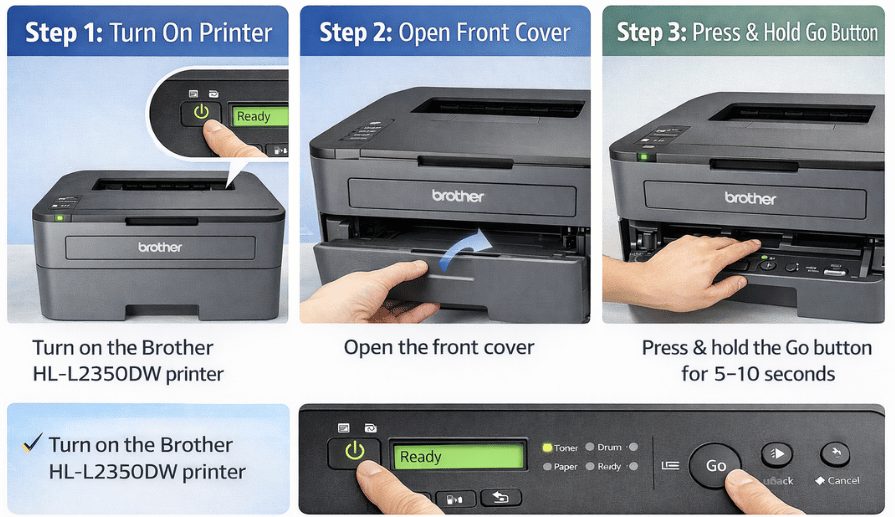
- Turn on the Brother HL-L2350DW printer
- Open the front cover of the printer
- Press and hold the Go button for about 5–10 seconds
- Wait until all LED lights turn on
- Release the Go button
- Close the front cover
Once the cover is closed, the toner counter will reset and the printer should return to Ready mode.
Alternative Toner Reset Method
Sometimes the first reset method may not work if the printer does not detect a new toner cartridge.
Try this manual reset procedure.
Manual Reset Steps
- Turn the printer ON
- Open the front toner cover
- Press the Go button quickly 2 times
- Press the Go button 5 times
- Close the front cover
This forces the printer to clear the toner warning and reset the internal counter.
Printer Was Working Fine but Suddenly Stopped?
How to Replace the Toner Cartridge
If the toner cartridge is actually empty, resetting the counter will not improve print quality. In that case, replacing the toner cartridge is recommended.
Steps to Replace Toner
- Turn off the printer
- Open the front cover
- Remove the drum and toner assembly
- Press the green lock lever to remove the toner
- Insert a new toner cartridge
- Reinstall the drum unit
- Close the front cover
After installing the new toner, perform the toner reset if needed.
Fix Brother HL-L2350DW Toner Reset Not Working
If the toner reset fails, there may be a few common causes.
Check Toner Installation
Make sure the toner cartridge is properly installed inside the drum unit.
Clean Toner Sensor
Sometimes dust or toner particles block the sensor inside the printer.
Use a dry cloth to gently clean the toner contacts.
Restart the Printer
Turn off the printer for about 30 seconds, then turn it back on and try the reset again.
Update Printer Firmware
Updating the printer firmware can also fix toner detection issues.
Tips to Extend Toner Life
Laser toner cartridges can last longer if used correctly.
Helpful tips:
- Print using Toner Save Mode
- Avoid unnecessary printing
- Store toner cartridges in a cool, dry place
- Shake the toner cartridge gently if prints appear light
These small habits can help extend the life of your toner cartridge significantly.
Frequently Asked Questions
Why does my Brother HL-L2350DW say replace toner even after installing a new cartridge?
This happens because the printer uses a page counter system. Resetting the toner counter solves the problem.
Can I reset toner without replacing the cartridge?
Yes. You can reset the toner counter even if the cartridge still has toner left.
Will toner reset damage the printer?
No. Resetting the toner counter is a standard procedure and does not harm the printer.
The Brother HL-L2350DW toner reset is a simple process that can save you time and money. In most cases, the printer displays toner errors because the internal page counter reaches its limit, not because the toner is completely empty.
By following the steps in this guide, you can quickly reset the toner counter and continue printing without interruption.
If the reset does not work, checking the toner installation or replacing the cartridge usually resolves the issue.