
The Canon PIXMA TS3322 is one of the most popular budget wireless printers for home users. It’s compact, affordable, and supports wireless printing from laptops, smartphones, and tablets.
However, many new users struggle with WiFi setup, especially when installing the printer for the first time.
The good news is that connecting the Canon TS3322 to WiFi takes only a few minutes if you follow the correct steps.
In this guide, you’ll learn:
- How to connect Canon TS3322 to WiFi
- Setup using the Canon PRINT Inkjet/SELPHY app
- Wireless setup for Windows and Mac
- Quick troubleshooting tips if WiFi setup fails
Let’s get started.
Before Starting the Canon TS3322 WiFi Setup
Before connecting the printer to WiFi, make sure everything is ready. This prevents setup errors and connection failures.
Check these things first:
- Your WiFi router is turned on
- Your phone or laptop is connected to WiFi
- The printer is powered on
- Ink cartridges and paper are installed
Also keep your WiFi network name (SSID) and password ready because you will need them during setup.
Method 1: Canon TS3322 WiFi Setup Using the Canon PRINT App
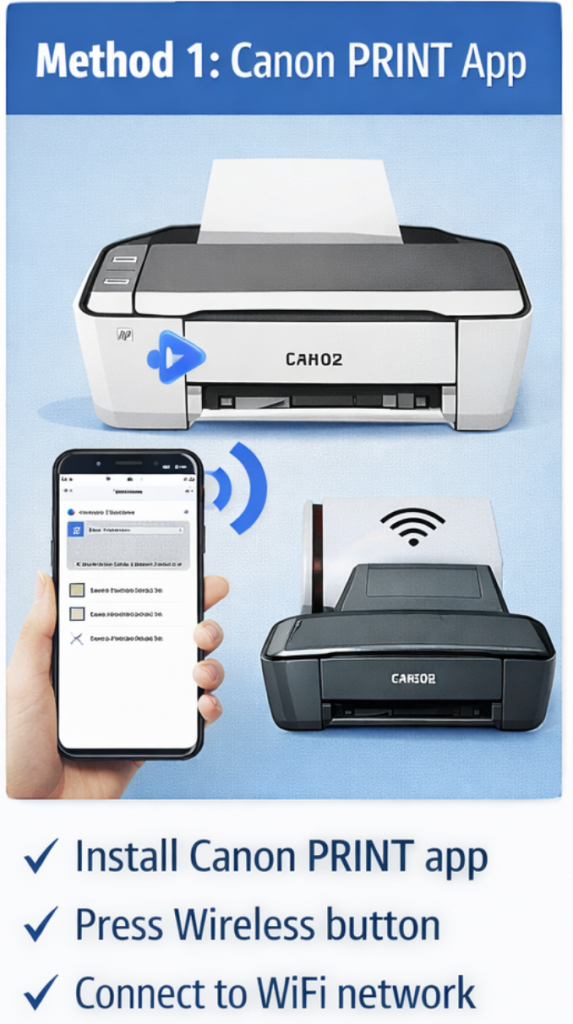
The easiest way to connect the printer to WiFi is through the official Canon mobile app. This method works perfectly for Android and iPhone users.
Step-by-Step Setup
- Install the Canon PRINT Inkjet/SELPHY app from the Play Store or App Store
- Turn on the Canon TS3322 printer
- Press and hold the Wireless button until the indicator light flashes
- Open the Canon PRINT app
- Tap Add Printer
- Select Canon TS3322
- Enter your WiFi password
The printer will now connect to your wireless network.
Once connected, you can print directly from your phone.
Method 2: Canon TS3322 WiFi Setup for Windows

If you want to print from a computer, you can connect the printer using the Canon driver software.
Steps for Windows
- Visit the Canon support website
- Search for Canon TS3322 driver
- Download the printer setup software
- Open the installer
- Select Wireless Connection
- Choose your WiFi network
- Enter the WiFi password
The software will automatically detect and connect the printer.
After setup is complete, your printer will appear in Devices and Printers.
Printer Was Working Fine but Suddenly Stopped?
Method 3: Canon TS3322 WiFi Setup for Mac

Mac users can easily connect the printer using the built-in printer setup tools.
Steps for macOS
- Open System Settings
- Click Printers & Scanners
- Click Add Printer
- Select Canon TS3322
- Choose AirPrint or Canon Driver
Your Mac will install the printer automatically.
Once the setup finishes, you can start printing wirelessly.
Complete Guide to Printer Error Codes: Error 30-42 Troubleshooting
How to Check If Canon TS3322 Is Connected to WiFi
After completing the setup, it’s important to confirm that the printer is connected properly.
You can check this by looking at the WiFi indicator light on the printer.
- Solid blue light → Printer connected successfully
- Blinking blue light → Connection problem
You can also print a test page from your computer to confirm everything works.
Fix Canon TS3322 WiFi Setup Problems
Sometimes the printer may fail to connect to WiFi due to small configuration issues. Fortunately, these problems are easy to fix.
Common solutions include:
Restart Devices
Restart the printer, router, and computer.
Move Printer Closer to Router
Weak WiFi signals can interrupt the setup process.
Reset Printer Network Settings
Hold the Stop button for about 10 seconds to reset network settings.
Check WiFi Password
Make sure the password entered during setup is correct.
These fixes solve most wireless connection problems.
Tips to Keep Canon TS3322 Connected to WiFi
Once your printer is connected, a few simple habits can help prevent future connection issues.
Helpful tips:
- Keep the printer within range of the WiFi router
- Avoid connecting to guest networks
- Update printer firmware regularly
- Restart the printer occasionally
These small steps improve wireless stability.
Frequently Asked Questions
Why is my Canon TS3322 not connecting to WiFi?
This usually happens because of an incorrect WiFi password, weak signal, or network settings issue.
Does Canon TS3322 support wireless printing?
Yes. The Canon TS3322 supports WiFi printing, mobile printing, and AirPrint.
Do I need the Canon PRINT app?
The app is not required, but it makes the WiFi setup much easier and faster.
Final Thoughts
Setting up WiFi on the Canon PIXMA TS3322 is simple once you know the correct steps. Most users can complete the setup in under 5 minutes using the Canon PRINT app or the official driver software.
To recap:
- Turn on the printer
- Install the Canon PRINT app or drivers
- Connect to your WiFi network
- Test the connection
Once connected, you can print from phones, laptops, and tablets wirelessly without any cables.