Many users of the HP Smart Tank 7605 All-in-One suddenly encounter a confusing error that says “Encryption Certificate Expired” or “Secure connection failed.” When this message appears, the printer may completely stop printing from the computer. Documents remain stuck in the print queue, and the printer appears connected but refuses to process any print job. This situation can be extremely frustrating, especially when the printer was working perfectly just a day earlier.
This issue is commonly reported by users running macOS Catalina or other macOS versions when printing over Wi-Fi. The good news is that in most situations the printer itself is not damaged and does not require repair. The error usually occurs because of a small communication issue between the printer and the computer. It may happen if the printer’s internal security certificate has expired, the device date is incorrect, or the firmware is outdated.
In this detailed guide, you will learn simple step-by-step solutions that anyone can follow. Even if you have no technical knowledge about printers, the instructions below will help you fix the problem and restore normal printing.
Understanding the “Encryption Certificate Expired” Error
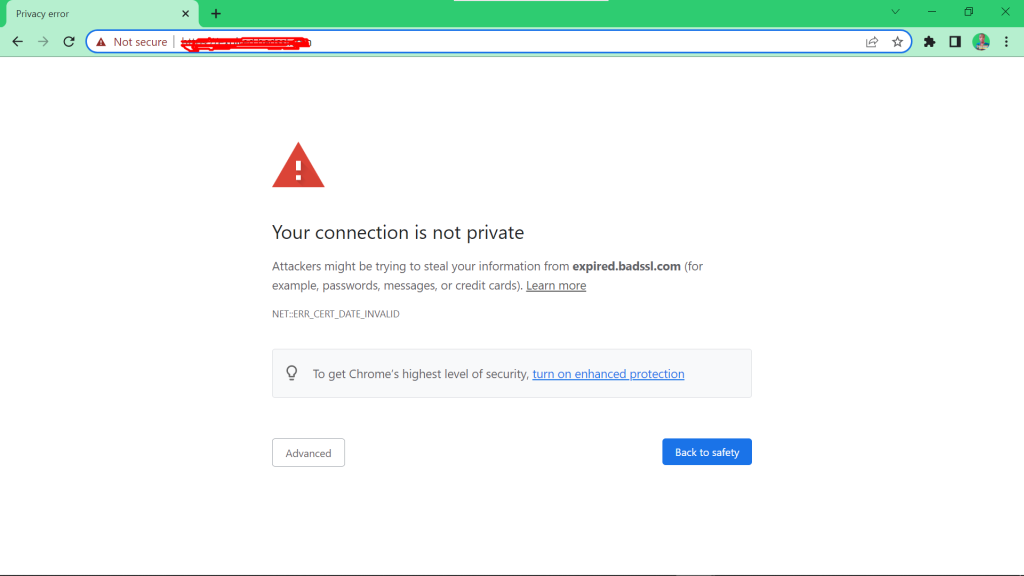
Before jumping into the solutions, it helps to understand what this error actually means. Modern printers like the HP Smart Tank series use encrypted communication to protect data when sending print jobs across a network. This encrypted communication relies on something called a security certificate.
A security certificate works like a digital identity card that confirms the printer is a trusted device. When your Mac sends a document to print, it checks the certificate to make sure the connection is secure.
However, certificates have an expiration date. When the certificate expires or when the printer’s system clock is incorrect, the computer may refuse to communicate with the printer. As a result, the printer appears connected but cannot print.
Typical situations that trigger this error include:
- The printer firmware has not been updated for a long time
- The printer’s date and time reset after a power outage
- macOS saved an outdated security certificate
- Network settings changed or were reset
Understanding these causes makes it easier to solve the problem quickly.
Restart the Printer and Wi-Fi Router
One of the easiest troubleshooting steps is simply restarting the printer and the Wi-Fi router. Many network-related problems occur because devices remain connected for long periods without refreshing the connection. Restarting forces both devices to establish a new secure connection.
When printers communicate with computers over Wi-Fi, temporary communication glitches can occur. These glitches may trigger certificate or connection warnings even when nothing is actually wrong with the printer.
Steps to restart properly
- Turn off the printer using the power button
- Unplug the printer from the power outlet
- Restart your Wi-Fi router
- Wait about two minutes for the network to reconnect
- Turn the printer back on
After the printer reconnects to Wi-Fi, try printing again from your Mac. Many users find that this simple step resolves the issue immediately.
Check the Printer Date and Time
Incorrect date and time settings are one of the most common causes of certificate errors. Security certificates depend on accurate system time. If the printer believes the current date is earlier or later than it actually is, the certificate may appear invalid or expired.
For example, after a power outage or factory reset, the printer might automatically change its date to a default value such as 2015 or 2016. When your Mac checks the certificate against that incorrect date, it refuses the connection.
Steps to check the date and time
- Open the printer’s control panel
- Tap Settings
- Navigate to Preferences
- Select Date & Time
- Enter the correct current date and time
Once the time is corrected, restart the printer and send a test print from your Mac. In many cases, printing resumes immediately after this adjustment.
HP DeskJet 2700 Printer Offline Fix (Step-by-Step Guide)
Update the Printer Firmware

Printer firmware is the internal software that controls the printer’s functions. Manufacturers release firmware updates regularly to improve performance, fix bugs, and update security certificates.
If the firmware on your printer is outdated, the built-in security certificate may no longer be valid. Updating the firmware installs a new certificate and resolves compatibility issues with macOS.
Steps to update firmware on Mac
- Open the HP Smart app on your Mac
- Select your printer from the device list
- Open Advanced Settings
- Look for Printer Update or Firmware Update
- Install any available updates
Once the update finishes, restart the printer and try printing again.
Remove and Re-Add the Printer in macOS
Sometimes the Mac computer stores an outdated certificate connection from a previous printer session. Even after the printer updates its certificate, macOS may still attempt to connect using the old credentials.
Removing and re-adding the printer forces the system to create a completely new connection.
Steps to do this
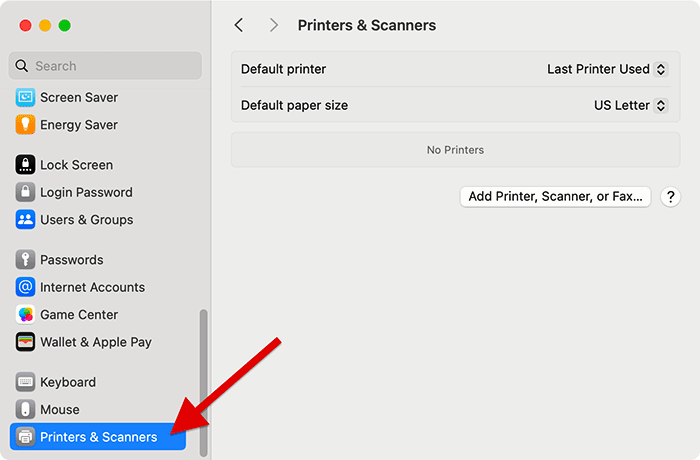
- Open System Preferences
- Click Printers & Scanners
- Select the printer in the list
- Click the minus (–) button to remove it
- Restart your Mac
- Click Add Printer (+) and select the printer again
Once the printer reconnects, send a test print.
Printer Was Working Fine but Suddenly Stopped?
Reset the Printer Network Settings
If the certificate error continues, resetting the printer’s network settings can often solve the problem. Over time, network configurations may become corrupted or incompatible with newer security settings.
Resetting the network removes all saved Wi-Fi data and allows the printer to establish a fresh secure connection with the router.
Steps
- Open the printer Settings menu
- Navigate to Network Setup
- Select Restore Network Defaults
- Reconnect the printer to Wi-Fi
- Add the printer again on your Mac
This process clears previous security certificates and network conflicts.
Real-Life Troubleshooting Example
In one home office case, a user reported that their printer suddenly stopped working with the message “Encryption Certificate Expired.” The printer appeared connected to Wi-Fi, but every document remained stuck in the print queue.
After checking the settings, the real problem turned out to be extremely simple. The printer’s internal clock had reset to January 2016 after a power outage. Because the certificate was being checked against the wrong date, macOS refused the connection.
Once the correct date was set and the printer was restarted, printing worked immediately without any additional changes.
Tips to Prevent Certificate Errors in the Future
Printer certificate errors are usually easy to fix, but it is better to prevent them from happening in the first place.
You can reduce the chances of encountering this issue by following a few simple habits:
- Keep the printer firmware updated
- Ensure the printer date and time are correct
- Restart the printer occasionally
- Use updated printer drivers
- Keep the printer connected to the internet
These steps help maintain proper communication between the printer and your computer.
Quick Troubleshooting Summary
| Problem | Recommended Solution |
|---|---|
| Encryption certificate expired | Restart printer and router |
| Secure connection error | Check printer date and time |
| Printer not communicating with Mac | Update printer firmware |
| Old certificate connection | Remove and re-add printer |
| Network communication issue | Reset printer network settings |
FAQs – Encryption Certificate Expired (HP Smart Tank 7605)
This usually happens when the printer’s internal security certificate expires or the printer date and time are incorrect. It can also occur if the firmware is outdated.
In most cases, printing stops over Wi-Fi or AirPrint. However, printing via USB may still work until the issue is fixed.
First restart the printer and Wi-Fi router, then check the printer’s date and time. If the problem continues, update the printer firmware and reconnect the printer on your Mac.
Resetting the network settings often helps because it removes old certificates and reconnects the printer with fresh network security settings.
Usually not. Most users can solve the issue by updating firmware, correcting the date, or reconnecting the printer to Wi-Fi.
Keep the printer firmware updated, ensure the date and time are correct, and occasionally restart the printer to refresh network connections.