At edudwar.com, we focus on writing practical technology guides that help real users solve everyday device problems. Many people buy streaming devices like Amazon Firestick but are not always sure how to use them fully. Our blog explains these topics in simple language so that even someone with very little technical knowledge can follow the steps. In this guide, we will show you how to install IPTV on Firestick, what IPTV actually means, and how you can start watching live TV channels using your Firestick within a few minutes.
What IPTV Means
IPTV stands for Internet Protocol Television. Instead of receiving television channels through cable or satellite, IPTV delivers channels using your internet connection.
In simple words, your internet becomes the source of TV channels.
With IPTV you can watch
• Live television channels
• Sports channels
• Movies
• TV shows
• International channels
Many users install IPTV on Firestick because the device is small, affordable, and designed for streaming.
Why Firestick Works Well for IPTV
Amazon Firestick is one of the most popular streaming devices in the world. It connects directly to your TV and allows you to install different streaming apps.
When you install an IPTV player on Firestick, you can watch live TV channels using your IPTV subscription.
Some advantages include
• Easy installation
• Smooth streaming experience
• Supports many IPTV apps
• Works with almost any television
• Portable and simple to use
Because of these reasons, Firestick has become a popular device for IPTV streaming.
What You Need Before Installing IPTV
Before starting the installation, make sure you have the following things ready.
Amazon Firestick connected to your TV
A stable internet connection
An IPTV subscription from a provider
An IPTV player application
Remember that IPTV apps do not provide channels. They only play the channels that come from your IPTV service.
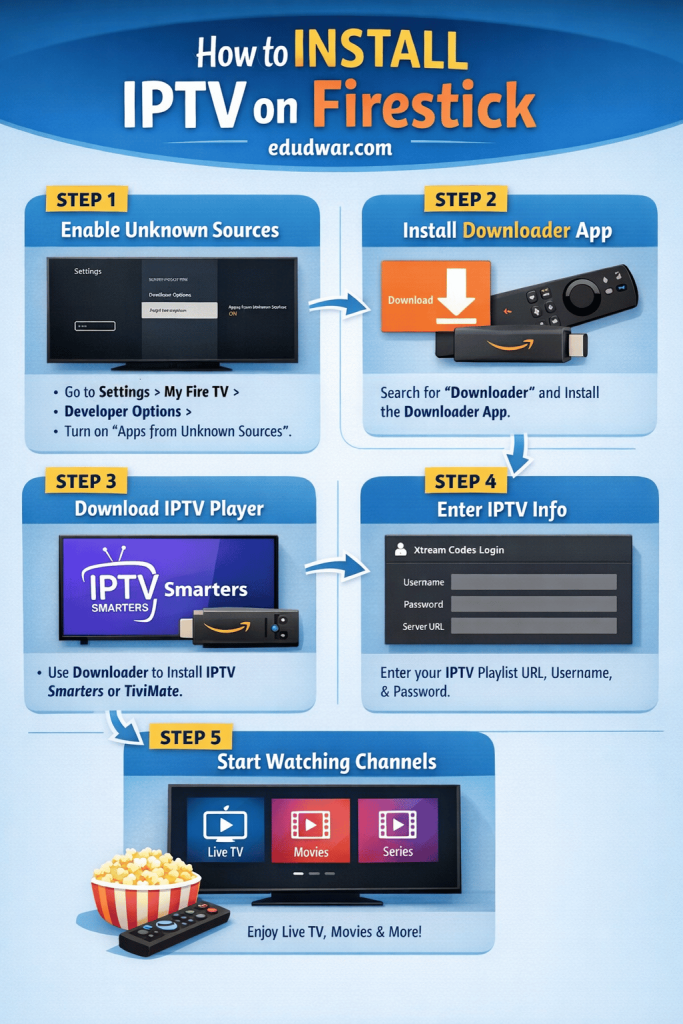
Step 1: Allow Installation from Unknown Sources
Some IPTV apps are not available directly in the Amazon App Store. Because of this, you need to allow your Firestick to install apps from other sources.
Follow these steps.
- Turn on your Firestick
- Go to Settings on the home screen
- Select My Fire TV
- Open Developer Options
- Turn on Apps from Unknown Sources
This setting allows your device to install third party apps.
Step 2: Install the Downloader App
Downloader is the easiest tool used to install apps that are not available in the Firestick store.
Steps to install it
- Go to the Firestick home screen
- Select the Search option
- Type Downloader
- Open the Downloader app
- Click Download
Once installed, open the Downloader application.
Step 3: Download an IPTV Player
You now need an IPTV player. One of the commonly used apps is IPTV Smarters.
Steps to install it using Downloader
- Open the Downloader app
- Enter the IPTV Smarters download URL
- Click Go
- Wait for the download to finish
- Click Install
After installation, you can open the IPTV Smarters app.
Step 4: Add Your IPTV Service
When the IPTV player opens for the first time, it will ask for login information.
Most IPTV providers give users one of the following options
M3U playlist link
Xtream Codes login
Username and password
Steps to add your account
- Open IPTV Smarters
- Choose Login with Xtream Codes API
- Enter your username
- Enter your password
- Add the server URL
- Click Add User
The app will load your IPTV channel list.
Step 5: Start Watching Channels
Once the channels load, you will see different sections such as
Live TV
Movies
Series
Catch up content
Select the category you want and start streaming.
Popular IPTV Apps for Firestick
Several IPTV players work well with Firestick. Some commonly used options include
IPTV Smarters
TiviMate
XCIPTV Player
Perfect Player
Smart IPTV
All these apps work as media players and require an IPTV subscription.
Tips for Smooth IPTV Streaming
If you want a better viewing experience, keep these simple tips in mind.
Use a fast internet connection
Restart Firestick occasionally
Keep apps updated
Clear Firestick cache when storage becomes full
These small steps often help reduce buffering issues.
Is IPTV Safe to Use
IPTV technology itself is not illegal. Many companies use IPTV to deliver television services over the internet.
However, the legality depends on the IPTV provider you use. It is always recommended to use services that have proper streaming rights.
Installing IPTV on Firestick is not complicated. Once you enable unknown sources, install the Downloader app, and add an IPTV player, the rest of the process only takes a few minutes. After entering your IPTV subscription details, you can start watching live TV channels, movies, and shows directly on your television.
Firestick makes IPTV streaming convenient because the device is simple, portable, and built specifically for online entertainment.
FAQs
Can Firestick run IPTV apps?
Yes. Firestick supports many IPTV player apps that allow users to stream channels using an IPTV subscription.
Do IPTV apps provide channels?
No. IPTV apps only act as players. You need a subscription from an IPTV provider.
Which IPTV app is best for Firestick?
IPTV Smarters and TiviMate are two popular options because they are stable and easy to use.
Do I need fast internet for IPTV?
Yes. A stable internet connection helps avoid buffering and improves streaming quality.