
The HP DeskJet 2700 series is a popular budget printer used in many homes and small offices. However, many users face a common issue where the printer suddenly shows “Offline” on their computer even though the printer is turned on.
When this happens, your computer cannot communicate with the printer, so printing stops completely.
The good news is that the HP DeskJet 2700 offline error is usually easy to fix. In this guide, you’ll learn simple troubleshooting steps used by printer technicians to bring the printer back online quickly.
Why Your HP DeskJet 2700 Shows Offline
Before fixing the issue, it helps to understand what causes the offline error. When a printer goes offline, it usually means the computer cannot detect the printer over the network or USB connection.
Common causes include:
- Printer connected to the wrong WiFi network
- Weak or unstable WiFi signal
- Stuck print jobs in the queue
- Outdated printer drivers
- Incorrect printer settings in Windows or macOS
Identifying the cause makes it much easier to apply the correct fix.
HP Printer Says PIN Is Incorrect?
Quick Fix: Restart Your Printer and Router
Sometimes the offline problem happens due to a temporary network glitch. Restarting your devices can quickly restore the connection between the computer and the printer.
Steps to Restart
- Turn off your HP DeskJet 2700 printer
- Unplug the power cable
- Restart your WiFi router
- Restart your computer
- Turn the printer back on
After restarting everything, try printing again. In many cases, this simple step immediately fixes the problem.
Fix 1: Make Sure Printer Is Connected to WiFi
The HP DeskJet 2700 is a wireless printer, so it must be connected to the same WiFi network as your computer or phone. If the printer connects to a different network, it will appear offline.
Check WiFi Status
Look at the blue wireless light on the printer:
- Solid blue → printer connected to WiFi
- Blinking blue → printer not connected
Reconnect Printer to WiFi
- Open the HP Smart App
- Click Add Printer
- Select HP DeskJet 2700
- Enter your WiFi password
Once the printer reconnects, the offline error usually disappears.
Fix 2: Disable “Use Printer Offline” in Windows
Sometimes Windows accidentally sets the printer to offline mode, even when the printer is connected properly.
How to Disable Offline Mode
- Open Control Panel
- Click Devices and Printers
- Right-click HP DeskJet 2700
- Select See what’s printing
- Click Printer from the top menu
- Uncheck Use Printer Offline
This tells Windows to communicate with the printer again.
Complete Guide to Printer Error Codes: Error 30-42 Troubleshooting
Fix 3: Clear Stuck Print Jobs
A stuck document in the print queue can prevent new print jobs from being processed. When this happens, the printer may appear offline.
Steps to Clear Print Queue
- Open Printers & Scanners
- Select HP DeskJet 2700
- Click Open Print Queue
- Cancel all pending print jobs
- Restart the printer
After clearing the queue, try printing again.
Fix 4: Update or Reinstall Printer Drivers
Printer drivers allow your computer to communicate with the printer hardware. If drivers become outdated or corrupted, printing problems can occur.
How to Update Drivers
- Visit the HP official support website
- Search for HP DeskJet 2700 drivers
- Download the latest version
- Install and restart your computer
Updated drivers often resolve communication issues between the printer and your operating system.
HP OfficeJet Pro 8620 Not Printing on Windows 11? Fix It Step-by-Step
Fix 5: Remove and Add the Printer Again
If the printer still shows offline, reinstalling the printer can reset the connection settings.
Steps to Reinstall Printer
- Open Settings
- Click Printers & Scanners
- Select HP DeskJet 2700
- Click Remove Device
- Restart your computer
- Click Add Printer
This refreshes the printer configuration and reconnects it to your system.
Fix 6: Assign a Static IP Address (Advanced Solution)
Sometimes the router assigns a new IP address to the printer, which causes connection problems. Assigning a static IP address ensures the printer always uses the same network address.
Steps to Assign Static IP
- Print the network configuration page
- Note the printer IP address
- Enter the IP address in a web browser
- Open Network Settings
- Select Manual IP
This advanced fix prevents the printer from going offline frequently.
Fix 7: Restart the Print Spooler Service
The Print Spooler service manages print jobs in Windows. If this service stops working, printers may appear offline.
Steps to Restart Print Spooler
- Press Windows + R
- Type services.msc
- Find Print Spooler
- Right-click and click Restart
This refreshes the printing system in Windows.
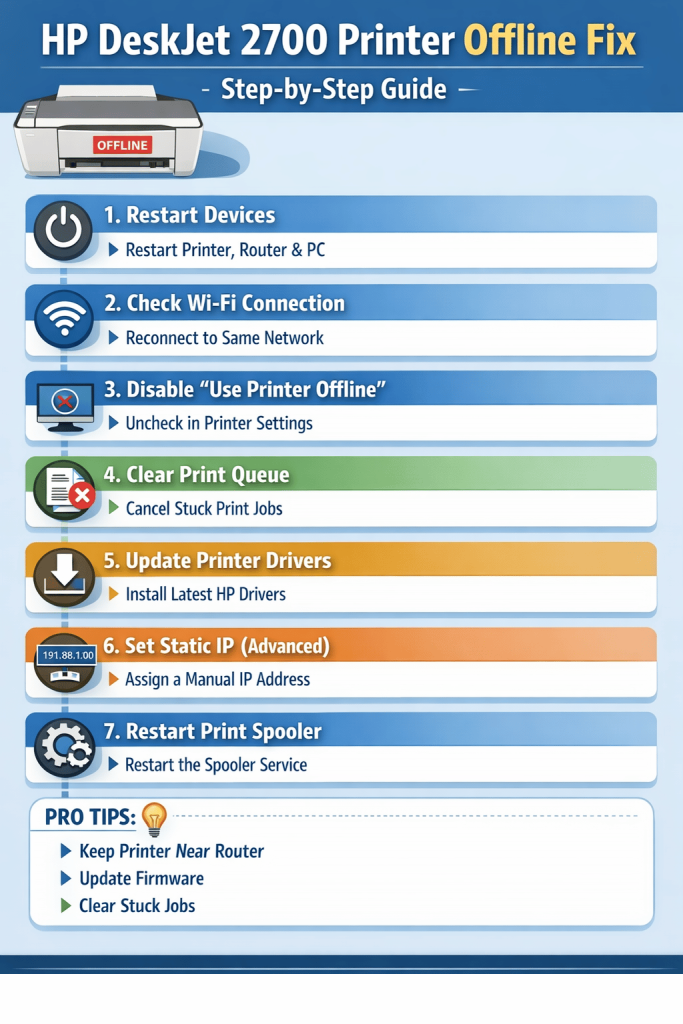
Pro Tips to Prevent HP DeskJet 2700 Offline Error
Preventing the problem is easier than fixing it. Following a few simple habits can keep your printer running smoothly.
Helpful tips:
- Keep the printer close to your WiFi router
- Avoid connecting to guest networks
- Update printer firmware regularly
- Restart the printer occasionally
- Clear the print queue if jobs get stuck
These small steps can significantly reduce printer connectivity problems.
Frequently Asked Questions
Why does my HP DeskJet 2700 keep going offline?
This usually happens due to WiFi connection issues, incorrect printer settings, or outdated drivers.
How do I bring my HP printer back online?
Open Devices and Printers, select your printer, and disable “Use Printer Offline.”
Can WiFi problems cause printer offline errors?
Yes. Weak WiFi signals or network interruptions can disconnect the printer from your computer.
Final Thoughts
The HP DeskJet 2700 offline error is a common issue but usually easy to fix. Most of the time, the problem occurs because of a simple network or settings issue.
Start with these steps:
- Restart printer and router
- Check WiFi connection
- Disable Use Printer Offline
- Update printer drivers
Following this guide should help you bring your printer back online within minutes.