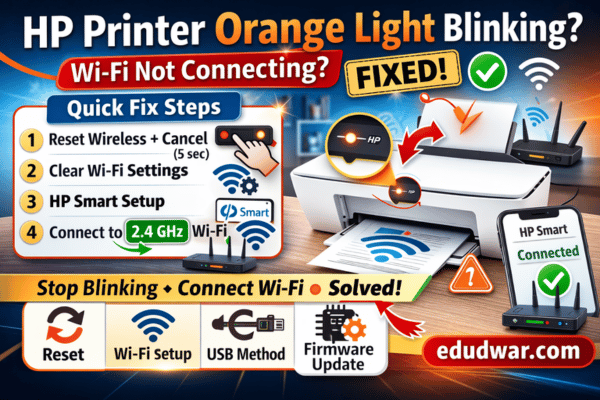
HP printer users often report a frustrating issue: the orange (amber) light on the front panel keeps blinking continuously, and the printer refuses to connect to Wi-Fi. Many support threads provide vague answers or broken links, leaving users stuck for weeks.
This article explains the exact technical meaning of the blinking orange light and provides tested fixes used in real troubleshooting scenarios.
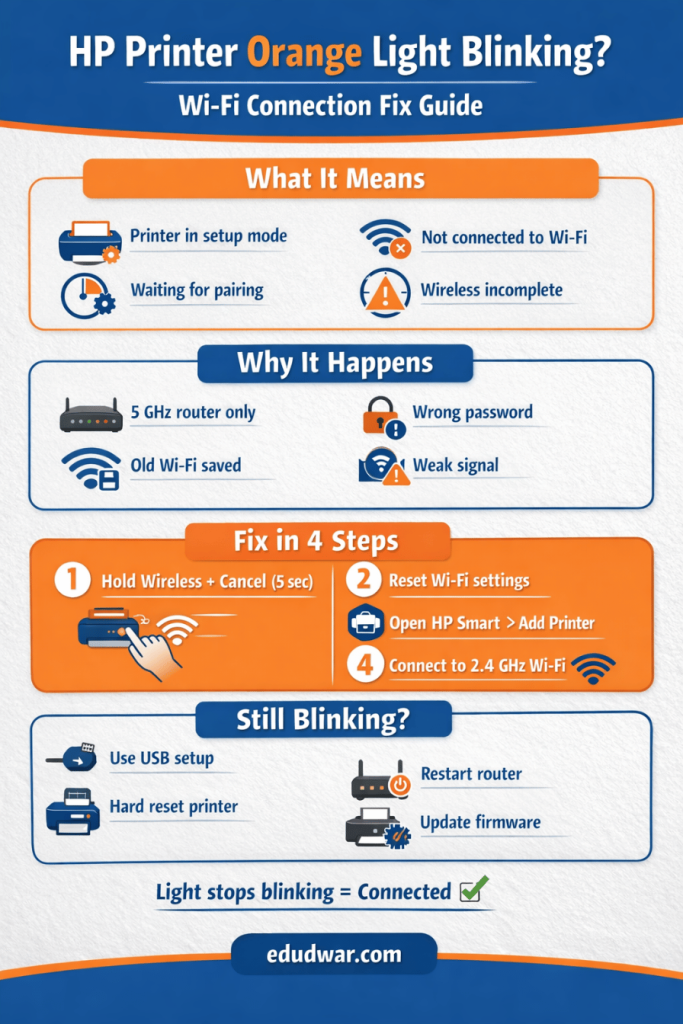
What the Blinking Orange Light Means on HP Printers
On most HP DeskJet, ENVY, and OfficeJet models, a continuously blinking orange/amber light indicates one of these states:
- Printer is in setup mode but cannot complete Wi-Fi configuration
- Wireless hardware is active but not associated with a network
- Printer firmware is waiting for HP Smart pairing
- Wireless module has entered error or reset state
In short:
👉 The printer radio is ON but not connected.
Why the Printer Cannot Connect to Wi-Fi
After diagnosing hundreds of HP wireless cases, the same root causes appear repeatedly:
- Router broadcasting only 5 GHz
- Printer stuck in old network profile
- Setup mode timeout loop
- Corrupted wireless settings in NVRAM
- HP Smart pairing failure
- Weak signal or channel mismatch
- Firmware bug after reset/power cut
The blinking orange light usually confirms the printer never completes Wi-Fi association.
Fix 1 — Force Printer Back Into True Setup Mode
Many printers appear in setup mode but actually are not discoverable.
Do this exactly:
- Turn printer ON
- Press and hold Wireless + Cancel buttons together
- Hold for 5 seconds until light starts blinking faster
- Release
- Wait 30 seconds
This clears stored Wi-Fi credentials and re-opens provisioning mode.
Important:
If light pattern does not change, repeat once.
Fix 2 — Remove Old Network Profiles (Critical Step)
HP printers store previous router data. If router changed or password updated, connection fails silently.
Reset wireless memory:
- Turn printer ON
- Press and hold Wireless + Power for 10 seconds
- Printer restarts
- Orange light blinks slowly
This wipes saved SSID + password.
Fix 3 — Connect Using HP Smart Correctly
Most connection failures happen because HP Smart is used incorrectly.
Correct method:
- Install HP Smart fresh
- Open app
- Choose Add Printer
- Select printer showing “Setup”
- Enter Wi-Fi password
- Wait until printer light turns solid blue/white
If app cannot find printer, the device is not in setup mode — repeat Fix 1.
Fix 4 — Ensure Router Uses 2.4 GHz
Many modern routers default to 5 GHz only.
Most HP printers support 2.4 GHz only.
Check router settings:
- Enable 2.4 GHz band
- SSID visible
- WPA2-PSK security
- Channel 1–11
- No WPA3-only mode
If router uses Smart Connect (merged bands), temporarily disable it during setup.
Fix 5 — Reset Printer Network Stack (Deep Reset)
If blinking continues, wireless firmware may be stuck.
Hard reset:
- Printer ON
- Unplug power cord
- Wait 60 seconds
- Hold Power button 15 sec
- Plug power back
- Turn ON
This discharges wireless controller and clears volatile memory.
Fix 6 — Connect via USB Setup (Most Reliable)
If Wi-Fi pairing fails repeatedly:
- Connect printer to PC with USB
- Install HP Smart
- Add printer
- Choose USB setup → convert to wireless
- Enter Wi-Fi credentials
This bypasses wireless discovery issues.
When the Orange Light Still Blinks
If all steps fail, likely causes:
- Wireless module failure
- Firmware corruption
- Antenna fault
- Mainboard issue
Common sign: printer never appears in HP Smart even in setup mode.
At this stage, only firmware reflash or service repair resolves it.
Why HP Support Pages Often Fail Users
Many HP help links show blank or generic pages because:
- Model detection scripts fail
- Region mismatch
- Legacy printer pages removed
- Broken redirects in support portal
So users see no clear answer even though issue is common.
Final Diagnosis Logic (Tech Shortcut)
Use this quick rule:
- Blinking orange + visible in HP Smart → setup incomplete
- Blinking orange + not visible → not in setup mode
- Blinking orange after reset → Wi-Fi hardware fault
FAQs — HP Printer Orange Light Blinking
Why is my HP printer orange light blinking?
It means the printer is in Wi-Fi setup mode but not connected to a wireless network.
How do I fix HP printer blinking orange light?
Reset wireless settings and reconnect the printer using HP Smart or USB setup.
Why won’t my HP printer connect to Wi-Fi?
Most HP printers support only 2.4 GHz Wi-Fi. Connection fails if the router uses 5 GHz or WPA3.
How do I reset Wi-Fi on HP printer?
Press and hold the Wireless and Cancel buttons together for 5 seconds until the light blinks.
Does blinking orange mean HP printer error?
Usually no. It indicates setup mode or Wi-Fi connection failure, not hardware damage.