You hit print, walk over to the tray, and pick up a stack of perfectly white, perfectly useless sheets of paper. No ink. No text. Nothing. It happens at the worst possible times — right before a meeting, while trying to print a boarding pass, or when you finally sit down to print your kid’s school project at 10 p.m.
If your HP printer is spitting out blank pages, I want to walk you through exactly what causes this and how to fix it. I’ve worked through this issue dozens of times, both on my own home office setup and helping others troubleshoot remotely. Most of the time, the fix is simpler than you’d expect.
Why Is My HP Printer Printing Blank Pages?
Before you start swapping cartridges or reinstalling drivers, it helps to understand what’s likely going wrong. HP printers print blank pages for a handful of specific reasons, and most of them are easy to narrow down.
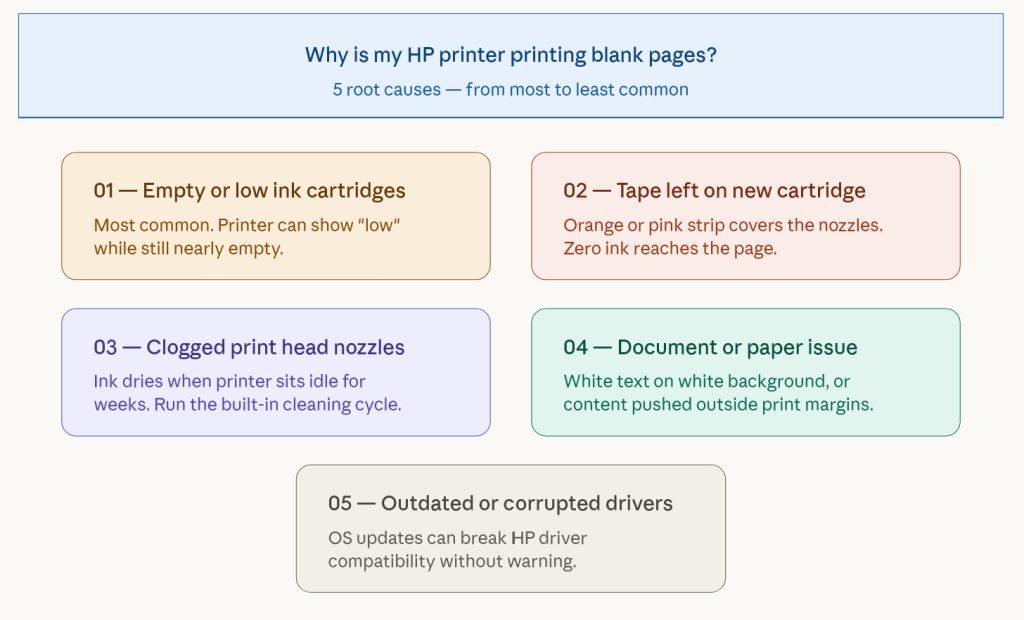
1. The Ink Cartridges Are Empty or Low
This is the most common cause, and the one people overlook because the printer doesn’t always throw up an obvious warning. HP cartridges can run extremely low and still technically register as “okay” in the software. The printer tries to print, the cartridge has almost nothing left, and you get a blank page.
A friend of mine spent an hour reinstalling her HP OfficeJet Pro drivers last year convinced there was a software issue. Turned out the black cartridge was completely empty. The indicator on her Mac showed “low” but not “empty,” and she assumed it was fine. Swapping the cartridge fixed it immediately.
2. Protective Tape Was Not Removed from a New Cartridge
New HP cartridges come with a small strip of plastic tape covering the ink nozzles. This tape exists to protect the cartridge during shipping. If you installed a new cartridge but forgot to peel off that tape, zero ink can reach the page. The printer runs through its process and outputs nothing.
Pull the cartridge out and check. The tape is usually orange or pink and covers the copper contacts or the nozzle area at the bottom. Peel it completely and reinstall. This one is embarrassingly common and nothing to feel bad about.
3. Clogged Print Head Nozzles
If your printer sits unused for a few weeks, the ink in the print head nozzles can dry out and clog. When this happens, the printer goes through the motions of printing but no ink actually transfers to the paper. You might also notice faded streaks or partial text on other print jobs, which is a clear sign of partial clogging.
HP printers have a built-in cleaning cycle designed specifically for this. More on how to run it below.
4. Wrong Paper Settings or Paper Feed Issues
Sometimes the printer is printing fine, but the page settings are set up incorrectly. If the document was created on a white background with white text, or if the margins push all content off the printable area, you get a blank-looking page even though technically the printer did its job. This is more common when printing from PDFs or unusual document formats.
There’s also a possibility of a paper feed issue where the printer pulls through a sheet without it ever properly contacting the ink. This tends to happen with glossy or heavy paper that’s loaded incorrectly.
HP DeskJet 2700 Printer Offline Fix
5. Outdated or Corrupted Printer Drivers
Driver issues can cause the printer to receive the print job, go through all the right motions, and still output nothing. This is less common but does happen, especially after operating system updates. Windows and macOS updates sometimes break HP printer driver compatibility without warning.
How to Fix an HP Printer Printing Blank Pages
Work through these fixes in order. Start with the simplest ones before moving to anything that involves software or settings.
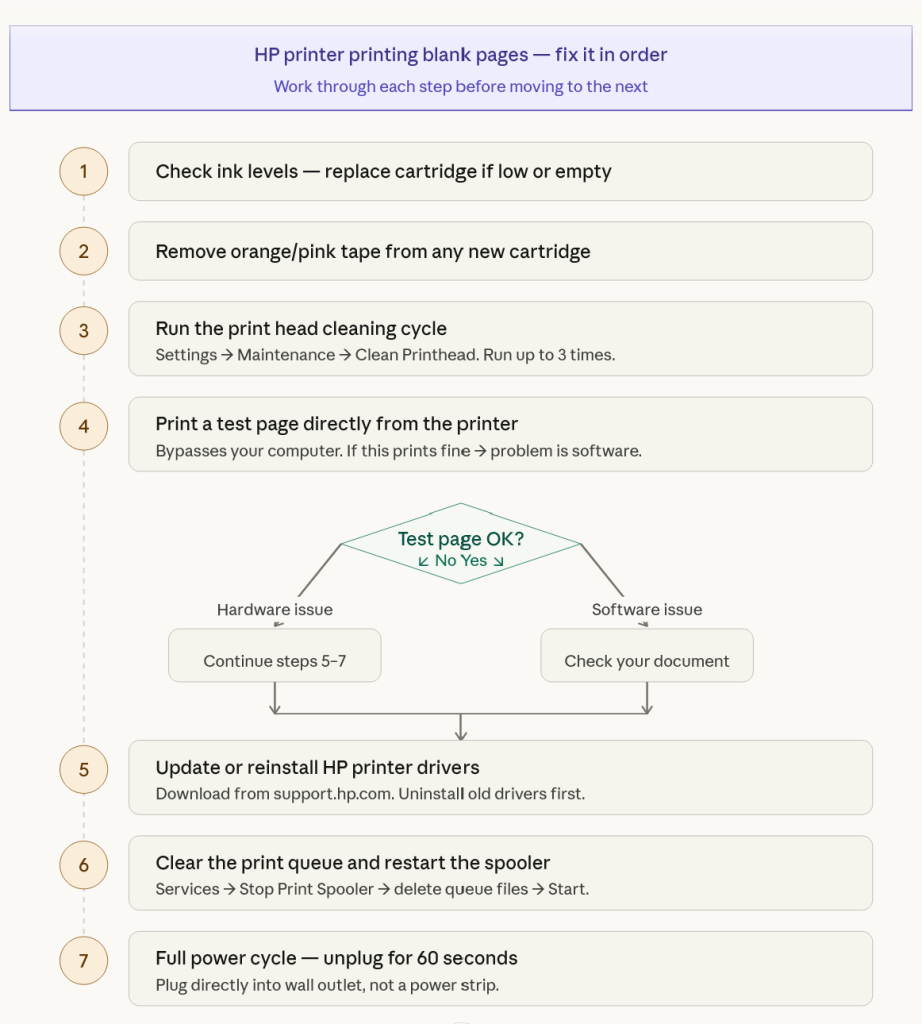
Step 1: Check and Replace the Ink Cartridges
Open your HP printer’s ink monitoring tool. On Windows, this is usually accessible through the HP Smart app or the printer’s own software. On Mac, you can check through System Preferences under Printers and Scanners. Look at the ink levels for each cartridge.
If any cartridge is at or near empty, replace it. Even if the software shows “low” rather than “empty,” a cartridge that’s nearly dry will produce inconsistent or blank output. When in doubt, swap it out.
Also check for that protective tape on any recently installed cartridge. Open the cartridge access door, remove the cartridge, and look at the bottom and side where the nozzles and contacts are. If there’s any tape still attached, remove it completely.
Step 2: Run the Print Head Cleaning Utility
HP printers have a built-in cleaning function that pushes ink through the nozzles to clear any dried-up clogs. Here’s how to access it:
- On the printer’s control panel, go to Settings or Setup
- Look for Printer Maintenance, Tools, or Device Maintenance depending on your HP model
- Select Clean Printhead or Clean Print Cartridges
- Let the cleaning cycle complete, then print a test page
If the test page still looks blank or faded, run the cleaning cycle a second time. Most HP models allow up to three cleaning cycles before recommending further steps. Be aware that each cycle uses a small amount of ink, so don’t run it excessively.
I had an HP Envy 6055 in my home office that sat unused for about six weeks while I was traveling. When I came back and tried to print, every page came out completely blank. Two cleaning cycles later and the print quality was back to normal. The nozzles had just dried out from sitting idle.
Printer Was Working Fine but Suddenly Stopped?
Step 3: Print a Diagnostic or Test Page
Printing a test page directly from the printer bypasses your computer entirely. If the test page prints fine but documents from your computer come out blank, the problem is with your software, driver, or document file rather than the hardware.
To print a test page from the printer itself, hold down the power button or navigate to Printer Reports, then Test Page in the printer’s menu. Different HP models handle this slightly differently, but the option is almost always there under Setup or Information.
A successful test page that prints with ink tells you the hardware is working. Now you know to look at the software side.
Step 4: Check Your Document Before Assuming It’s the Printer
Open the document you were trying to print and look at it carefully. Check if the text or images are actually visible on screen. Then go to File, Print, and use the print preview option if one is available. Look at what the printer is actually being sent.
A colleague once called me frustrated that her HP printer was broken. She had created a form in Word, and the background was set to white with light gray text. On screen it looked fine because of her monitor calibration. On paper it was essentially invisible. Not a printer problem at all — just a document formatting issue.
Also check that you haven’t accidentally set pages to print as blank or that the print range isn’t set to a page that doesn’t exist in your document.
Step 5: Update or Reinstall Your HP Printer Drivers
If the test page prints fine but your computer-based print jobs still come out blank, a driver issue is worth investigating.
Go to HP’s official support site at support.hp.com and search for your printer model. Download the latest driver package for your operating system. Before installing it, uninstall the existing HP software completely through your system’s application manager. Then restart your computer and install the fresh driver package.
On Windows, you can also go to Device Manager, find your printer under Print Queues, right-click it, and choose Update Driver. This doesn’t always find the most current version, so going directly to HP’s website is the more reliable approach.
Step 6: Clear the Print Queue and Restart the Print Spooler
A stuck or corrupted print job in the queue can cause subsequent jobs to print as blank pages. Here’s how to clear it on Windows:
- Press the Windows key, type Services, and open the Services application
- Scroll down to Print Spooler, right-click it, and select Stop
- Open File Explorer and navigate to C:\Windows\System32\spool\PRINTERS
- Delete all files inside that folder (do not delete the folder itself)
- Go back to Services, right-click Print Spooler, and select Start
- Try printing again
On a Mac, go to System Preferences, Printers and Scanners, select your HP printer, and click Open Print Queue. Cancel all pending jobs. Then try your print job again.
Step 7: Do a Full Power Cycle on the Printer
This step sounds almost too basic, but it genuinely resolves a surprising number of HP printer issues, including blank pages caused by a temporary firmware glitch or a memory issue in the printer itself.
- Turn the printer off using its power button
- Unplug the power cable from the back of the printer and from the wall outlet
- Wait a full 60 seconds — not 5 or 10, a full minute
- Plug the power cable back in directly to a wall outlet, not a power strip
- Turn the printer on and wait for it to finish its startup cycle
- Try printing again
HP specifically recommends plugging directly into a wall outlet rather than a power strip because low or inconsistent voltage can cause the printer to behave unpredictably.
When the Problem Keeps Coming Back
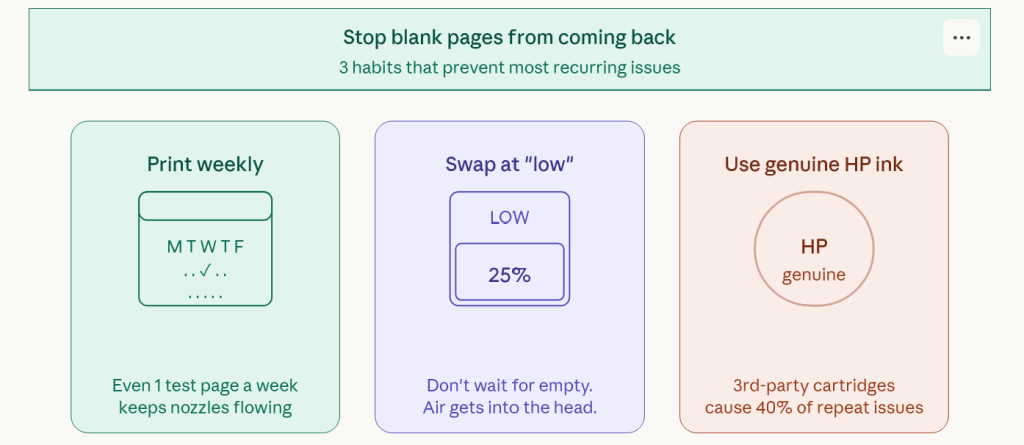
If you fix the blank page issue and it comes back within a few days or weeks, there’s usually an underlying reason worth addressing.
Printers that sit unused for long periods are prone to repeated clogging. If you only print occasionally, try printing a short test page every week or two just to keep the ink flowing through the nozzles. It takes thirty seconds and it prevents the drying-out problem that causes recurring blank pages.
If you’re consistently running cartridges all the way to completely empty before replacing them, you’re increasing the risk of air getting into the print head assembly. It’s better to swap cartridges when the printer first warns you about low ink rather than waiting until they run completely dry.
There’s also the question of third-party cartridges. HP printers are designed around HP’s own ink formulations. Generic or refilled cartridges sometimes work fine, but they can also cause blank page issues, clogging, and even error messages that block printing entirely. If you’re using non-HP cartridges and having ongoing problems, switching to genuine HP cartridges is worth testing.
HP Printer Models This Affects Most Often
The blank page issue shows up across HP’s lineup, but certain models seem to come up more frequently in troubleshooting discussions. The HP DeskJet series, HP Envy series, and HP OfficeJet Pro models are the ones I hear about most. HP ENVY 6000 series printers in particular have a reputation for clogging if left unused, and the HP DeskJet 2700 and 4100 series are common in home setups where the printer might sit idle for weeks at a time.
The troubleshooting steps above apply across all of these models. The menus and button layouts differ slightly, but the underlying fixes are the same regardless of which HP printer you have.
When to Contact HP Support
If you’ve worked through all of the steps above and your HP printer is still printing blank pages, it’s possible there’s a hardware problem with the print head itself. On many HP models, the print head is part of the cartridge, so replacing the cartridges effectively replaces the print head. On higher-end HP models like certain OfficeJet Pro and LaserJet models, the print head is a separate component.
Contact HP support at support.hp.com or call their support line. If your printer is still under warranty, they can often ship a replacement cartridge set or arrange a repair. HP’s virtual support assistant is also reasonably helpful for walking through model-specific diagnostics.
If the printer is several years old and out of warranty, weigh the cost of a repair against the cost of a replacement. Entry-level HP inkjet printers are relatively inexpensive, and at a certain point it makes more sense financially to replace rather than repair.
The Short Version
HP printer printing blank pages almost always comes down to one of these causes: empty or near-empty ink, protective tape left on a new cartridge, clogged nozzles from sitting idle, a document formatting issue, or a driver problem. Start by checking the cartridges, run a cleaning cycle, print a test page directly from the printer, and go from there.
Most people fix this in under ten minutes once they know where to look. The trick is not to jump straight to reinstalling drivers or assuming the printer is broken — nine times out of ten, it’s something straightforward with the ink or a quick cleaning cycle that gets things back to normal.
Was this guide helpful? If you’re still having trouble with your specific HP model, drop the model number in the comments and I’ll do my best to point you in the right direction.