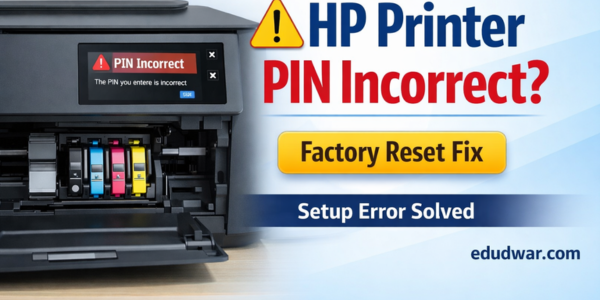
Many HP printer users assume the 8-digit PIN printed inside the front door or cartridge area is permanent and always valid.
But in some cases, users report that even the printed PIN shows as incorrect during setup.
This can happen if the printer’s stored PIN data becomes corrupted.
Several HP community users have confirmed that when the printed label PIN fails, performing a factory reset restores the original PIN and fixes the setup error.
Why the Printed HP Printer PIN Stops Working
The label PIN inside the printer is supposed to match the device’s internal network PIN.
However, the stored value can become mismatched due to:
Interrupted firmware update
Network reset glitches
Setup failure during first installation
Refurbished or returned printer units
Memory corruption in wireless module
When this happens, the printer rejects even the correct label PIN.
The Proven Fix: Factory Reset the HP Printer
A factory reset forces the printer to regenerate and sync its internal PIN with the printed hardware PIN.
This is currently the most reliable fix when:
✔ Label PIN is correct
✔ Setup still says “incorrect PIN”
✔ WPS PIN method fails repeatedly
How to Factory Reset an HP Printer (Most Models)
Touchscreen HP Printers
- Open Setup / Settings
- Go to Printer Maintenance
- Tap Restore
- Select Restore Factory Defaults
- Confirm reset
Printer will restart.
Non-Touch HP Printers (Button Models)
- Turn printer ON
- Press and hold:
Wireless + Cancel (X)
for 5–10 seconds - Release when lights blink
Printer resets network and factory settings.
After Reset: Use the Label PIN Again
Once reset completes:
- Open printer front door
- Locate 8-digit PIN label
- Restart HP setup
- Enter PIN
In most reported cases, the PIN now works normally.
Important: PIN on Label vs WPS PIN on Screen
HP printers may have two different PIN types:
- Label PIN → permanent (inside printer)
- WPS PIN → temporary (on screen)
If the label PIN fails but WPS works → normal
If both fail → factory reset required
Real-World Note from HP Community
Users in HP support forums often report that when the printed PIN is rejected, a factory reset immediately resolves the issue and allows setup to complete successfully.
This suggests the problem is not user error but internal PIN desynchronization.
When You Should Try This Fix
You should perform a factory reset if:
- You entered the label PIN correctly
- Setup still says incorrect
- Multiple attempts failed
- Printer is new or recently reset
- PIN never changes
If your HP printer says the correct 8-digit label PIN is wrong, the issue may be internal corruption — not a typing mistake.
A full factory reset usually restores the original PIN and allows setup to finish normally