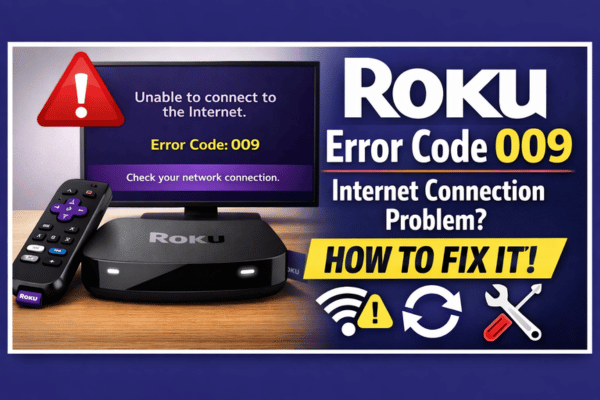
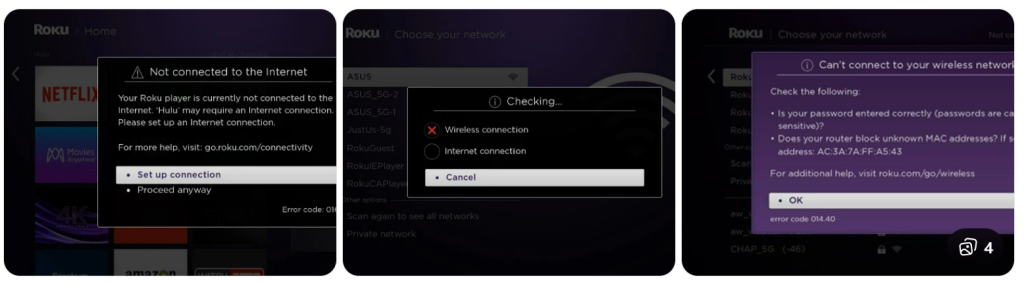
If you see Roku Error Code 009, it means your Roku device is connected to the WiFi network but cannot access the internet. This is a common issue that usually happens due to slow internet, router problems, or temporary network glitches.
When this error appears, streaming apps like Netflix, Hulu, or YouTube may stop working and the Roku device will show a message such as “Unable to connect to the Internet”.
The good news is that this issue is usually easy to fix. In this guide, we will explain the simple step-by-step solutions to fix Roku Error Code 009 and get your streaming device working again.
What Causes Roku Error Code 009?
Before fixing the problem, it helps to understand the possible reasons.
Common causes include:
• Slow or unstable internet connection
• Router connection issues
• Incorrect network settings
• Temporary Roku software glitch
• WiFi signal problems
Once you identify the issue, the fixes below can quickly solve it.
Step 1: Check Your Internet Connection
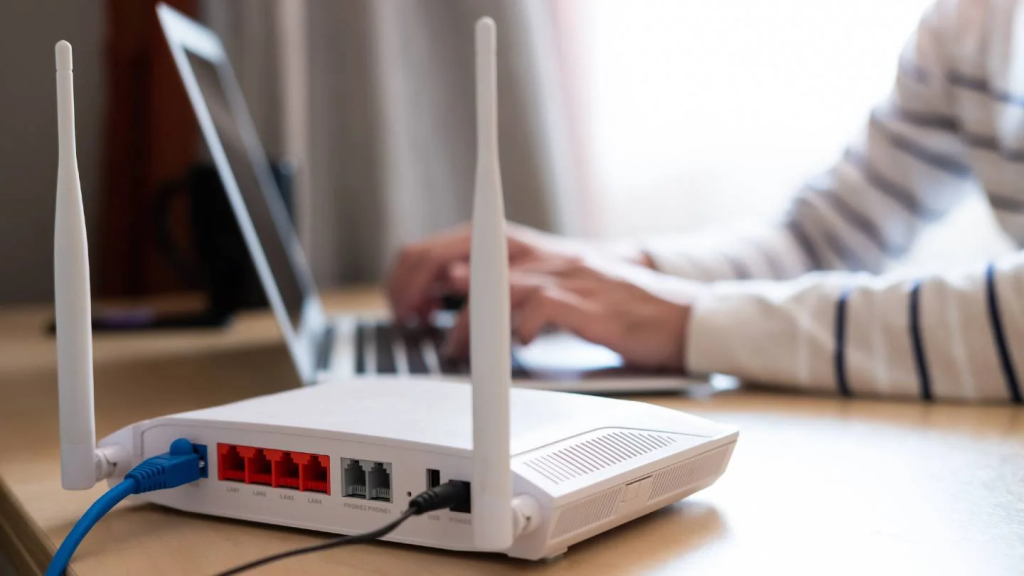
The first thing to check is whether your internet connection is working properly.
How to check
- Try opening a website on your phone or laptop using the same WiFi network.
- If the internet is not working, restart your modem or router.
- Wait for 1–2 minutes and reconnect your Roku device.
If the internet works on other devices but not on Roku, move to the next solution.
Step 2: Restart Your Roku Device
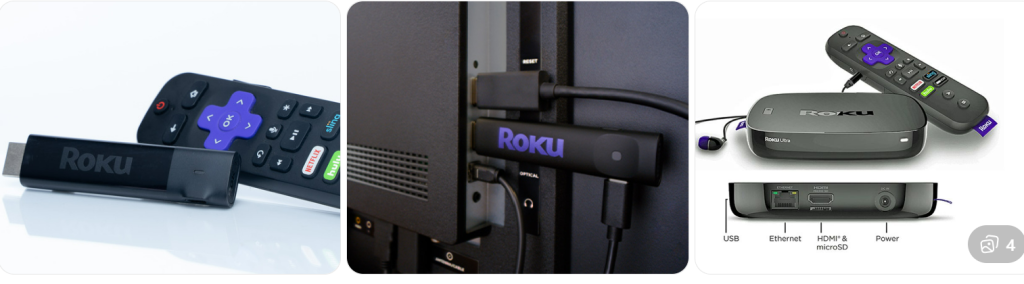
Sometimes the error happens due to a temporary system glitch.
Restart Roku using these steps
- Unplug the Roku device from the power outlet.
- Wait about 60 seconds.
- Plug the device back in.
- Turn on the TV and check if the error disappears.
Restarting clears temporary network problems and often fixes Error 009.
Step 3: Restart Your WiFi Router
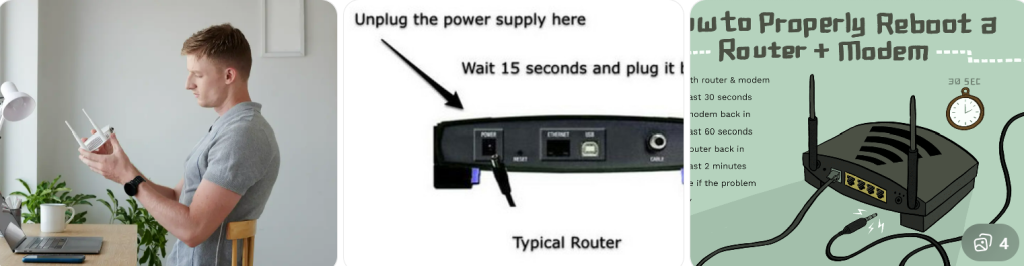
Router issues are one of the most common reasons for Roku connection errors.
Steps to restart router
- Turn off the router and modem.
- Unplug them from the power source.
- Wait 1–2 minutes.
- Plug the modem first and then the router back in.
- Wait until the internet lights become stable.
Now reconnect your Roku device to WiFi.
Step 4: Reconnect Roku to WiFi


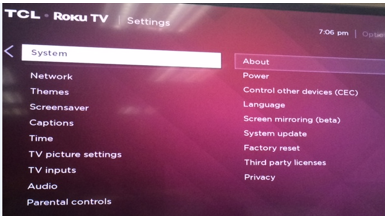
If the network connection was interrupted, reconnecting WiFi may fix the issue.
How to reconnect WiFi
- Go to Settings on your Roku home screen.
- Select Network.
- Choose Set Up Connection.
- Select Wireless.
- Enter your WiFi password and reconnect.
Once connected, Roku will test the network automatically.
Step 5: Improve WiFi Signal Strength
Weak WiFi signals can also cause Roku Error Code 009.
Tips to improve signal
• Move the router closer to the TV
• Remove obstacles between router and Roku
• Avoid placing the router behind walls or cabinets
• Use a WiFi extender if the signal is weak
A stronger signal improves streaming performance.
Step 6: Update Roku Software
Outdated software can sometimes cause connectivity issues.
Update Roku system
- Go to Settings
- Select System
- Click System Update
- Choose Check Now
If an update is available, install it and restart your Roku device.
Step 7: Factory Reset Roku (Last Option)
If none of the solutions work, performing a factory reset may resolve the problem.
Factory reset steps
- Go to Settings
- Select System
- Choose Advanced System Settings
- Click Factory Reset
- Follow the instructions on the screen
Note: This will remove all apps and settings from your Roku device.
Tips to Prevent Roku Error Code 009
Follow these tips to avoid this issue in the future.
• Keep your router updated
• Maintain strong WiFi signal strength
• Restart your router occasionally
• Keep Roku software updated
• Use high speed internet for streaming
Roku Error Code 009 usually appears when the device cannot access the internet even though it is connected to WiFi. In most cases, the issue can be resolved by checking the internet connection, restarting the Roku device, rebooting the router, or reconnecting WiFi.
If the problem continues, updating the system software or performing a factory reset can help restore the connection.
By following the steps in this guide, you should be able to fix Roku Error Code 009 and continue streaming without interruptions.
FAQs
It means the Roku device is connected to WiFi but cannot access the internet.
Restart the Roku device and router, reconnect WiFi, and check your internet speed.
Yes. Slow or unstable internet connections are one of the main reasons for this error.
Factory reset should only be used as a last solution if other troubleshooting steps do not work.