
You sit down to watch something, hit the Roku remote, and instead of your usual home screen you get a gray box and the words: Error Code 014.30. Unable to connect to the internet. It sounds more complicated than it usually is, and nine times out of ten you can fix it yourself in about ten minutes without calling your internet provider or buying any new equipment.
This guide covers what the error actually means, why it happens, and every fix worth trying in the order that makes sense to try them. Real situations from real Roku users are included throughout so you can get a sense of which fix is likely to apply to you.
What Is Roku Error Code 014.30?
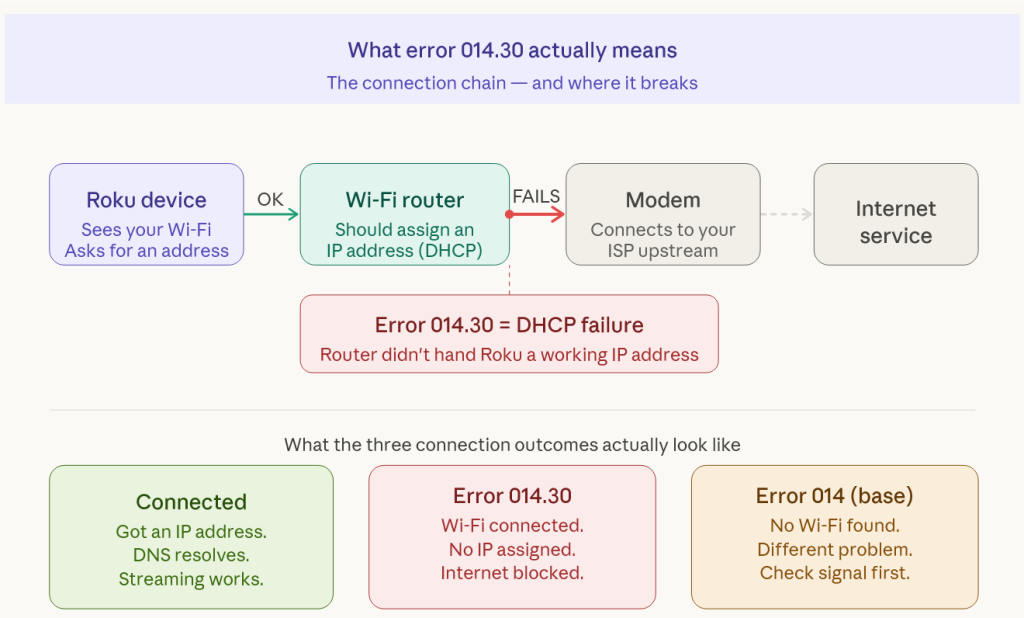
Error code 014.30 is Roku’s way of telling you that the device tried to connect to your wireless network, got a response, but could not complete a working connection to the internet. It is specifically a DHCP failure or IP address assignment problem, which sounds technical but just means your Roku connected to your router but your router did not hand it a working address to use on the internet.
The distinction matters because it changes where you look for the problem. Your Roku can see your Wi-Fi network. It can even show that it has connected. But somewhere in the handshake between your Roku, your router, and your internet service, something broke down.
This is different from error 014 (which means Roku cannot find any network at all) or error 014.40 (which is a slightly different IP address conflict issue). The .30 variant is almost always caused by something temporary and fixable on your end.
Here is a quick summary of what each component in the chain is doing when this error appears:
| Component | What it means during error 014.30 |
| Your Roku device | Found your Wi-Fi signal, tried to connect, failed at address assignment |
| Your Wi-Fi router | May be out of available IP addresses or experiencing a temporary glitch |
| Your modem | May have lost its connection to your ISP or need a refresh |
| Your ISP | Rarely the cause, but occasional outages can trigger this error |
| Roku servers | Almost never the cause of 014.30 specifically |
Common Reasons This Error Happens
Before jumping into fixes, it helps to know the most likely causes based on what situations actually trigger this error.
Your router has run out of available IP addresses
Every device on your network gets a unique IP address assigned by your router. Most home routers are set to allow somewhere between 50 and 254 devices, but some older or budget routers default to far fewer, sometimes as low as 10 or 20. If you have a lot of devices connected, or if your router has accumulated old leases from devices that are no longer on the network, it can run out of addresses to assign. Your Roku shows up asking for one, there are none available, and you get 014.30.
This happened to a family I helped troubleshoot last year. They had moved into a home with a hand-me-down router that was configured to allow only 10 IP addresses at a time. Between their phones, laptops, smart thermostat, security cameras, and the new Roku, they had hit the ceiling. The Roku was the last device added and the first one to throw an error.
A temporary router or modem glitch
Routers are computers, and like any computer they occasionally get into a state where they need a restart to clear out whatever got stuck. If your router has been running for weeks or months without a restart, a spontaneous 014.30 error on your Roku is often just the router needing a fresh start. This is the most common cause overall.
Your Roku has a cached IP address that no longer works
Sometimes your Roku holds onto an old IP address from a previous session that is no longer valid on your current network. This happens if your router restarted while your Roku was off, or if you moved the Roku to a different location with a different network.
Your Wi-Fi signal is too weak where the Roku is located
Error 014.30 can also appear when the Roku can technically see your network but the signal is too weak to complete a reliable connection. This is more likely if the Roku is far from the router, on a different floor, or separated by thick concrete or brick walls.
A conflict with your router’s security settings
Some routers have MAC address filtering, client isolation, or other security settings that can prevent a Roku from getting an IP address even when other devices connect fine. This is less common but worth knowing about if everything else checks out.
How to Fix Roku Error Code 014.30
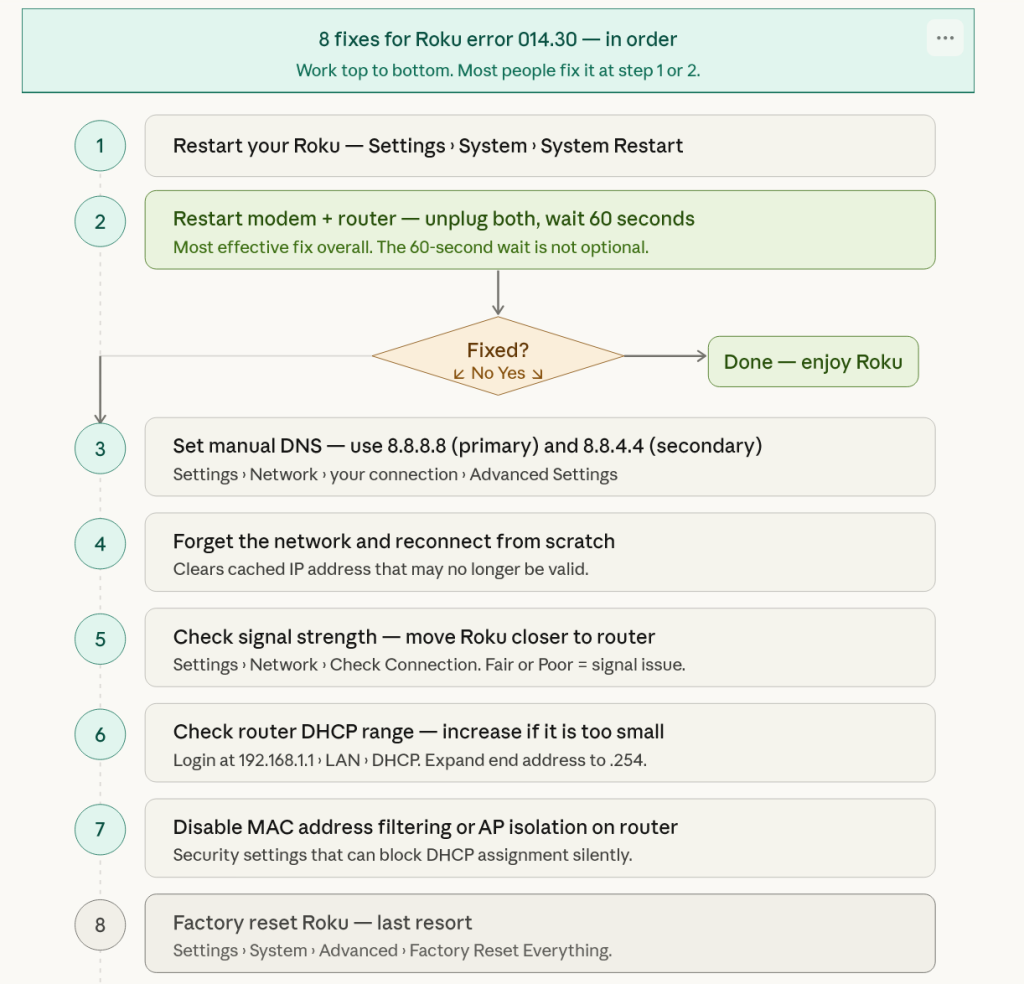
Work through these fixes in order. Most people solve the problem within the first three steps.
Fix 1: Restart your Roku the right way
The standard “turn it off and back on” applies here, but there is a specific way to do it on Roku that is more thorough than just unplugging it.
- Press the Home button on your Roku remote to get to the main screen
- Go to Settings, then System, then System Restart
- Select Restart and wait for the device to fully reboot
- After it restarts, go to Settings, then Network, then Check Connection
If that does not resolve it, do a full power cycle instead: unplug the power cable from the back of your Roku, wait 30 seconds, then plug it back in. Do not just use the remote or power button. You want to fully cut the power so the device clears its memory completely.
If you use a Roku Streaming Stick+ or Roku Express that is powered through a TV USB port, unplug the stick from the TV entirely rather than just turning the TV off. The USB port on many TVs continues supplying power even when the TV is off, which means the Roku never fully restarts.
How to Install IPTV on Firestick (Simple Guide for Beginners)
Fix 2: Restart your router and modem
This is the fix that solves 014.30 more than any other single step. Most people skip it or do it half-heartedly, which is why it does not always work for them.
- Unplug your modem’s power cable from the wall outlet
- Unplug your router’s power cable from the wall outlet (if they are separate devices)
- Wait a full 60 seconds. Not 10 seconds. A full minute.
- Plug the modem back in first and wait 30 to 60 seconds for it to fully connect
- Plug the router back in and wait another 30 to 60 seconds
- Once all the lights on both devices are stable, try your Roku connection again
The 60-second wait is not arbitrary. Modern modems need time to fully release and clear their state before they can properly re-establish a connection with your ISP. Restarting too quickly means you just interrupted a partial startup sequence.
If your modem and router are one combined unit (common with ISP-provided equipment), the same process applies. Unplug it, wait 60 seconds, plug it back in, wait for all lights to stabilize.
Fix 3: Manually set the DNS servers on your Roku
This fix addresses cases where your router is working fine but the DNS servers it is providing to your Roku are not resolving properly. DNS servers translate website names into IP addresses. When they fail or respond slowly, Roku interprets this as a connection failure.
- On your Roku, go to Settings, then Network, then your current connection
- Select the Advanced Settings option if it appears, or look for Edit Connection
- Find the DNS settings option
- Enter a manual DNS address: use 8.8.8.8 as the primary (Google’s public DNS) and 8.8.4.4 as the secondary
- Save the settings and test the connection
Alternatively you can use Cloudflare’s DNS servers: 1.1.1.1 as primary and 1.0.0.1 as secondary. Both options are free, reliable, and often faster than the default DNS provided by home routers.
I had a Roku Express 4K that was throwing 014.30 intermittently on a network where every other device worked perfectly. Switching to Google’s DNS addresses fixed it permanently. The router’s built-in DNS had some kind of timing issue that only affected the Roku.
Fix 4: Forget the network and reconnect from scratch
If your Roku has a cached connection that is no longer working properly, the cleanest solution is to remove it and set up the connection fresh.
- Go to Settings, then Network, then your wireless connection
- Select Forget this network (the wording varies slightly by Roku model)
- Go back to Set Up Connection and choose Wireless
- Select your network name from the list
- Enter your Wi-Fi password and connect
This forces your Roku to request a fresh IP address and DNS configuration from your router rather than trying to use old cached values that may no longer be valid.
Fix 5: Move your Roku closer to the router (or improve signal strength)
If your Roku is more than 30 to 40 feet from your router, or if there are walls, floors, or metal appliances between them, signal strength can be weak enough to cause 014.30 even though the Roku technically sees the network.
You can check signal strength on your Roku by going to Settings, then Network, and selecting Check Connection. It will show your signal strength as Excellent, Good, Fair, or Poor. If it shows Poor or Fair, that is contributing to the problem.
- Try temporarily moving the Roku to the same room as your router to test. If 014.30 disappears, you know signal strength is the issue.
- Consider a Wi-Fi extender or mesh network node positioned between your router and where the Roku is located.
- On routers that support both 2.4 GHz and 5 GHz bands, try connecting your Roku to the 2.4 GHz band. It is slower but has significantly better range and wall penetration than 5 GHz.
- If your Roku model has an ethernet port (Roku Ultra, some Roku TVs), using a wired connection eliminates Wi-Fi signal issues entirely.
Fix 6: Check your router’s DHCP settings
This fix is for people who are comfortable logging into their router’s admin panel. If that sounds unfamiliar, skip to Fix 7 and come back to this one if needed.
To access your router’s admin panel, type your router’s IP address into a web browser. The most common addresses are 192.168.1.1, 192.168.0.1, or 10.0.0.1. Your router’s address is listed on the sticker on the bottom of the device.
- Log in with the admin credentials (also on the sticker if you have not changed them)
- Find the DHCP settings, usually under LAN, Network, or Advanced settings
- Check the DHCP IP address range, which controls how many devices can connect
- Increase the ending IP address of the range if it seems small, for example changing it from 192.168.1.20 to 192.168.1.254
- Also look at the DHCP lease table to see if there are many old, expired leases taking up slots
- Save the settings and restart your router
Expanding the DHCP range gives your router more addresses to hand out, which fixes the problem if you hit the ceiling.
Fix 7: Check for router security settings blocking your Roku
Some routers have features that can unintentionally block a Roku from receiving an IP address. The ones to look for are MAC address filtering, AP isolation (also called client isolation or wireless isolation), and access control lists.
MAC address filtering means the router will only assign IP addresses to devices whose hardware address is on an approved list. If your Roku’s MAC address is not on that list, it will connect to Wi-Fi but never get an internet-usable address. Your Roku’s MAC address is found under Settings, then System, then About.
AP isolation prevents wireless devices from communicating with each other on the same network. On some routers this also prevents proper IP address assignment for streaming devices. If you find this setting enabled, try disabling it and testing your Roku.
Fix 8: Perform a factory reset on your Roku (last resort)
If nothing else has worked, a factory reset wipes your Roku back to out-of-box state. You will need to set it up again and sign back into your streaming services, but it eliminates any software or configuration issue on the Roku itself as a cause.
- Go to Settings, then System, then Advanced System Settings
- Select Factory Reset or Factory Reset Everything
- Follow the on-screen instructions to complete the reset
- Set up your Roku fresh and reconnect to your Wi-Fi network
A factory reset on a Roku Express takes about five minutes. Signing back into your streaming apps adds another ten to fifteen minutes depending on how many you use.
When None of These Fixes Work
If you have worked through every fix above and are still seeing 014.30, there are a few remaining possibilities worth checking.
Your ISP has an outage
Before assuming anything is wrong with your equipment, verify that your internet service is actually working. Open a browser on your phone using mobile data (not your home Wi-Fi) and check a service like downdetector.com for your ISP’s name. You can also try connecting another device like a laptop or phone to your home Wi-Fi and see if it can browse the internet normally.
If other devices on the same network cannot connect either, the problem is upstream from your Roku entirely. Contact your ISP.
Your Roku hardware may be failing
Roku devices are generally reliable but they do occasionally develop hardware problems, particularly with the Wi-Fi antenna. If you have a different Roku device available to test on the same network, and it connects without issue, that points to a hardware problem with the original unit.
Roku devices come with a one-year warranty. If your device is within warranty and nothing software-related has fixed the problem, contact Roku support at support.roku.com for a replacement.
Your router’s firmware needs an update
Outdated router firmware can cause DHCP assignment issues with certain devices. Log into your router’s admin panel and look for a firmware update option under Administration, Maintenance, or Advanced settings. Applying a firmware update and restarting the router has fixed intermittent 014.30 errors for some users, particularly on older Netgear, Linksys, and TP-Link models.
How to Prevent Roku Error 014.30 from Coming Back
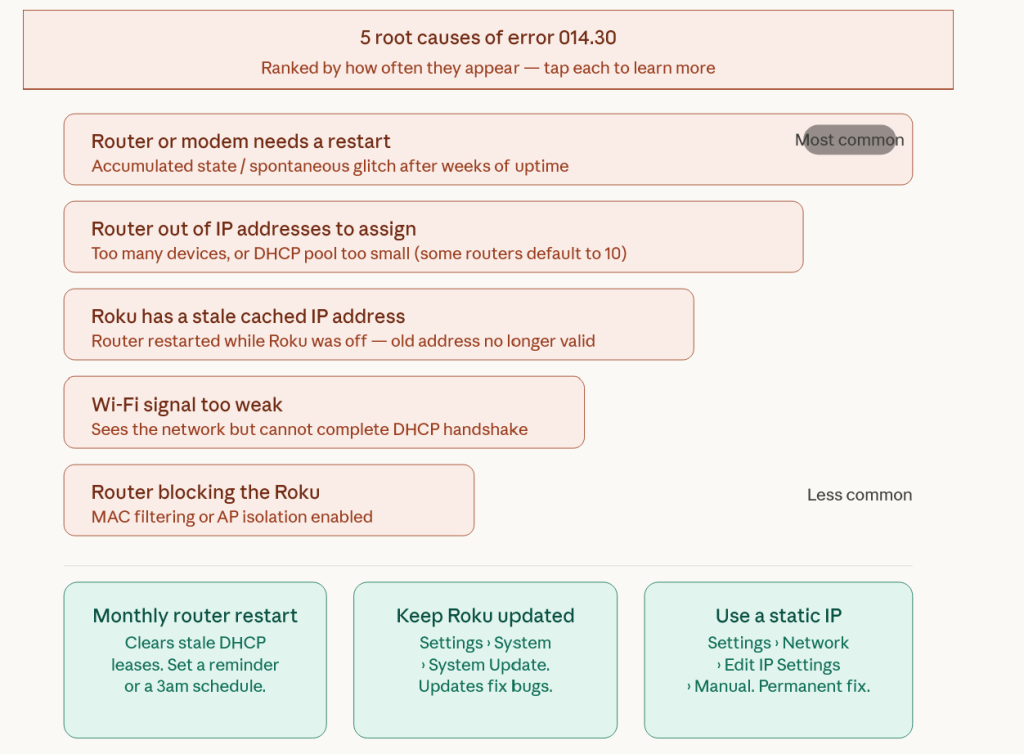
Once you have fixed the error, a few habits will keep it from showing up again.
Restart your router once a month. Set a reminder. Modern routers handle this gracefully and it clears accumulated state that can cause connection issues over time. If your router supports a scheduled restart in its admin settings, set one for 3 a.m. once a week.
Keep your Roku’s software up to date. Roku pushes software updates automatically, but you can check manually under Settings, then System, then System Update. Updates occasionally include fixes for connection-related bugs.
If you have more than ten or twelve devices on your home network, consider logging into your router periodically and clearing the DHCP lease table of devices that are no longer active. This frees up address slots and keeps your network running cleanly.
If 014.30 keeps coming back on the same Roku despite everything, switching it to a static IP address is the most permanent fix. Rather than asking your router for an address each time, you assign the Roku a specific address that it always uses. You configure this under Settings, then Network, then your connection, then Edit IP settings, and set it to Manual with a static address outside your router’s DHCP range.
Roku error 014.30
— your questions answered
Everything readers ask after hitting the internet connection error on their Roku device.
-
If the error keeps coming back after restarts, the most likely culprits are a DHCP pool that is too small or a stale IP address your Roku keeps reusing. When your router runs out of available addresses to assign, the Roku shows up each time asking for one and keeps getting refused.
Log into your router’s admin panel (usually at 192.168.1.1) and check the DHCP range under LAN settings. If the ending address is something low like 192.168.1.20, expand it to 192.168.1.254 — that gives your router 253 addresses to work with instead of a handful.
Permanent fix: Assign your Roku a static IP address so it never has to ask the router for one. Go to Settings › Network › your connection › Edit IP Settings › Manual and set a specific address outside your router’s DHCP range. -
This is one of the most common situations with 014.30. The fact that other devices work rules out your modem and ISP as the cause — the problem is specifically between your router and your Roku.
The most likely reason is that your Roku has a cached IP address that conflicts with one your router already assigned to another device. Go to Settings › Network › your connection and choose Forget This Network. Then reconnect from scratch — this forces the Roku to request a completely fresh address.
Also check: Whether your router has AP isolation or MAC address filtering enabled. These settings can silently block a Roku from completing a connection even when phones and laptops work perfectly on the same network.If forgetting and reconnecting does not fix it, try setting manual DNS servers on the Roku: 8.8.8.8 as primary and 8.8.4.4 as secondary. Sometimes the router’s default DNS fails specifically for Roku’s connection pattern.
-
The two most reliable options are Google Public DNS and Cloudflare DNS. Both are free, fast, and work well with Roku devices.
Google Public DNSPrimary8.8.8.8Secondary8.8.4.4Cloudflare DNSPrimary1.1.1.1Secondary1.0.0.1To apply them: Settings › Network › your active connection › Advanced Settings (or Edit Connection depending on your Roku model). Switch the DNS setting to Manual and enter the addresses above.
Cloudflare is generally faster for DNS lookups. Google’s servers have a longer track record of reliability. If one does not resolve your error, try the other before moving on.
-
A factory reset can fix 014.30, but it should be the last thing you try rather than the first. The error is almost always caused by something on the network side — router DHCP, cached addresses, DNS — and a factory reset does not fix those underlying issues.
As for what you lose: yes, you will need to set up the Roku from scratch — sign back into your Roku account, reinstall channels, and re-enter passwords. It takes roughly 15 to 20 minutes. Your Roku account remembers which channels you had, so reinstalling is mostly clicking rather than searching.
Good news: You do not lose your subscriptions. Netflix, Hulu, Disney+, and every other service is tied to your account with that provider — not to the Roku device. Once you sign back in, everything is exactly as you left it. -
Almost always the router, not the Roku. The error code means the Roku successfully found and connected to your Wi-Fi but the router did not complete the DHCP handshake — it did not hand the Roku a working IP address. That part of the process lives entirely on the router’s side.
The most common router-side causes are: a temporary glitch that clears with a restart, a full DHCP address pool, or security settings that block specific devices. All three are fixable without buying new equipment.
Exception: If you have tried every network-side fix and a second Roku connects fine on the same network, that points to a hardware issue with the original device. Roku’s warranty is one year — contact support.roku.com for a replacement if your device is still covered.
The Quick Version
Roku error code 014.30 means your Roku connected to your Wi-Fi but could not complete a working internet connection, usually because of a DHCP or IP address issue. The fix in most cases is restarting your router and modem properly (unplug both, wait 60 seconds, plug back in and wait for them to stabilize, then test your Roku).
If that does not work, try manually setting Google’s DNS servers on your Roku (8.8.8.8 and 8.8.4.4), forgetting and reconnecting to your network, or checking your router’s DHCP range to make sure it can handle all your connected devices.
The error looks alarming but it is almost always something temporary. Most people fix it in under ten minutes.
Still seeing error 014.30 after trying everything above? Drop your Roku model and router brand in the comments and I can help you narrow down what might be specific to your setup.