
Epson Ink Not Recognized
Fix It Fast!
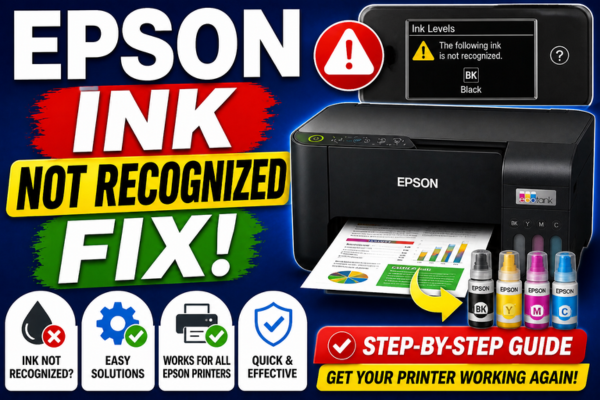
Your Epson is rejecting an ink cartridge — genuine, third-party, or refilled. This guide covers every reason why and exactly how to get it recognized again.
An “ink not recognized” error on an Epson printer is one of the most frustrating cartridge problems you can encounter — the printer simply refuses to acknowledge that a cartridge is installed, even when you can clearly see it sitting in the slot. The printer locks up, refuses all print jobs, and often displays an error message with no indication of how to resolve it.
What makes this error particularly confusing is that it can happen with brand new genuine Epson cartridges, with third-party replacements, with refilled cartridges, and sometimes even with a cartridge that was working fine just the day before. Each of these situations has a different cause — and therefore a different fix. Understanding which type of non-recognition you are dealing with is the crucial first step before applying any solution.
What Does “Epson Ink Not Recognized” Mean?
Every Epson ink cartridge contains a small electronic chip that communicates with the printer — transmitting ink level data, cartridge identity, and authentication information. When the printer says ink is “not recognized,” it means this communication has failed. The cartridge is physically present, but the printer cannot read its chip. The cause can be a dirty chip contact, a damaged chip, a firmware-based authentication block, or a chip that has simply been seated incorrectly.
Until the cartridge is recognized, the printer will not accept any print jobs. It may show a specific error message, display a flashing light, or simply show the cartridge slot as empty even though a cartridge is installed.
The fix is different for genuine Epson cartridges, third-party cartridges, and refilled cartridges. Identify which type you have before applying any fix — the section below covers all three.
Which Type of Cartridge Are You Using?
Genuine Epson Cartridge
Brand new, sealed Epson cartridge. Not recognized = dirty contact, wrong model, or firmware issue.
Third-Party / Compatible
Non-Epson branded cartridge. Not recognized = chip incompatibility, Epson firmware block, or chip failure.
Refilled Cartridge
Epson or third-party shell refilled with ink. Not recognized = chip counter not reset or chip damaged by reset process.
Previously Working Cartridge
Was recognized before but now shows error. Not recognized = dirty contact, firmware update changed authentication, or chip aged out.
How This Error Shows Up
Why Is Epson Not Recognizing the Ink Cartridge?
Dirty or Oxidised Chip Contacts
The gold contact points on the cartridge chip and on the printer’s cartridge receiver can accumulate ink residue, dust, or oxidation over time — breaking the electrical connection the printer needs to read the chip. This is the most common cause of a genuine Epson cartridge suddenly not being recognized after previously working.
Cartridge Not Fully Seated
A cartridge that is not pushed all the way into its slot cannot make full contact with the printer’s electrical connectors. The printer detects the cartridge but cannot communicate with its chip — reporting it as not recognized rather than simply missing.
Third-Party Cartridge Chip Incompatibility
Third-party cartridges use cloned chips that attempt to mimic genuine Epson chip communication. When Epson releases firmware updates, they frequently include changes to the chip authentication protocol that break compatibility with third-party chips — causing previously working non-genuine cartridges to suddenly become unrecognized.
Epson Firmware Update Blocking Third-Party Ink
Epson has released multiple firmware updates that specifically target and block third-party cartridges. If your printer’s firmware was updated automatically and third-party cartridges stopped being recognized immediately afterward, this is almost certainly the cause. The only solutions are reverting the firmware or replacing with genuine cartridges.
Refilled Cartridge Chip Not Reset
Epson cartridge chips store an ink level count that is separate from the actual physical ink level. When a cartridge is refilled without resetting this chip counter, the printer still reads the chip as empty — and may refuse to recognize it as a valid cartridge at all on some models.
Wrong Cartridge Model for Printer
Installing a cartridge designed for a different Epson model — particularly one with a similar number — will result in a “not recognized” error because the chip identifier does not match what the printer expects. Even cartridges that appear physically identical can have different chip firmware for different printer models.
The fastest diagnostic step is to remove the unrecognized cartridge and clean the gold chip contacts on both the cartridge and the printer with a dry lint-free cloth. This resolves the majority of genuine Epson cartridge non-recognition errors in under two minutes. If cleaning the contacts does not work, the next question to ask is whether the error appeared immediately after a firmware update — because the fix path for a firmware-blocked third-party cartridge is very different from the fix for a dirty contact or a poorly seated cartridge.
How to Fix Epson Ink Not Recognized — 9 Methods
💡 Start Here — Clean the Chip Contacts First
Before any other fix, remove the cartridge and wipe the gold chip contacts with a dry lint-free cloth. Do the same to the contacts inside the printer’s cartridge slot. This one step resolves the majority of genuine cartridge non-recognition errors and takes under 2 minutes.
Clean the Chip Contacts
Remove the cartridge. Use a dry lint-free cloth to gently wipe the gold chip contacts on the cartridge. Use a cotton swab to carefully clean the contacts inside the printer slot. Reinstall firmly and power cycle.
Reseat the Cartridge Firmly
Remove the cartridge completely. Wait 10 seconds. Push it back in firmly until you hear a distinct click. A partially seated cartridge causes chip communication failure that the printer reports as “not recognized.”
Power Cycle the Printer
With the cartridge installed, turn the printer off and unplug from the wall. Wait 60 seconds. Plug back in and power on. A full power cycle resets the chip communication and often clears a non-recognition error caused by a temporary read failure.
Verify Correct Cartridge Model
Check the cartridge number printed on the cartridge against your printer’s manual or the Epson website. Go to epson.com/support → enter your printer model → Consumables to confirm the exact cartridge series required for your printer.
Remove and Reinstall All Cartridges
Remove all cartridges — not just the unrecognized one. Wait 30 seconds. Reinstall them one by one, each clicking firmly into place. Sometimes a neighbouring cartridge with a poor connection interferes with the recognition of adjacent slots.
Check for Firmware Block (Third-Party Ink)
If the error appeared immediately after a firmware update and you use third-party cartridges — the update blocked them. Options: revert to the previous firmware version (if available) or switch to genuine Epson cartridges. Epson’s firmware updates frequently target third-party chip authentication.
Reset the Cartridge Chip (Refilled Only)
For refilled cartridges: use a chip resetter tool compatible with your cartridge series. Place the tool on the cartridge chip for 5–10 seconds to reset the ink counter. Reinstall the cartridge. Without resetting the chip, refilled cartridges are frequently rejected by the printer as empty or invalid.
Bypass the Error Temporarily (Genuine Only)
For genuine Epson cartridges showing “not recognized” — some models allow you to press OK or Resume on the printer panel to override the error and continue printing. Check your printer’s manual for the bypass button sequence for your specific model.
Replace with a New Genuine Cartridge
If the cartridge chip is damaged, aged out, or blocked by firmware — replace with a brand new genuine Epson cartridge of the correct model number. Genuine cartridges are always recognized regardless of firmware version and resolve chip-related errors permanently.
Fix by Cartridge Type
Genuine Epson Cartridge Not Recognized
Brand new sealed Epson cartridge being rejected
Remove orange tape from the nozzle plate
A new cartridge must have the orange pull-tab tape fully removed from the nozzle plate before installation. The chip on some cartridges cannot be read correctly if the tape is still obstructing part of the cartridge housing.
Clean chip contacts on cartridge and printer
Wipe the gold contacts on the new cartridge with a dry lint-free cloth. Also clean the corresponding contacts in the printer slot with a clean cotton swab. Even new cartridges can have a thin manufacturing residue on the contacts.
Confirm correct cartridge model number
Cross-check the cartridge number on the packaging against your printer’s model at epson.com/support. Genuine cartridges designed for a different Epson model are rejected even if they appear physically identical.
epson.com/support → Your model → ConsumablesPower cycle and reinstall
Unplug the printer, wait 60 seconds, plug back in and power on. When the carriage moves to the centre, install the cartridge and press it until it clicks firmly. Close the door — the printer will run a recognition routine automatically.
Third-Party Cartridge Not Recognized
Compatible / non-genuine cartridge being rejected by Epson
Check if a firmware update caused the block
Go to Setup → Firmware Version on the printer panel. If the firmware was recently updated and third-party cartridges stopped working immediately afterward — Epson has updated its chip authentication to block them.
Setup → Firmware Version → check recent updatesDisable automatic firmware updates
Go to Setup → Firmware Update → Auto Update → Off. This prevents future Epson firmware updates from automatically blocking your third-party cartridges again after you resolve the current issue.
Setup → Firmware Update → Auto Update → OffTry pressing OK to override the warning
Some Epson models display a warning about non-genuine cartridges but still allow printing. Press OK, Yes, or Close on the printer panel when the warning appears. If the printer proceeds to print — the cartridge is working despite the warning.
Replace the chip on the third-party cartridge
Some third-party cartridge suppliers sell replacement chips that are updated to bypass the current Epson firmware authentication. Contact your cartridge supplier for a replacement chip compatible with your current firmware version.
Refilled Cartridge Not Recognized
Cartridge refilled with ink but still rejected by printer
Reset the cartridge chip counter
Purchase a chip resetter tool compatible with your cartridge series (search for your cartridge number + “chip resetter”). Place the resetter on the chip contacts for 5–10 seconds. The LED will indicate a successful reset. Reinstall the cartridge immediately.
Clean the chip contacts after resetting
After using the chip resetter, wipe the chip contacts with a dry lint-free cloth. The resetter can leave a slight residue on the contacts that interferes with the printer’s read attempt if not cleaned.
Replace the chip if resetting fails
If the chip resetter does not restore recognition, the chip may be damaged. Purchase a replacement chip for your cartridge series and swap it onto the refilled cartridge shell. A fresh chip resolves permanent chip failure from repeated resets.
A note on long-term cartridge strategy: if you regularly use third-party cartridges and are experiencing recurring non-recognition errors after Epson firmware updates, the most reliable long-term solution is to disable automatic firmware updates on the printer. This prevents Epson from pushing authentication changes that break third-party chips without your knowledge. The downside is that you will need to manually check for and apply any genuine security or performance firmware updates yourself — but this trade-off is often worthwhile for users who rely on non-genuine cartridges.
Prevent Ink Recognition Errors
Frequently Asked Questions
My brand new genuine Epson cartridge says “not recognized” — is it defective?
Not necessarily. A new genuine cartridge showing as not recognized is almost always caused by one of three things: the orange tape was not fully removed from the nozzle plate, the cartridge was not seated firmly enough to make chip contact, or there is a small amount of manufacturing residue on the chip contacts. Remove the tape, clean the contacts with a dry lint-free cloth, reseat firmly, and power cycle. If the error persists after all three steps, the cartridge may be defective and can be exchanged under warranty.
My third-party cartridges worked fine last month — why won’t Epson recognize them now?
An Epson firmware update almost certainly ran automatically and updated the chip authentication protocol to block your third-party cartridges. This is a deliberate practice by Epson. To prevent it happening again, disable automatic firmware updates: Setup → Firmware Update → Auto Update → Off. For the current blocked cartridges, check if your supplier offers updated chips that bypass the new firmware authentication.
Can I print with one cartridge not recognized on an Epson printer?
On most Epson models, no — the printer requires all cartridges to be recognized before it will print anything, even if you only need to print in black. Some models allow a temporary override by pressing OK or Resume when the warning appears, but this is model-specific. The most reliable solution is to replace the unrecognized cartridge with one that the printer accepts.
Is it safe to clean the gold chip contacts with isopropyl alcohol?
A very light application of isopropyl alcohol on a lint-free cloth can clean stubborn oxidation from chip contacts effectively. However, use it sparingly — excessive liquid near the chip electronics can cause permanent damage. A dry lint-free cloth or clean pencil eraser is safer for routine cleaning and resolves the majority of contact issues without any risk of liquid damage.
When to Contact Epson Support
If all nine fixes have been applied and a genuine Epson cartridge is still not being recognized, the printer’s cartridge reader contacts may be damaged. Contact Epson support in these situations: