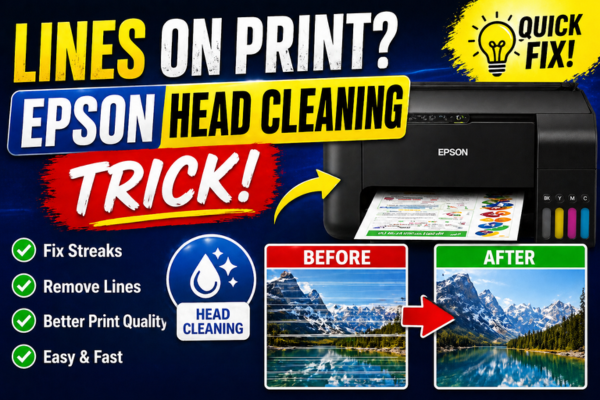

Lines on Print?
Epson Head Cleaning
Trick That Works!
Horizontal lines, streaks, or banding ruining your Epson prints? This guide covers every type of line problem and the exact head cleaning trick that fixes them fast.
Lines, streaks, and banding on Epson prints are among the most common print quality complaints — and also among the most misunderstood. Many users run head cleaning cycles once, see no improvement, and assume the printer is broken. In reality, there is a specific sequence of cleaning steps — including a lesser-known trick that dramatically improves success rates — that resolves the vast majority of line problems without needing a service call.
The key insight is that not all lines look the same, and each type points to a different cause. Horizontal white lines across the page are almost always a clogged nozzle. Vertical lines running the full length of the page typically point to a damaged roller or dirty encoder strip. Colour banding — where one colour appears in stripes — usually indicates a specific colour nozzle group is blocked. Identifying which type you have before starting any fix saves significant time and prevents applying the wrong solution.
Why Is Your Epson Printing Lines and Streaks?
Lines and streaks on Epson prints are caused by one of three things: partially clogged print head nozzles (the most common by far), a dirty or damaged encoder strip that disrupts print head positioning, or worn paper feed rollers that cause paper to advance unevenly. The head cleaning trick in this guide specifically targets nozzle clogs — which account for over 90% of all Epson line and streak problems.
Horizontal white lines = nozzle clog. Vertical lines running top to bottom = roller or encoder strip issue. Diagonal banding = paper feed problem. Each type has a different fix.
Line and streak problems caused by nozzle clogs resolve with the correct cleaning sequence in over 95% of cases. Hardware damage causing lines is rare and usually only occurs on very old or heavily used printers.
What Type of Lines Are You Seeing?
Horizontal White Lines
Evenly spaced white gaps running across the page at regular intervals.
→ Clogged nozzles
Colour Banding
Stripes of a single colour repeating across the page, or one colour printing too heavily.
→ Specific colour nozzle clog
Vertical Lines
Lines running from top to bottom of the page, parallel to the paper edge.
→ Dirty encoder strip
Ink Smears or Streaks
Wet-looking smears or blotchy streaks — print looks smudged even when dry.
→ Dirty rollers or excess ink
Diagonal Banding
Diagonal pattern of lighter and darker bands across the page at an angle.
→ Paper feed misalignment
Why Is Your Epson Printer Producing Lines?
Partially Clogged Print Head Nozzles
The single most common cause of lines and banding on Epson printers. When ink partially dries inside the microscopic nozzles, affected nozzles deliver less ink than they should — producing regular white lines exactly where those nozzles fire. The pattern of lines in your nozzle check will show which nozzle groups are affected.
Printer Sat Unused for Extended Period
The longer a printer sits idle without printing, the more ink dries in the nozzles. Printers that go 2–4 weeks without use almost always develop at least some nozzle clogging that produces lines on the next print job. This is the most common trigger for line problems that appear suddenly with no obvious cause.
Dirty or Smudged Encoder Strip
The encoder strip is a thin transparent plastic strip running horizontally across the printer that tells the print head exactly where it is positioned. An ink smear or dust on this strip causes the print head to misalign slightly — producing vertical lines or banding rather than horizontal ones.
Print Head Alignment Off
After a cartridge swap, a firmware update, or physical movement of the printer, the print head alignment can drift. Even a fraction of a millimetre of misalignment causes visible banding — particularly when printing at high resolution or on photo paper.
Dirty or Worn Paper Feed Rollers
Paper feed rollers coated in dust, paper fibres, or dried ink can cause the paper to advance unevenly — producing diagonal banding or wavy horizontal lines that are distinct from nozzle-clog lines because they vary in spacing rather than being perfectly regular.
The standard head cleaning process that most users try — pressing the clean button once and hoping for the best — often fails not because the printer cannot clear the clog, but because the cleaning is not being applied in the right sequence. There is a specific protocol, used by experienced Epson technicians, that dramatically increases the success rate of clearing stubborn line-causing clogs. The key is the combination of standard cleaning, a rest period, and then the targeted print flush trick described below.
The Epson Head Cleaning Trick for Lines
The Print Flush Trick — Force Ink Through Clogged Nozzles
Standard head cleaning cycles use suction to pull ink through blocked nozzles. But for partially clogged nozzles, pressure from the other direction — pushing ink through by printing — is often more effective. This is the trick most users don’t know: print a series of large, solid colour blocks directly after a cleaning cycle while the nozzles are warmed up. The pressure of printing forces ink through the partially cleared nozzles and can clear residual clogs that the cleaning cycle left behind.
Run one standard head cleaning cycle first
Go to Setup → Maintenance → Head Cleaning. Run one cycle. Do not run multiple cycles back-to-back yet — one cycle is enough to warm and loosen the ink in the nozzles before the print flush step.
Setup → Maintenance → Head Cleaning → onceImmediately print a solid colour flush page
Without waiting, open any document (Word, Paint, etc.) and create a large solid block of each colour — black, cyan, magenta, and yellow — filling most of an A4 page. Print this at normal quality on plain paper. The act of printing pushes ink through the nozzles from the inside while they are still warm and loosened from the cleaning cycle.
Print a nozzle check immediately after
Go straight to Setup → Maintenance → Nozzle Check without waiting. Print the pattern and inspect the lines. In most cases the combination of cleaning + print flush produces a significantly better result than cleaning alone.
Setup → Maintenance → Nozzle CheckRepeat the cycle up to 3 times if needed
If lines remain, repeat the sequence: one head cleaning → solid colour flush print → nozzle check. Do this up to 3 complete rounds. After 3 rounds, leave the printer powered on and idle for 8 hours — the residual warmth continues softening dried ink, and a fresh nozzle check in the morning often shows significant further improvement.
Use Power Cleaning for stubborn clogs
If lines persist after 3 rounds of the flush trick, escalate to Setup → Maintenance → Power Cleaning. This uses significantly more ink but applies greater suction force to stubborn dried-ink blockages. Follow with another solid colour flush print immediately after.
Setup → Maintenance → Power CleaningComplete Epson Head Cleaning Guide — Step by Step
💡 Always Start with the Nozzle Check
Before cleaning, print a nozzle check pattern: Setup → Maintenance → Nozzle Check. This shows you exactly which nozzle rows have gaps — so you can check the same rows after cleaning to confirm improvement. Without this baseline you are cleaning blind.
Head Cleaning — Full Protocol
Standard + Power Cleaning + Print Flush in the correct sequence
Print the nozzle check baseline
Go to Setup → Maintenance → Nozzle Check. Print it on plain A4. Take a photo of the result — you will compare against this after cleaning to confirm improvement.
Setup → Maintenance → Nozzle CheckRun one head cleaning cycle
Go to Setup → Maintenance → Head Cleaning. Select Start. The printer will run the cycle for approximately 2 minutes. Do not turn off the printer during this process.
Setup → Maintenance → Head CleaningImmediately run the print flush trick
Print a full page of solid colour blocks (all four colours) immediately while the nozzles are still warm. This is the key trick — do not skip this step or wait between the cleaning and the flush print.
Run nozzle check and compare
Print another nozzle check and compare to the baseline photo. If all lines are solid and complete, your print quality is restored. If gaps remain in some rows, repeat steps 2–4 (maximum 3 rounds total).
Escalate to Power Cleaning if needed
After 3 rounds of head cleaning + flush, if gaps remain, run Power Cleaning once. Follow immediately with the flush print and a nozzle check. Leave the printer powered on overnight if still not clear.
Setup → Maintenance → Power CleaningIf the head cleaning sequence above has not fully resolved the lines, the next step depends on which type of lines you identified at the start. Vertical lines and diagonal banding — which are not caused by nozzle clogs — require a different approach: cleaning the encoder strip or realigning the print head. The two scenario guides below cover these less common but equally fixable causes.
8 Ways to Fix Lines and Streaks on Epson Printers
Print Nozzle Check First
Go to Setup → Maintenance → Nozzle Check. Inspect which colour rows show gaps. This identifies exactly which nozzles are clogged and gives you a before/after comparison to measure improvement.
Head Cleaning + Print Flush
Run one Head Cleaning cycle then immediately print a page of solid colour blocks. Repeat up to 3 times. This combination clears nozzle clogs significantly more effectively than standard cleaning alone.
Power Cleaning
For persistent lines after 3 standard cycles: go to Setup → Maintenance → Power Cleaning. Uses more ink but applies greater force to stubborn clogs. Follow immediately with a colour flush print.
Run Print Head Alignment
Go to Setup → Maintenance → Print Head Alignment. Follow the on-screen instructions. This corrects minor misalignments that cause banding — particularly after a cartridge swap or after moving the printer.
Clean the Encoder Strip
For vertical lines: locate the thin transparent plastic strip running behind the carriage. Gently wipe it with a lint-free cloth dampened with distilled water. Ink smears on this strip cause the print head to misposition, producing vertical lines.
Manual Print Head Soak
For severe clogs: remove cartridges and place 2–3 drops of distilled water on the print head nozzle surface. Wait 10 minutes, blot dry with lint-free cloth, reinstall cartridges, and run one cleaning cycle.
Clean Paper Feed Rollers
For diagonal banding or wavy lines: run Setup → Maintenance → Paper Guide Cleaning. This feeds plain paper repeatedly to clean dust and debris from the rollers that cause uneven paper advance and resulting banding.
Check Print Quality Settings
In the print driver, confirm Quality is not set to Draft or Economy mode — these modes intentionally skip nozzle rows to save ink and produce banding-like output. Switch to Normal or Best quality and reprint.
Targeted Fixes for Each Line Type
Vertical Lines — Clean the Encoder Strip
For lines running top to bottom of the page
Power off and unplug the printer
Turn off and unplug before reaching inside. Open the cartridge access door to access the encoder strip safely.
Locate the encoder strip
Look for a thin clear plastic strip running horizontally across the full width of the printer, just behind where the cartridge carriage slides. It may have very fine lines printed on it.
Wipe gently with a dry lint-free cloth
Use a dry lint-free cloth — not damp — to gently wipe the encoder strip from one end to the other. Apply very light pressure. Ink smears come off easily. Never use paper towels — they leave fibres that worsen the problem.
Dry lint-free cloth — wipe full length gentlyPower on and print a test page
Plug in and power on the printer. Print a test page to confirm the vertical lines are resolved. If faint lines remain, repeat the wipe — one or two passes usually resolves encoder strip-related vertical lines completely.
Banding After Cartridge Change — Print Head Alignment
For banding that started after installing new cartridges
Open the alignment wizard
On the printer panel go to Setup → Maintenance → Print Head Alignment. Select Start and load plain A4 paper when prompted.
Setup → Maintenance → Print Head AlignmentPrint the alignment sheet
The printer will print a sheet with numbered patterns. Look at each section and identify which numbered pattern looks the most solid and even — with the least visible banding or misalignment.
Enter the best pattern numbers
Using the printer panel, enter the number of the best-looking pattern for each section when prompted. The printer saves these alignment values and adjusts all subsequent prints accordingly.
Print a document to confirm
Print a regular document or photo at normal quality. Banding caused by alignment drift should be significantly reduced or eliminated. If banding remains, run the alignment wizard a second time — first-time alignment sometimes needs a second pass to refine.
Lines and banding on Epson prints are highly preventable with a simple weekly printing habit. The nozzles dry out when left idle — but a printer that prints at least one colour page per week almost never develops line problems. If your printing is genuinely infrequent, running a nozzle check at the start of any print session — before printing the actual document — lets you catch a developing clog early and clear it with one cleaning cycle rather than fighting a severe blockage.
Prevent Lines from Returning
Frequently Asked Questions
I ran head cleaning 5 times and the lines are still there — what now?
More than 3 back-to-back cleaning cycles wastes ink without improving results. Instead, try the print flush trick described above — it is more effective for persistent partial clogs. If that fails, try the manual print head soak with distilled water (Fix 06), then leave the printer powered on overnight. The rest period alone resolves many stubborn clogs that repeated cleaning could not shift.
My nozzle check looks perfect but I still see lines when printing — why?
A perfect nozzle check with visible banding on actual prints is almost always a print head alignment issue, not a clog. The nozzle check prints very slowly and at close spacing — alignment errors that are invisible at that speed and scale become obvious at normal print speed. Run Print Head Alignment from the Maintenance menu and reprint your document.
Will running lots of head cleaning cycles damage my printer?
Head cleaning does not damage the print head — but each cycle uses ink from all cartridges and adds to the waste ink pad fill. Running more than 3 cycles in a row provides diminishing returns and accelerates waste pad saturation. The print flush trick and overnight rest are more effective for stubborn clogs and do not add to the waste pad burden.
Lines appeared suddenly after I moved the printer — what’s wrong?
Moving the printer can shift the print head alignment and disturb settled ink in the nozzles — both causing lines. Start with Print Head Alignment (Setup → Maintenance → Print Head Alignment), then run a nozzle check. If the check shows gaps, run one cleaning cycle followed by the print flush trick. In most cases moving-related line issues resolve with these two steps combined.
When to Contact Epson Support
If all eight fixes — including Power Cleaning, manual print head soaking, and the overnight rest method — have been tried and lines persist, the print head may have permanent damage. Contact Epson support in these situations: