
Want to connect your Brother HL-2270DW printer to WiFi without dealing with complicated network settings? If your wireless router has a WPS button, you can usually connect the printer in just a few minutes.The Brother HL-2270DW has built-in wireless networking, so once it is connected to your home or office WiFi, you can print from computers on the same network without keeping a USB cable connected.
This guide explains the wireless setup process from start to finish, including where to find the wireless button, how to use WPS, what the printer lights mean, and what to check if the connection doesn’t work.
What You Need Before Starting
Before you begin, have these things ready:
- Brother HL-2270DW printer
- Wireless router with WPS
- Paper loaded in the printer
- Printer connected to power
- Ballpoint pen or similar pointed object
- Computer connected to your wireless network
For the easiest setup, keep the printer fairly close to the router while establishing the connection.
Does Your Router Have WPS?
The method described below uses WPS, which allows compatible wireless devices to connect to a router without manually typing the WiFi password.
Look at your router for a button labeled WPS. Some routers use the WPS symbol instead of the letters.
If you cannot find a WPS button, don’t worry. The HL-2270DW can also be configured using an alternative wireless setup method.
Step 1: Turn On the Brother HL-2270DW
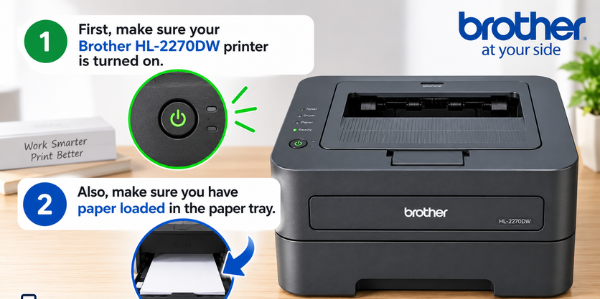
Start by switching on the printer.
Wait for the printer to finish starting up and become ready.
It’s also a good idea to put some paper in the paper tray before beginning. The printer may print a wireless configuration report when the setup is completed.
Step 2: Find the Wireless Setup Button
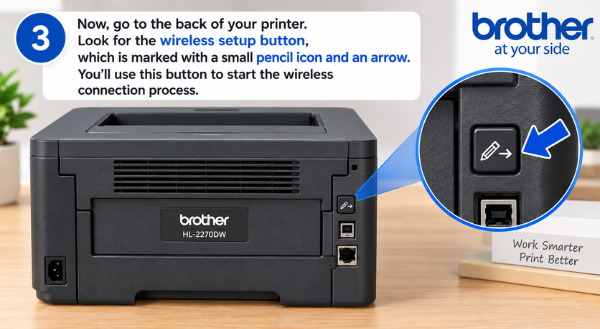
Next, move to the back of the Brother HL-2270DW.
You will find a small recessed wireless setup button on the rear of the printer.
Because the button is recessed, a ballpoint pen can make it easier to press.
Don’t press the button yet. You’ll use it immediately after activating WPS on your router.
Step 3: Start WPS on Your Router
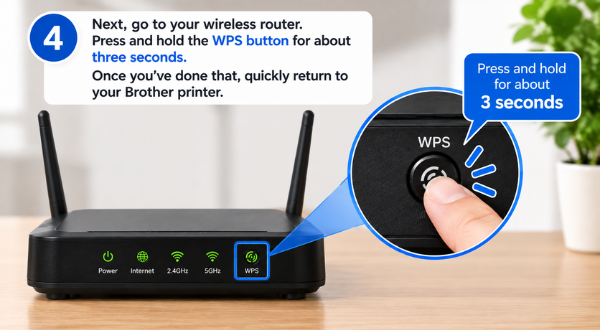
Go to your wireless router and locate the WPS button.
Press the WPS button to put the router into wireless pairing mode.
The exact button behavior can vary between routers, so if your router has specific WPS instructions, follow those instructions.
Once WPS has been activated, return to the Brother printer.
Step 4: Press the Wireless Button on the Printer
Now use your ballpoint pen to press the wireless setup button on the back of the printer.
Press and release it quickly. Do not hold the button for three seconds or longer.
This is important because holding the button too long can start a different WPS configuration method.
After you release the button, the printer will begin looking for the wireless network.
Step 5: Watch the Printer Lights
The printer’s indicator lights will change while the wireless connection is being established.
You may first notice the Toner light blinking. This indicates that the printer is searching for the wireless connection.
Give the printer some time to complete the process.
Avoid switching off the printer or router while it is attempting to connect.
Step 6: Wait for the Wireless Connection
As the connection process continues, the printer’s Toner and Drum indicators may blink.
These lights are part of the printer’s status system and help show what is happening during the wireless setup.
Wait until the printer finishes the connection process.
If everything goes correctly, the printer will establish communication with your wireless router.
Step 7: Check the Ready Light
Once the wireless setup has completed, check the printer’s Ready light.
The Ready indicator provides the final status of the setup.
At this point, your Brother HL-2270DW should be connected to your wireless network.
You can now move on to setting up the printer on your computer.
Step 8: Check the WLAN Report
The printer can provide a WLAN report containing information about its wireless connection.
This report is especially useful if you’re unsure whether the setup worked or if the printer reports a connection problem.
If the wireless setup fails, look at the report for additional information before trying the setup again.
Add the Brother HL-2270DW to Your Computer
Connecting the printer to WiFi does not automatically mean your computer has installed the printer.
You may still need to add the Brother HL-2270DW to Windows or another operating system.
On Windows, open:
Settings → Bluetooth & devices → Printers & scanners
Select Add device and allow Windows to search for available printers.
If the Brother HL-2270DW appears, select it and follow the instructions on the screen.
If it doesn’t appear, installing the appropriate Brother printer software or driver may be necessary.
Brother HL-2270DW WiFi Setup Not Working?
Sometimes the WPS setup doesn’t complete on the first attempt. Here are some things worth checking.
Check the WPS Button
Make sure your router actually supports WPS.
Some newer routers have WPS disabled by default, while others may not provide a physical WPS button.
If WPS isn’t available, use the alternative wireless setup method instead.
Bring the Printer Closer to the Router
If the printer is far away from the router, the wireless signal may be too weak during setup.
For troubleshooting, temporarily place the printer closer to the router and try again.
You can move the printer back to its normal location after the connection is established.
Restart Both Devices
If the setup gets stuck, turn off the Brother printer.
Restart the wireless router as well, wait for the network to come back online, and then try the WPS setup again.
A fresh connection attempt can resolve temporary communication problems.
Don’t Hold the Printer’s Wireless Button Too Long
This is one of the easiest mistakes to make with the HL-2270DW.
The wireless setup button should be pressed briefly.
Holding it for several seconds can activate a different wireless setup procedure, which can make the process appear confusing.
Check the WLAN Report
If the printer still won’t connect, check the WLAN report.
It can provide useful information about the wireless configuration and may help identify why the connection failed.
What If My Router Doesn’t Have a WPS Button?
You can still connect the Brother HL-2270DW to a wireless network.
Instead of WPS, you’ll need to use another wireless configuration method. Depending on your setup, this may involve Brother’s wireless setup software and a temporary USB connection.
You’ll generally need your:
- WiFi network name
- Wireless password
- Network security information
This method takes a few more steps than WPS, but it is useful when your router doesn’t support WPS.
Frequently Asked Questions
Can the Brother HL-2270DW connect to WiFi?
Yes. The HL-2270DW includes wireless networking, allowing it to communicate with computers connected to the same wireless network.
How do I connect my Brother HL-2270DW to WiFi using WPS?
Turn on the printer, activate WPS on your router, and then briefly press the wireless setup button on the back of the printer. The printer will search for and attempt to connect to the wireless network.
Where is the wireless button on the Brother HL-2270DW?
The wireless setup button is located on the back of the printer. It is recessed, so using a ballpoint pen can make it easier to press.
Why is my Brother HL-2270DW not connecting to WiFi?
Common causes include WPS being disabled on the router, weak wireless signal, incorrect button timing, or a temporary communication problem. Restarting the router and printer and trying the setup again can help.
Do I need a USB cable to connect the HL-2270DW to WiFi?
Not necessarily. If your router supports WPS, you can establish the wireless connection without using a USB cable.
How can I check whether the printer connected successfully?
Check the printer’s indicator lights and print or review the WLAN report. You should also be able to find the printer from a computer connected to the same network.
Final Words
Setting up WiFi on the Brother HL-2270DW is fairly simple when your router supports WPS. The most important part is to activate WPS on the router and then briefly press the wireless setup button on the back of the printer.
Once the connection is established, install or add the printer on your computer and make sure both devices are using the same wireless network.
If WPS doesn’t work, don’t repeatedly press the buttons at random. Check the router’s WPS settings, move the printer closer to the router, restart both devices, and use the WLAN report to identify the problem.
For more Brother printer setup, WiFi, offline, and troubleshooting guides, keep following Print Smart Help.