
Key Takeaways
- Most “not printing” cases on the ET-2800 series trace back to one of three things: a broken WiFi handshake, a stuck or duplicate print queue on the computer, or a print job stalled because the printer thinks it’s still “offline.”
- The ET-2800, ET-2803, ET-2840, and ET-2850 share the same core Precision Core print head and WiFi module, so almost every fix below applies to all four models — differences are mostly in the display and scanning hardware.
- A full network settings reset (not just a reboot) resolves the majority of persistent WiFi drop-outs, especially after a router change or firmware update.
- Mobile printing failures are usually caused by the phone and printer sitting on different WiFi bands or networks, not by the Epson Smart Panel app itself.
- If the printer prints a WiFi network status sheet with no errors but still won’t print from the computer, the fault is almost always the print queue or driver, not the printer.
Epson ET-2800 Series: Features at a Glance
The Epson EcoTank ET-2800 series is a cartridge-free, refillable-ink all-in-one lineup built around low running costs and simple home printing. The family includes four closely related models, and knowing which one you own helps narrow down a fault fast.
| Model | Functions | Display | Connectivity | Best for |
|---|---|---|---|---|
| ET-2800 | Print, scan, copy | 1.44″ mono LCD | WiFi, USB | General home use |
| ET-2803 | Print, scan, copy | 1.44″ mono LCD | WiFi, USB | Regional/retail equivalent of ET-2800 |
| ET-2840 | Print, scan, copy | 2.4″ color touchscreen | WiFi, USB | Users who want on-printer control without a computer |
| ET-2850 | Print, scan, copy | 2.4″ color touchscreen | WiFi, USB | Full-color touchscreen navigation, similar to ET-2840 |
All four models use Epson’s refillable EcoTank ink tanks, support both WiFi and WiFi Direct, and print through the same driver family and the Epson Smart Panel mobile app. That shared architecture is good news: a fix documented for the ET-2800 will almost always work on the ET-2803, ET-2840, or ET-2850 without modification.
“My Epson ET-2800 Is Not Printing” — Start Here
Before touching WiFi settings, rule out the simple causes. On the ET-2800 series, a print job that never starts is usually one of four things: a paused printer, a full or stuck print queue, an ink tank sensor that hasn’t registered a recent refill, or a print head that needs a nozzle check.
Quick diagnostic checklist
- Check the printer’s status lights. A flashing power light combined with an ink or paper icon means the printer is paused on an error, not offline.
- Open the print queue on your computer. On Windows, go to
Settings → Bluetooth & devices → Printers & scanners → Epson ET-2800 → Open print queue. On Mac, openSystem Settings → Printers & Scanners. Cancel any stuck jobs at the top of the queue — a single stalled job blocks everything behind it. - Run a nozzle check. From the printer’s control panel, select
Setup → Maintenance → Nozzle Check(or on touchscreen models, the wrench icon → Maintenance). Gaps in the printed pattern mean the print head needs cleaning before anything will print cleanly. - Confirm the ink levels registered. After refilling an EcoTank, you must confirm the fill on the printer’s control panel or the ink icon will keep blocking print jobs even with full tanks.
- Set it as the default printer. A second “offline” or duplicate copy of the ET-2800 in your printer list will silently absorb jobs meant for the real one.
If none of this fixes it: the root cause is almost always connectivity, not the printer itself. Move to the WiFi and computer sections below.
Fixing “Epson ET-2800 Not Connecting to WiFi”
This is the single most common ET-2800 complaint, and it almost always falls into one of two buckets: the printer never joined the network in the first place, or it joined once and then silently dropped off after a router reboot, firmware update, or password change.
Step 1: Run the WiFi Setup Wizard from the control panel
On the printer
- Press the Home button if you’re not already on the home screen.
- Select WiFi Setup and press OK.
- Choose WiFi (Recommended), then WiFi Setup Wizard.
- Select your network’s name (SSID) from the list. If it doesn’t appear, choose Other SSIDs and enter it manually — this is common with 5GHz-only or hidden networks.
- Enter your WiFi password exactly, using the numeric keypad to cycle through letter case and symbols.
- Wait for the confirmation screen, then press OK. The WiFi icon on the display should show a solid signal, not a blinking one.
Step 2: Print a network status sheet to confirm the connection
Verification
From Setup → Network Settings → Print Status Sheet, print a report showing signal strength, IP address, and SSID. A weak signal (below roughly 40%) is often the real culprit behind intermittent WiFi drops — the printer connects, then loses the handshake mid-job.
Step 3: If it still won’t connect — full network reset
Reset & reconfigure
- On the control panel, go to
Setup → Restore Default Settings → Network Settings → Yes. - Unplug the printer from the power outlet directly (not just the power button) and leave it unplugged for a full 60 seconds — for stubborn cases, up to 10 minutes lets the WiFi module fully reset.
- Restart your router as well, especially if it was recently updated or its password changed.
- Run the WiFi Setup Wizard again from Step 1 with the router and printer both freshly rebooted.
Common trap: the ET-2800’s WiFi radio only joins 2.4GHz networks. If your router broadcasts a combined or 5GHz-only SSID, create a separate 2.4GHz network name in your router settings before running the wizard again.
Fixing “Epson ET-2800 Not Connecting to Computer”
If the printer shows a strong WiFi signal but your computer still can’t find or print to it, the disconnect is happening in the driver or network layer on the computer side — not on the printer.
Windows & Mac fixes
- Confirm both devices share the same network. A computer on a wired connection or a different WiFi band than the printer will never see it, even if both show “connected.”
- Reinstall the Epson driver from scratch. Remove the existing ET-2800 entry from Printers & Scanners, download the current driver package from Epson’s support site for your exact model, and let the installer detect the printer over the network rather than adding it manually by IP.
- Temporarily disable firewall/antivirus. Some third-party security software blocks the ports Epson’s discovery service uses. If the printer appears once the firewall is off, add an exception for Epson’s printing services instead of leaving it disabled.
- Give the printer a static IP. If your router periodically reassigns IP addresses, the computer’s saved printer entry can point to a stale address. Reserve a fixed IP for the ET-2800 in your router’s DHCP settings.
- Try a direct USB connection to isolate the problem. If it prints fine over USB but not WiFi, the issue is confirmed to be network-side, not the printer’s hardware.
Epson ET-2760 Offline? Here’s How to Fix It
Fixing “Not Able to Print from Phone” (Epson Smart Panel)
Mobile printing on the ET-2800 series runs through the Epson Smart Panel app (the successor to the older Epson iPrint app) or through AirPrint on iOS. Phone-to-printer failures are almost always a network mismatch rather than an app bug.
Mobile checklist
- Put the phone on the same WiFi network as the printer — not just the same house. Guest networks and separate 5GHz bands are invisible to the printer’s discovery process.
- Update Epson Smart Panel to the latest version and let it re-scan for the printer from the app’s device setup screen rather than relying on a previously cached connection.
- On iPhone/iPad, enable AirPrint fallback by opening the share sheet on any document, tapping Print, and selecting the ET-2800 directly — this bypasses the app entirely and confirms whether the fault is in Smart Panel or the network.
- If the printer still doesn’t appear, try WiFi Direct. From the printer’s control panel, enable WiFi Direct mode and connect the phone directly to the printer’s own hotspot as a temporary workaround while the main network issue is diagnosed.
- Reboot both the phone’s WiFi and the printer — mobile OS WiFi stacks cache stale device entries more aggressively than desktop OSes.
Epson EcoTank ET-2750- Troubleshooting Guide
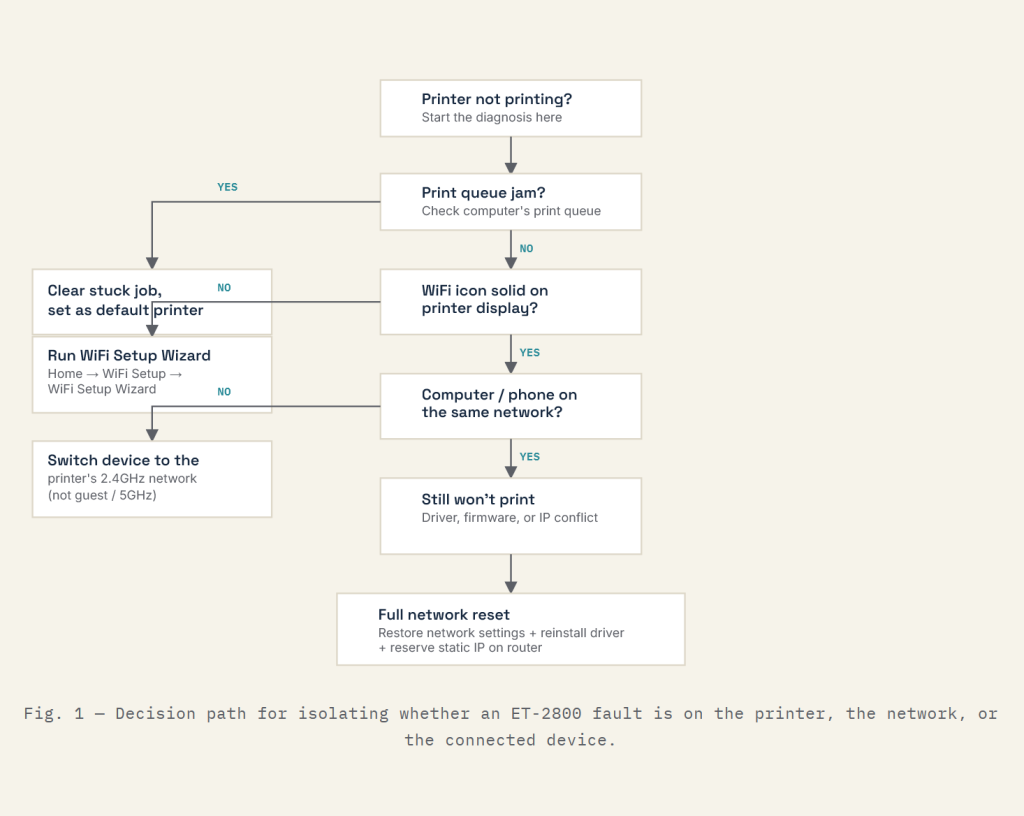
Troubleshooting Flowchart
Frequently Asked Questions
The printer’s WiFi radio and its print discovery service are separate. A stable connection to the router doesn’t guarantee the computer or phone can discover the printer for printing — that usually points to a stale driver entry, a firewall blocking discovery, or the two devices sitting on different network bands.
Yes. All four models share the same WiFi module, print engine, and Epson Smart Panel app, so the WiFi, computer, and phone fixes above apply directly. The main difference is navigation — touchscreen models (ET-2840, ET-2850) reach the same menus through icons instead of arrow-button navigation.
From the control panel, go to Setup, then Restore Default Settings, then Network Settings, and confirm. Follow this with a full power cycle — unplugged from the wall for at least 60 seconds — before running the WiFi Setup Wizard again.
This is almost always a network mismatch: the phone is on a guest network, a 5GHz-only band, or mobile data instead of the printer’s 2.4GHz WiFi network. Confirm both devices are on the identical network name before troubleshooting the app itself.
A new router means a new network profile, even if the WiFi name looks the same. Run the WiFi Setup Wizard again from the printer’s control panel and re-add the printer on every computer and phone that prints to it — old saved connections won’t automatically update.
USB removes network variables entirely and is useful for isolating whether a problem is network-related. It’s a solid permanent option for a single desktop computer, but it sacrifices the convenience of printing from a phone or multiple computers that WiFi provides.
Still stuck? Work through the flowchart above in order — print queue, then WiFi signal, then network match, then a full reset. In the large majority of ET-2800, ET-2803, ET-2840, and ET-2850 cases, the fault resolves at the “full network reset” stage without needing a factory reset or a call to Epson support.