
Key Takeaways
- Most “not printing” problems come down to three things, in order of likelihood: a loose connection, low or empty ink tanks, or dried ink clogging the printhead nozzles.
- Missing or faded colors are almost always a clogged nozzle problem, not a broken printer — a nozzle check and one or two head cleaning cycles fix it in the vast majority of cases.
- WiFi connection failures usually happen because the ET-2903 can only join a 2.4GHz network, not a 5GHz one, or because the printer and router simply need a restart.
- You do not need any technical background to work through this guide. Every fix below uses only the printer’s screen, the ink tank window, and your computer or phone.
- If you work through every step here and the printer still won’t cooperate, it’s genuinely time to contact Epson support — and this guide tells you exactly when that point is.
About This Guide
The Epson EcoTank ET-2903 is a reliable little workhorse, but like any inkjet printer, it can develop three very common problems: it stops printing altogether, it prints only in black and white (or with a strange color cast), or it refuses to join your home WiFi. None of these problems mean your printer is broken. In nearly every case, the cause is something small and fixable — and this guide walks you through the fix in plain English, one step at a time.
We’ll cover each issue separately, but they often share the same root causes, so read through even the sections that don’t seem to match your exact symptom.
Section 1: My ET-2903 Isn’t Printing At All
When nothing comes out of the printer, work through these steps in order. Don’t skip ahead — each step rules out a simpler cause before you move to a more involved one.
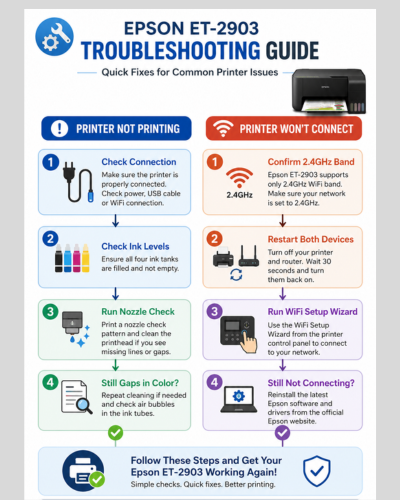
Step 1: Check the Basics First
- Make sure the printer is plugged in and the power light on the control panel is on (not blinking).
- If you’re printing over USB, unplug the cable from both ends and plug it back in firmly.
- If you’re printing over WiFi, make sure the WiFi icon on the printer’s screen is solid, not blinking or showing an “x.” A blinking WiFi icon means the printer has lost its network connection — jump to Section 3 if that’s the case.
- Look at the printer’s small screen for any error message (paper jam, ink error, cover open) and clear it before continuing.
Step 2: Check Your Ink Levels
The ET-2903 uses an ink tank system with a clear window on the front or side of the printer where you can see the ink levels directly.
- Open the ink tank cover and look at each of the four tanks (black, cyan, magenta, yellow).
- If any tank is below the lower line, the printer will often refuse to print at all, even if only one color is low.
- Refill the empty tank using the correct color bottle (the bottles are keyed so you can’t easily put the wrong color in the wrong tank).
- Push the tank cap firmly closed after refilling.
Step 3: Clear the Print Queue
Sometimes a stuck print job blocks every job after it.
- On your computer, open Settings > Printers & Scanners (Windows) or System Settings > Printers & Scanners (Mac).
- Click on your ET-2903, open the print queue, and cancel any jobs that are stuck or showing an error.
- Try printing a simple test page again.
Step 4: Run a Nozzle Check
This tells you whether the printhead itself is clogged.
- On the printer’s screen, go to Settings > Maintenance > Nozzle Check (menu wording can vary slightly by firmware version).
- The printer will print a small pattern of colored lines.
- If every line is solid and unbroken, the printhead is fine and your problem is elsewhere (connection or software).
- If lines are broken, faint, or missing, continue to Step 5.
Epson ET-2800 Not Printing & Not Connecting to WiFi: The Complete Fix
Step 5: Clean the Printhead
- From the same Maintenance menu, select Head Cleaning and let it run (this takes a few minutes and uses a small amount of ink).
- Run another nozzle check afterward to see if the lines are now complete.
- If they’re still broken, run cleaning one more time — but avoid running it more than 2-3 times in a row, as repeated cleaning cycles use a lot of ink without extra benefit. If it isn’t fixed after 2-3 cleanings, the nozzles may need a deeper soak (see the Preventive Maintenance section below).
Section 2: My ET-2903 Isn’t Printing in Color
If black-and-white printing works fine but colors are missing, faded, or wrong, the printer is functioning — the issue is almost always ink flow to the printhead.
Step 1: Confirm It’s Really a Color Problem
Print a simple color test image or document. If:
- Everything prints in grayscale — check your print settings, not the printer. Many print dialogs have a “grayscale” or “black ink only” checkbox that gets left on accidentally.
- Colors are streaky, faded, or one color is completely missing — this is a nozzle clog, continue below.
Step 2: Check Your Print Settings
- When you open the print dialog, click into “Printer Properties” or “Preferences.”
- Look for a Color setting and make sure it’s set to “Color,” not “Grayscale” or “Black Ink Only.”
- Also check that “Draft mode” or “Economy mode” isn’t switched on, since these modes intentionally use less ink and can look washed out.
Step 3: Check Ink Levels for Each Color Individually
Even one nearly-empty color tank (cyan, magenta, or yellow) will cause visibly wrong colors in printed output. Refill any tank that’s low, following the same steps as Section 1.
Step 4: Run the Nozzle Check and Cleaning Cycle
This is the single most effective fix for color problems specifically, because dried ink most commonly clogs the tiny color nozzles first.
- Run Nozzle Check from the Maintenance menu.
- Look closely at each colored line in the printed pattern — you’ll usually see exactly which color has gaps.
- Run Head Cleaning, then check again.
- Repeat up to 2-3 times if needed, waiting a few minutes between cycles.
Epson ET-2760 Offline? Here’s How to Fix It
Step 5: If One Color Never Clears Up
- Try printing a full-page color document (not just the built-in test pattern) to force more ink through that color’s nozzles — this sometimes clears a stubborn partial clog.
- If a single color remains broken after several cleaning cycles, the tank may not be seated correctly, or there may be an air bubble in the ink line. Gently remove and reinsert that ink bottle cap, and make sure the tank cap is fully closed and level.
Section 3: My ET-2903 Won’t Connect to WiFi
WiFi connection issues are usually one of three things: the wrong network band, a router or printer that needs a restart, or outdated network settings saved on the printer.
Step 1: Confirm Your Router Uses 2.4GHz
This is the single most common cause of ET-2903 WiFi problems.
- The ET-2903 can only connect to 2.4GHz WiFi networks, not 5GHz ones.
- Many modern home routers broadcast both a 2.4GHz and a 5GHz network, sometimes under the exact same network name.
- If your router combines both bands into one network name, you may need to log into your router’s settings and temporarily split them into two separate names (this is usually a setting called “band steering” or “smart connect” that you can turn off).
- If you’re not sure how to access your router settings, check the label on the router itself for a default web address, username, and password, or check with whoever set up your home network.
Step 2: Restart Both the Printer and the Router
- Turn off the printer using its power button (not by unplugging it) and wait 30 seconds.
- Unplug your router, wait 30 seconds, then plug it back in and let it fully restart (this can take a minute or two).
- Turn the printer back on and try connecting again.
Step 3: Run the WiFi Setup Wizard on the Printer
- On the printer’s screen, go to Settings > WiFi Settings > WiFi Setup Wizard.
- The printer will search for nearby networks — select your home network from the list.
- Enter your WiFi password carefully (it’s case-sensitive).
- Wait for the printer to confirm a successful connection; it will usually print a small confirmation page.
Step 4: Move the Printer Closer to the Router
WiFi signal strength drops significantly through walls and over distance. If the printer is in a different room from your router, try temporarily moving it closer just to test whether distance is the issue.
Step 5: Reinstall the Epson Software on Your Computer
If the printer connects to WiFi successfully but your computer still can’t find it:
- Uninstall the existing Epson printer software from your computer.
- Download the latest software directly from Epson’s official support site for the ET-2903 model.
- Run the installer and choose the wireless/WiFi connection option when prompted, which will walk you through re-adding the printer.
Step 6: Check for a Firmware Update
Occasionally, older printer firmware has trouble with certain routers.
- On the printer, check Settings > Printer Info or Firmware Update, and install any available update.
- This won’t fix everything, but it’s a quick step worth trying if all else fails.
Preventive Maintenance: Avoiding These Problems Going Forward
A little regular care prevents most of the issues in this guide from happening again.
- Print something at least once a week. Ink dries out and clogs nozzles faster in printers that sit unused for long periods.
- Use genuine Epson ink bottles. Third-party ink is cheaper but is a common cause of clogs and color inaccuracy in EcoTank printers.
- Keep the printer near your router, or on a strong, stable part of your WiFi network, to avoid repeated disconnections.
- Turn the printer off using its power button, not by unplugging it — this lets the printer cap the printhead properly, which keeps the nozzles from drying out.
- Run a nozzle check every month or two, even if you’re not having problems, so you catch a developing clog early.
When to Contact Epson Support
Most problems in this guide resolve within the first few steps. It’s time to reach out to Epson directly if:
- You’ve run head cleaning 3+ times and one or more colors are still completely missing.
- The printer shows a persistent hardware error code on its screen that doesn’t clear after restarting.
- The printer won’t turn on at all, or makes unusual grinding or clicking noises.
- Your printer is still under warranty and you’d rather not risk further troubleshooting yourself.
Epson support can be reached through their official website’s support and chat options, where you can enter your model number (ET-2903) to get connected with the right team.
Frequently Asked Questions
Why does my ET-2903 print in black and white even though I chose “color” in the print dialog?
Check the printer-specific settings inside the print dialog (usually under “Printer Properties” or “Preferences”), separate from the general print options. Many apps default to a grayscale or draft setting there that overrides your main color choice.
Is it normal for one color to run out faster than the others?
Yes. Documents with lots of blue tones use more cyan, warm-toned images use more magenta and yellow, and so on. It’s normal for tanks to empty at different rates depending on what you print most.
Can I use third-party or refill ink in the ET-2903?
You can, but it significantly increases the risk of clogs and color problems, and it isn’t backed by Epson’s ink guarantee. If you’re troubleshooting color or clogging issues, switching to genuine Epson ink is one of the most effective fixes.
Why does my printer keep disconnecting from WiFi even after I reconnect it?
This is usually a signal strength or router issue rather than a printer issue. Try moving the printer closer to the router, restarting the router, or checking whether your router periodically changes its WiFi channel automatically (some do, which can drop older device connections).
Does the ET-2903 support 5GHz WiFi? No. It connects only to 2.4GHz networks. If your home network only broadcasts 5GHz, or combines both bands under one name, you’ll need to enable a separate 2.4GHz network in your router settings.
How often should I clean the printhead?
Only run head cleaning when a nozzle check shows broken or missing lines. Running it unnecessarily wastes ink. If you print regularly (at least weekly), you likely won’t need to clean it often at all.
My printer says “ink pad at end of service life” — what does that mean?
This is a separate maintenance message related to an internal ink pad that collects waste ink during cleaning cycles, not the ink tanks themselves. It typically requires a reset through Epson support or an authorized technician, especially if the printer is still under warranty.
Can I fix these problems from my phone instead of a computer?
Yes, for WiFi setup and ink checks. The Epson Smart Panel app (available for iOS and Android) can run nozzle checks, head cleaning, and WiFi setup directly from your phone, which some people find easier than the printer’s small built-in screen.
This guide covers the most common Epson ET-2903 issues and their fixes. If you’ve worked through every relevant section and the problem persists, Epson’s official support team can help with model-specific or warranty-covered repairs.