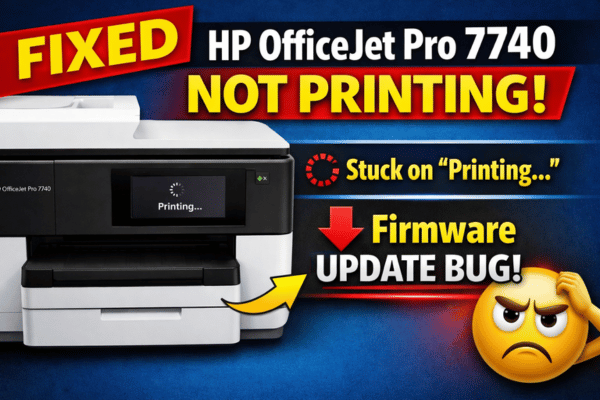

If your HP OfficeJet Pro 7740 suddenly stopped printing after the February 3, 2026 firmware update, you’re not alone. Many users report that print jobs reach the printer but the device gets stuck on the “Printing…” screen with a spinning circle and nothing happens.
Even more confusing:
- The printer receives jobs from Windows 11 and Mac
- But won’t print status or test pages
- Yet it can print head alignment pages
This strongly suggests a firmware-level printing subsystem bug, not a PC or driver issue.
In this guide, you’ll learn why this happens and how to fix HP 7740 not printing after firmware update with proven solutions.
Symptoms of HP 7740 Printing Freeze Issue
Users experiencing this firmware bug report:
- Printer shows “Printing…” indefinitely
- Jobs never start printing
- Cancelling is the only option
- Cannot print:
- Printer status page
- Reports from control panel
- Can print:
- Head alignment page
- Occurs on:
- Windows 11 PCs (multiple)
- macOS devices
- Started immediately after Feb 2026 firmware update
👉 This confirms the problem is inside printer firmware, not network or driver.
Why HP OfficeJet Pro 7740 Stops Printing After Firmware Update
The Feb 2026 firmware appears to cause:
- Print engine initialization failure
- Internal print queue lock
- Firmware print service crash
- Report-printing module corruption
Because alignment pages use a different internal routine, they still print — while normal jobs freeze.
Fix HP OfficeJet Pro 7740 Stuck on “Printing…” Screen
Follow these solutions in order.
Fix 1- Perform Full Power Reset (Critical)
This clears firmware memory and stuck print services.
Steps:
- Turn printer ON
- Disconnect power cable from rear
- Unplug from wall outlet
- Wait 60 seconds
- Hold Power button 15 seconds
- Reconnect power directly to wall
- Turn printer ON
Now try printing a Printer Status Report.
If still stuck → continue.
Fix 2 — Semi-Full Reset (Service Menu Reset)
This resets internal firmware modules without deleting setup.
Steps:
- On printer screen press: Back → Back → Cancel → Back
- Service menu appears
- Tap: Reset Menu → Semi-Full Reset
- Printer restarts
Re-add printer to Wi-Fi if needed.
Now test printing.
Fix 3 – Force Reinstall Firmware (USB Method)
HP firmware tool sometimes refuses reinstall over network.
Use USB to force it.
Steps:
- Download latest firmware for HP 7740
- Connect printer via USB to PC
- Run firmware updater
- Select USB printer
- Install firmware
If installer says “up to date”:
👉 Disconnect network cable/Wi-Fi
👉 Leave only USB connected
👉 Run again
This often forces reinstall.
Fix 4- Disable IPv6 (Known HP Freeze Trigger)
Some firmware builds freeze printing with IPv6.
Steps:
- Open printer IP in browser
- Go to: Networking → IPv6
- Disable IPv6
- Apply
- Restart printer
Test print.
Fix 5 – Clear Internal Print Queue via EWS
Corrupted internal queue can block all prints.
Steps:
- Open printer web page (IP address)
- Go: Settings → Security → Restore Defaults
- Select: Restore Factory Defaults (retain network)
- Restart printer
Fix 6 – Downgrade Firmware (Most Effective)
Many users confirm downgrading fixes issue.
⚠️ HP hides downgrade option, but possible.
Steps:
- Download older firmware version
- Connect via USB
- Use firmware utility
- Install older version
After downgrade, printing works normally.
Fix 7 – Check Spooler Conflict (Windows)
Even though issue is firmware, confirm PC side.
Steps:
- Stop Print Spooler
- Delete: C:\Windows\System32\spool\PRINTERS
- Restart Spooler
- Reinstall printer driver
When HP 7740 Can Print Alignment but Not Documents
This specific pattern means:
- Printhead OK
- Ink system OK
- Paper path OK
- Firmware print pipeline broken
👉 Hardware is healthy
👉 Firmware is culprit
HP OfficeJet Pro 7740 Firmware Bug – Confirmed Behavior
Your described case matches known pattern:
- All devices affected
- Internal pages fail
- Firmware reinstall blocked
- Alignment prints OK
- Started after Feb 2026 update
This is not user error.
Recommended Permanent Fix
Best solutions:
- Semi-Full Reset
- Firmware reinstall via USB
- Firmware downgrade
Most successful: downgrade firmware
If Nothing Works
Likely firmware corruption deep in flash memory.
Options:
- HP service firmware recovery
- Mainboard reflash
- Replace formatter board
- Replace printer
If your HP OfficeJet Pro 7740 freezes on “Printing…” after Feb 2026 firmware, the issue is almost certainly caused by a buggy firmware update affecting the print engine service.
The printer receiving jobs but refusing to print — even internal reports — is the key diagnostic sign.
Fortunately, in most cases, a semi-full reset or firmware downgrade restores printing completely.
FAQs – HP 7740 Not Printing After Firmware Update
Why does HP 7740 show Printing but not print?
Firmware print service is frozen after update.
Why can alignment page print but not documents?
Alignment uses separate internal routine.
Can I reinstall HP firmware?
Yes, using USB forced install method.
Does factory reset fix it?
Sometimes, but firmware downgrade works best.
Is printer hardware damaged?
No — this is firmware related.