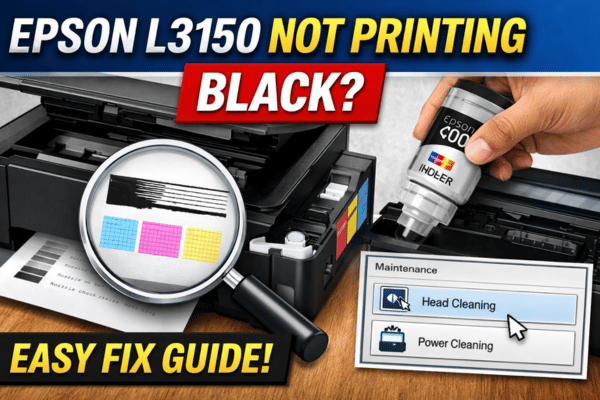

Many Epson L3150 users face a frustrating problem: the printer prints colors but black ink does not appear on the paper. Sometimes the page comes out completely blank, or the text appears very faint.
I have seen this issue many times in homes, offices, and cyber cafés where the Epson EcoTank series is used daily. The good news is that in most cases the printer is not broken. Usually it is a simple issue like clogged printhead nozzles, air in the ink tube, or incorrect settings.
This guide explains very clear steps anyone can follow, even if you have zero technical knowledge.
How the Epson L3150 Printing System Works (Simple Explanation)
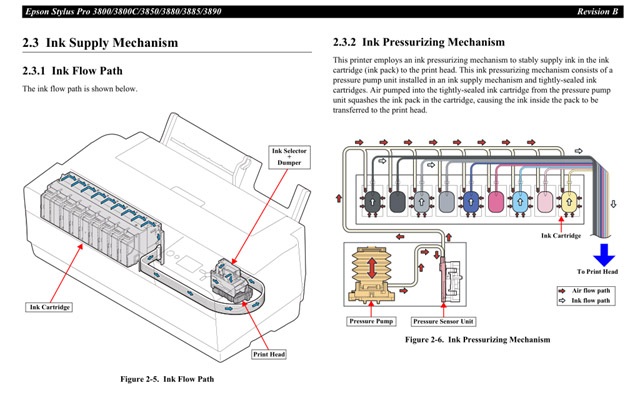
The Epson L3150 is an EcoTank printer, which means it does not use cartridges. Instead, it uses ink tanks connected to the print head through small tubes.
Here is what happens when you print:
- Ink sits in the external tanks
- Ink flows through small tubes
- The print-head sprays tiny ink droplets
- The paper moves below the print-head
If any part of this path is blocked, the black ink will not print.
Most common cause:
The print-head nozzles become clogged with dried ink.
Common Reasons Epson L3150 Does Not Print Black
Before fixing, understand the cause.
1. Clogged Printhead (Most Common)
If the printer is not used for weeks, the ink inside the nozzles can dry and block the flow.
2. Air in Ink Tube
After refilling ink, air bubbles sometimes enter the tube, stopping ink flow.
3. Ink Tank Not Filled Properly
Sometimes the tank looks full but the ink has not reached the printhead yet.
4. Incorrect Print Settings
If the printer is set to grayscale or draft mode, black output may look faint.
5. Long Time Without Use
Inkjet printers must be used regularly. If unused, the ink dries inside the head.
Step 1 — Check Ink Tank Level
This is the first thing beginners should check.
How to check
- Look at the black ink tank on the front right side
- The ink should be above the minimum line
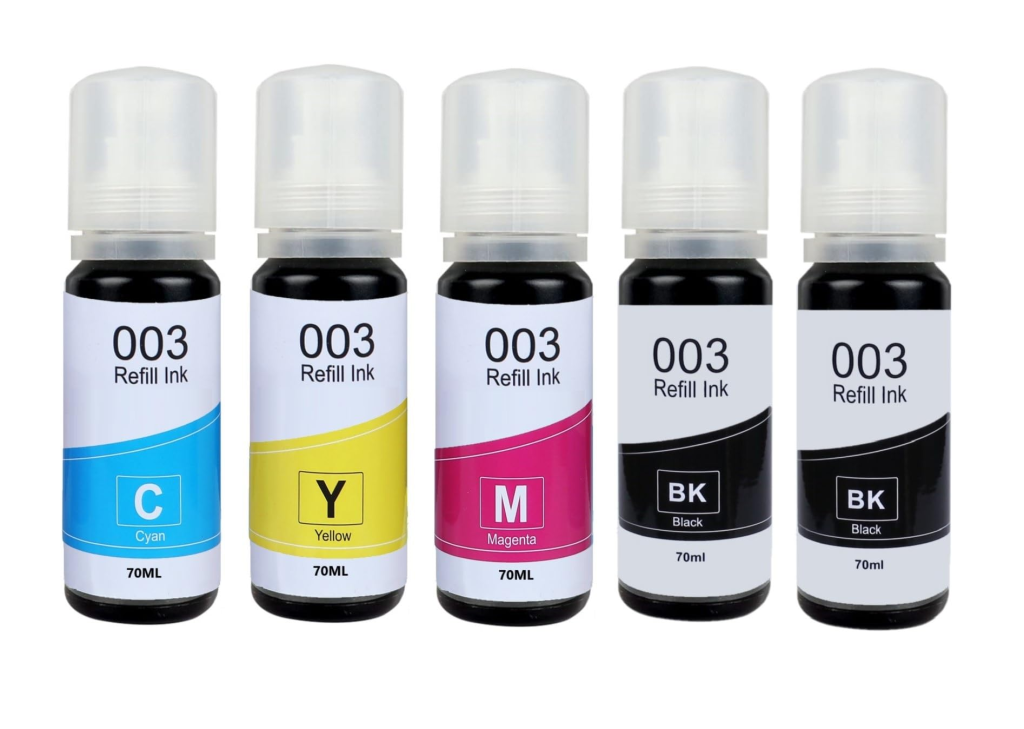
- If it is low, refill using Epson 003 black ink bottle
Important tip from experience:
After refilling, wait 10–15 minutes so the ink flows into the tube.
Step 2 — Run a Nozzle Check (Very Important)
This test shows whether the printhead is clogged.
Steps
Go to:
Turn on the printer
Load A4 paper
Open Printer Settings on your computer
Maintenance → Nozzle Check
Print the test page
What you should see
You should see four patterns:
- Black
- Cyan
- Magenta
- Yellow
If the black pattern is broken or missing, the printhead is clogged.
This happens because ink cannot pass through blocked nozzles.
Step 3 — Clean the Print head
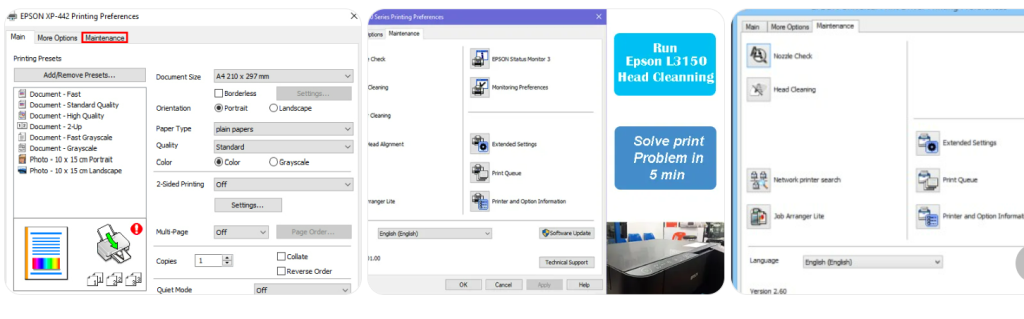
This is the most effective fix.
Steps
- Open Printer Preferences
- Click Maintenance
- Select Head Cleaning
- Start cleaning
Wait about 2 minutes.
After cleaning:
- Run Nozzle Check again
- If black still missing → repeat cleaning
Most printers start printing normally after 2–3 cleaning cycles.
Head cleaning works by forcing ink through the clogged nozzles, clearing dried ink.
Step 4 — Perform Power Cleaning (If Problem Remains)
If normal cleaning does not work, try Power Cleaning.
This pushes much more ink through the printhead, clearing stubborn clogs.
Steps
- Open Printer Utility
- Go to Maintenance
- Select Power Cleaning
Important note:
- Uses a lot of ink
- Can only run once every 12 hours
Use this only if normal cleaning fails.
Step 5 — Print a Test Page
After cleaning:
- Print a simple document
- Print a black text page
- Print a test image
If the black color appears clearly, the problem is solved.
Step 6 — Restart the Printer (Sometimes Works)
A simple restart can reset the system.
Steps
- Turn OFF printer
- Unplug power cable
- Wait 5 minutes
- Turn ON again
Some users report the printer starts printing normally after restarting.
Step 7 — Last Option: Manual Printhead Cleaning
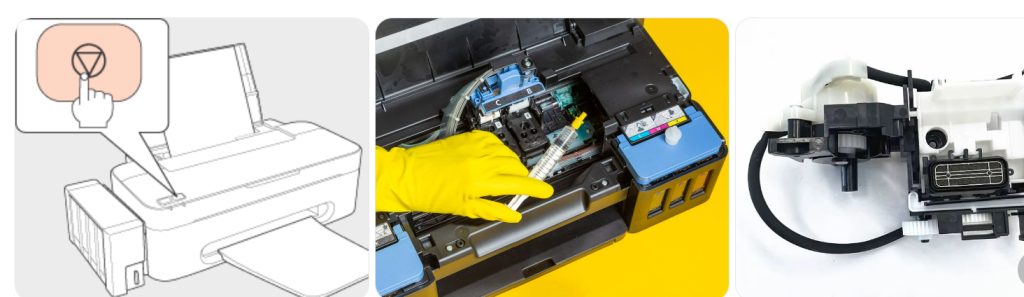
If nothing works, the printhead may need manual cleaning.
Basic idea:
- Open the scanner lid
- Move printhead to center
- Clean nozzle area using distilled water or cleaning solution
⚠️ Warning
Only try this if you are comfortable opening the printer.
Real-Life Experience Tip (Very Important)
In my experience repairing printers in small offices:
90% of Epson black-ink issues happen because the printer was not used for weeks.
To prevent this:
✔ Print 1 page every week
✔ Do not leave printer unused for long
✔ Always turn off the printer properly
These simple habits prevent ink from drying.
Simple Maintenance Tips
Follow these habits to avoid future problems:
- Print something every week
- Keep the printer covered from dust
- Use original Epson ink
- Never overfill the tank
- Avoid cheap refill ink
When You Should Contact Service
Call a technician if:
- Head cleaning does not work
- Power cleaning fails
- Printer prints blank pages
- Ink tubes contain large air bubbles
This may mean printhead damage or motherboard issue.
Quick Summary
| Problem | Solution |
|---|---|
| Black ink not printing | Run nozzle check |
| Missing lines | Head cleaning |
| Completely blank page | Power cleaning |
| After refill no ink | Wait for ink flow |
| Still not working | Manual cleaning or service |