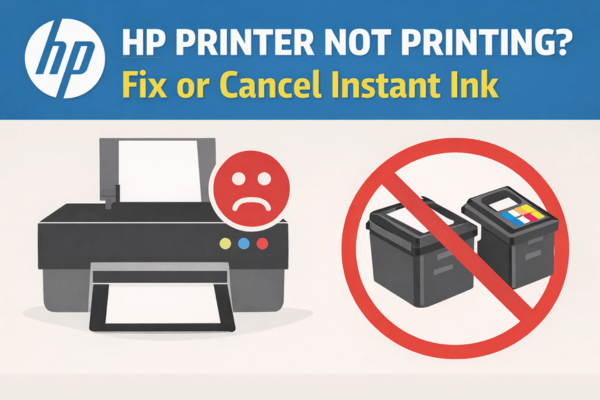

HP printers are generally reliable, but when something goes wrong it can quickly become frustrating. Many users sign up for HP Instant Ink expecting automatic cartridge delivery and worry free printing. However, some users face a strange issue where the printer shows full ink levels but still refuses to print anything.
This problem becomes even more annoying when you are paying for a monthly subscription and cannot get a human support agent from HP to help. If you are thinking about closing your HP account because of this issue, take a moment to try a few fixes first.
In many situations, the problem is related to cartridge recognition, internet connection, or Instant Ink account settings. This guide explains why this happens and what you can do to fix it before cancelling your account.
Why Your HP Printer Shows Ink but Will Not Print
Even when a printer displays full ink levels, it may still refuse to print due to software restrictions, account issues, or cartridge compatibility problems.
Several things can cause this behavior. Understanding the possible reasons can help you identify the correct fix faster.
Instant Ink Subscription Restrictions
HP Instant Ink cartridges work differently from standard cartridges. These cartridges are connected to your HP account and communicate with HP servers.
If the printer cannot verify the subscription status or loses connection to the internet, printing may stop even if the cartridges still contain ink.
Using Cartridges From Another Printer
If a cartridge was originally used in another printer, it may not work correctly in a new device.
Even if the printer shows full ink levels, HP’s system may block printing because the cartridge serial number is linked to another printer or subscription account.
Printer Not Connected to the Internet
HP Instant Ink printers need occasional internet access to verify cartridge status.
If the printer is offline or disconnected from WiFi, it may temporarily disable printing until it reconnects to HP servers.
Firmware or Software Errors
Sometimes the issue is simply caused by a temporary software glitch. Printers are small computers and can occasionally misread cartridge information or account status.
A restart or firmware update often fixes these issues.
HP Printer Printing Blank Pages? Here’s What’s Actually Going On (and How to Fix It)
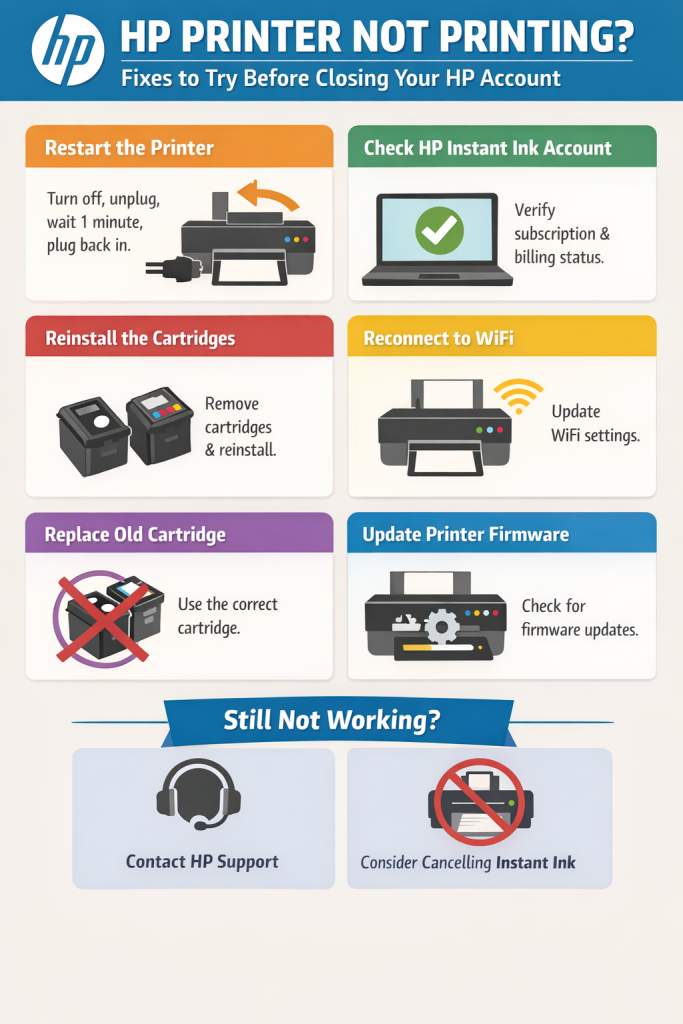
Step by Step Fixes to Try Before Cancelling Your HP Account
Before you decide to close your HP account or cancel your subscription, try the following troubleshooting steps. Many users have fixed the problem using these simple methods.
Restart the Printer Completely
A full restart can clear temporary errors and refresh the printer’s internal system.
Steps to restart your printer
- Turn the printer off.
- Unplug the power cable from the printer.
- Wait for about one minute.
- Plug the power cable back in and turn the printer on.
After the printer starts again, try printing a test page.
Check Your HP Instant Ink Account Status
Your printer may stop printing if there is a billing problem or subscription issue.
Log in to your HP Instant Ink account and check the following:
- Make sure your subscription is active
- Confirm that your payment method is valid
- Check that your printer is still registered to the account
- Verify that you have not exceeded your monthly page limit
If there is a payment failure, the printer may temporarily block printing.
Remove and Reinstall the Cartridges
Sometimes the printer simply fails to read the cartridge correctly. Removing and reinstalling the cartridges can refresh the connection.
Steps
- Open the cartridge access door.
- Remove both cartridges carefully.
- Wait for about 30 seconds.
- Reinsert the cartridges firmly until they click into place.
Close the printer and try printing again.
HP DeskJet 2700 Printer Offline Fix (Step-by-Step Guide)
Reconnect the Printer to WiFi
If you recently changed your WiFi password or router, the printer may no longer be connected to the network.
To reconnect the printer
- Open the HP Smart app on your phone or computer.
- Select your printer.
- Go to Printer Settings.
- Choose Wireless Setup.
- Enter your WiFi password.
Once the printer reconnects to the internet, it can communicate with HP servers again.
Remove the Old Cartridge From the Broken Printer
Using a cartridge from another printer can sometimes confuse the HP system.
Even if the printer displays full ink levels, the cartridge may not be authorized for the new printer. Try replacing it with a new cartridge designed for the current device.
This step often solves the issue immediately.
Update the Printer Firmware
Firmware updates fix bugs and improve compatibility with cartridges and HP services.
To check for updates
- Open HP Smart.
- Go to Printer Settings or Advanced Settings.
- Look for Firmware Update or Printer Update.
- Install any available updates.
Restart the printer after the update completes.
How to Contact a Human at HP Support
If the printer still refuses to print, the next step is to contact HP support directly.
Although it may seem difficult to reach a real person, HP does offer several support options.
You can try
- HP Smart app support section
- HP Support website chat
- HP community forums
- Request a callback from HP support
The callback option is often available after you enter your printer model and describe the issue on the HP support website.
Should You Cancel Your HP Instant Ink Subscription?
If the service continues to cause frustration and you rarely print, cancelling the subscription may be a practical option.
However, there is an important detail many users do not realize.
Instant Ink cartridges stop working after you cancel the plan. You will need to replace them with standard retail cartridges before printing again.
Once standard cartridges are installed, your printer will work normally without the subscription.
FAQs
Why is my HP printer showing full ink but not printing?
This usually happens due to cartridge recognition issues, Instant Ink subscription restrictions, or the printer not being connected to the internet. Restarting the printer and reinstalling the cartridges often fixes the problem.
Can I use a cartridge from another HP printer?
Sometimes you can, but it may not always work. If the cartridge is linked to another printer or Instant Ink account, the new printer may block printing even if the ink level appears full.
Does HP Instant Ink require internet connection?
Yes. HP Instant Ink printers must connect to the internet occasionally so HP can verify the subscription and monitor ink levels.
What happens if I cancel my HP Instant Ink subscription?
Once the subscription is cancelled, Instant Ink cartridges stop working. You will need to install standard HP retail cartridges to continue printing.
How do I reset my HP printer if it will not print?
Turn off the printer, unplug the power cable for about one minute, then plug it back in and turn the printer on. This simple reset often resolves temporary printer errors.
How can I contact a real person at HP support?
You can request support through the HP Smart app or the HP Support website. In many cases, HP provides a callback option after you enter your printer model and issue.
Final Thoughts
Printer problems can be incredibly frustrating, especially when you are paying a monthly subscription and still cannot print a single page.
In many cases the issue is related to cartridge recognition, internet connection, or account verification. Trying the troubleshooting steps in this guide may solve the problem without the need to cancel your HP account.
If nothing works, replacing the cartridge with a standard retail cartridge and cancelling the Instant Ink subscription is often the simplest solution.
A printer should make life easier, not add unnecessary stress.