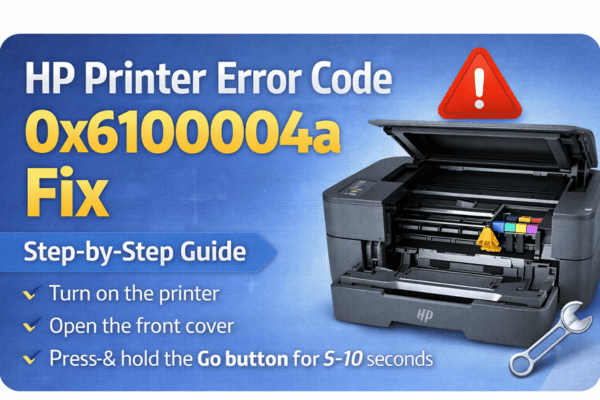

HP Printer Error Code
0x6100004a
Your complete fix guide — from carriage jams to firmware resets, solved step by step.
What Is HP Error Code 0x6100004a?
Error 0x6100004a is a hardware-level error on HP Deskjet, Envy, and OfficeJet printers. It signals that the ink carriage — the moving bar that holds the cartridges — has stalled, jammed, or failed to complete its startup sweep. The printer cannot proceed with any job until this is resolved.
Unlike software errors, this one is primarily physical — paper debris, a stuck cartridge, or a dirty carriage rail are the most frequent triggers.
Most reported on HP Deskjet 3755, Envy 4520, Envy 5055, OfficeJet 3830, and similar all-in-one inkjet series from 2015 onward.
How Does This Error Show Up?
Why Does Error 0x6100004a Happen?
Paper or Debris Jamming the Carriage
A torn scrap of paper, a staple, or a small object lodged inside the carriage path physically blocks the mechanism from completing its reset sweep on startup.
Ink Cartridge Seated Incorrectly
A cartridge that is not fully clicked into its slot can catch on internal components as the carriage moves, triggering the jam detection and halting the printer.
Dirty or Dry Carriage Rail
The steel rod the carriage slides along needs a thin film of lubricant. Over time it dries out, causing friction, stuttering movement, and eventually a stall that registers as a hardware fault.
Protective Tape Left on Cartridge
Brand new cartridges ship with orange or pink plastic tape over the nozzles. If this tape is not removed before installation, the cartridge cannot make proper contact and disrupts carriage motion.
Outdated or Corrupted Firmware
HP firmware bugs, particularly in older versions, can cause the carriage motor controller to misread position sensors and throw a false mechanical error even when there is no physical jam.
Internal Hardware Failure
In rare cases, a worn carriage belt, a failed motor encoder, or a damaged main board can cause the error to appear persistently even after all other fixes have been tried.
How to Fix HP Error Code 0x6100004a
Power Reset the Printer
With the printer on, unplug the power cord from the back. Wait a full 60 seconds, then plug directly into a wall outlet (not a surge protector) and power on.
Clear All Paper & Debris
Open all access panels. Remove every sheet of paper and check for torn scraps, staples, or foreign objects inside the paper path and around the carriage area. Use a flashlight.
Manually Free the Carriage
With the printer off and unplugged, open the cartridge access door. Gently push the carriage left and right by hand. If it resists, look for what’s blocking it and carefully remove it.
Reseat the Ink Cartridges
Remove each cartridge, check that the orange protective tape has been removed, then firmly press each one back in until you hear or feel a distinct click.
Clean & Lubricate the Carriage Rod
Dampen a lint-free cloth with water to wipe the steel carriage rod clean. Apply a tiny drop of machine oil (not WD-40) and slide the carriage back and forth to distribute it evenly.
Clean the Encoder Strip
The thin clear plastic strip running horizontally behind the carriage is the encoder. Wipe it gently with a dry lint-free cloth — ink smudges on this strip confuse the position sensor.
Update HP Printer Firmware
Visit support.hp.com, enter your printer model, and download the latest firmware. Install via USB. This resolves firmware bugs that can trigger false carriage fault errors.
Restore Printer to Factory Settings
On the printer panel: Setup → Printer Maintenance → Restore → Restore Factory Defaults. Resets all internal settings without erasing Wi-Fi credentials on most models.
Reinstall Printer Driver on PC
Uninstall the HP printer from Devices & Printers, download the full-feature driver from hp.com, and reinstall. Clears corrupt driver states that can sustain the error loop.
Before You Start — Check These First
When to Contact HP Support
If all nine fixes have been attempted and the error persists, the printer likely has a hardware fault requiring professional service. Reach out to HP support in these situations: