Epson Printer ET-1913 WiFi Setup, Troubleshooting & Fixes – Complete Guide
Complete Setup & Troubleshooting Guide
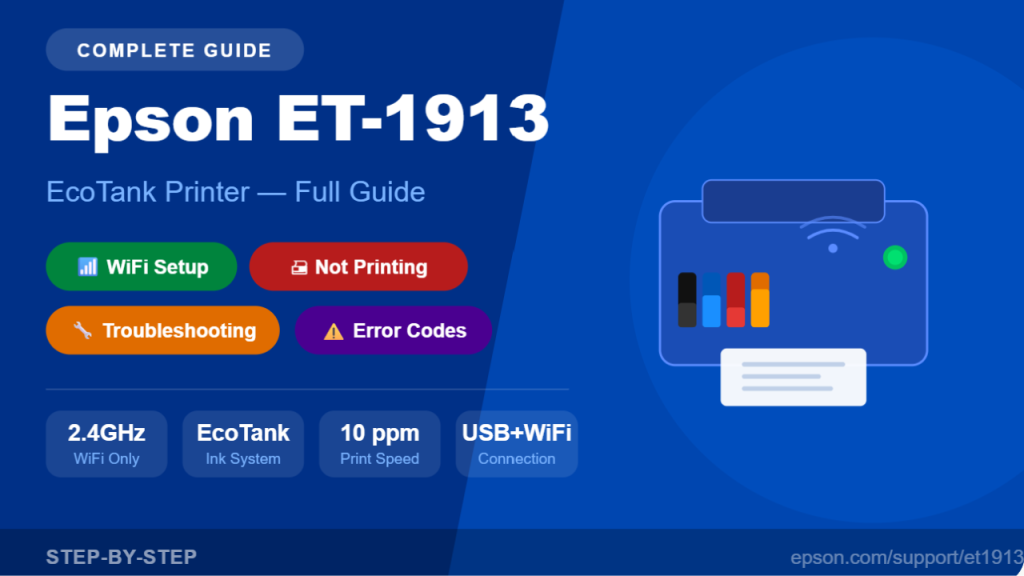
Epson EcoTank ET-1913
WiFi Setup · Not Printing · Troubleshooting Fixes
Everything you need to get your Epson ET-1913 EcoTank printer connected to WiFi, printing perfectly, and running smoothly — with step-by-step visual guides and expert troubleshooting tips.
The Epson EcoTank ET-1913 is an affordable, ink-efficient inkjet printer designed for home and small office use. With its refillable ink tank system, it eliminates the cost of traditional cartridges and delivers thousands of pages without interruption. However, like any wireless printer, users often run into WiFi setup issues, connectivity drops, print quality problems, or driver conflicts. This comprehensive guide covers everything — from the very first WiFi setup to fixing the most frustrating problems.
Whether your Epson ET-1913 is not printing, showing offline, not connecting to WiFi, or producing faded prints, you’ll find a fix here. We’ve broken this guide into clear sections so you can jump directly to the problem you’re facing. Bookmark this page — it’s your go-to resource for the ET-1913.
📦
Section 1
What’s in the Box & Initial Setup
Before setting up your Epson ET-1913, let’s confirm you have everything. The box should include the printer unit, four ink bottles (Black, Cyan, Magenta, Yellow), a power cable, USB cable, and quick start guide. Do NOT connect the USB cable until instructed.
✅Epson ET-1913 Printer Unit
✅4 EcoTank Ink Bottles (BCMY)
✅Power Cable
✅USB 2.0 Cable
✅Quick Start Guide
✅Warranty Card
⚠️ Important:
The ET-1913 supports 2.4GHz WiFi only. It does NOT support 5GHz networks. If your router broadcasts both bands with the same name (SSID), make sure you connect to the 2.4GHz band.
📶
Section 2
Epson ET-1913 WiFi Setup — Step by Step
Setting up WiFi on the ET-1913 uses the Epson WiFi Setup Wizard via the printer’s control panel. The ET-1913 does not have a touchscreen, so navigation is done with physical buttons. Follow these steps precisely:
1
Power On the Printer
Press the Power button and wait for the printer to complete initialization. The WiFi light will flash or remain solid — if it’s off, proceed to configure WiFi.
2
Access WiFi Setup Mode
Press and hold the WiFi button on the printer for at least 3 seconds until the WiFi indicator starts flashing. This puts the printer into WiFi setup mode.
3
Download Epson Setup Software on Your PC/Mac
On your computer, visit epson.com/support/et1913 and download the Epson Setup Utility (also called Epson Software Updater). Run the installer. When prompted, choose WiFi Connection (not USB).
4
Select Your WiFi Network (2.4GHz)
The setup wizard will scan for available networks. Select your 2.4GHz network name (SSID). Do NOT select a 5GHz band — the ET-1913 is incompatible with 5GHz.
5
Enter Your WiFi Password
Type your WiFi password carefully (it is case-sensitive). Click Next or Connect. The setup utility will transmit the credentials to the printer.
6
Confirm Connection & Install Driver
The WiFi indicator on the printer should become solid blue/green. The setup utility will then install the printer driver. Print a test page to confirm successful setup.
📱
For Mobile (iOS / Android) — Use Epson Smart Panel
Download Epson Smart Panel from the App Store or Google Play. Open the app → Add Printer → Follow on-screen steps. Make sure your phone is on the same 2.4GHz WiFi network as the printer.
🔗 WiFi Direct Setup (No Router Needed)
The ET-1913 supports WiFi Direct, which lets devices connect directly to the printer without a router.
- Press and hold the WiFi Direct button for 3 seconds until the WiFi Direct light turns on.
- On your device, go to WiFi settings and look for a network starting with “DIRECT-“ followed by the printer model.
- Connect using the password printed on the label inside the printer’s cover or printed from the printer’s network status sheet.
The Epson ET-1913 is among the most popular budget-friendly EcoTank printers sold in the US, India, and other markets. Its refillable ink tank system is a game-changer for users who print frequently, as the cost per page drops dramatically compared to traditional cartridge printers. While the setup is straightforward, the WiFi configuration can catch some users off-guard — particularly the 2.4GHz-only limitation. Understanding your printer’s requirements before setup saves a lot of headaches and eliminates the most common connectivity issue right away.
❌
Section 3
Epson ET-1913 WiFi Not Connecting — Fixes
If the WiFi light keeps blinking, or the printer refuses to connect to your network, work through the following fixes in order. Most WiFi connection failures on the ET-1913 are caused by one of five root causes:
📡
5GHz Network Issue
ET-1913 only supports 2.4GHz. Log into your router admin (usually 192.168.1.1) and split your 2.4GHz and 5GHz into separate SSIDs. Connect the printer to the 2.4GHz one.
🔐
Wrong WiFi Password
Password is case-sensitive. Check for spaces, numbers that look like letters (0 vs O, 1 vs l). Reset the printer’s WiFi settings and try again if needed.
📶
Weak Signal / Distance
Move the printer closer to the router during initial setup. Walls and interference from microwaves/cordless phones can block 2.4GHz. Keep printer within 30 feet of router.
🔒
Router Security Block
Some routers have AP Isolation or MAC filtering. Log into your router and disable AP Isolation. If using MAC filtering, add the printer’s MAC address (found on network status sheet).
♻️
Router / Printer Needs Restart
Turn off your router for 60 seconds and power off the printer. Restart router first, wait 2 minutes, then power on the printer and attempt reconnect.
🔄
Reset Network Settings
On the printer: Press and hold the WiFi button and the Cancel button simultaneously for 3 seconds. This resets all network settings. Then re-run WiFi setup from scratch.
💡 Pro Tip — Print a Network Status Sheet
Press and hold the WiFi button for 10 seconds (or hold WiFi + Cancel briefly) to print a Network Status Sheet. This sheet shows your printer’s IP address, MAC address, SSID it’s connected to, and signal strength — invaluable for diagnosing issues.
🖨️
Section 4
Epson ET-1913 Not Printing — Diagnosis & Fixes
Your printer is connected to WiFi but jobs are stuck in the queue, nothing comes out, or you get error messages? Here’s a structured flowchart of what to check and how to fix each scenario:
PROBLEM
Printer Shows “Offline” in Windows/Mac
✅ Fix:
- Go to Control Panel → Devices and Printers (Windows) or System Preferences → Printers (Mac).
- Right-click the Epson ET-1913 → See what’s printing → Printer menu → Uncheck “Use Printer Offline”.
- Clear all pending print jobs. Restart the Print Spooler service (Windows: run
services.msc, find Print Spooler, restart).
- Set the ET-1913 as the Default Printer if it isn’t already.
PROBLEM
Print Jobs Stuck in Queue / Won’t Clear
✅ Fix (Windows):
- Press Win + R → type services.msc → find Print Spooler → click Stop.
- Navigate to C:\Windows\System32\spool\PRINTERS and delete all files inside (not the folder).
- Go back to services.msc and Start Print Spooler again.
- Retry printing.
PROBLEM
Printer Not Found on Network After Setup
✅ Fix:
- Confirm printer’s WiFi light is solid (not blinking).
- Print a Network Status Sheet (hold WiFi button 10s) and note the IP Address.
- In printer properties on your PC, manually enter that IP address as the printer port (Add a printer → TCP/IP port).
- Ensure your PC and printer are on the same WiFi network.
PROBLEM
Printer Driver Not Installed / Wrong Driver
✅ Fix:
- Uninstall current Epson drivers completely from Control Panel → Programs.
- Restart your computer.
- Download the latest driver from epson.com/support — search “ET-1913” and select your OS version.
- Run the installer as Administrator and choose Network/WiFi connection type.
Many ET-1913 users report that after a Windows update, their printer stops working or disappears from the device list. This is typically because Windows Update replaces the custom Epson driver with a generic Microsoft driver. The solution is always to re-download and reinstall the official Epson driver from Epson’s support website. Additionally, the Print Spooler clearing trick described above resolves about 80% of all “stuck print job” scenarios across all Windows versions from Windows 10 to Windows 11.
🎨
Section 5
Print Quality Problems & Ink Issues
The EcoTank system is reliable, but print quality issues can emerge when nozzles clog, ink runs out, or incorrect settings are used. Here are the most common quality issues and how to solve them:
👻
Faded / Light Prints
Check ink levels through the Epson Smart Panel app or the printer’s ink tank windows. If low, refill. Also check: print quality setting is not set to “Economy/Draft” mode — switch to Standard or High.
〰️
Horizontal Lines / Banding
This is almost always a clogged printhead nozzle. Run the Print Head Cleaning utility: Epson Smart Panel → Maintenance → Head Cleaning. Run 1–2 cycles, then print a nozzle check pattern.
🟥
Wrong Colors / Color Shift
Confirm you filled the correct ink tank with the correct color. Run Nozzle Check to see which color is missing. Then run Head Cleaning for that specific color. Also ensure you’re using the correct paper type in driver settings.
💧
Ink Smearing / Wet Prints
Using the wrong paper type setting causes over-inking. Match the paper type in the printer driver to the paper you’re using. Also ensure paper is not damp and the paper path is clean.
⬛
Black Not Printing at All
Check if the Black ink tank is empty. If it has ink, the nozzle may be severely clogged. Run up to 3 Head Cleaning cycles. If still not printing black, run the Power Cleaning utility (uses more ink but clears stubborn clogs).
📐
Misaligned / Crooked Prints
Run Print Head Alignment from Epson Smart Panel → Maintenance. This prints an alignment pattern and lets you select the best alignment option. Also ensure paper guides in the tray are snug against the paper edges.
🔍 How to Run a Nozzle Check
The Nozzle Check print is your diagnostic tool. Here’s how to run it:
- Open Epson Smart Panel or Epson Printer Utility on your computer.
- Go to Maintenance → Nozzle Check → Print.
- Examine the printed pattern. Lines should be solid and complete. Gaps in specific color rows indicate clogged nozzles in that color.
- If gaps are found, run Head Cleaning for that color, then rerun Nozzle Check to confirm improvement.
⚠️
Section 6
Common Error Codes & Light Patterns
The ET-1913 communicates errors through LED light patterns and error codes in the driver software. Here’s what each means and how to fix it:
| Error / Light Pattern |
Meaning |
Fix |
| Power light flashing + Error light on |
Paper jam or no paper |
Remove all paper, check for jammed sheets inside, reload paper properly. |
| Ink light flashing (one color) |
That ink tank is low or empty |
Refill the indicated ink tank using the correct Epson EcoTank ink bottle. |
| WiFi light off (not blinking) |
WiFi is disabled or not connected |
Press the WiFi button to begin setup. If it was connected before, power cycle router and printer. |
| WiFi light blinking slowly |
Connecting to network / waiting |
Wait up to 2 minutes. If it doesn’t go solid, retry setup with correct SSID/password. |
| All lights flashing rapidly |
Fatal internal error |
Power off, unplug for 5 minutes, plug back in. If persists, contact Epson support. |
| Error code 0x97 |
Hardware failure (common) |
Unplug the printer from power. Press and hold the Power button for 60 seconds. Reconnect power and retry. |
| Error code 0x9E |
Ink pad nearing end of life |
This requires Epson service or the use of the Waste Ink Pad Reset Utility (advanced users only). |
| Paper jam error (no jam visible) |
Ghost paper jam sensor trigger |
Power off. Open all covers and inspect carefully with a flashlight. Remove any tiny torn paper bits. Restart. |
🔧
Section 7
Maintenance Tips to Keep ET-1913 Running Perfectly
Preventive maintenance extends the life of your ET-1913 and avoids most print quality and hardware issues. Follow these best practices:
📅
Print Regularly
Print at least a few pages every 1–2 weeks to prevent ink from drying in the nozzles. Even a quick nozzle check print counts.
🌡️
Store in Stable Temperature
Keep the printer away from direct sunlight, extreme cold, and humidity. Ideal operating temp is 59°F–77°F (15°C–25°C).
🧹
Clean the Paper Path
Use the Paper Guide Cleaning function in Epson Software monthly if you print frequently. This prevents smearing from roller buildup.
🪣
Use Only Epson EcoTank Inks
Third-party inks can clog nozzles permanently and void your warranty. Always use genuine Epson 502 EcoTank ink bottles for the ET-1913.
💾
Update Firmware & Drivers
Regularly check Epson’s website for firmware updates. Updated firmware fixes bugs and improves WiFi stability and print performance.
📄
Use Quality Paper
Avoid cheap, dusty, or damp paper. Paper dust clogs nozzles. Fan paper before loading. Use 20lb (75gsm) or higher paper for best results.
🔄
How to Reset Epson ET-1913 to Factory Settings
Use as a last resort when all other troubleshooting fails.
A factory reset clears all WiFi settings, custom configurations, and stored data. After a reset, you will need to set up WiFi again from scratch. Only use this when the printer is completely unresponsive to other fixes.
1
Make sure the printer is powered ON and in a ready/idle state.
2
Press and hold the WiFi button and the Cancel (×) button simultaneously for about 3 seconds.
3
All indicator lights will flash briefly and the printer will restart automatically. This resets all network settings.
4
Once restarted, redo the WiFi setup from Section 2 of this guide. Reinstall the driver on your PC if needed.
The Epson ET-1913 is a reliable and cost-effective printer for everyday home use. Its EcoTank system provides excellent value over time, and when properly maintained and set up, it delivers sharp text documents and vibrant color prints. Most of the issues users encounter — WiFi not connecting, printer showing offline, faded prints — are easily solvable without requiring a service technician. The key is methodical troubleshooting: start with the simplest fixes (restart, check connections) before moving to more advanced solutions like driver reinstallation or factory reset. We hope this guide has saved you time and frustration. Bookmark it for future reference whenever your ET-1913 acts up.
📋 Quick Reference Summary
Jump to a fix fast with this cheat sheet
WIFI WON’T CONNECT
Check 2.4GHz band • Verify password • Move closer to router • Disable AP Isolation
PRINTER OFFLINE
Uncheck “Use Printer Offline” • Clear print queue • Restart Print Spooler • Set as Default
FADED / LINES IN PRINT
Check ink levels • Run Nozzle Check • Run Head Cleaning 1–2 cycles • Check print quality settings
DRIVER ISSUES
Uninstall old driver • Restart PC • Download from epson.com/support • Reinstall as Admin
PAPER JAM
Power off • Open all covers • Remove paper slowly • Check for torn bits • Restart
LAST RESORT
Hold WiFi + Cancel 3 sec → Factory reset → Redo WiFi setup → Reinstall driver
Still stuck? Contact Epson Support: 1-562-276-4382 (US) or visit epson.com/support
This guide is for informational purposes. Epson ET-1913 is a trademark of Seiko Epson Corporation. Always refer to your official Epson documentation for warranty-related service.