
HP Laptop Camera
Not Working? Fixed!
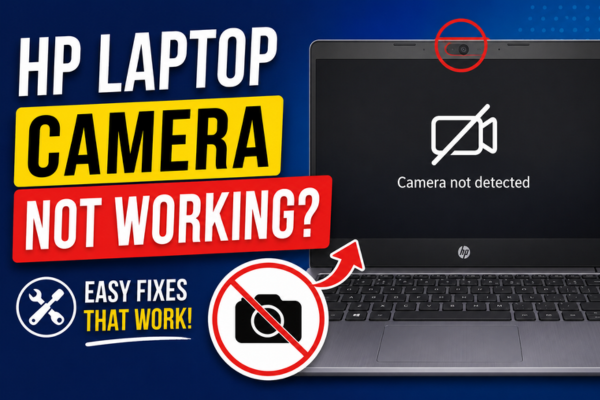
Your HP laptop camera is black, missing, or showing an error in Zoom, Teams, or Windows. This guide covers every cause and 10 targeted fixes.
A non-working camera on an HP laptop is one of the most disruptive problems you can encounter — particularly if you rely on video calls for work, school, or staying in touch with family. The frustrating part is that the camera appears to be built into the laptop, so there is nothing obvious to check or replace. Yet in the vast majority of cases, the fix is straightforward and takes under 15 minutes.
HP laptop camera failures fall into three main categories: privacy settings blocking camera access, a missing or corrupt camera driver, or a hardware switch or keyboard shortcut that has disabled the camera at the system level. Each of these is completely fixable at home without any tools or technical expertise. Identifying which category your problem falls into is the most important first step.
Why Is Your HP Laptop Camera Not Working?
The HP laptop’s built-in camera rarely fails at the hardware level — particularly on laptops less than 5 years old. When the camera stops working, the cause is almost always software: Windows privacy settings blocking access, a disabled or corrupt camera driver, an app-level permission issue, or a camera privacy key being accidentally pressed. All of these are fixable in minutes without opening the laptop or replacing any hardware.
There is a difference between the camera being blocked (appears in Device Manager but apps can’t access it) and being missing (not found in Device Manager at all). Each has a different fix.
All fixes in this guide apply to HP laptops running Windows 10 and Windows 11 — including HP Pavilion, Envy, Spectre, EliteBook, ProBook, and Chromebook models (where applicable).
How This Problem Shows Up
Why Is the HP Laptop Camera Not Working?
Windows Privacy Setting Blocking Camera Access
Windows 10 and 11 have a privacy toggle that can disable all camera access system-wide — for all apps simultaneously. This is the most common cause of a camera that was working and then suddenly stopped, particularly after a Windows update that resets privacy settings to their defaults.
Camera Privacy Key or Physical Switch Disabled
Many HP laptops — particularly business models like the EliteBook — have a dedicated camera privacy key (often F8 or a camera icon key) or a physical slider on the side of the laptop. Pressing this key or sliding the cover accidentally disables the camera at the hardware level, making it invisible to Windows entirely.
Missing, Corrupt, or Outdated Camera Driver
A Windows Update can overwrite or corrupt the HP-specific camera driver — replacing it with a generic Windows driver that doesn’t work correctly with the HP hardware, or removing it entirely. The camera may appear with a yellow exclamation mark in Device Manager or disappear completely.
Camera Disabled in Device Manager
The camera can be manually or automatically disabled in Windows Device Manager. When disabled, the camera is invisible to all applications — Zoom, Teams, and the Windows Camera app all report “no camera found” even though the hardware is physically present and undamaged.
App-Level Permission Not Granted
Windows requires individual apps to be granted camera permission. After a Windows update or fresh app installation, these permissions can be reset — causing a specific app like Zoom or Teams to lose camera access while the Windows Camera app still works.
Another Application Has Exclusive Camera Access
Only one application can typically access the camera at a time. If another app — a video recording utility, HP support tool, or background service — has taken exclusive control of the camera, all other apps will show “camera in use” or “no camera found” errors.
Antivirus or Security Software Blocking Camera
Some antivirus and security suites include a “webcam protection” feature that blocks all applications from accessing the camera. This protection can be triggered automatically and silently — causing the camera to appear non-functional even though Windows privacy settings show it as enabled.
The quickest diagnostic test for an HP laptop camera is to open the Windows Camera app directly — search for “Camera” in the Start menu and open it. If the camera works in the Windows Camera app but not in Zoom or Teams, the issue is an app-level permission problem, not a driver or hardware issue. If the Windows Camera app also shows a black screen or error, the problem is at the Windows system level — privacy settings, driver, or the camera being disabled. This single test immediately tells you which fix path to follow.
How to Fix HP Laptop Camera Not Working — 10 Methods
💡 Start with Fix 01 and 02 — They Resolve 70% of Cases
Checking the Windows camera privacy toggle and the HP camera privacy key resolves the majority of HP laptop camera failures. These two checks take under 2 minutes and should always be done before any driver or software fix.
Enable Camera in Windows Privacy Settings
Go to Settings → Privacy & Security → Camera. Confirm “Camera access” is toggled ON. Also confirm “Let apps access your camera” is ON. These two toggles are reset by Windows updates.
Check HP Camera Privacy Key or Slider
Look for a camera icon key (often F8 or near the top row) or a physical privacy slider on the side of the laptop. Press the key or slide the cover open. A small LED near the camera may indicate its status.
Enable Camera in Device Manager
Right-click Start → Device Manager. Expand Cameras or Imaging Devices. If the camera has a down-arrow icon — right-click → Enable device. If it has a yellow exclamation — proceed to Fix 05.
Grant Camera Permission to the Specific App
Go to Settings → Privacy & Security → Camera. Scroll down to “Let desktop apps access your camera” and find Zoom, Teams, or whichever app isn’t working. Toggle it ON. Restart the app after enabling.
Update or Reinstall Camera Driver
In Device Manager, right-click the camera → Update driver → Search automatically. If no update found: right-click → Uninstall device → tick “Delete driver” → restart PC. Windows will reinstall the driver automatically on reboot.
Download HP Camera Driver from HP Support
Visit support.hp.com, enter your laptop model, and download the latest Camera / Webcam driver for your Windows version. HP’s own driver is more compatible than the generic Windows driver for HP hardware.
Restart the Camera App and Close Other Apps
Close all apps that might use the camera — Zoom, Teams, Skype, WhatsApp, OBS, etc. Open Task Manager → End Task on any camera-related processes. Then reopen the app you want to use. Another app holding exclusive camera access is a common hidden cause.
Check Antivirus Webcam Protection
Open your antivirus software and look for a Webcam Protection or Camera Shield setting. Temporarily disable it and test the camera. If the camera works — add your video app to the antivirus whitelist so it is permanently allowed.
Run Windows Camera Troubleshooter
Go to Settings → System → Troubleshoot → Other troubleshooters → Camera → Run. Windows will automatically detect and attempt to fix common camera configuration issues including driver problems and permission mismatches.
Run HP PC Hardware Diagnostics
Search for HP PC Hardware Diagnostics in the Start menu (pre-installed on most HP laptops). Run the Camera test under Component Tests. If the hardware test fails — the camera has a physical fault. If it passes — the issue is software only.
Targeted Fixes by Scenario
Camera Not Working on Windows 11
Privacy settings, driver, and permission fix for Windows 11
Enable camera access in Privacy settings
Go to Settings → Privacy & Security → Camera. Turn ON Camera access and Let apps access your camera. Scroll down and turn ON access for specific apps (Zoom, Teams, etc.).
Settings → Privacy & Security → Camera → all ONCheck Device Manager for camera status
Right-click Start → Device Manager → expand Cameras. If you see the HP camera with no error icon — it is working at the driver level. If missing entirely — go to Action → Scan for hardware changes.
Device Manager → Cameras → check statusUninstall and reinstall the camera driver
In Device Manager, right-click the camera → Uninstall device. Check “Attempt to remove the driver for this device”. Click Uninstall. Restart the PC — Windows automatically reinstalls the driver on reboot.
Install HP’s official camera driver
Visit support.hp.com → enter your laptop model → go to Software and Drivers → Camera. Download and install the HP-specific webcam driver. This is more stable than the generic Windows camera driver for HP hardware.
support.hp.com → Model → Drivers → CameraTest in Windows Camera app
Search for Camera in the Start menu and open the Windows Camera app. If it works here but not in Zoom/Teams — the app-level permission for that specific app needs to be enabled in Privacy settings. If it fails here too — the driver reinstall is needed.
Camera Not Working in Zoom or Microsoft Teams
Camera works in Windows but not in a specific video app
Confirm camera works in Windows Camera app first
Search Camera in Start and open the Windows Camera app. If it shows a live image — the hardware and driver are fine. The problem is app-level permission or another app blocking access. Proceed with the steps below.
Enable camera permission for the specific app
Go to Settings → Privacy & Security → Camera. Scroll down to Let desktop apps access your camera. Find Zoom, Teams, or Skype in the list and confirm the toggle is ON. If the app is not listed — uninstall and reinstall it.
Privacy → Camera → Desktop apps → toggle ONCheck camera selection inside the app
In Zoom: Settings → Video → Camera dropdown. In Teams: Settings → Devices → Camera dropdown. Confirm the HP camera is selected — not an outdated reference to a previous device or a virtual camera created by another app.
Zoom → Settings → Video | Teams → Settings → DevicesClose all other camera-using apps
Open Task Manager (Ctrl+Shift+Esc). Look for and end tasks on any other app that uses the camera — OBS, Skype, WhatsApp, HP support tools. Then reopen your video app. Only one app can access the camera at a time.
HP EliteBook / ProBook — Camera Privacy Key Fix
For HP business laptops with a dedicated camera privacy key
Locate the camera privacy key
On HP EliteBook, ProBook, and some Pavilion models: look for a camera icon on the F-key row (often F8) or a small LED indicator near the camera. When the LED is amber/orange — camera is disabled. Press the key to toggle it back on.
Check for a physical privacy shutter
Some HP laptops have a physical sliding cover over the camera lens. Look for a small slider above the keyboard near the top bezel. Slide it to the right to uncover the camera lens completely.
Check HP Privacy Settings app
Search for HP Privacy Settings in the Start menu (installed on many HP business laptops). Open it and confirm the camera is not disabled through HP’s own privacy management software — this is separate from Windows privacy settings.
Start → HP Privacy Settings → Camera → EnableCheck BIOS/UEFI camera setting
On HP business laptops, the camera can be disabled in the BIOS. Restart → press F10 to enter BIOS Setup → go to Advanced → Built-in Device Options. Confirm Integrated Camera is set to Enabled. Save and exit.
F10 → Advanced → Built-in Device → Integrated Camera → EnabledFor HP laptop cameras that stopped working specifically after a Windows Update, the most reliable fix is to download and install HP’s own camera driver directly from the HP support website rather than relying on Windows Update to restore it. Windows Update sometimes replaces HP’s hardware-specific camera driver with a generic Microsoft driver that does not work correctly with HP’s camera hardware. The HP-specific driver — available for every supported model at support.hp.com — restores full functionality and is significantly more stable than the generic replacement.
Keep Your HP Laptop Camera Working Reliably
Frequently Asked Questions
My HP camera works in the Windows Camera app but not in Zoom — how do I fix it?
This is a Zoom-specific permission issue. Go to Settings → Privacy & Security → Camera → scroll down to “Let desktop apps access your camera” and make sure Zoom is toggled ON. If Zoom is not listed, uninstall and reinstall Zoom — the reinstall will prompt Windows to add it to the permissions list. Also check inside Zoom’s settings that the correct camera is selected under Settings → Video → Camera.
My HP camera is not showing in Device Manager at all — what does that mean?
A camera missing from Device Manager entirely means the driver is not installed or the device is not being detected by Windows. First try: Device Manager → Action → Scan for hardware changes. If the camera still does not appear, download and install the camera driver from support.hp.com for your exact laptop model. If it still does not appear after a fresh driver install — run HP PC Hardware Diagnostics to check whether the camera hardware itself has failed.
My HP camera shows error code 0xA00F4244 — what does it mean?
Error 0xA00F4244 (“We can’t find your camera”) in the Windows Camera app means Windows cannot find or access the camera device. The most common causes are: camera access disabled in privacy settings, camera disabled in Device Manager, or a missing/corrupt driver. Work through Fixes 01, 03, and 05 in order — these three steps resolve the 0xA00F4244 error in the majority of HP laptop cases.
Can a Windows Update permanently break the HP camera?
A Windows Update can replace the HP-specific camera driver with an incompatible generic version — but this is not permanent damage. Downloading and installing HP’s own camera driver from support.hp.com restores full functionality. The HP driver takes priority over the Windows generic driver and remains in place through future updates unless specifically overwritten again. Setting Windows Update to not automatically update drivers (Device Installation Settings → No) prevents this recurrence.
When to Contact HP Support
If all ten fixes have been applied — including HP’s official driver reinstall and HP PC Hardware Diagnostics — and the camera is still not working, there may be a physical hardware fault. Contact HP support in these situations: