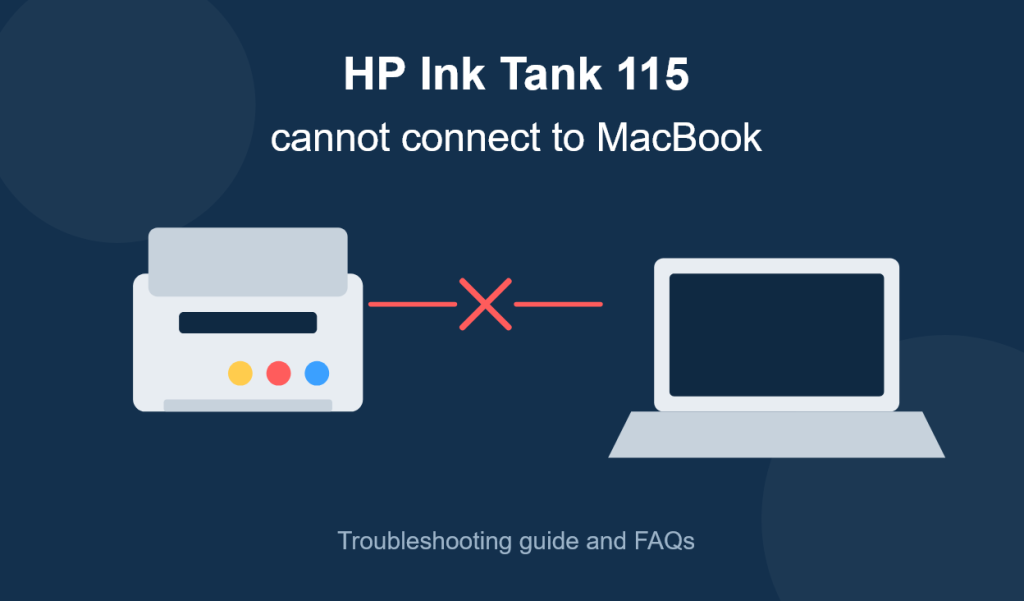

The HP Ink Tank 115 is a budget-friendly, cartridge-free printer built mainly for high-volume, low-cost printing. It works well on Windows, but many MacBook owners report the same frustrating issue: the printer won’t connect, won’t show up in “Printers & Scanners,” or fails mid-print.
The good news is that this is almost always a software or configuration problem, not a hardware fault. This guide walks through every likely cause and gives you a clear, step-by-step way to fix it.
Why the HP Ink Tank 115 Struggles With macOS
Before diving into fixes, it helps to understand the root of the problem:
- No built-in Wi-Fi. The Ink Tank 115 is a USB-only printer. It has no wireless or network module, so it cannot be added over Wi-Fi like an Ink Tank 415 or a networked HP printer. Any attempt to find it on your Wi-Fi network will fail because it simply isn’t broadcasting on one.
- Limited native macOS driver support. Apple’s built-in AirPrint and driver library doesn’t always include full support for entry-level HP models like this one, especially on newer macOS versions.
- USB port and cable compatibility. Modern MacBooks use USB-C only, so a standard USB-A printer cable needs an adapter or hub, which is a common point of failure.
- HP Smart app version mismatches or an outdated HP driver package can prevent macOS from detecting the printer even when it’s properly connected.
- macOS security settings (Gatekeeper, System Extensions permissions) sometimes silently block the printer driver from installing correctly.
Knowing this narrows troubleshooting down fast: since it’s a wired-only device, 90% of “cannot connect” reports trace back to USB connectivity, driver installation, or macOS permissions.
Step-by-Step Fixes
1. Confirm the Connection Type
Double-check you’re using a USB cable directly from the printer to your MacBook (via a USB-C adapter/hub if needed). Do not search for it under Wi-Fi networks or try AirPrint over a network — the Ink Tank 115 has no wireless capability.
2. Use a Reliable USB-C Adapter or Hub
- Use a good-quality USB-C to USB-A adapter or a powered USB hub.
- Avoid cheap, unbranded adapters — they’re a frequent cause of intermittent or failed connections.
- Try a different USB port on your MacBook if you have more than one.
- Test the same cable and adapter with another device to rule out a faulty cable.
3. Install the Official HP Software (Don’t Rely on AirPrint Alone)
- Go to 123.hp.com or the HP Support site and search for “HP Ink Tank 115.”
- Download the HP Easy Start software for macOS.
- Run the installer and follow the prompts — this installs the correct driver and print queue.
- Alternatively, install the HP Smart app from the Mac App Store, which bundles setup, printer management, and driver installation in one place.
4. Add the Printer Manually via System Settings
- Open System Settings (or System Preferences) → Printers & Scanners.
- Click the “+” button to add a printer.
- Under the “Default” tab, look for “HP Ink Tank 115.”
- If it appears, select it and make sure the “Use” dropdown shows an HP driver (not “AirPrint” or “Generic PostScript Printer”) — pick the HP-specific option if listed.
- Click Add.
If it doesn’t appear in the list at all, the Mac isn’t detecting the USB connection — move to Step 5.
5. Reset the Printing System
This clears out corrupted printer queues and driver conflicts:
- Go to Printers & Scanners.
- Right-click (or Control-click) in the printer list area and choose “Reset printing system.”
- Confirm, then re-add the printer following Step 4.
6. Check macOS Security & Privacy Permissions
On newer macOS versions, printer driver software may need explicit approval:
- Go to System Settings → Privacy & Security.
- Scroll down — if you see a message about “System software from developer HP was blocked,” click Allow.
- Restart your Mac and try adding the printer again.
7. Restart Everything in the Right Order
- Turn off the printer and unplug the USB cable.
- Restart your MacBook.
- Plug the USB cable back in and power the printer on.
- Wait 30 seconds, then check Printers & Scanners again.
8. Update or Reinstall the HP Driver
- Check HP Support → Software and Drivers for the latest macOS-compatible version.
- If already installed, delete the existing driver package first (via HP Uninstaller or manually removing it from Library/Printers), then reinstall fresh.
- Restart your Mac after installation before reconnecting the printer.
9. Try Printing a Test Page
Once the printer shows up correctly with the HP driver selected, print a test page from Printers & Scanners → Open Print Queue → Printer → Print Test Page to confirm the connection is stable.
Quick Troubleshooting Checklist
- Using USB cable only (no Wi-Fi attempt)
- Genuine or high-quality USB-C adapter/hub
- Tried a different USB port
- HP Smart app or HP Easy Start installed
- HP-specific driver selected (not AirPrint/Generic)
- Printing system reset
- macOS security permission for HP software allowed
- Printer and Mac both restarted
- Latest HP driver from HP Support site installed
If you’ve worked through this list and the printer still isn’t detected, it may indicate a hardware fault (failed USB port on the printer, damaged cable, or printer malfunction) — in that case, contacting HP Support or testing the printer on another computer is the next step.
Frequently Asked Questions
Q1: Can the HP Ink Tank 115 connect to a MacBook over Wi-Fi? No. The HP Ink Tank 115 is a USB-only printer with no built-in wireless module. It must be connected directly to your MacBook with a USB cable (using a USB-C adapter if your MacBook only has USB-C ports).
Q2: Why doesn’t my HP Ink Tank 115 show up in “Printers & Scanners” on my Mac? This usually means macOS isn’t detecting the USB connection or the correct driver isn’t installed yet. Try a different USB port or adapter, install the official HP Smart app or HP Easy Start software, and reset the printing system if the issue continues.
Q3: Do I need special software, or does macOS detect it automatically? macOS may detect it using a generic AirPrint driver, but this often causes printing errors or missing features. It’s best to install HP’s official software (HP Smart app or HP Easy Start) so the correct HP-specific driver is used.
Q4: My MacBook only has USB-C ports. How do I connect the printer? Use a certified USB-C to USB-A adapter or a powered USB-C hub. Cheap or low-quality adapters are one of the most common causes of unreliable printer connections on newer MacBooks.
Q5: The printer was working before but suddenly stopped connecting. What changed? This is often caused by a macOS update that reset security permissions or removed a driver. Check Privacy & Security settings for a blocked HP software prompt, and reinstall the latest driver from HP’s support site.
Q6: Is there a way to print without installing any HP software? Yes, technically macOS’s built-in AirPrint driver can work for basic printing once the printer is added manually. However, it’s less reliable for this model and may lack ink-level monitoring and maintenance tools, so installing official HP software is recommended.
Q7: How do I know if the problem is the cable, adapter, or the printer itself? Test the same USB cable and adapter with another USB device or computer. If the cable/adapter works fine elsewhere but the printer still won’t connect, the issue likely lies with the driver setup or the printer’s USB port itself.
Q8: Where can I download the correct driver for the HP Ink Tank 115 on macOS? Visit 123.hp.com or HP’s official Support and Drivers page, search for “HP Ink Tank 115,” select macOS as your operating system, and download HP Easy Start or the HP Smart app.
Q9: Should I use “Reset printing system” if only one printer is affected? Yes, it’s safe. This macOS feature removes all printer queues and lets you re-add them cleanly. You’ll just need to re-add any other printers you use afterward.
Q10: Does the HP Ink Tank 115 support scanning from a Mac too? No — the HP Ink Tank 115 is a print-only device. It doesn’t include a scanner, so there’s no scanning function to set up on macOS.
Following the steps above resolves the vast majority of “HP Ink Tank 115 cannot connect to MacBook” issues, since the root cause is almost always a USB/driver/permissions problem rather than a hardware defect. If the printer still won’t connect after a full driver reinstall and permission check, reach out to HP Support for hardware diagnostics.