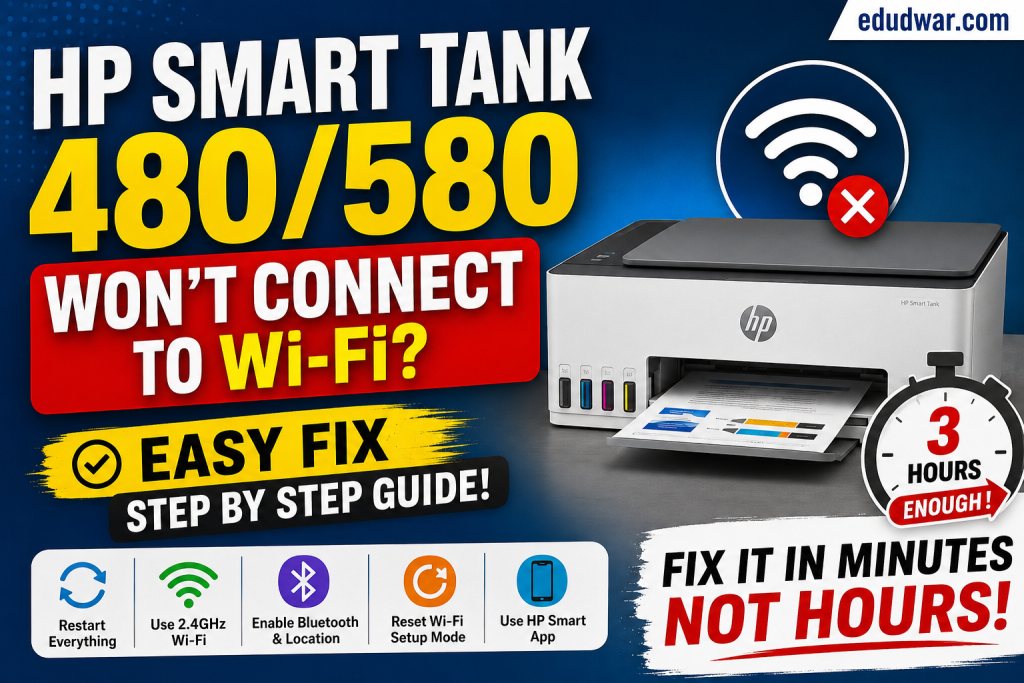

Setting up a new printer should take just a few minutes. Unfortunately, that’s not always the case with the HP Smart Tank 480 and HP Smart Tank 580.
Many users start the setup, the HP Smart app detects the printer, and everything looks fine—until the process suddenly freezes on “Getting printer information”, fails to connect, or asks them to start over again.
If you’ve been stuck in this setup loop for hours, don’t worry. You’re definitely not the only one.
The good news is that this problem is usually caused by a few common issues, and most of them can be fixed in just a few minutes.
In this guide, I’ll walk you through the exact troubleshooting steps that work for most users.
Why Won’t My HP Smart Tank Connect to Wi-Fi?
Before fixing the issue, it’s helpful to understand why it happens.
During the initial setup, the printer creates a temporary wireless signal called Wi-Fi Setup Mode.
The HP Smart app connects to this temporary network and then sends your home Wi-Fi details to the printer.
If anything interrupts this process, setup fails.
The most common reasons include:
- Your phone is connected to a 5 GHz Wi-Fi network
- Your VPN is turned on
- The printer left Wi-Fi Setup Mode before setup finished
- The router is too far away
- Previous failed setup information is still stored
- Bluetooth or Location services are disabled on your phone
Fortunately, these problems are easy to fix.
Step 1: Restart Everything First
This may sound simple, but restarting your devices often fixes temporary connection problems.
Restart:
- HP Smart Tank printer
- Wi-Fi router
- Phone or computer
Wait about one minute after restarting the router before beginning setup again.
Step 2: Make Sure You’re Using a 2.4 GHz Wi-Fi Network
This is the number one reason setup fails.
Most HP Smart Tank printers only support 2.4 GHz Wi-Fi.
If your phone is connected to a 5 GHz network, the printer may never complete setup.
What to do
- Connect your phone to your 2.4 GHz Wi-Fi network.
- If your router combines both frequencies under one name, temporarily separate them or disable 5 GHz while setting up the printer.
After setup finishes, you can usually enable everything again.
Step 3: Reset the Printer’s Wi-Fi Setup Mode
If setup failed once, the printer may no longer be discoverable.
Resetting Wi-Fi Setup Mode usually solves this.
Here’s how:
- Turn on the printer.
- Press and hold the Wi-Fi button and the Cancel (X) button together.
- Hold them for about 5 seconds.
- Release when the Wi-Fi light begins blinking.
The blinking Wi-Fi light means the printer is ready for setup again.
Step 4: Turn Off Your VPN
If you’re connected to a VPN, disconnect it before running the HP Smart app.
VPNs can block communication between your phone and the printer during setup.
After the printer is connected successfully, you can reconnect your VPN.
Step 5: Enable Bluetooth and Location Services
Many people skip this step without realizing it.
The HP Smart app uses:
- Bluetooth
- Location Services
to discover nearby printers.
On your phone:
- Turn Bluetooth ON.
- Allow the HP Smart app to access your location.
- Keep Location Services enabled until setup is complete.
Step 6: Move the Printer Closer to the Router
Weak Wi-Fi signals often interrupt setup.
Try placing the printer within 6 to 10 feet (2 to 3 meters) of the router during installation.
Once setup is complete, you can move it back to its normal location.
Step 7: Use the HP Smart App for Setup
Instead of trying to connect directly from the printer’s control panel, let the HP Smart app guide the process.
Steps:
- Open the HP Smart app.
- Sign in or create an HP account.
- Tap Add Printer.
- Select your HP Smart Tank printer.
- Follow the on-screen instructions.
- Enter your Wi-Fi password when prompted.
Avoid switching Wi-Fi networks or leaving the app during setup.
Step 8: Remove Previous Failed Printer Setups
If you’ve tried several times already, old setup information may be causing problems.
Remove the printer from:
- HP Smart app
- Windows Printers
- macOS Printers
- Mobile device printer list (if applicable)
Then repeat the setup from the beginning.
A fresh installation often works much better than retrying an interrupted one.
Step 9: Print a Wireless Network Test Report
If the printer still refuses to connect, print a Wireless Test Report.
The report can help identify:
- Weak signal strength
- Incorrect network settings
- Authentication errors
- Wi-Fi communication issues
Follow the recommendations shown on the report before attempting setup again.
Step 10: Use Wi-Fi Direct as a Temporary Solution
If you urgently need to print, you don’t have to wait until Wi-Fi is working.
Use Wi-Fi Direct.
With Wi-Fi Direct:
- Connect your phone directly to the printer.
- Print without using your router.
- Continue troubleshooting later.
The Wi-Fi Direct network name and password are usually printed on a label attached to the printer.
Step 11: Assign a Static IP Address (Optional but Recommended)
Once your printer is successfully connected, consider assigning it a static IP address.
A static IP helps prevent:
- Printer going offline
- Random disconnections
- Windows losing the printer
- Frequent reconnecting
You can configure this from the printer’s Embedded Web Server (EWS) or your router’s DHCP reservation settings.
Common HP Smart Tank Wi-Fi Problems
HP Smart App Stuck on “Getting Printer Information”
Usually caused by:
- 5 GHz Wi-Fi
- VPN enabled
- Setup mode expired
Reset Wi-Fi Setup Mode and restart the setup process.
Printer Not Showing Up in HP Smart
Try these:
- Reset Wi-Fi Setup Mode.
- Enable Bluetooth.
- Turn on Location Services.
- Move closer to the printer.
- Restart your phone.
Wi-Fi Light Keeps Blinking
A blinking Wi-Fi light generally means:
- The printer is waiting to be configured.
- It isn’t connected to a wireless network yet.
Complete setup through the HP Smart app.
Printer Goes Offline After Setup
If setup succeeds but the printer keeps disappearing:
- Assign a static IP address.
- Restart the router.
- Update printer firmware.
- Ensure the printer stays within Wi-Fi range.
Frequently Asked Questions
The most common reasons are using a 5 GHz network, expired Wi-Fi Setup Mode, VPN interference, or weak wireless signal.
Most HP Smart Tank 480 and 580 series printers support only 2.4 GHz Wi-Fi, so your phone and printer should be on a compatible network during setup.
Press and hold the Wi-Fi and Cancel (X) buttons together for about 5 seconds until the Wi-Fi light starts blinking.
Yes. You can use Wi-Fi Direct to print directly from your phone, tablet, or computer without connecting to your home network.
Spending hours trying to connect your HP Smart Tank printer can be incredibly frustrating, but in most cases, the solution is surprisingly simple.
Start with a fresh Wi-Fi setup by resetting the printer, make sure your phone is connected to a 2.4 GHz network, disable any VPN, turn on Bluetooth and Location Services, and use the HP Smart app to complete the installation without interruptions.
If the setup still doesn’t work, don’t keep repeating the same failed steps. Remove any previous printer entries, restart your devices, and begin the process again from scratch. A clean setup resolves the issue for many users.
By following the steps in this guide, you should be able to get your HP Smart Tank 480 or 580 connected and printing again without the endless setup loop.