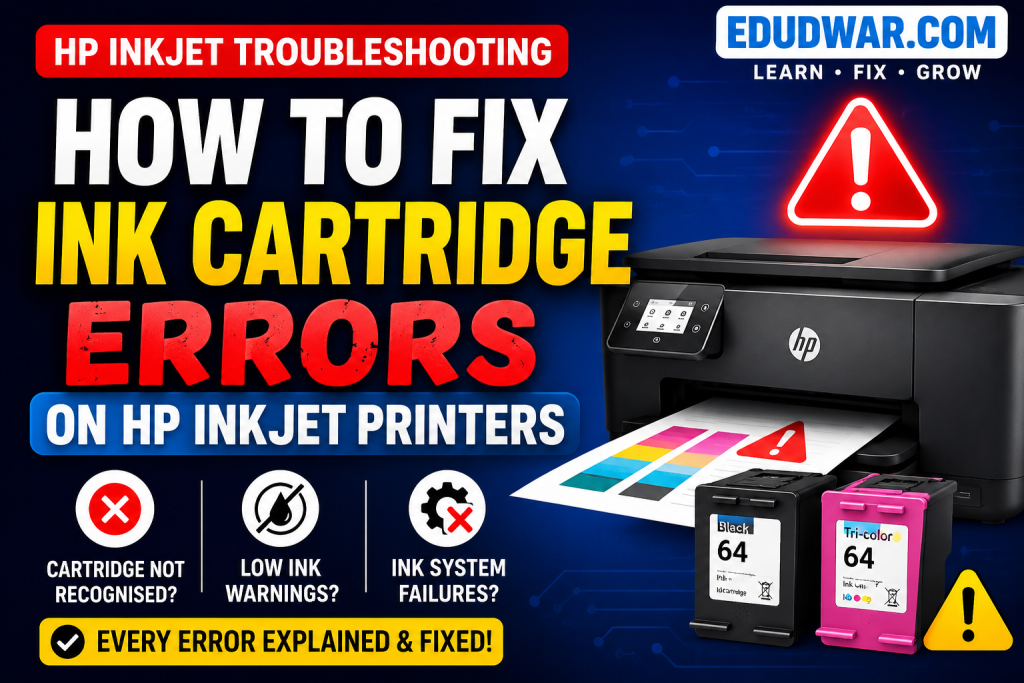

How to Fix Ink Cartridge Errors
on HP Inkjet Printers
Cartridge not recognised, incompatible ink, low ink warnings, and ink system failures — every HP inkjet cartridge error explained and fixed.
Ink cartridge errors on HP inkjet printers are among the most frustrating problems a home or office user can encounter — the printer refuses to print, displays a cryptic error message, and in many cases the cartridge being flagged is brand new. Understanding why these errors appear, and what they actually mean, is the key to resolving them quickly without spending money on unnecessary replacements.
HP inkjet printers use chip-based cartridge authentication, ink level monitoring, and physical contact detection all working simultaneously. When any one of these systems reports a problem — whether real or detected incorrectly — the printer halts and displays an error. This guide covers every common HP inkjet cartridge error type, the specific models they appear on most frequently, and clear step-by-step fixes for each one.
HP Inkjet Cartridge Error Messages — What They Mean
Popular HP Inkjet Models This Guide Covers
HP DeskJet 2700 / 2755
Uses HP 67 / 67XL cartridges
→ Most common: Incompatible ink
HP DeskJet 3755 / 3772
Uses HP 65 / 65XL cartridges
→ Most common: Cartridge missing
HP Envy 6000 / 6055
Uses HP 67 / 67XL cartridges
→ Most common: Non-HP cartridge
HP Envy 4520 / 4522
Uses HP 63 / 63XL cartridges
→ Most common: Ink system failure
HP OfficeJet 3830 / 5255
Uses HP 63 / 63XL cartridges
→ Most common: Low ink warning
HP OfficeJet Pro 8025 / 8035
Uses HP 910 / 910XL cartridges
→ Most common: Used cartridge
HP OfficeJet Pro 9015 / 9025
Uses HP 962 / 962XL cartridges
→ Most common: Incompatible ink
HP ENVY Inspire 7900 / 7955
Uses HP 78 / 78XL cartridges
→ Most common: Cartridge not detected
Why Do HP Inkjet Cartridge Errors Happen?
Every HP inkjet cartridge contains a small microchip that communicates with the printer. This chip stores ink level estimates, cartridge authentication data, and usage history. When the printer’s firmware cannot read this chip correctly — because the chip is dirty, the cartridge is third-party, the firmware has been updated, or the cartridge is refilled — it triggers an error and halts printing. Most HP cartridge errors are chip-related rather than the result of an actual ink or hardware problem, which is why the fixes focus on chip contact cleaning, cartridge reseating, and firmware management.
HP has released firmware updates that block previously working third-party cartridges by updating the chip authentication check. A cartridge that printed perfectly yesterday may show “Incompatible Ink” after an automatic firmware update today.
HP’s ink level displays are chip-based estimates, not direct measurements of remaining ink. A cartridge showing “low ink” may have 20–30% ink remaining. Many HP printers allow printing through low ink warnings.
Why HP Inkjet Cartridge Errors Appear
Dirty or Oxidised Cartridge Contacts
The gold contact strips on the cartridge and inside the printer’s carriage can develop ink residue, dust, or light oxidation — breaking the electrical connection the printer needs to read the chip. This is the most common cause of “Cartridge Not Detected” and “Problem with Ink” errors on HP inkjets, and is often resolved with a simple contact cleaning without replacing anything.
Cartridge Not Fully Seated
A cartridge that is not clicked fully into its slot fails the chip contact check on startup. This commonly happens after a cartridge change when one cartridge appears inserted but is slightly raised. The printer displays “Cartridge Missing” or “Problem with Ink Cartridge” even though the cartridge is physically present.
Third-Party or Refilled Cartridge Blocked by Firmware
HP firmware updates frequently target third-party cartridges by adding new chip authentication requirements. A cartridge that worked before a firmware update may be blocked after it. HP is legally required in some regions to allow disabling this check, but the setting is not always clearly accessible.
Wrong Cartridge Series for the Printer Model
HP uses many different cartridge series across its printer range and the model numbers look similar — HP 63 vs HP 65 vs HP 67 vs HP 78, for example. Installing the wrong series for a specific printer model produces an “Incompatible Ink” or “Wrong Cartridge” error every time, regardless of cartridge brand or condition.
Protective Tape Not Removed from New Cartridge
New HP cartridges have an orange or pink protective pull-tab covering both the contacts and the nozzle area. If this tape is not fully removed before installation, the cartridge will not make proper contact with the printer and the chip will not be read — producing a “Cartridge Not Detected” error.
Expired or Old Cartridge
HP cartridges have a warranty end date printed on the packaging. Cartridges used significantly past this date may develop ink clumping or chip failure — producing errors even when they are genuine HP cartridges. Ink also dries in the nozzles of old cartridges, causing printhead errors that are reported as cartridge failures.
Before attempting any of the fixes below, perform one quick check that immediately reveals the nature of the problem: remove all cartridges and look at the contact strips inside the printer’s carriage. If you can see ink residue, dark smudging, or dried ink on the copper or gold contact pads — dirty contacts are your problem and Fix 03 (contact cleaning) is your primary solution. If the contacts look clean — the issue is likely a firmware block, wrong cartridge series, or a seating problem rather than a physical fault.
It is also worth knowing that HP printers keep a record of cartridge history in their firmware. When a refilled or previously-used cartridge is inserted, the printer may read this history from the chip and display a “Used Cartridge” or “Depleted Cartridge” warning. In many cases this is just a warning rather than a hard block — tapping OK or “Continue” on the printer’s display allows printing to proceed normally despite the warning message.
12 Fixes for HP Inkjet Cartridge Errors
💡 Try Fixes 01, 02, and 03 First — They Resolve 75% of Cases
A cold power cycle, cartridge reseat, and contact cleaning resolve the vast majority of HP inkjet cartridge errors. These three steps take under 10 minutes and should always be done before replacing cartridges or updating firmware.
Cold Power Cycle
Turn off the printer. Unplug the power cable from the wall socket — not just the printer. Wait 60 seconds. Plug back in. Power on. This resets the printer’s chip-reading state and clears temporary detection errors.
Remove and Reseat All Cartridges
Open the cartridge access door. Remove each cartridge. Wait 30 seconds. Reinsert each one — press down and in firmly until you hear a click. A cartridge that is even slightly raised fails the contact check and triggers an error.
Clean Cartridge and Printer Contacts
Remove the cartridge. Using a dry lint-free cloth or cotton swab, gently wipe the gold contact strips on the cartridge and the matching contacts inside the printer carriage. Let dry completely before reinserting. Never use alcohol — distilled water only if contacts are very dirty.
Remove All Protective Tape from Cartridge
For new cartridges: confirm the orange or pink pull-tab is fully removed. Check both the contact side and the nozzle side. Any remaining tape — even a small corner — prevents proper chip contact and triggers a “not detected” error.
Confirm the Correct Cartridge Series
Check the cartridge number printed on your printer’s cartridge access door or in HP Smart. Common series: HP 63, 65, 67, 78, 910, 962. Installing any other series — even a similar-looking one — produces an Incompatible Ink error that only a correct cartridge will fix.
Disable Automatic Firmware Updates
In HP Smart app: Printer Settings → Advanced Settings → Firmware Updates → Off. Or via HP Embedded Web Server (printer IP in browser) → General → Firmware → Auto Update → Off. Prevents firmware updates that block working third-party cartridges.
Roll Back HP Printer Firmware
If a firmware update broke working cartridges: access the printer’s HP Embedded Web Server (type printer IP into a browser). Go to General → Firmware to check the version. Search hp.com/support for the previous firmware version for your specific model and apply it via USB.
Override “Non-HP Cartridge” Warning
On the printer display: when the “Non-HP Cartridge” or “Ink Cartridge Problem” warning appears — tap OK, Continue, or Yes, use this cartridge to override and continue printing. Many HP printers allow this dismissal permanently for third-party cartridges.
Run HP Printhead Cleaning
In HP Smart or on the printer panel: Printer Maintenance → Clean Printhead. Run all available cleaning levels. For HP DeskJet and OfficeJet models: ink system errors are often caused by clogged nozzles rather than the cartridge itself — cleaning resolves this.
Run HP Print and Scan Doctor
Download HP Print and Scan Doctor (free, hp.com/support). Run on your connected PC. It reads the printer’s diagnostic log, identifies the specific cartridge error type, and applies targeted fixes automatically — including driver and firmware corrections.
Reinstall HP Smart and Printer Driver
Uninstall all HP software from Settings → Apps. Reinstall HP Smart and the full driver from hp.com/support. A corrupt driver can misread cartridge status and display errors even when all cartridges are correctly installed.
Replace the Faulty Cartridge
If a single cartridge consistently produces errors while others are fine — replace it with a genuine HP cartridge of the correct series. Use the printer’s diagnostic mode to identify which slot is failing: HP Smart → Printer Diagnostics → Cartridge Health.
Fix by Error Type — Targeted Solutions
Fix: “Incompatible Ink Cartridge” or “Non-HP Cartridge”
Appears after firmware update or when using third-party cartridges
Tap OK or “Use Anyway” on the printer display
Many HP printers show the “Non-HP Cartridge” warning but still allow printing. When the message appears, tap OK, Continue, or “Yes, use this cartridge”. Some models remember this choice and stop asking — others ask every startup.
Disable automatic firmware updates immediately
If the cartridge worked before a firmware update — disable auto-updates to prevent further blocking. In HP Smart: Printer Settings → Advanced Settings → Firmware Updates → Off. Or in the HP Embedded Web Server (printer IP → General → Firmware → Auto Update → Off).
HP Smart → Printer Settings → Firmware Updates → OffRoll back to the previous firmware version
Search hp.com/support for the previous firmware version for your specific printer model. Download the .bdl or .exe firmware file. Apply via USB flash drive or directly from hp.com. The previous version will not have the cartridge block that the new version introduced.
Confirm you have the correct cartridge series
Even with genuine HP cartridges — confirm the series number matches. Check the sticker inside the cartridge access door or look up your model on hp.com. An HP 65 cartridge installed in a printer that requires HP 67 produces the exact same error as a third-party cartridge.
Check door label or hp.com for correct cartridge seriesFix: “Cartridge Not Detected” or “Cartridge Missing”
Printer cannot read one or more cartridges after installation
Confirm protective tape is completely removed
Remove the cartridge and inspect it under bright light. Confirm the orange or pink pull-tab is completely gone — including from the copper contacts and the nozzle plate. Any remaining tape, even on one corner, blocks detection.
Clean contacts on cartridge and in carriage
Use a dry lint-free cloth to wipe the cartridge’s gold contacts. Use a clean cotton swab for the corresponding contacts inside the printer carriage. Even light ink residue on the contacts breaks the circuit the printer needs to detect the cartridge chip.
Reseat cartridge firmly until it clicks
With the printer powered on, push the cartridge into its slot with firm steady pressure until you feel and hear a distinct click. Gently try to pull it back — if it stays in place, it is correctly seated. If it pulls out easily, the slot latch may be damaged.
Test with a known-good genuine HP cartridge
If a specific slot consistently shows “missing” with multiple cartridges — the slot’s contact pins may be bent or damaged. Test with a known-good genuine HP cartridge. If the same slot still fails — the carriage contact needs physical inspection or service.
Fix: “Ink System Failure” or Error 0x6100004a
Printer halts completely — most severe cartridge error type
Full cold power cycle — 60 seconds wall unplugged
Turn off and unplug from the wall socket. Remove all cartridges. Wait 60 full seconds. Reinstall cartridges. Plug back in and power on. The 60-second wait allows the printer’s firmware to fully reset its ink system initialisation state — many ink system failures clear with this alone.
Clean all cartridge contacts and reseat individually
Remove all cartridges. Clean contacts on each one and inside each carriage slot. Reinstall one cartridge at a time, cold power cycling after each one. This identifies which cartridge is triggering the ink system failure — isolate the faulty cartridge.
Run HP Print and Scan Doctor
Download and run HP Print and Scan Doctor from hp.com/support. It reads the printer’s error log for the specific ink system failure code and applies targeted software fixes that manual steps cannot perform — particularly useful for 0x6100004a errors on DeskJet and OfficeJet models.
hp.com/support → Print and Scan Doctor → RunReplace the faulty cartridge
If isolating identifies one cartridge consistently causing the ink system failure — replace it with a new genuine HP cartridge of the correct series. A cartridge with a failed chip or blocked nozzle plate can trigger ink system failure errors on every startup.
Handling HP Low Ink and “Used Cartridge” Warnings
Warnings that block printing despite ink being present
Dismiss the warning and continue printing
On the HP printer display: tap OK or Continue Printing when a low ink warning appears. HP’s low ink estimate is chip-based and often activates when 20–30% of ink remains. Most HP printers continue printing until the cartridge is genuinely empty.
Override “Used Cartridge” warning on refilled cartridges
The HP chip retains usage history — a refilled cartridge still reads as “used” or “depleted” to the printer. When this warning appears: tap OK or “Use cartridge”. Some HP models (particularly newer DeskJet and ENVY series) require this confirmation every print session for refilled cartridges.
Disable ink level warnings in HP Smart
Open HP Smart → select your printer → Printer Settings → Notifications → Ink Level Alerts → Off. This stops the printer from pausing and displaying the low ink screen on every job when running on a low or refilled cartridge.
HP Smart → Printer Settings → Notifications → Ink Alerts → OffAvoid HP Inkjet Cartridge Errors in Future
HP Ink Cartridge Error — Frequently Asked Questions
Why does my HP printer say “Incompatible Ink” when I installed a brand new cartridge?
There are two likely causes. First — you may have installed the wrong cartridge series for your specific HP model. HP printers are very series-specific: an HP 65 cartridge will not work in a printer that needs HP 67, even though the printers look similar and the boxes are nearly identical. Check the sticker inside your printer’s cartridge door for the exact series number. Second — if you installed a genuine HP cartridge of the correct series and are still getting this error, a recent automatic firmware update may have changed the printer’s authentication requirements. Disabling auto-firmware updates and rolling back to the previous firmware version typically resolves this.
Can I use third-party ink cartridges in my HP inkjet printer?
Technically yes — HP cannot legally prevent you from using third-party cartridges in most regions, and many third-party cartridges work perfectly. However, HP firmware updates periodically add new authentication checks that block third-party cartridges that previously worked. If you plan to use third-party cartridges, disable automatic firmware updates in HP Smart immediately after setting up the printer. Additionally, be aware that HP’s warranty does not cover printer damage attributed to non-HP ink, although this exclusion is rarely enforced for standard print quality issues.
My HP printer shows a low ink warning but the cartridge still has ink — can I keep printing?
Yes. HP’s ink level display is a chip-based estimate, not a measurement of actual remaining ink. The low ink warning on HP inkjet printers typically activates when approximately 20–30% of the estimated ink capacity remains. When the warning appears, tap OK or Continue on the printer display — the printer will continue printing normally. Only replace the cartridge when print quality actually deteriorates: visible fading, missing colours, or white horizontal lines on the printed page are the reliable indicators that a cartridge genuinely needs replacing.
Why does my HP printer show a cartridge error after a firmware update?
HP periodically releases firmware updates that update the cartridge chip authentication requirements. These updates can block third-party cartridges, refilled cartridges, or — in some cases — genuine HP cartridges from older stock whose chip data does not match the new authentication criteria. If a firmware update caused the error, the options are: roll back to the previous firmware version (search hp.com/support for your model’s firmware history), disable future automatic updates to prevent recurrence, or switch to fresh genuine HP cartridges from current stock which will have updated chip data matching the new firmware requirements.
When to Contact HP Support
If all 12 fixes have been applied using genuine HP cartridges of the correct series and the cartridge error persists, the printer has a hardware fault in the cartridge detection system. Contact HP support in these situations: