

You go to print something simple — a boarding pass, a school form, a PDF you needed five minutes ago — and there it is. Your Epson ET-2760 says “offline.” The printer is sitting right there, powered on, lights blinking like nothing’s wrong. So why won’t it print?
Good news: this is one of the most common (and most fixable) problems Epson EcoTank owners run into. It’s almost never a hardware failure. It’s a connection hiccup between your computer and the printer, and in most cases you can clear it in under ten minutes without calling support.
Below is a step-by-step walkthrough, starting with the fixes that solve this the fastest, followed by the deeper troubleshooting for when the easy stuff doesn’t work.
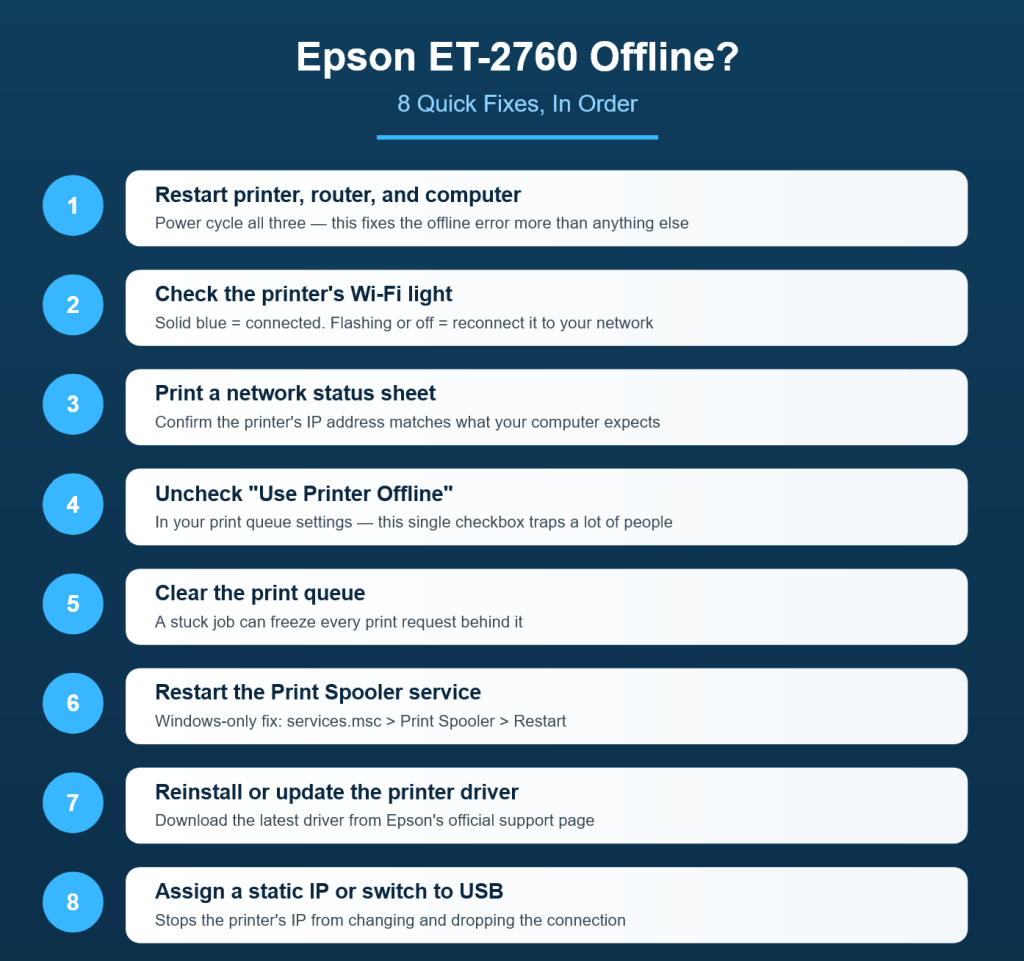
Why Does the Epson ET-2760 Keep Going Offline?
Before jumping into fixes, it helps to know what’s actually happening. “Offline” doesn’t mean your printer is broken — it means your computer thinks it can’t reach the printer anymore. That disconnect usually comes down to one of these:
- The printer’s IP address changed. Most home routers reassign IP addresses periodically, and if your printer gets a new one, your computer is still trying to talk to the old one.
- The printer went to sleep. The ET-2760 has a power-saving mode, and sometimes it doesn’t wake up fast enough (or at all) when your computer sends a print job.
- Wi-Fi band mismatch. The ET-2760 only connects on 2.4GHz networks. If your router broadcasts a combined 2.4GHz/5GHz network, the printer can sometimes get confused about which one it’s actually on.
- A stuck print job. One failed print in the queue can jam up everything behind it, and Windows or macOS interprets the jam as the printer being unreachable.
- Outdated or corrupted printer drivers. This is more common after a Windows update than people expect.
- Firewall or antivirus software quietly blocking the printer’s communication with your computer.
Once you know it’s almost always one of these six things, the fix stops feeling like guesswork.
Epson ET-2600 Troubleshooting Guide
Fix #1: Restart Everything (Yes, Really)
This sounds too simple, but it resolves the offline error more often than any other step. Turn off your Epson ET-2760, unplug your router for about 30 seconds, and restart your computer. Then plug the router back in, power the printer back on, and wait until the Wi-Fi light on the printer turns solid (not blinking).
A full restart forces the printer, router, and computer to re-establish a clean connection and often clears whatever glitch caused the offline status in the first place. If your printer comes back online after this, you’re done — no need to read further.
Fix #2: Check the Printer’s Wi-Fi Connection
Look at the Wi-Fi icon on your ET-2760’s screen or the wireless indicator light:
- Solid blue means it’s connected to your network.
- Flashing or off means it’s lost the connection and needs to be reconnected.
If it’s not connected, go into the printer’s on-screen Settings menu, select Wi-Fi Setup, and either reconnect to your existing network or run the Wi-Fi Setup Wizard to reconnect from scratch. It’s worth double-checking that you’re joining the 2.4GHz version of your network, since the ET-2760 can’t connect to 5GHz.
You can also print a network status sheet directly from the printer’s menu. It’ll show you the IP address the printer currently has — compare that to what your computer’s printer settings expect, and if they don’t match, that mismatch is your culprit.
Epson ET-2550 WiFi Setup, Not Printing & Troubleshooting Guide
Fix #3: Uncheck “Use Printer Offline” in Your Print Queue
This one catches more people than you’d think, especially on Windows. Sometimes Windows flags a printer as offline even when it’s perfectly reachable, and the setting just needs to be manually reversed.
On Windows:
- Open the Start menu and search “Devices and Printers.”
- Right-click your Epson ET-2760 and select “See what’s printing.”
- Click the Printer menu at the top and make sure “Use Printer Offline” is unchecked.
On Mac:
- Go to System Settings > Printers & Scanners.
- Click your Epson ET-2760.
- Open the print queue and check that the printer isn’t paused.
If it printed after this, great — but if the checkbox keeps re-enabling itself, that’s usually a sign of a deeper connection or driver issue, which the next steps will handle.
Fix #4: Clear the Print Queue
A single failed or stalled print job can back up your entire queue and make the printer appear offline even though it’s working fine. Open your print queue (same location as above) and cancel anything sitting there, especially old jobs from days ago. Then try printing a fresh test page.
If a job refuses to delete, restarting the Print Spooler service (Windows) usually forces it out:
- Press Windows key + R, type
services.msc, and hit Enter. - Scroll to “Print Spooler.”
- Right-click it and select Restart.
- Try printing again.
Fix #5: Update or Reinstall the Printer Driver
Outdated drivers are a sneaky cause of offline errors, especially right after a Windows or macOS update. Head to Epson’s official support site, search for the ET-2760, and download the latest driver and utility package for your operating system.
If you’ve already got a driver installed and it’s still acting up, uninstall it completely first (through Devices and Printers or Printers & Scanners), restart your computer, then reinstall the fresh version. This clears out any corrupted driver files that a simple update might leave behind.
Fix #6: Assign the Printer a Static IP Address
If your ET-2760 keeps dropping offline every few hours or days, this is very likely why. Every time your router reassigns your printer a new IP address, your computer’s saved printer connection becomes outdated, and it shows offline until you manually reconnect.
The fix is to give your printer a fixed (static) IP address so it never changes:
- Find your printer’s current IP address from its network status sheet.
- Log into your router’s admin settings (usually 192.168.1.1 or 192.168.0.1 in a browser).
- Look for DHCP Reservation or Static IP settings and assign the printer’s IP address permanently to its MAC address.
This one extra step eliminates the recurring offline problem for a huge number of ET-2760 owners.
Fix #7: Check Your Firewall or Antivirus Software
Some security software silently blocks printer communication over the network, especially after a software update changes its default rules. Temporarily disable your firewall or antivirus, then try printing. If it works, add your printer as an allowed device or exception in your security software’s settings so this doesn’t keep happening.
Fix #8: Switch to a USB Connection (Temporary Fix)
If you need to print something urgently and none of the above has worked yet, connect the ET-2760 to your computer directly with a USB cable. Windows and macOS will usually detect it automatically and let you print immediately, buying you time to sort out the Wi-Fi issue later without missing a deadline.
When to Contact Epson Support
If you’ve worked through all of the steps above and your ET-2760 is still showing offline, it may point to a hardware issue with the printer’s network card or a deeper router configuration problem. At that point, Epson’s support team can run more advanced diagnostics or arrange a repair if the printer is still under warranty.
FAQs About the Epson ET-2760 Going Offline
Why does my Epson ET-2760 keep going offline randomly, even after I fix it? This almost always points to your printer’s IP address changing periodically. Assigning it a static IP through your router settings (Fix #6) is the most permanent solution.
Does the Epson ET-2760 work on 5GHz Wi-Fi? No. The ET-2760 only supports 2.4GHz networks. If your router combines both bands under one network name, split them into separate networks so you can connect the printer specifically to the 2.4GHz one.
Why does my printer show online on its screen but offline on my computer? This means the printer itself is connected to Wi-Fi fine, but your computer’s saved connection to it is outdated — usually because the IP address changed. Uninstalling and reinstalling the printer, or setting a static IP, usually resolves it.
Can a firmware update fix offline errors? It can, especially if the issue started after a router or OS update introduced a compatibility mismatch. Check the printer’s Settings menu for Firmware Update, or update it through the Epson Smart Panel app.
Will restarting my printer delete my saved settings or Wi-Fi connection? No. A restart doesn’t erase your Wi-Fi setup, ink levels, or saved preferences. It only clears temporary glitches.
Is it better to use Wi-Fi or USB for the Epson ET-2760? Wi-Fi is more convenient for everyday use since multiple devices can print without cables, but USB is more reliable if you print frequently from one computer and want to avoid connection drops entirely.
If you’ve gone through every step here and you’re still stuck, it’s worth reaching out to Epson support directly — but for the vast majority of “offline” errors, one of these fixes (especially the static IP trick) will get you printing again for good.