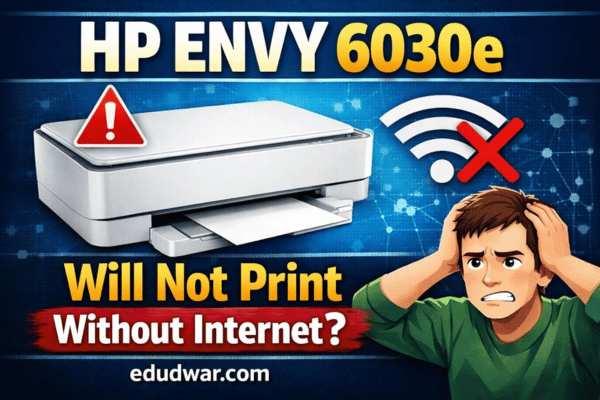

You plug in your HP Envy 6030e over USB, send a print job, and instead of hearing the familiar warmup sound you get an orange light blinking on the front panel. Then the printer spits out an entire page that says: “HP+ printers must be connected to the Internet over Wi-Fi or Ethernet. This printer cannot print, except for printer reports.”
I have heard this exact story dozens of times over the years. The printer worked fine before. You moved it, unplugged it, maybe even tried a factory reset hoping that would sort things out. And now it refuses to do the one job it was built for. If this sounds familiar, take a breath because you are not alone and you are not out of options. In this post I want to walk you through exactly why this happens, why the factory reset you tried did not fix it, and what you can actually do about it.
Understanding What HP+ Actually Is
When you first set up the HP Envy 6030e, there was a screen in the setup wizard that offered you enrollment in the HP+ program. If you clicked through it, even quickly and without fully reading the details, your printer was permanently tied to HP’s cloud-based printing ecosystem from that moment forward.
HP+ is HP’s smart printing service and it comes with three hard requirements. Your printer needs a permanent internet connection. You need an active HP account. And you can only use original HP ink cartridges. In exchange, HP gives you an extended warranty and access to Instant Ink, their ink subscription program. Honestly that sounds fine on paper. The problem shows up when you move to a new location, when your Wi-Fi goes down, or when you simply want to print something quickly without the printer needing to phone home to HP’s servers first.
Here is the part HP does not make obvious: once HP+ is activated on a printer it cannot be turned off. That enrollment is written into the firmware at a level that normal user actions cannot reach. A factory reset will not undo it.
Why the Factory Reset Did Not Work
The reset method you tried, opening the cartridge door and holding the power button until the lights change color, is a real HP hard reset. It does genuinely wipe a few things. Your network credentials get cleared, user preferences go back to defaults, and the print queue gets flushed. What it cannot do is remove the HP+ enrollment flag, because that flag lives in a protected area of the printer’s persistent memory that sits below what a user-level reset can touch.
Think of it like resetting a phone to factory settings. Your apps disappear, your contacts are gone, but if the phone was carrier-locked before the reset it is still carrier-locked after. The lock exists at a deeper level. HP+ enrollment works exactly the same way.
Before you unplugged everything, your printer was quietly connected to your home Wi-Fi and was periodically checking in with HP in the background. You never saw it happen because it just worked. Once you unplugged it and then reset it, the printer lost those Wi-Fi credentials and now it has no way to complete that check-in. That is the root of the orange light and the info page printout.
Your Real Options, From Easiest to Last Resort
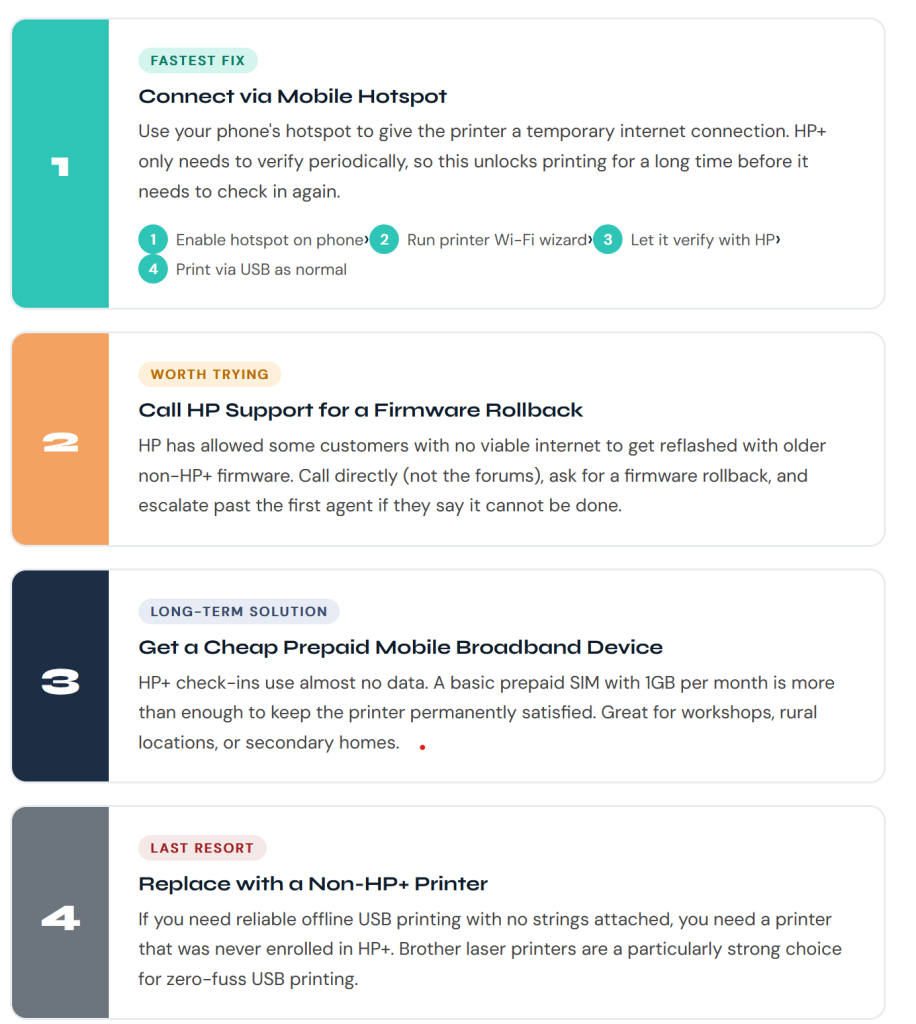
Option 1: Connect to Any Wi-Fi, Even Just Temporarily
This is the fastest path for most people. HP+ does not need a fast connection or even a stable one. It just needs to be able to check in every so often. If you have a smartphone with mobile data enabled, you can use your phone as a hotspot and get this printer working again in about five minutes. Here is how to do it:
- Turn on the mobile hotspot on your phone.
- Use the wireless setup wizard on the printer to connect it to your hotspot.
- Give it a minute to connect and verify with HP’s servers.
- Once it is verified, connect your computer via USB and print normally. The printer should remain active for a good while before it needs to check in again.
This is not a permanent fix if you are in a location with absolutely no internet access long term, but for most people it solves the immediate problem and buys plenty of time between check-ins.
Option 2: Call HP Support and Ask for a Firmware Rollback
This one is less reliable but worth trying. HP has in certain cases allowed customers who have no viable internet access at their location to get their printer reflashed with older firmware that does not have the HP+ requirement baked in. You will need to call HP Support directly, not post in the community forums, and explain your situation plainly. Ask specifically for a firmware rollback or a non-HP+ firmware image.
Be ready for pushback. The first agent you speak to will probably say it cannot be done. That may genuinely be the limit of their knowledge rather than the truth of what is possible. Ask to be escalated to a senior technical specialist. Keep notes on every call including the name of whoever you speak with and the date. Persistence genuinely pays off here.
Option 3: Set Up a Small Portable Wi-Fi Device for the Printer
If your printing location genuinely has no broadband and you need a long-term solution, consider picking up an inexpensive prepaid mobile broadband device or a travel router with a SIM card slot. The HP+ check-in uses almost no data. A basic 1GB per month prepaid plan would be more than enough to keep the printer satisfied indefinitely. This is a surprisingly practical option for people printing from workshops, storage units, rural properties, or secondary homes.
Option 4: Replace the Printer with a Non-HP+ Model
I know nobody wants to hear this one but I would be doing you a disservice if I left it out. If you need a printer that works reliably over USB with no internet requirement and no cloud subscription, the cleanest answer is to replace this unit with one that was never enrolled in HP+. Not every HP printer requires it so look for models where HP+ is clearly an optional feature rather than a requirement during setup. Alternatively, Brother and Canon both make excellent printers with no equivalent service. Brother laser printers in particular have a well-earned reputation for working out of the box over USB with no fuss whatsoever.
What I Think About HP’s Approach Here
I have been working in tech support for over a decade and I have seen a lot of product decisions that frustrated customers. This one is particularly frustrating because of how it gets communicated, or more accurately how it does not. The HP+ enrollment screen during setup focuses on the benefits like the extended warranty and the free ink trial. It does not spell out in plain language that clicking yes means your printer will permanently require an internet connection to function. That is the kind of design choice that ends up in consumer protection complaints.
If you feel the enrollment was not clearly disclosed when you set up the printer, you have every right to take that up with HP’s customer relations team. In some countries you may also have grounds to file a complaint with a consumer protection authority. There have been active discussions about class action cases around this exact issue. What you experienced is not unique and your feedback to HP as a customer does matter.
Quick Summary: What To Do Right Now
- Use your phone’s mobile hotspot to reconnect the printer to the internet. This is the fastest fix.
- Call HP Support and ask for a firmware rollback. Escalate past the first agent if you need to.
- Get a cheap prepaid mobile broadband device for the printer’s location if no broadband is available.
- If none of the above work for your situation, consider replacing the printer with a non-HP+ model.
If you have already tried one of these options or found something else that worked for you, leave a comment below. I read everything that comes in and I am happy to help if you are still stuck.
Tags: HP Envy 6030e • HP+ • Printer offline • HP printer no internet • USB printing • Printer troubleshooting