
Fix Epson Red Light
Blinking Issue
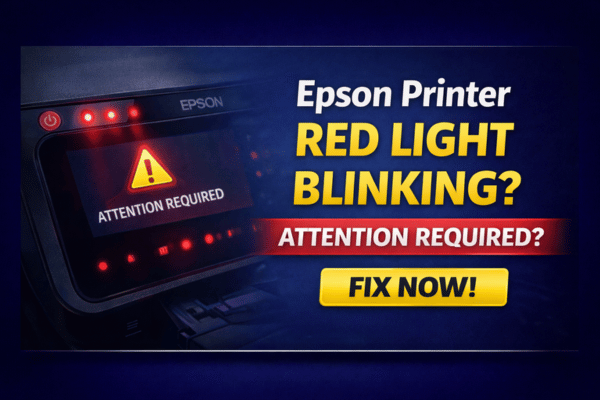
That blinking red light is your Epson trying to tell you something. This guide decodes every blink pattern and shows you exactly how to fix it.
What Does the Epson Red Light Blinking Mean?
Epson printers do not have detailed LCD screens on every model — so they use the red error light to communicate problems through blink patterns. The number of times the light flashes before pausing is a specific error code. Counting the blinks carefully is the single most important first step, because each pattern points to a completely different cause and fix.
Watch the light cycle — count how many times it flashes, then pauses, then repeats. That number is your error code. One blink means something different from four blinks.
The majority of red light blink errors — ink out, paper jam, waste ink full — are completely resolvable without professional service in under 10 minutes.
What Does Each Blink Pattern Mean?
📌 How to Read the Blink Pattern
Watch the red light carefully. Count how many times it flashes before it pauses for 2–3 seconds, then repeats. That number is your error code. Some models use a combination of the red ink light and the power light together — note which light is blinking if you have multiple indicator lights.
Paper Out or No Paper Loaded
The printer cannot detect any paper in the rear or front tray. Load the correct paper size and press the resume button to continue.
Paper Jam Detected
The paper sensor has detected an obstruction in the feed path. Clear the jam from all access panels and press resume. See the phantom jam guide if no paper is visible.
Ink Cartridge Problem
An ink cartridge is not recognised, is incorrectly seated, or is not an Epson-approved cartridge. Remove all cartridges and firmly reseat them one at a time until each clicks into place.
Ink Low or Ink Out
One or more ink cartridges have reached low or empty status. Replace the affected cartridge(s). On EcoTank models, refill the ink tanks if the ink level is below the minimum line.
Waste Ink Pad Full or Near Full
The internal waste ink absorber pad has reached its capacity limit. This is the most common cause of a persistent blinking red light that doesn’t clear with restarts. Requires a counter reset and possible pad replacement.
General / Fatal Hardware Error
Red and green lights alternating, or a continuous fast blink, usually indicates a critical internal fault — often a print head failure, carriage jam, or main board error requiring deeper troubleshooting or service.
Why Is the Epson Red Light Blinking?
Waste Ink Pad Saturated
Every Epson inkjet has an internal absorbent pad that collects waste ink from print head cleaning cycles. Over time — typically after 10,000–20,000 pages — this pad reaches its limit and the printer locks up with a blinking red light until the counter is reset.
Ink Cartridge Empty or Not Recognised
A depleted, incompatible, or incorrectly seated ink cartridge is one of the most frequent causes of the red blink error — particularly after a cartridge swap where the new one was not fully clicked in.
Paper Jam or Empty Paper Tray
A paper jam in any part of the feed path — or simply having no paper loaded — will trigger the red light. The blink count differentiates between a jam (2 blinks) and paper out (1 blink).
Print Head Clog or Failure
A severely clogged or damaged print head can prevent the printer from completing its startup self-test, triggering a continuous red blink that does not correspond to a single specific blink count.
Printer Cover Left Open
An unlatched scanner lid, cartridge access door, or rear panel will trigger an immediate red blink error as a safety interlock — the printer will not operate with any access panel open or unsealed.
Firmware Glitch or Corrupted Settings
After a firmware update, a power interruption during printing, or an unexpected shutdown, the printer’s internal state can become corrupted — causing a red blink that persists even when no physical problem exists.
How to Fix the Epson Red Light Blinking Issue
💡 Start by Counting the Blinks
Before trying any fix, count the blink pattern using the decoder above. This tells you exactly which fix to apply first and saves time by skipping steps that are not relevant to your specific error.
Power Reset the Printer
Turn the printer off, unplug from the wall, wait 60 seconds, then plug back in and power on. Clears any temporary firmware error or sensor glitch causing a false red blink.
Load or Clear Paper
If the light blinks once — load plain A4 paper correctly into the tray. If it blinks twice — a jam is detected. Open all panels and carefully remove any obstruction using a flashlight.
Reseat All Ink Cartridges
For 3 or 4 blinks — open the cartridge door, remove each cartridge, confirm the orange tape has been removed, and firmly press each one back in until it clicks. Close the door and power cycle.
Replace Empty Ink Cartridges
If a cartridge is confirmed empty, replace it with a genuine Epson cartridge. On EcoTank models, refill the ink tank to above the minimum line and ensure the tank cap is sealed tightly.
Close All Covers Firmly
Check every panel — scanner lid, cartridge access door, rear cover, and paper tray. Press each one firmly until you feel or hear it click fully into place. Even slight gaps trigger the interlock.
Press the Resume / Stop Button
After resolving the physical cause (loading paper, clearing a jam, reseating a cartridge), press and hold the Resume or Stop/Reset button for 3 seconds to clear the error state and resume printing.
Reset the Waste Ink Counter
For 5 blinks — download the WIC Reset Utility or Epson Adjustment Program for your model. Run the waste ink pad reset. Note: the physical pad may need replacement if genuinely saturated.
Run a Print Head Cleaning Cycle
On the printer panel or via Epson printer software on your PC: go to Maintenance → Head Cleaning. Run up to 3 cycles. Then run a nozzle check pattern to confirm the print head is clear.
Factory Reset the Printer
On the panel: Setup → Restore Default Settings → All Settings → Yes. This clears firmware-level error flags that persist in memory even after the physical cause has been resolved.
How to Reset the Epson Waste Ink Pad Counter
⚠️ Important Before You Start
Resetting the waste ink counter removes the software lock but does not physically empty the pad. If the pad is genuinely saturated with ink, it should be replaced or cleaned by a technician to prevent ink leaking onto internal components. The reset buys time — inspect and replace the pad when possible.
Waste Ink Counter Reset — Step by Step
Using WIC Reset Utility (free trial key available)
Download the WIC Reset Utility
Search for WIC Reset Utility for your operating system (Windows or Mac). Download and install it. The utility supports most Epson inkjet models including EcoTank, Expression, and WorkForce series.
Connect the printer via USB
For the most reliable reset, connect your Epson to the PC using a USB cable rather than Wi-Fi. Power on the printer before opening the utility.
Select your printer model in the utility
Open WIC Reset Utility. It will detect your connected Epson automatically. Select your exact model from the dropdown and click Read waste counters to see the current fill percentage.
Read waste counters → confirm percentageEnter a reset key and run the reset
Click Reset waste counters. You will need a reset key — a free trial key is available from the WIC Reset website for one-time use. Enter the key when prompted and confirm the reset.
Restart the printer and test
When prompted, turn the printer off and back on. The 5-blink red light should be gone. Print a test page to confirm the printer is operating normally.
Before You Start — Check These First
Frequently Asked Questions
The red light blinks but the printer works fine — do I still need to fix it?
Yes. A blinking red light that allows printing is typically a waste ink pad near-full warning (not yet at the hard limit). It will eventually stop printing entirely. Resetting the counter now — while the printer still works — is far easier than dealing with a full lockout later.
I counted the blinks but the number doesn’t match any pattern above — why?
Blink codes vary slightly between Epson model families. The decoder above covers the most common patterns, but some older or regional models use different codes. Check your exact model’s manual on the Epson support website, or note the blink count and search “Epson [your model] [blink count] blinks error” for model-specific results.
Is the WIC Reset Utility safe to use?
Yes — WIC Reset Utility is a widely used third-party tool specifically designed for Epson waste ink counter resets. It does not modify firmware or other settings. Download it only from the official WIC Reset website to avoid unofficial versions. Epson’s own Adjustment Program is also available for purchase as an alternative.
Will resetting the waste ink counter damage my printer?
The counter reset itself does not damage the printer. The risk is that if the physical pad is genuinely saturated and you continue printing heavily after the reset, ink can eventually overflow onto the internal board. For light to moderate use after a reset, the risk is very low. For heavy printing, arrange to have the pad replaced.
When to Contact Epson Support
If the red light continues after all nine fixes, or if the blink pattern does not match any known code, the printer likely has a hardware fault. Contact Epson support in these situations: