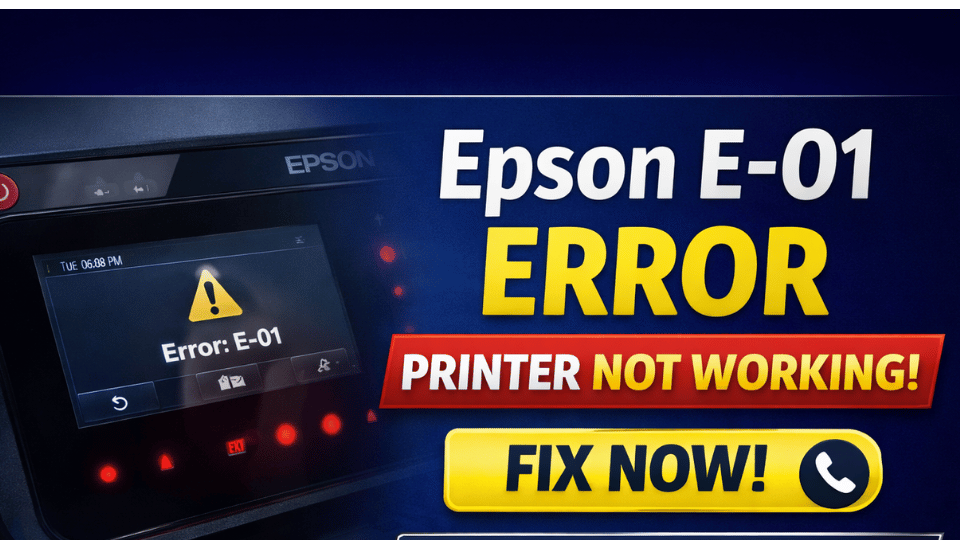

Epson Error E-01
Printer Not Working!
Your complete fix guide — from paper jams to hardware faults, solved step by step.
What Is Epson Error E-01?
Epson Error E-01 is a general hardware fault code that signals the printer has detected an internal problem it cannot automatically recover from. It commonly appears on Epson EcoTank, Expression, and WorkForce models and causes the printer to halt all operations immediately. The error can stem from a paper jam, open cover, carriage obstruction, or an internal component failure.
When E-01 triggers, the printer freezes entirely — it will not accept new jobs, respond to button presses, or communicate with your PC until the root cause is resolved.
Unlike software errors, E-01 is almost always caused by something physical — a jam, a misaligned component, or an open cover — making hands-on inspection the most important first step.
Epson Models Most Commonly Affected
How Does Error E-01 Show Up?
Why Does Epson Error E-01 Happen?
Paper Jam or Torn Paper Remnant
A sheet of paper, a small torn scrap, or even a staple lodged in the paper feed path or output tray is the most common cause of E-01. The printer’s jam sensor detects the obstruction and shuts down immediately.
Printer Cover Left Open
The scanner lid, ink cartridge access door, or rear paper panel being open or not fully latched will trigger E-01. The printer refuses to operate with any cover unsealed as a safety measure.
Print Head or Carriage Obstruction
A foreign object, a misaligned ink cartridge, or packaging material left inside the printer can block the print head carriage from completing its startup sweep, triggering the fault.
Ink Cartridge Not Properly Seated
A cartridge that is loose, incorrectly installed, or not recognised by the printer can cause E-01. This is especially common after a cartridge replacement if the new one was not clicked firmly into place.
Waste Ink Pad Full or Sensor Fault
On certain Epson models, a saturated waste ink pad — or a faulty sensor falsely reporting it as full — can trigger a general hardware error code including E-01, preventing the printer from operating.
Internal Hardware or Board Failure
In rare persistent cases, a damaged print head, a failed motor, or a faulty main control board can cause E-01 to appear consistently even after all physical obstructions have been cleared.
How to Fix Epson Error E-01
💡 Start Here — Always Do This First
Before any other step, power the printer completely off and unplug it from the wall. Wait 60 seconds. This discharges any residual power and resets internal sensors. Many E-01 errors clear with this step alone — do not skip it.
Power Reset the Printer
Turn the printer off using the power button. Unplug the power cord from the wall outlet. Wait a full 60 seconds, then plug back in and power on. Do not use a surge protector — plug directly into the wall.
Check for and Clear Paper Jams
Open all access panels — front, rear, and the scanner lid. Use a flashlight to inspect every part of the paper path. Remove any sheets or torn scraps slowly and gently — pulling too hard can tear paper and leave fragments behind.
Close All Covers Firmly
Check that every panel is fully closed and latched — the scanner lid, ink cartridge door, rear access cover, and paper tray. Press each one firmly until you feel or hear it click into place.
Reseat All Ink Cartridges
Open the ink cartridge access door, remove each cartridge one at a time, and check that the orange protective tape has been removed. Firmly reinsert each cartridge until you hear a distinct click.
Manually Free the Print Head Carriage
With the printer unplugged and the cartridge door open, gently move the print head carriage left and right by hand. If it meets resistance, locate and carefully remove the obstruction — never force it.
Remove All Packaging & Foreign Objects
On newer or recently moved printers, check for any shipping tape, foam inserts, cardboard spacers, or orange plastic clips inside the printer that may have been overlooked during setup.
Reset Printer to Factory Defaults
On the printer panel: Menu → Setup → Restore Default Settings → All Settings → Yes. This clears any internal software fault or sensor flag that may be holding the error state active.
Update Epson Printer Firmware
Visit epson.com/support, search your exact printer model, and download the latest firmware update. Install using a USB cable — not Wi-Fi — to avoid an interrupted update causing further issues.
Reset Waste Ink Counter (If Applicable)
If your model reports a full waste ink pad, download Epson Adjustment Program (WIC Reset Utility) for your model. Run the waste ink pad reset — note that the physical pad may need replacement if genuinely saturated.
Before You Start — Check These First
Frequently Asked Questions
Is Epson Error E-01 the same as E-01 on all Epson models?
Not always. On most consumer models (EcoTank, Expression, WorkForce), E-01 indicates a general hardware fault. On older or commercial Epson models, the same code may refer to a specific component failure. Always cross-reference with your exact model’s manual for confirmation.
Can I fix E-01 without calling a technician?
In most cases, yes. The majority of E-01 errors are caused by paper jams, open covers, or unseated cartridges — all of which can be resolved at home in under 15 minutes using the fixes above. Only persistent hardware failures require professional service.
Why does Error E-01 come back immediately after I power cycle the printer?
If the error returns instantly on power-up, a physical obstruction is still present inside the printer, or a sensor is stuck. Work through Fixes 02–06 carefully, paying close attention to torn paper fragments and carriage obstructions that are easy to miss on a quick visual inspection.
Will a factory reset delete my Wi-Fi and scan settings?
A full factory reset on most Epson models will clear your Wi-Fi network settings, custom scan destinations, and stored fax numbers. Note these down before performing Fix 07, or use a partial reset option (Network Settings Reset only) if available on your model.
When to Contact Epson Support
If all nine fixes have been attempted and Error E-01 persists, the printer likely has an internal hardware fault that requires professional diagnosis. Contact Epson support in these situations: