
Printers usually work without any trouble for long periods. Then suddenly one day they stop responding, a blue light starts flashing, and when you try to reconnect the printer to WiFi it says the control panel is locked and asks for a password you never created. This situation can be frustrating, especially when the printer was working perfectly the day before.
If you are seeing a flashing blue light and a locked control panel message during wireless setup, do not worry. This issue is common with many HP wireless printers and it can usually be fixed in a few simple steps. In this guide, I will walk you through the exact reasons this happens and how you can fix it.
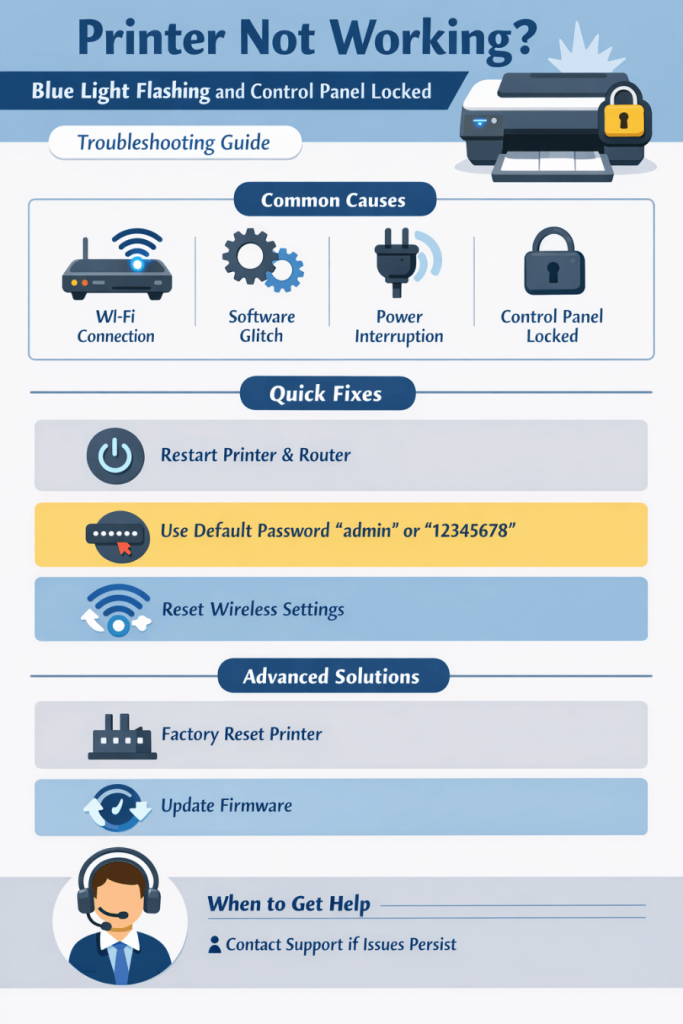
Why Your Printer Suddenly Stopped Working
When a printer stops working even though it worked recently, the cause is usually related to network settings or firmware behavior.
Wireless printers constantly communicate with your router. If your router changes its network settings, password, or band frequency, the printer can lose connection. When that happens, the printer may enter setup mode and the blue wireless light starts blinking.
Another common reason is a temporary software glitch. Printers run internal firmware just like computers. Sometimes that firmware freezes and the control panel becomes locked automatically even though you never set a password.
Power interruptions can also cause this problem. If the printer loses power during a network operation, the internal settings may get stuck and the printer may request authentication during setup.
What the Flashing Blue Light Means
The flashing blue light on most wireless printers indicates that the device is trying to connect to a wireless network.
When the blue light keeps blinking and does not turn solid, it means the printer has not successfully connected to your WiFi network.
This usually happens when:
The printer lost connection to your router
The WiFi password changed
The router restarted or updated
The printer was reset or moved to a different network
Once the connection is lost, the printer attempts to reconnect, which is why the wireless indicator keeps flashing.
Why the Control Panel Says It Is Locked
The control panel lock message usually appears when the printer believes administrative changes are being attempted.
Wireless setup is considered an administrative function. Some printer models automatically require a password for this action to prevent unauthorized network changes.
If you never created a password, the printer may still have a default administrator password or it may be requesting the PIN printed on the printer label.
This is why the system asks for a password even though you did not lock the control panel yourself.
Quick Fix Step One Restart the Printer and Router
Before trying anything complicated, start with a basic restart. Many printer issues are solved with this simple step.
Turn off the printer completely. Unplug the power cable from the back of the printer and also unplug your WiFi router.
Wait for about sixty seconds. This allows both devices to clear temporary memory.
Plug the router back in first and allow it to fully restart. Once your internet connection is stable again, plug the printer back in and turn it on.
Check the wireless light again. If the blue light becomes solid, the printer has successfully reconnected.
Quick Fix Step Two Unlock the Control Panel
If the control panel still says it is locked, try using the default administrator credentials.
Many printers use one of the following options as the default password.
admin
12345678
the printer PIN printed on the label
Look for a small sticker on the back or inside the printer door. Many manufacturers print the default PIN there.
Enter that code when the printer asks for a password.
Reset the Wireless Settings
If the password does not work and the control panel remains locked, resetting the wireless settings usually fixes the problem.
Most printers allow a wireless reset using the buttons on the printer itself.
Press and hold the Wireless button together with the Cancel button for about five seconds. The blue light will begin blinking rapidly which indicates the printer has entered wireless setup mode again.
Now open the HP Smart app or go to your computer and run the wireless setup process again.
During setup, select your WiFi network and enter the correct router password.
Restore the Printer to Factory Settings
If the issue still persists, performing a factory reset can remove the control panel lock and restore normal operation.
A factory reset clears all saved settings including WiFi information, administrator passwords, and network configurations.
To perform a reset, turn the printer on and press and hold the Cancel button and the Wireless button together for about ten seconds.
The printer will restart and return to its original setup state.
After the reset, install the printer again using the HP Smart app or the printer setup page.
Update the Printer Firmware
Firmware updates fix many connection related bugs that cause wireless lights to blink or control panels to freeze.
Open the HP Smart application on your computer or smartphone and check for firmware updates.
If an update is available, install it and allow the printer to restart. This often resolves control panel lock issues and network connection problems.
Check Your Router Settings
Sometimes the issue is not the printer but the WiFi network.
Modern routers often use dual band networks with both 2.4 GHz and 5 GHz frequencies. Many printers only connect to 2.4 GHz networks.
If your router automatically switches devices between bands, the printer may fail to connect.
Log into your router settings and ensure the 2.4 GHz network is enabled.
Reconnect the printer to that network and check if the blue light becomes solid.
When You Should Contact Printer Support
If the blue light continues flashing and the printer keeps asking for a password even after resetting it, the issue may be related to firmware corruption or internal hardware errors.
In that situation it is best to contact printer support or a certified technician who can reconfigure the device and restore the network configuration properly.
Professional technicians can also access advanced service menus that are not available to regular users.
Final Thoughts
When a printer suddenly stops working, shows a flashing blue light, and asks for a control panel password, it usually means the device has lost its wireless configuration.
Most of the time the issue can be solved by restarting the printer, resetting the wireless settings, or performing a factory reset. These steps restore the connection and unlock the control panel so the printer can be set up again.
If the problem continues after trying these fixes, professional assistance may be needed to restore the printer’s internal settings.