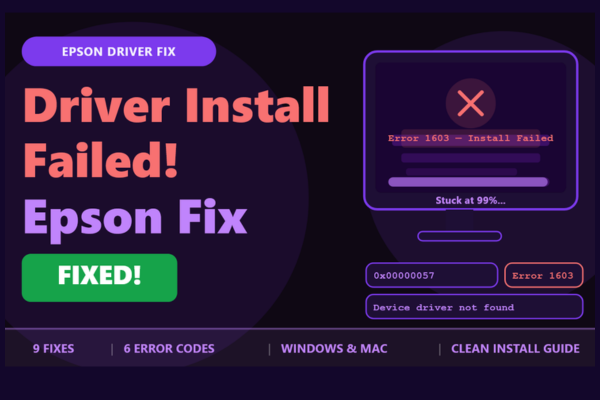

Driver Install
Failed? Epson Fix!
Your Epson driver won’t install — or installs but the printer still doesn’t work. Here’s every reason why and exactly how to fix it.
Installing an Epson printer driver should take a few minutes — but for many users, the process stalls, throws an error, or completes without the printer ever working properly. This is one of the most common Epson support issues reported on Windows 10 and Windows 11. Whether the installer freezes at 99%, returns an error code, or simply does nothing, the cause is almost always one of a handful of well-known issues that are completely fixable at home.
The most important thing to understand is that a failed driver install is rarely about the driver itself being broken. In the vast majority of cases, something on your PC — a leftover from a previous install, a conflicting service, a security setting, or an incompatible download — is blocking the installation from completing. Identifying which one applies to you is the key to resolving it quickly.
What Does “Driver Install Failed” Mean on Epson?
A driver install failure means the Epson setup program was unable to complete one or more steps required to register the printer driver with Windows — writing files, adding registry entries, or configuring the print spooler. The printer may appear in your device list but remain non-functional, or the installer may abort entirely with an error message before finishing.
Driver install failures are most commonly reported on Windows 10 and Windows 11 — particularly after OS updates that change driver signing requirements or reset printer settings.
Mac users face driver issues after macOS upgrades. Apple’s Gatekeeper and SIP (System Integrity Protection) can block Epson driver packages from older versions from installing correctly.
This Guide Covers All Major Systems
Error Messages You Might See During Epson Driver Install
Invalid Parameter — Incompatible Driver Version
The driver package is not compatible with your current Windows version or architecture. Download the correct driver (32-bit vs 64-bit) from epson.com/support and retry.
Fatal Error During Installation
A generic Windows Installer error meaning the install process was blocked — most often by a previous failed install leaving locked files, or by insufficient user permissions.
File Not Found — Corrupt Download
A required driver file is missing or corrupted. Delete the downloaded installer, clear your browser cache, and download a fresh copy directly from epson.com/support.
Print Spooler or Antivirus Blocking Completion
The installer has finished writing files but cannot complete registration — typically because the Print Spooler service needs a restart, or antivirus software is blocking the final write step.
Windows Cannot Find a Driver for This Device
Windows Update failed to locate a suitable driver, or the installed driver was removed by a Windows update. A manual driver download and install from the Epson website resolves this.
Gatekeeper Blocked the Epson Installer on macOS
Apple’s Gatekeeper security feature is preventing the Epson package from running. Go to System Settings → Privacy & Security and click “Allow Anyway” next to the blocked Epson installer.
Before diving into the fix steps, it is worth taking a moment to understand why these errors happen so frequently. Modern versions of Windows have become increasingly strict about driver signing, installer permissions, and background services — all of which can silently interfere with a driver installation without giving you a meaningful error message. The good news is that the fixes are well-established and do not require any technical expertise.
One of the most overlooked steps is completely removing any previous Epson driver before attempting a fresh install. Many users skip this step and wonder why reinstalling the same driver produces the same error — the answer is that remnants of the old installation are blocking the new one. A proper clean removal, followed by a fresh download from the official Epson website, resolves the majority of install failures without any further steps needed.
Why Is the Epson Driver Install Failing?
Leftover Files from a Previous Failed Install
Partial driver installations leave behind locked files, registry entries, and spooler references that block any new installation attempt — even with a fresh download. A full clean removal using the Epson Uninstall Tool or Windows’ own printer removal is required before retrying.
Wrong Driver Version Downloaded
Downloading a 32-bit driver for a 64-bit Windows installation — or a driver for a different model with a similar name — is a surprisingly common cause of install failure. Always verify your exact printer model and Windows architecture before downloading.
Print Spooler Service Stopped or Frozen
The Windows Print Spooler service must be running for any printer driver to install correctly. If it has crashed or been stopped — which can happen after a Windows update or a previous failed install — the Epson installer will fail silently or hang.
Antivirus or Windows Defender Blocking the Installer
Security software frequently misidentifies printer driver installer packages as suspicious — especially those that write to system folders and modify registry keys. Real-time protection can silently block or quarantine installer components mid-install.
Installer Not Run as Administrator
Epson driver installers require administrator privileges to write to system directories and modify the Windows registry. Running the installer as a standard user — without right-clicking and selecting “Run as administrator” — causes the install to fail silently or mid-way.
macOS Gatekeeper or SIP Blocking the Package
On Mac, Apple’s Gatekeeper security feature blocks driver packages that are not from the App Store or identified developers. Older Epson driver packages — particularly those predating recent macOS versions — are frequently blocked without a clear error message.
Now that you understand what causes Epson driver install failures, let’s work through the fixes in order. The steps below are arranged from the quickest and most universal solutions to the more involved ones — most users find the problem is resolved within the first three or four steps. Each fix is written so you can follow it without any technical background.
How to Fix Epson Driver Install Failed
💡 Always Download from the Official Epson Website
Never use third-party driver download sites. Always get your Epson driver from epson.com/support — search your exact model name. Third-party driver downloads frequently contain outdated, incorrect, or modified files that cause installation failures and security risks.
Run Installer as Administrator
Right-click the Epson installer file and select “Run as administrator”. Click Yes when UAC prompts. This grants the installer the system-level permissions it needs to write driver files.
Restart the Print Spooler Service
Press Windows + R, type services.msc, press Enter. Find Print Spooler, right-click → Restart. Then retry the Epson driver installer immediately after.
Fully Remove Previous Epson Driver
Go to Settings → Apps → search “Epson” and uninstall every Epson entry listed. Then open Devices and Printers, right-click your Epson and remove it. Restart your PC before reinstalling.
Temporarily Disable Antivirus
Pause or temporarily disable your antivirus real-time protection and Windows Defender. Run the Epson installer as administrator. Re-enable antivirus immediately after installation completes.
Download the Correct Driver Version
Go to epson.com/support. Enter your exact printer model. Select your OS and check whether you need 32-bit or 64-bit. To check: Settings → System → About → System Type.
Use Epson’s Official Uninstall Tool
Download the Epson Software Updater or Uninstall Tool from epson.com/support. Run it to perform a deep clean of all Epson driver files, registry entries, and spooler references before reinstalling.
Run Windows Printer Troubleshooter
Go to Settings → System → Troubleshoot → Other troubleshooters → Printer → Run. Windows will automatically detect and repair common driver and spooler configuration issues.
Allow Epson Installer on macOS
If Gatekeeper blocked the install, go to System Settings → Privacy & Security and scroll down to find the blocked Epson entry. Click “Allow Anyway” then re-run the installer package.
Reset Printing System (Mac)
On Mac, go to System Settings → Printers & Scanners. Right-click the printer list and select Reset printing system. This clears all printer data. Then reinstall the Epson driver package fresh.
If you have worked through all nine fixes and the driver still fails to install, there are a few additional things worth checking. Make sure your Windows installation is fully up to date — go to Settings → Windows Update and install any pending updates, then restart and try again. Some driver packages require specific Windows components to be present that may have been missed on an older installation.
Also consider whether a USB connection might be more reliable for the initial driver install. Even if you plan to use the printer over WiFi long-term, connecting via USB cable during the driver setup process bypasses all network-related variables and often allows the installer to complete successfully. You can then switch to a wireless connection through the Epson software once the driver is installed and working.
How to Do a Complete Clean Epson Driver Install on Windows
⚠️ Do This Before Every Reinstall Attempt
Skipping the clean removal step and simply running the installer again over an existing failed install is the single most common reason the same error repeats. Always remove completely first — then download fresh — then install.
Complete Clean Driver Install — Windows
Remove → Restart → Download Fresh → Install as Admin
Uninstall all Epson software from Apps
Go to Settings → Apps → Installed apps. Search “Epson” and uninstall every entry — driver, software updater, scan utility, and event manager. Do not skip any.
Settings → Apps → Search “Epson” → Uninstall allRemove the printer from Devices and Printers
Open Control Panel → Devices and Printers. Right-click your Epson printer and select Remove device. If it won’t remove, stop the Print Spooler service first (services.msc → Print Spooler → Stop), then remove.
Delete leftover files from the spool folder
With Print Spooler stopped, open File Explorer and navigate to C:\Windows\System32\spool\PRINTERS. Delete all files inside this folder (not the folder itself). Restart the Print Spooler service.
C:\Windows\System32\spool\PRINTERS → Delete contentsRestart your PC completely
A full restart clears all memory-held driver references. Do not skip this step — proceeding without a restart means Windows still has the old driver data in memory and the new install may fail again.
Download a fresh driver from epson.com/support
Go to epson.com/support and search your exact printer model. Select your OS version and download the Full Feature Driver and Software package — not the basic driver only.
epson.com/support → Model → Full Feature DriverRight-click installer → Run as administrator
Locate the downloaded installer. Right-click it and select Run as administrator. Follow the on-screen wizard. Choose your connection type (USB or WiFi) when prompted and complete the setup fully.
Before You Start — Check These First
A clean driver installation resolves Epson driver failures in the vast majority of cases. The six-step process above — uninstall everything, clear the spool folder, restart, download fresh, and run as administrator — covers every common failure point in sequence. Users who follow all six steps report success rates significantly higher than those who simply re-run the installer without the clean removal step first.
Frequently Asked Questions
My Epson driver installs successfully but the printer still doesn’t work — why?
A successful install that results in a non-working printer is almost always caused by the printer being connected on the wrong port — particularly if you switched from USB to WiFi or vice versa. Open Printer Properties → Ports tab and confirm the correct port is selected. Also check that the printer is not set to offline mode in Windows.
Can I use Windows Update to install the Epson driver instead of downloading it manually?
Yes — Windows Update sometimes includes basic Epson drivers. However, these are often older versions that lack scanning, ink monitoring, and advanced print settings. For full functionality, always download the Full Feature Driver package directly from epson.com/support rather than relying on Windows Update.
The Epson installer runs but nothing happens — no window, no error. What’s wrong?
This almost always means the installer process started but was immediately blocked — typically by antivirus software quarantining the installer executable, or by User Account Control being configured to silently block unsigned installers. Check your antivirus quarantine, disable real-time protection temporarily, and run the installer as administrator.
Does reinstalling Windows fix an Epson driver that won’t install?
Reinstalling Windows is a last resort that is rarely necessary for a driver install failure. In almost every case, the complete clean install method described above resolves the problem without needing to reinstall the OS. Only consider a Windows reinstall if multiple different printer drivers are all failing to install — which would indicate a deeper OS-level problem.
When to Contact Epson Support
If the clean install method and all nine fixes have been attempted without success, the issue may be a deeper Windows corruption or a hardware fault with the printer’s USB port. Contact Epson support in these situations: