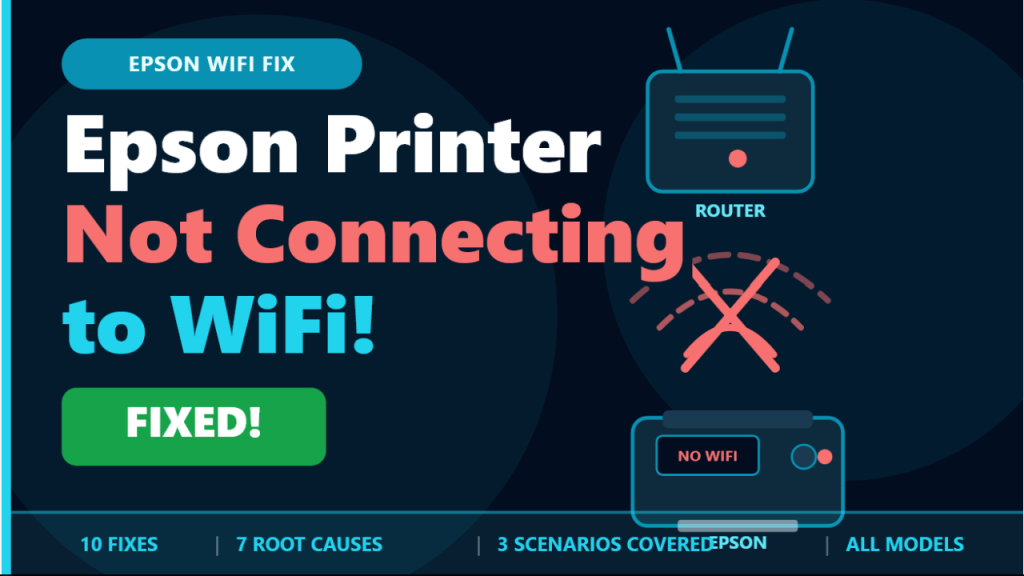

Epson Printer Not Connecting
to WiFi!
Your Epson printer keeps failing to connect to WiFi — or connects then drops. Here’s every reason why and exactly how to fix it.
Why Is Your Epson Printer Not Connecting to WiFi?
An Epson printer that won’t connect to WiFi is one of the most common printer problems — but it almost always has a simple, fixable cause. Whether the printer never connects, keeps dropping the connection, or connects but can’t be found by your PC, each symptom points to a specific fix. This guide covers all scenarios across all Epson models including EcoTank, Expression, WorkForce, and WorkForce Pro.
“Not connecting” can mean the printer fails during setup, or it was working but keeps dropping. These have different causes — this guide addresses both scenarios separately.
EcoTank ET series, Expression XP series, WorkForce WF series, WorkForce Pro, and all Epson all-in-one models. The fixes apply to Windows, macOS, iOS, and Android.
Which of These Describes Your Problem?
Why Epson Printer Won’t Connect to WiFi
Wrong WiFi Band — 5GHz Instead of 2.4GHz
Almost all Epson inkjet, EcoTank, and WorkForce printers support 2.4GHz WiFi only. When a dual-band router broadcasts both bands under the same network name, the printer may attempt a 5GHz connection and silently fail every time without a clear error message.
Incorrect or Changed WiFi Password
A wrong password — even one incorrect character, wrong capitalisation, or a recently changed router password — causes the setup to fail at authentication. WiFi passwords are fully case-sensitive and the printer stores the last used credentials.
Old or Corrupt Network Settings on the Printer
Previous failed setup attempts leave residual network data in the printer’s memory. This old data interferes with every new connection attempt — even when all other settings are correct. A full network settings reset is required to clear it.
Router Assigning a New IP Address After Restart
When the printer or router is restarted, the router may assign a different IP address via DHCP. The printer driver on your PC may still point to the old IP, making the printer unreachable and appearing offline even though it is connected to WiFi.
Router Security Settings Blocking the Printer
WPA3-only security, MAC address filtering, AP Isolation, or a guest network with client isolation enabled can all silently prevent the printer from completing authentication or being discoverable — even when the password is entered correctly.
Printer Too Far from the Router
WiFi signal strength during the initial setup handshake needs to be significantly stronger than during normal operation. A printer positioned more than 10–15 metres from the router, or behind multiple thick walls, may fail to complete authentication even if signal appears adequate.
Outdated Printer Firmware
Older firmware versions on Epson printers can have WiFi driver bugs that cause connection failures, drops, or incompatibility with newer router firmware and security standards. Updating firmware resolves these issues silently in most cases.
Epson Printer Never Connects to WiFi During Setup
💡 Always Reset Network Settings Before Retrying
If any previous setup attempt has failed, reset the printer’s network settings before trying again. Go to Setup → Network Settings → Restore Network Defaults → Yes. Old credentials left from failed attempts will cause every new attempt to fail — even with the correct password.
Fix: Printer Won’t Connect During Setup
Work through these steps in order
Separate your 2.4GHz and 5GHz networks
Log into your router admin panel and give the two bands different names — e.g. “HomeWiFi” and “HomeWiFi_5G”. Then connect the printer only to the 2.4GHz network name.
Router Admin → WiFi Settings → Separate SSIDsMove printer within 2 metres of router for setup
Temporarily place the printer next to the router during the initial connection. Once connected, move it to its permanent position. Weak signal during the authentication handshake is a frequent silent failure.
Reset network settings and run setup wizard fresh
On the printer: Setup → Network Settings → Restore Network Defaults → Yes. Then go to Setup → WiFi Setup → WiFi Setup Wizard and select the 2.4GHz network.
Setup → WiFi Setup → WiFi Setup WizardVerify the WiFi password character by character
Connect another device to your router using the exact password you plan to enter on the printer. Confirm it works. Then enter the password on the printer slowly — check capitalisation, zeros vs O, and special characters.
Check and adjust router security settings
In your router admin panel, confirm: WPA3-only is NOT enabled (use WPA2/WPA3 mixed), MAC filtering is OFF, and AP Isolation is disabled. These three settings silently block printer connections even with a correct password.
Router → Security → WPA2 Mixed + No MAC FilterEpson Printer Connects Then Keeps Dropping WiFi
Fix: Printer Connects But Goes Offline Repeatedly
For printers that connect initially then lose WiFi after minutes or hours
Assign a static IP address to the printer
Log into your router admin panel, find your Epson printer in the connected devices list, and assign it a reserved (static) IP address. This prevents the IP from changing every time the router or printer restarts — the single most common cause of recurring offline issues.
Router Admin → DHCP → Reserve IP for EpsonReduce WiFi interference around the printer
Move the printer away from microwaves, cordless phones, baby monitors, and Bluetooth speakers — all of which interfere heavily with 2.4GHz WiFi and can cause repeated drops without any obvious pattern.
Change your router’s WiFi channel
In your router admin panel, manually set the 2.4GHz channel to 1, 6, or 11 — the three non-overlapping channels. Channel congestion from neighbouring networks is a common but hidden cause of intermittent drops.
Router → WiFi → Channel → Set to 1, 6, or 11Update the printer firmware
Visit epson.com/support, find your exact model, and download the latest firmware. Install via USB. WiFi stability bugs are frequently addressed in firmware updates without being listed prominently in the release notes.
Always power off with the power button — not the mains
Pressing the power button lets the printer disconnect from WiFi gracefully and save its network state. Cutting mains power abruptly can corrupt the stored network settings, causing the printer to fail to reconnect on the next startup.
Epson Connected to WiFi But Not Found by PC or Phone
Fix: Printer Shows Connected But Devices Can’t Find It
WiFi light is solid but printer appears offline on PC or phone
Print a Network Status Sheet to get the printer’s IP
On the printer: Setup → WiFi Setup → Print Status Sheet. This prints the current IP address, signal strength, and connection status. Note the IP address for the next step.
Setup → WiFi Setup → Print Status SheetCheck and update the printer port IP on your PC
On Windows: open Devices and Printers → right-click Epson → Printer properties → Ports tab → Configure Port. Compare the IP shown to the one on the status sheet — update it if they differ.
Printer Properties → Ports → Configure Port → Update IPConfirm PC and printer are on the same network
Check your PC’s WiFi — make sure it is on the same network name as the printer. Also confirm your PC is not using a VPN, which can route traffic away from the local network and prevent printer discovery.
Disable AP Isolation in router settings
In your router admin panel, search for AP Isolation, Client Isolation, or Device Isolation and make sure it is disabled. This setting is the most common hidden reason a printer on WiFi cannot be found by any device on the same network.
Reinstall the printer driver on your PC
Uninstall the Epson printer from Devices and Printers, download the latest full-feature driver from epson.com/support, and reinstall. Choose network/WiFi connection when prompted during setup.
epson.com/support → Drivers → Full Feature Driver10 Fast Fixes to Try Right Now
Restart All Three Devices
Power off the printer, router, and PC. Wait 60 seconds. Power router on first, wait 30 sec, then printer, then PC. This alone resolves the majority of recurring WiFi drop issues.
Force 2.4GHz on Router
Separate your 2.4GHz and 5GHz bands into different network names in the router admin panel. Connect the printer only to the 2.4GHz one — most Epson printers do not support 5GHz.
Reset Printer Network Settings
Go to Setup → Network Settings → Restore Network Defaults. Always do this before retrying a setup that has previously failed — old data causes new attempts to fail.
Double-Check WiFi Password
Connect another device using the same password first to verify it. Then enter it on the printer carefully — check capitalisation, special characters, and 0 vs O.
Move Printer Closer to Router
Place the printer within 2 metres of the router for initial setup. Once connected, move it to its permanent location. Weak signal during handshake causes silent failures.
Switch Router to WPA2 Security
Most Epson printers do not support WPA3. In your router admin panel, change security mode to WPA2/WPA3 Mixed or WPA2 only, then retry the WiFi setup wizard.
Disable MAC Filtering
If MAC address filtering is enabled on your router, add your printer’s MAC address (shown on the network status sheet) to the allowed devices list, or disable MAC filtering entirely.
Assign Static IP to Printer
In your router admin panel, reserve a fixed IP address for your Epson printer. This permanently prevents IP-change related offline issues after every router or printer restart.
Update Printer Firmware
Download the latest firmware from epson.com/support for your exact model. Install via USB cable. Firmware updates fix WiFi stability and compatibility bugs silently.
Test with a Mobile Hotspot
Create a mobile hotspot on your phone (simple name, no special characters). Connect the printer to it. If it connects successfully, the issue is your router’s settings — not the printer’s WiFi module.
Keep Your Epson Connected to WiFi Permanently
Frequently Asked Questions
My Epson printer says it’s connected to WiFi but still shows as offline on my PC — why?
This is almost always an IP address mismatch. The printer has reconnected with a new IP address, but your PC’s printer driver is still pointing to the old one. Print a Network Status Sheet from the printer, then update the port IP in Windows Printer Properties to match. Assigning a static IP prevents this permanently.
Why does my Epson connect to WiFi fine but then drop the connection every day?
Daily drops are almost always caused by the router reassigning a new IP address via DHCP. The permanent fix is a static IP reservation in your router. Secondary causes include 2.4GHz channel congestion and the printer being powered off by cutting the mains rather than using the power button.
My Epson printer worked fine on the old router but won’t connect to the new one — how do I fix it?
Reset the printer’s network settings completely first — it still has the old router’s credentials stored. Then run the WiFi Setup Wizard fresh. Check that the new router is using WPA2 (not WPA3-only), has a separate 2.4GHz network name, and has MAC filtering disabled. These three router settings cause the most new-router connection failures.
Can I use an Epson printer without WiFi if the connection keeps failing?
Yes — connect via USB cable. Install the Epson driver from epson.com/support and select USB connection during setup. The printer will work fully over USB while you troubleshoot the WiFi separately. Wi-Fi Direct is also an option for printing from a mobile device without a router.
When to Contact Epson Support
If all ten fixes have been attempted across all three scenarios and the printer still will not connect, the WiFi module itself may have a hardware fault. Contact Epson support in these situations: