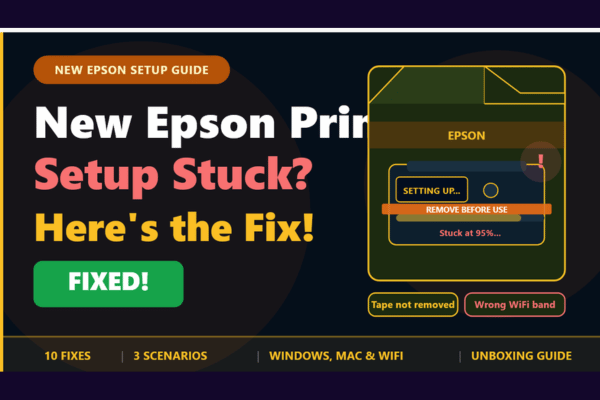

New Epson Printer
Setup Stuck?
Here’s the Fix!
Your brand new Epson printer is stuck during setup — won’t connect, won’t install, or just freezes mid-wizard. Here’s exactly what to do.
Getting a new Epson printer out of the box is exciting — until the setup process grinds to a halt. Whether the wizard freezes during WiFi configuration, the driver refuses to install, or the printer simply isn’t recognised by your PC or phone, a stuck setup is one of the most frustrating experiences a new printer owner can face. The good news is that almost every new Epson setup failure has a straightforward fix that takes minutes to apply.
What makes new printer setup failures particularly confusing is that the printer itself is usually completely fine — it is the setup process that has encountered a problem, not the hardware. Understanding where in the setup the problem is occurring is the most important first step, because each stage of the wizard has its own set of common failure points and specific fixes.
Common Points Where New Epson Setup Gets Stuck
Why Does New Epson Printer Setup Get Stuck?
Setting up a new Epson printer involves hardware initialisation, ink cartridge loading, WiFi configuration, driver installation, and a test print — all in sequence. A failure at any one of these stages appears as a “stuck” setup. The key is identifying which stage stalled, because the fix is completely different depending on whether the problem is hardware, network, or software related.
Orange protective tape, foam inserts, and plastic shipping locks left inside a new Epson printer are a surprisingly common cause of setup failures — they block the carriage and prevent the printer from completing its startup routine.
New printer setup failures are almost never caused by a defective printer. In the vast majority of cases the fix takes under 20 minutes and requires no tools, no technical expertise, and no service call.
Why Is the New Epson Printer Setup Stuck?
Protective Packaging Not Fully Removed
Every new Epson printer ships with orange tape over the print head nozzles, plastic cartridge clips, foam spacers inside the paper tray, and a carriage lock. Any one of these left in place will cause the printer to fail its startup self-test and halt the setup process immediately.
WiFi Setup Failing Due to 5GHz Band
Most Epson printers only support 2.4GHz WiFi. During initial setup, if the printer attempts to connect to a 5GHz network — or if the router broadcasts both bands under one name — the WiFi configuration step will silently fail and the wizard will loop or hang.
Ink Cartridges Not Fully Seated or Tape Not Removed
New cartridges ship with orange or pink protective tape covering the ink nozzles. If this tape is not removed before installation, the printer cannot prime the ink system and will stall during the cartridge initialisation phase of setup.
Driver Installer Not Run as Administrator
The Epson setup software requires administrator privileges on Windows. If the installer is launched from a standard user account without elevation, it will appear to run but stall or fail silently when it attempts to write driver files to system directories.
USB Cable Connected at the Wrong Time
The Epson setup wizard specifies exactly when to connect the USB cable during installation. Connecting it before being prompted — or using the wrong USB port — frequently causes Windows to use a generic driver rather than the Epson-specific one, stalling the setup.
Antivirus Blocking the Setup Software
Real-time antivirus protection can quarantine or block components of the Epson setup package mid-installation — particularly the driver signing components that write to protected Windows directories — causing a silent hang with no meaningful error message.
Setup Downloaded from Wrong Source or Outdated
Setup software installed from the included CD (now outdated for most modern OS versions) or from a third-party download site frequently fails on current Windows 10, Windows 11, and macOS versions. Only the latest download from epson.com/support is reliable.
Before attempting any software-based fix, it is always worth doing a thorough physical check of the printer first. Many new Epson setup failures that appear to be software or driver problems are actually caused by something physical — a piece of packaging material that was missed during unboxing, or a cartridge that was not clicked in firmly enough. A two-minute physical inspection can save 30 minutes of troubleshooting.
The setup wizard that comes with Epson printers is designed to walk you through the process step by step, but it can be surprisingly sensitive to the order in which things are done. Connecting the USB cable before the wizard asks, or trying to install the driver from the CD before checking for updates, are two of the most common ways users accidentally cause their own setup to stall. Following the wizard’s instructions precisely — rather than jumping ahead — is often the only fix needed.
New Printer Unboxing Checklist — Do This First
⚠️ Check This Before Anything Else
The majority of new Epson printer setup failures are caused by missed packaging steps — not software. Complete this physical checklist before touching the setup wizard or driver installer.
Remove ALL orange tape from inside the printer
Open every access panel — front, rear, and cartridge door. Remove all orange or blue tape strips from the print head, carriage, and paper feed area. Check twice — missed tape is the number one new printer setup failure cause.
Remove the orange tape from each ink cartridge
Each individual cartridge has an orange or pink pull-tab tape covering the nozzle plate. Remove this from every cartridge before inserting. Do not touch the gold contact strip on the cartridge.
Remove all foam inserts and cardboard spacers
Check inside the paper tray and the printer body for foam blocks and cardboard spacers used during shipping. These are designed to protect the printer in transit but must be removed before use.
Seat all cartridges until they click
Insert each cartridge firmly into its colour-coded slot and press until you feel or hear a distinct click. A partially seated cartridge will cause the ink initialisation to fail and the printer to report an error mid-setup.
Download the latest setup software from epson.com/support
Do not use the included CD. Visit epson.com/support, search your exact printer model, and download the Full Feature Driver and Software package for your operating system.
Do NOT connect USB until the wizard asks you to
If setting up via USB, wait for the installer to explicitly prompt you before connecting the cable. Connecting too early causes Windows to install a generic driver instead of the Epson-specific one.
Once you have completed the physical checklist above, you are ready to work through the software setup. The three scenario-based guides below cover the three most common stuck points during new Epson printer setup — WiFi configuration failing, the driver installer stalling on Windows, and the printer not being found during setup on Mac. Find the one that matches your situation and follow the steps in order.
Setup Stuck on WiFi Configuration
WiFi Setup Wizard Failing or Looping
For when the printer can’t find or connect to your WiFi network
Separate your 2.4GHz and 5GHz networks
Log into your router admin panel and give each band a different name — e.g. “HomeWiFi” for 2.4GHz and “HomeWiFi_5G” for 5GHz. Then connect the printer only to the 2.4GHz network.
Router Admin → WiFi → Separate Band NamesMove printer within 2 metres of router for setup
Temporarily place the printer next to the router during the WiFi configuration step. The authentication handshake requires a stronger signal than normal printing. Once connected, move to the permanent location.
Reset network settings and run the wizard fresh
On the printer: Setup → Network Settings → Restore Network Defaults → Yes. Then go to Setup → WiFi Setup → WiFi Setup Wizard and select your 2.4GHz network.
Setup → WiFi Setup → WiFi Setup WizardCheck router security settings
Confirm in your router admin panel that: WPA3-only is NOT enabled (use WPA2/WPA3 mixed), MAC filtering is OFF, and AP Isolation is disabled. All three silently block new printer connections.
Print a Network Status Sheet to confirm connection
After a successful WiFi connection go to Setup → WiFi Setup → Print Status Sheet. Confirm the IP address is assigned and signal strength is acceptable before proceeding with driver installation.
Setup → WiFi Setup → Print Status SheetSetup Stuck During Driver Installation on Windows
Windows 10 & 11 Driver Install Stuck
Installer freezes, hangs at 99%, or printer not detected
Download the latest driver from epson.com/support
Never use the included CD. Go to epson.com/support, search your exact model, select your Windows version, and download the Full Feature Driver and Software package.
epson.com/support → Model → Full Feature DriverRight-click installer → Run as administrator
Locate the downloaded file, right-click it and select Run as administrator. Click Yes on the UAC prompt. Never double-click — always right-click and elevate permissions explicitly.
Temporarily disable antivirus before installing
Pause or disable your antivirus real-time protection before running the installer. Re-enable it immediately after the installation completes. Antivirus frequently blocks Epson installer components silently.
Connect USB only when the wizard prompts you
If using USB setup, do NOT plug in the cable until the installer displays the screen asking you to connect. Connecting early causes Windows to install a generic driver that stalls the Epson wizard.
Restart Print Spooler before running installer
Press Windows + R, type services.msc, find Print Spooler, right-click → Restart. Then immediately run the Epson installer as administrator.
services.msc → Print Spooler → RestartSetup Stuck on macOS
macOS Ventura, Sonoma & Earlier
Gatekeeper blocking installer or printer not found on Mac
Allow the Epson installer in Privacy & Security
If macOS blocked the installer, go to System Settings → Privacy & Security and scroll down to find the blocked Epson entry. Click Allow Anyway, then re-run the installer package.
System Settings → Privacy & Security → Allow AnywayDownload the Mac-specific driver from epson.com
Go to epson.com/support, select macOS as your OS, and confirm the driver version matches your exact macOS version. Ventura and Sonoma require different driver packages than Monterey and earlier.
Reset the printing system before installing
Go to System Settings → Printers & Scanners. Right-click the printer list and select Reset printing system. This clears any residual data that could block the new printer from being recognised.
Printers & Scanners → Right-click → Reset printing systemAdd the printer manually after driver install
After installing the driver, go to Printers & Scanners → tap + → Add Printer or Scanner. Select your Epson from the list. If it doesn’t appear, make sure the printer is on the same WiFi as your Mac.
Send a test print to confirm setup is complete
Open any document, press Cmd + P, select your Epson from the dropdown, and click Print. Confirm the printer status shows Idle — not Offline or Paused — in Printers & Scanners.
If you have worked through the relevant scenario guide above and the setup is still stuck, the quick fix cards below cover additional less-common causes that apply across all platforms and printer models. These are worth trying before concluding there is a hardware fault — in most cases one of these additional fixes gets the setup over the line.
Setup Still Stuck? Try These Next
💡 Try Each Fix Then Restart the Setup Wizard
After applying each fix below, always restart the printer and relaunch the Epson setup wizard from the beginning rather than trying to resume from where it stalled — a fresh wizard start gives the cleanest result.
Power Cycle Printer and Router
Turn both off, unplug from the wall, wait 60 seconds. Plug the router in first, wait 30 seconds, then the printer. Restart the setup wizard immediately after both have fully booted.
Re-check All Cartridges and Tape
Open the cartridge door and remove each cartridge. Confirm the orange pull-tab tape is fully removed from every nozzle plate. Reinsert firmly until each one clicks. Close the door securely.
Use Epson Smart Panel App Instead
If the PC-based wizard is stuck, try the Epson Smart Panel app on your phone (iOS or Android) to complete the setup. The app often succeeds where the desktop wizard fails — especially for WiFi configuration.
Try WPS Button Setup
On the printer go to Setup → WiFi Setup → Push Button Setup (WPS). Within 2 minutes, press the WPS button on your router. This bypasses password entry entirely and often succeeds when the wizard method fails.
Complete Setup via USB First
If WiFi setup keeps failing, complete the full driver installation via USB cable. Once the driver is installed and the printer works over USB, switch to WiFi through Epson WiFi Setup in the installed software.
Test WiFi with a Mobile Hotspot
Create a mobile hotspot on your phone — use a simple name with no special characters. Connect the printer to the hotspot. If it connects successfully, the problem is your router’s settings, not the printer.
Check Router Security Mode
In your router admin panel, confirm security is set to WPA2 or WPA2/WPA3 mixed. WPA3-only blocks most Epson printers. Also disable AP Isolation and MAC address filtering if either is enabled.
Check Windows Update Status
Go to Settings → Windows Update and install all pending updates. Some Epson driver packages require specific Windows components that may be missing on installations that haven’t been updated recently.
Run Windows Printer Troubleshooter
Go to Settings → System → Troubleshoot → Other troubleshooters → Printer → Run. Windows will automatically detect and repair common printer setup and driver issues before you retry.
Factory Reset and Start Over
On the printer: Setup → Restore Default Settings → All Settings → Yes. Then power cycle the printer and start the entire setup process from the very beginning with a fresh download of the setup software.
New Printer Setup Best Practices
A new Epson printer setup that goes smoothly from the start sets the tone for years of reliable printing. Taking a few extra minutes to do the setup correctly — removing all packaging, downloading the latest software, and connecting to 2.4GHz WiFi — pays dividends by avoiding the ongoing offline and connection issues that plague printers that were set up incorrectly the first time.
Frequently Asked Questions
Should I use the CD that came with my new Epson printer?
No — not on a modern PC or Mac. The CD contains software that was current at the time the printer was manufactured, which is often years out of date. It frequently fails to install correctly on Windows 10, Windows 11, and recent macOS versions. Always download the latest version directly from epson.com/support for your exact model.
My new Epson printer keeps making noise but won’t finish setup — is it broken?
No — the noise is almost certainly the printer performing its initial ink charging and print head calibration routine, which is normal for a new printer. This process can take 5–10 minutes and sounds like grinding or clicking. If it has been running for more than 15 minutes without completing, power cycle the printer and check for missed packaging or tape blocking the carriage.
The setup completed but the test print came out blank or streaky — what’s wrong?
A blank or poor quality first test print on a new printer is usually caused by air in the ink lines from the initial charging process, or by residual protective tape on one of the cartridges. Run the print head cleaning cycle from Setup → Maintenance → Head Cleaning, then print a nozzle check pattern. If one colour is missing, that cartridge’s tape may not have been fully removed.
Can I set up the Epson printer on WiFi without using a computer at all?
Yes. You can set up WiFi entirely from the printer’s control panel using the WiFi Setup Wizard — no PC required. Go to Setup → WiFi Setup → WiFi Setup Wizard, select your network, enter the password, and the printer connects independently. You can then add it to your phone using Epson Smart Panel, or to your PC by running the driver installer and selecting the WiFi connection option.
When to Contact Epson Support
If you have completed the unboxing checklist, worked through the relevant scenario guide, and tried all ten additional fixes — and the setup is still stuck — contact Epson support. A brand new printer that cannot complete setup despite correct handling may have a manufacturing defect.