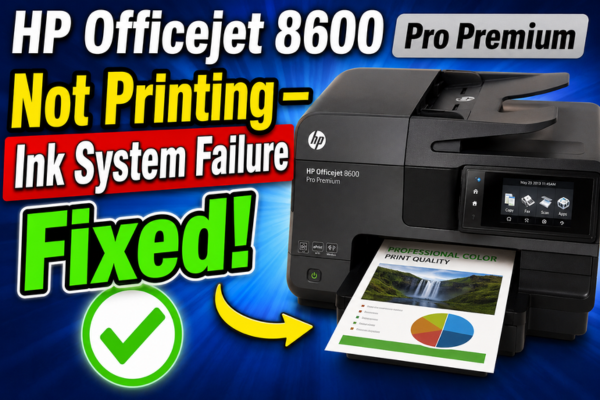

HP Officejet 8600 Pro Premium
Not Printing — Ink System Failure Fixed!
Your HP Officejet Pro 8600 Premium has stopped printing and is showing an Ink System Failure error. This guide covers every cause and 10 targeted fixes.
The “Ink System Failure” error on the HP Officejet Pro 8600 Premium is one of the most alarming messages this printer can display — it stops all printing completely and gives the impression of a catastrophic hardware failure. In reality, this error is almost always recoverable and does not indicate that the printer’s ink delivery hardware has permanently failed.
The HP Officejet Pro 8600 Premium uses a printhead assembly that is separate from the ink cartridges — unlike many other inkjet printers where the printhead is built into each cartridge. This design means that the Ink System Failure error typically points to a problem with the printhead itself, the cartridges’ connection to the printhead, or the ink delivery system — rather than a simple cartridge replacement. Understanding this distinction is essential to applying the right fix.
What Is the “Ink System Failure” Error on the HP Officejet 8600 Pro Premium?
Ink System Failure — Printhead or Ink Delivery System Cannot Be Initialised
This error means the printer’s firmware cannot successfully communicate with or initialise the printhead assembly during startup. The printer halts and refuses all print and copy jobs. It is most commonly caused by a clogged or failed printhead, incorrect cartridge installation, or a temporary firmware-level detection failure — not necessarily permanent hardware damage. The 8600 Premium’s separate printhead design makes it both more serviceable and more susceptible to this type of error than cartridge-based printers.
Why the HP 8600 Pro Premium Is Different from Other Inkjet Printers
The HP Officejet Pro 8600 Premium uses a separate replaceable printhead (part number CN643A / CB326-30002) that is distinct from the ink cartridges. The four ink cartridges (940XL series) deliver ink to this shared printhead assembly. An Ink System Failure means the printer cannot properly initialise this printhead — either because it is clogged, damaged, incorrectly seated, or receiving incompatible cartridges. The fix often involves cleaning or reseating the printhead rather than replacing cartridges.
Despite the alarming message, the vast majority of Ink System Failure errors on the 8600 Premium are recoverable. A full cold reset, printhead cleaning, or printhead reseating resolves this error in most cases without replacing any parts.
If the printhead is genuinely failed, it can be replaced without replacing the entire printer. The HP Officejet Pro 8600 Premium printhead (CN643A) is available as a standalone replacement part — significantly cheaper than a new printer.
How the Ink System Failure Shows Up
Why Is the HP 8600 Pro Premium Showing Ink System Failure?
Clogged or Dried-Out Printhead
The most common cause. When the 8600 Premium sits unused for extended periods, ink dries and hardens inside the printhead nozzles and ink channels. On startup the printer cannot prime the printhead, detects the obstruction as a system failure, and halts. This is fixable with printhead cleaning — either via the printer’s maintenance routine or manual hot water soaking.
Printhead Not Properly Seated
The printhead assembly on the 8600 Premium can become slightly unseated — particularly after a cartridge change, if the printer was moved or bumped, or if the printhead latch was not fully engaged. A partially seated printhead fails the electrical contact test on startup and produces the Ink System Failure error.
Incompatible or Non-Genuine Cartridges
The HP Officejet Pro 8600 Premium uses HP 940 and 940XL cartridges specifically. Installing incompatible third-party cartridges, or cartridges intended for a different HP model (such as 940 vs 940XL confusion), can trigger an Ink System Failure error because the printer’s firmware cannot authenticate the cartridge chip.
Dirty Printhead Electrical Contacts
The printhead has gold electrical contact strips that communicate with the printer’s carriage. Ink spillage, dust, or oxidation on these contacts breaks the communication the printer needs to read the printhead status — producing an Ink System Failure error even on a physically functional printhead.
Air in the Ink Supply System
Running one or more cartridges completely dry allows air to enter the ink supply channels leading to the printhead. The air bubble prevents ink from flowing to the nozzles — the printer detects the failure to prime as an Ink System Failure and halts.
Failed or Genuinely Damaged Printhead
In a minority of cases — particularly on older or heavily used 8600 Premium units — the printhead itself has failed electronically or physically. Printhead failure is most common after the printer has been running for several years, has had repeated clogging and cleaning cycles, or was operated with incompatible inks that damaged the nozzle plate.
Before attempting any of the fixes below, the single most important action is to perform a full cold power cycle. This means turning the printer off, unplugging the power cable from the wall outlet (not just the printer), waiting a full 60 seconds, and then plugging back in and powering on. Many Ink System Failure errors on the HP Officejet Pro 8600 Premium are temporary firmware detection failures that clear completely with a cold cycle — the 60-second wait allows the printer’s capacitors to fully discharge and the firmware to reset its initialisation state cleanly.
If the cold power cycle does not resolve the error, the next most effective fix is to remove and reseat the printhead assembly. This is simpler than it sounds — the printhead lifts out of its bay after releasing the latch, the contacts can be cleaned, and it can be reseated with firm downward pressure until the latch clicks. This resolves both “loose printhead” and “dirty contact” causes in a single step.
How to Fix HP Officejet 8600 Pro Premium Ink System Failure — 10 Methods
💡 Work Through These in Order — Most Users Fix It by Step 3
Fixes 01, 02, and 03 — cold power cycle, printhead reseat, and contact cleaning — resolve the Ink System Failure error for the vast majority of HP 8600 Pro Premium users. Only proceed to later fixes if these three do not clear the error.
Cold Power Cycle — Full 60-Second Reset
Turn off printer. Unplug power cable from wall. Wait 60 seconds. Plug in and power on. This clears the firmware initialisation error state. Must be done from the wall socket — control panel restart is not sufficient.
Remove and Reseat the Printhead
Open the printhead access door. Lift the printhead latch and remove the printhead. Wait 30 seconds. Reseat firmly — push down until you feel it seat fully and lock the latch. Close the door. Power cycle.
Clean Printhead Electrical Contacts
Remove the printhead. Use a lint-free cloth lightly dampened with distilled water to wipe the gold electrical contacts on the printhead and on the carriage bay. Let dry fully before reseating. Never use tap water or alcohol on contacts.
Check and Reseat All Cartridges
Remove all four HP 940/940XL cartridges. Confirm each one is the correct model — HP 940 or 940XL only. Check the contact strip on each cartridge. Reseat firmly until each clicks. Incorrect or loosely seated cartridges trigger Ink System Failure.
Run Automated Printhead Cleaning
If the printer partially initialises: go to Setup → Tools → Clean Printhead. Run all 3 cleaning levels. Print a diagnostic page after each level. For severe clogs, run all 3 levels consecutively then wait 8 hours before rechecking.
Manual Printhead Hot Water Soak
Remove the printhead. Place the nozzle end in warm distilled water (not hot — around 40°C) for 10–15 minutes to dissolve dried ink. Blot dry with a lint-free cloth. Let air dry completely — at least 1 hour. Reinstall and power cycle.
Replace Empty or Low Cartridges
Check ink levels: Setup → Tools → Ink Level or via HP Solution Center on PC. Replace any cartridge showing empty or critically low — running empty allows air into the ink supply channels, causing Ink System Failure during printhead priming.
Run HP Print and Scan Doctor
Download HP Print and Scan Doctor from hp.com/support. Run it on your connected PC. It reads the printer’s diagnostic log and can push targeted fixes for known Ink System Failure patterns on the 8600 series.
Perform a Factory Reset (Partial Reset)
On the printer panel: Setup → Tools → Restore Factory Defaults. This resets firmware settings — including ink system initialisation parameters — without wiping network settings. Often clears Ink System Failure errors caused by firmware state corruption.
Replace the Printhead Assembly
If all fixes have failed, replace the printhead with a genuine HP CN643A printhead (fits all HP Officejet Pro 8600 models). This is significantly cheaper than a new printer and resolves all printhead-related Ink System Failures permanently.
Step-by-Step Scenario Fixes
How to Remove, Clean and Reseat the HP 8600 Printhead
Fix 02 + 03 combined — resolves most Ink System Failure errors
Open the cartridge access door and wait for carriage to centre
With the printer powered on, open the cartridge access door. The carriage will move to the centre position. If the printer shows the error on startup and the carriage does not move — open the door manually with the printer off and power on after the door is open.
Remove all four ink cartridges
Press down and pull each of the four HP 940/940XL cartridges out of their slots. Set them aside on a paper towel — do not place them nozzle-side down. Removing cartridges before the printhead reduces the chance of ink spills during printhead removal.
Release the printhead latch and lift out
Locate the grey printhead latch at the back of the carriage. Pull it towards you to release. The printhead will lift slightly. Grasp it by its sides and lift straight up to remove. Handle by the sides only — avoid touching the nozzle plate (bottom) or the gold contacts.
Pull latch towards you → lift printhead straight upClean the gold electrical contacts
Using a dry lint-free cloth, gently wipe the gold contact strips on the printhead. Also wipe the corresponding contacts inside the carriage bay with a cotton swab. Any ink residue or oxidation on these contacts breaks communication and causes the Ink System Failure error.
Reseat printhead firmly and lock the latch
Lower the printhead back into the carriage bay, aligning the colour-coded guides. Press down firmly until it seats fully. Push the grey latch away from you until it clicks and locks. The printhead must be fully locked — a partially latched printhead is a common cause of repeat errors.
Lower → press firm → latch clicks forwardReinstall all cartridges and cold power cycle
Reinsert all four HP 940/940XL cartridges. Close the access door. Turn the printer off and unplug from the wall for 60 seconds. Plug back in and power on. The printer will run its initialisation routine — if the printhead is properly seated and contacts are clean, the Ink System Failure should be cleared.
How to Clean the Printhead with a Warm Water Soak
For Ink System Failure caused by severely clogged printhead nozzles
Remove printhead as described above
Follow the printhead removal steps above. The printhead must be removed from the printer for this cleaning method — do not attempt to soak the printhead while installed.
Prepare warm distilled water in a shallow dish
Fill a shallow dish or container with warm distilled water — approximately 1–2cm deep. The water temperature should be warm to the touch but not hot — around 35–40°C. Never use tap water (minerals will clog nozzles) or very hot water (can damage nozzle materials).
Soak the nozzle end of the printhead
Place the printhead nozzle-side down in the warm water — the nozzle plate should be submerged but the electrical contacts at the top must not touch the water. Soak for 10–15 minutes. The water will turn coloured as dissolved ink is drawn out.
Nozzle end in water — contacts must stay dryBlot dry and allow to air dry completely
Remove the printhead and blot the nozzle end gently with a dry lint-free cloth. Set aside on a clean cloth and allow to air dry for at least 1 hour — the printhead must be completely dry before reinstalling. Reinstalling a wet printhead causes electrical shorts.
Reinstall and run the printer’s cleaning cycle
After the printhead is completely dry, reinstall it, replace all cartridges, and cold power cycle. If the printer initialises — run Setup → Tools → Clean Printhead (all 3 levels) to complete the cleaning process and prime the nozzles fully.
When and How to Replace the HP 8600 Printhead
For Ink System Failure that persists after all cleaning attempts
Confirm the printhead is genuinely failed
Replace with a new printhead only after: cold power cycle tried, printhead reseated and contacts cleaned, warm water soak attempted, and the error persists on every startup. A printer that shows Ink System Failure intermittently rather than consistently may still be resolved by cleaning.
Order the correct HP 8600 printhead
The HP Officejet Pro 8600 Premium uses printhead part number CN643A (also listed as CB326-30002 on some suppliers). This printhead fits all HP Officejet Pro 8600 variants. Purchase genuine HP only — third-party printheads have significantly lower reliability on this model.
HP Part: CN643A — fits all 8600 Pro variantsInstall the new printhead
Remove the orange protective caps from the new printhead’s nozzle area. Remove all cartridges from the printer. Remove the old printhead. Install the new printhead — lower it in, press down firmly, and lock the latch. Reinstall all cartridges and cold power cycle.
Allow the alignment and priming routine to complete
A new printhead will trigger an automatic printhead alignment and priming routine on first startup — this takes 5–10 minutes and uses some ink. Load plain A4 paper when prompted. Do not interrupt this process. After completion, print an alignment page to confirm quality.
One of the most common mistakes users make with the HP Officejet Pro 8600 Premium Ink System Failure is replacing all four ink cartridges as the first response. While this is understandable — it is the first thing that comes to mind with an “ink” error — it is rarely the cause. The cartridges are almost always fine. The issue is almost always the printhead or the connection between the cartridges and the printhead. Replacing expensive HP 940XL cartridges unnecessarily is a costly mistake that does not address the actual cause.
Prevent Ink System Failure from Recurring
Frequently Asked Questions
I replaced all the ink cartridges but the Ink System Failure error is still there — why?
Because the error is almost never caused by the ink cartridges. The HP Officejet Pro 8600 Premium’s Ink System Failure error is a printhead problem — not a cartridge problem. The cartridges are separate from the printhead on this model. Proceed to Fix 02 and Fix 03 — removing and reseating the printhead and cleaning its electrical contacts resolves the error in the majority of cases where cartridge replacement did not help.
How do I know if the printhead needs replacing or just cleaning?
Try cleaning first — always. If the warm water soak (Fix 06) and the automated cleaning cycles (Fix 05) do not restore normal printing after the error is cleared, and the printer shows blank or heavily banded output on test prints, the printhead is likely permanently damaged. A printhead that has been cleaned but still produces a nozzle check pattern with multiple completely missing rows is a strong indicator of permanent nozzle failure requiring replacement.
Is the HP Officejet Pro 8600 Premium worth repairing with a new printhead?
The HP CN643A replacement printhead typically costs significantly less than a new printer. If the rest of the 8600 Premium is functioning normally — paper feed, scanning, networking — a printhead replacement is almost always economically worthwhile. The 8600 Premium is a capable printer and with a new printhead will provide many more years of service. The printhead swap takes about 10 minutes and requires no tools.
The Ink System Failure appears only sometimes — not every time I print. What’s causing it?
Intermittent Ink System Failure on the 8600 Premium is almost always caused by a loose printhead that is partially making contact — connecting well enough to print sometimes but failing the initialisation check at other times. Remove the printhead, clean the contacts, and reseat firmly until the latch clicks. If the error continues intermittently after a firm reseat, the printhead latch mechanism may be worn and the printhead may need replacing to restore reliable contact.
When to Contact HP Support
If all ten fixes — including the warm water printhead soak and a factory reset — have been applied and the Ink System Failure error persists even after installing a brand new printhead, the printer has a deeper hardware fault. Contact HP in these situations: