
HP M479dw Blue Screen
Error B808D658 — Fixed!
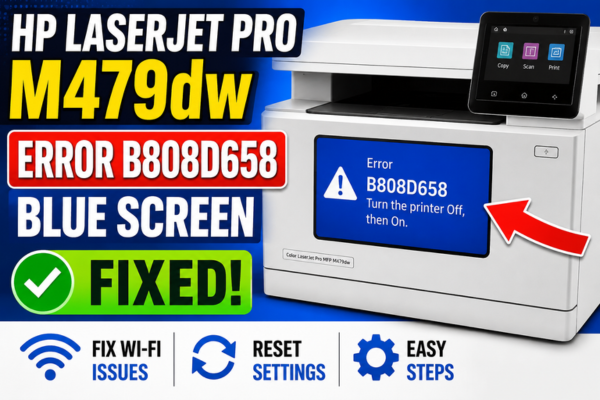
Your HP Color LaserJet Pro MFP M479dw has crashed with a blue screen showing error code B808D658. This guide explains exactly what it means and how to fix it.
A blue screen error on the HP Color LaserJet Pro MFP M479dw is significantly more alarming than a standard paper jam or low toner alert — the printer’s own control panel has crashed, displaying an unfamiliar hexadecimal error code and refusing to respond to any input. Error code B808D658 is a firmware-level crash that has been reported by multiple M479dw users, most frequently appearing after a firmware update or after the printer has been running continuously for an extended period.
The good news is that despite its alarming appearance, the B808D658 blue screen is almost always a recoverable software fault rather than a hardware failure. In the majority of reported cases, the error is resolved through a combination of a cold power cycle, a firmware rollback or reinstall, and in some cases an NVRAM reset. This guide walks through every known fix in order of effectiveness and simplicity.
What Is Error Code B808D658 on the HP M479dw?
Firmware Fatal Exception — Control Panel Blue Screen
A kernel-level firmware exception that causes the printer’s embedded operating system to halt and display the blue screen. The printer stops accepting all input and must be force-restarted. The error is stored in the printer’s event log and can recur if the underlying cause is not resolved.
What Does the M479dw Blue Screen Actually Mean?
The HP M479dw runs its own embedded firmware operating system to manage all printing, scanning, and networking functions. Error B808D658 is a fatal exception in that firmware — equivalent to a Windows BSOD. The printer’s embedded OS has encountered a condition it cannot recover from and has halted to prevent data corruption. The error code itself (B808D658) is a hexadecimal memory address or exception identifier in HP’s firmware that helps HP engineering identify the specific failure point.
In the vast majority of M479dw B808D658 cases, this is a firmware crash — not physical hardware damage. A firmware reinstall or NVRAM reset resolves it without any parts replacement or service call.
The B808D658 error is most frequently reported immediately after an HP firmware update — suggesting the new firmware has an incompatibility or corruption issue on specific M479dw hardware configurations.
How the B808D658 Error Shows Up
Why Is the HP M479dw Showing Error B808D658?
Corrupt or Incompatible Firmware Update
The most commonly reported trigger for B808D658 on the M479dw. An HP firmware update that was interrupted, partially applied, or introduced an incompatibility with the printer’s specific hardware revision causes the firmware OS to crash at a specific execution point — producing the blue screen. Rolling back or cleanly reinstalling the firmware is the primary fix.
NVRAM Corruption
The M479dw stores configuration data, calibration values, and persistent settings in NVRAM (non-volatile RAM). If this data becomes corrupted — through a power interruption during a write operation, firmware mismatch, or extended operation — it can cause the firmware to crash repeatedly at startup or during specific operations.
Power Interruption During Operation
A power cut, surge, or accidental power-off while the M479dw was actively printing, scanning, or writing to memory can corrupt firmware execution state — causing the printer to crash on the next boot with a fatal exception that produces the B808D658 blue screen.
Memory (RAM) Hardware Fault
In a minority of B808D658 cases — particularly on older or heavily used M479dw units — a fault in the printer’s internal RAM causes the firmware to crash when it attempts to access a specific memory address. This is a hardware fault requiring service, but it is far less common than firmware-related causes.
Firmware Incompatibility with Installed Accessories
Third-party accessories, expanded memory modules, or network interface cards installed in the M479dw that are incompatible with the current firmware version can trigger fatal exceptions — particularly after a firmware update changes how the printer communicates with connected hardware.
Before attempting any fix, note the exact error code displayed on the screen and whether any additional text or numbers appear below B808D658. Some M479dw units display a secondary code or memory address alongside the main error — this additional information can be useful if you need to escalate to HP support and helps identify whether this is a known firmware crash or a hardware-specific fault. Photograph the screen before powering off if possible.
The first and most important fix to try is a complete cold power cycle — not a soft restart from the control panel menu, but a full power-off with the cable removed from the wall. This clears the printer’s volatile memory entirely and allows the firmware to attempt a fresh startup. Many B808D658 errors that appear repeatedly after a soft restart resolve completely with a 60-second cold power cycle because the firmware exception state is held in volatile memory and is cleared by cutting all power.
How to Fix HP M479dw Blue Screen Error B808D658 — 8 Methods
💡 Start with Fix 01 — Cold Power Cycle Resolves Most Cases
A proper cold power cycle (power off, cable unplugged, 60 seconds, power on) resolves the majority of B808D658 errors caused by temporary firmware exception states. Always try this first before any firmware or NVRAM procedure.
Cold Power Cycle — Full 60-Second Reset
Press the power button to turn off. Unplug the power cable from the wall — not just the printer. Wait a full 60 seconds. Plug back in and power on. Do not use the control panel restart option — a full cold cycle is required to clear the exception state.
Reinstall / Restore Firmware via HP Embedded Web Server
If the printer boots enough to show a network connection — access the HP Embedded Web Server (EWS) from your browser using the printer’s IP address. Go to General → Firmware → Update Firmware and manually upload a fresh firmware package downloaded from hp.com/support.
Update Firmware via USB Flash Drive
Download the M479dw firmware .bdl file from hp.com/support → M479dw → Software and Drivers → Firmware. Copy to a FAT32-formatted USB drive. Insert into the printer’s USB port and follow the on-screen prompt to update — bypasses the network entirely.
Perform NVRAM / Cold Reset
Access the HP Service Menu: power on while holding specific button combination (model-dependent — check HP M479 service manual). Navigate to Resets → NVRAM Init or Cold Reset. This resets all persistent settings to factory defaults — resolves NVRAM corruption causing the crash.
Factory Reset via HP EWS
In the HP Embedded Web Server (printer IP in browser), go to General → Reset → Restore Factory Defaults. This performs a complete settings reset without requiring physical access to the service menu — useful when the printer partially boots and connects to the network.
Run HP Print and Scan Doctor
Download HP Print and Scan Doctor from hp.com/support. Run it on your connected PC. It communicates with the printer, reads the event log, and can identify firmware corruption issues — and in some cases push a corrective firmware package directly.
Remove and Reinstall All Accessories
Power off and unplug. Remove any additional memory modules, third-party network cards, or USB accessories. Power on without them. If the blue screen clears — a connected accessory is triggering the firmware exception. Reintroduce accessories one at a time to identify the culprit.
HP Remote Firmware Recovery
If all other fixes fail and the printer loops between startup and blue screen — contact HP Business Support. HP can push a remote firmware recovery package directly to the printer over the network, or send a pre-loaded USB recovery drive for M479 series units in a boot loop.
How to Reinstall HP M479dw Firmware to Fix B808D658
⚠️ Do Not Interrupt Firmware Update — It Can Make the Error Worse
If a firmware update was interrupted previously and caused the B808D658 error, ensure the printer is on a stable power supply before attempting a firmware reinstall. Connect directly to a UPS or surge-protected outlet. Never update firmware over WiFi — use a wired Ethernet connection or USB flash drive for reliability.
Method A — Firmware Update via HP Embedded Web Server
Use when printer partially boots and connects to the network
Find the printer’s IP address
If the printer partially boots before crashing, print a Network Configuration Page: on the control panel go to Setup → Reports → Network Configuration Page. Note the IP address from the printout.
Setup → Reports → Network Configuration PageAccess the HP Embedded Web Server
On a PC connected to the same network, open a web browser and type the printer’s IP address into the address bar. The HP EWS interface will load — this is the printer’s own web-based admin panel.
Download the latest M479dw firmware
On your PC visit hp.com/support, search “HP Color LaserJet Pro MFP M479dw”, go to Software, Drivers and Firmware, and download the latest firmware .bdl file. Save to your desktop.
hp.com/support → M479dw → Firmware → Download .bdlUpload firmware via EWS
In the EWS, go to General → Firmware Update → Choose File. Select the downloaded .bdl file and click Install. The printer will restart automatically after the update. Do not power off during this process.
EWS → General → Firmware Update → InstallConfirm update and test
After restart, access EWS again and go to General → Product Information to confirm the new firmware version is installed. Print a test page to confirm the B808D658 error has cleared.
Method B — Firmware Update via USB Flash Drive
Use when printer is in a boot loop or won’t connect to network
Prepare a FAT32 formatted USB drive
Use a USB drive of 4GB or less. Format it as FAT32 — not NTFS or exFAT. The M479dw’s USB firmware recovery requires FAT32. Right-click the drive in Windows → Format → File System: FAT32.
Copy the firmware .bdl file to the root of the USB drive
Download the M479dw firmware .bdl file from hp.com/support. Copy it to the root directory of the USB drive — not inside any folder. The filename should be directly accessible at the top level of the drive.
USB root: firmware.bdl (not in a subfolder)Insert USB with printer powered off
Power off the M479dw and unplug for 30 seconds. Insert the USB drive into the printer’s front USB port. Power on. The printer may automatically detect the firmware file and prompt for installation, or navigate to Setup → Service → USB Firmware Upgrade.
Follow the on-screen prompts to install
If prompted on screen — select the firmware file and confirm the installation. The printer will update, restart, and return to normal operation. If the screen shows the blue screen before any prompts appear — proceed to the NVRAM reset method below.
Method C — NVRAM Cold Reset
For persistent B808D658 caused by NVRAM corruption
Access the HP Embedded Service Menu
Power the printer off completely. Power it back on while watching for the HP logo. On the M479 series, access the service menu by pressing specific buttons during startup — consult the HP M479 Service Manual (available on HP’s support site) for the exact key sequence for your firmware version.
Navigate to Resets → NVRAM Init
In the service menu navigate to Resets → NVRAM Init or Cold Reset. Select it and confirm. This erases all NVRAM data — resetting the printer to factory default configuration and clearing any corruption that is causing the B808D658 crash.
Service Menu → Resets → NVRAM Init → ConfirmLet printer complete the reset and reboot
The NVRAM reset will take 2–5 minutes. The printer will restart automatically. All stored settings — WiFi, tray assignments, admin passwords — will be wiped. You will need to reconfigure the printer from scratch after the reset completes.
Immediately update firmware after NVRAM reset
After the NVRAM reset, the printer may revert to an older firmware version. Immediately apply a fresh firmware update using the EWS or USB method above — before the printer can automatically apply the same firmware version that may have caused the original crash.
For users whose M479dw enters a boot loop — starting up, displaying the B808D658 error, restarting, and crashing again before any input is possible — the USB firmware recovery method is typically the most accessible solution that does not require a service technician. The key is ensuring the USB drive is correctly formatted as FAT32 and the firmware file is placed in the root directory, not inside a folder. HP’s firmware installer on the printer specifically looks for .bdl files in the root of any inserted USB drive during the startup sequence.
Prevent the B808D658 Error from Recurring
Frequently Asked Questions
My M479dw keeps looping between startup and the B808D658 blue screen — what do I do?
A boot loop with B808D658 means the firmware crash is occurring before the printer can complete startup. The USB flash drive firmware recovery method is the most accessible fix — format a 4GB or smaller USB drive as FAT32, copy the M479dw firmware .bdl file (from hp.com/support) to the root of the drive, insert into the printer, and power on. The printer’s startup recovery process should detect and offer to install the firmware file before the normal boot sequence triggers the crash. If this also fails, an NVRAM reset via the service menu is the next step.
Will the NVRAM reset delete all my printer settings?
Yes — an NVRAM reset erases all stored configuration including WiFi credentials, tray assignments, custom paper settings, admin passwords, scan-to-email settings, and address book entries. Before performing an NVRAM reset, print a full configuration page from Setup → Reports → Configuration Page and save a copy of all important settings. After the reset you will need to reconfigure the printer from scratch. On a networked M479dw this typically takes 15–30 minutes to fully restore all settings.
The B808D658 error appeared right after an HP firmware update — should I roll back?
If the error appeared immediately after a firmware update, rolling back to the previous firmware version is a valid and often effective approach. However, HP does not officially support firmware downgrades and does not always make previous versions publicly available. Check the HP support community and forums — other M479dw users who experienced the same issue after the same update often share the specific older firmware version that is stable. If a previous version is not available, reinstalling the current version cleanly (via USB, not network update) often resolves corruption from an incomplete or failed update.
Is the B808D658 error a hardware failure that requires replacement parts?
In the majority of cases, no. The B808D658 error is most commonly a firmware-level crash that is resolved by firmware reinstall, cold power cycle, or NVRAM reset — no parts replacement needed. Hardware failure is the cause in a minority of cases — typically when the error persists after a clean firmware install and NVRAM reset on a printer with significant hours of operation. In those cases HP service would typically diagnose a failed formatter board or memory module. If your printer is under warranty, HP support should be contacted before attempting any internal component replacement.
When to Contact HP Business Support
If all eight fixes have been applied — including firmware reinstall via USB, NVRAM reset, and accessory removal — and the B808D658 error persists, the printer requires professional service. Contact HP Business Support in these situations: