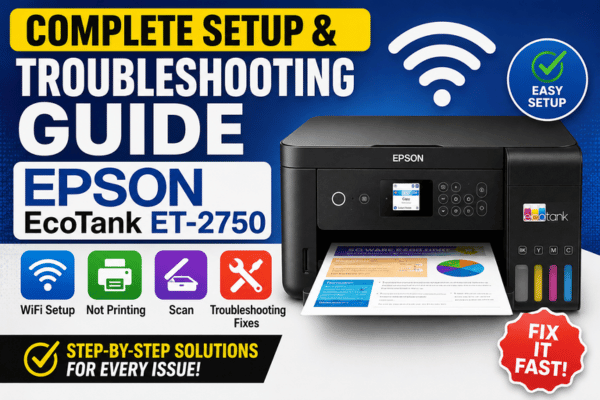
Epson ET-2750 WiFi Setup, Not Printing & Troubleshooting – Complete Guide
Complete Setup & Troubleshooting Guide
Epson EcoTank ET-2750
WiFi Setup · Not Printing · Scan · Troubleshooting Fixes
Everything you need for your Epson Expression ET-2750 EcoTank — first-time WiFi setup, auto-stop ink filling, print quality fixes, scanner troubleshooting, error codes, and duplex printing tips in one complete guide.
🖨️
Epson ET-2750 Expression EcoTank All-in-One
The Epson Expression EcoTank ET-2750 is one of the most feature-packed all-in-one printers in Epson’s original EcoTank lineup. Building directly on the ET-2700, it adds automatic two-sided (duplex) printing, a built-in SD/SDHC/SDXC memory card slot for PC-free photo printing, a 1.44″ color LCD screen for navigation and photo preview, and Alexa voice-activated printing — all while keeping the same T664 auto-stop ink bottle system that delivers up to 6,500 black pages and 5,200 color pages per set, equivalent to approximately 30 standard cartridge sets.
With 5760 × 1440 dpi print resolution, a 1200 × 2400 dpi flatbed scanner, AirPrint, Epson iPrint, WiFi Direct, USB, and support for printing from cloud services like Google Drive, OneDrive, and Dropbox via the iPrint app, the ET-2750 is one of the most connected home printers Epson has released. This guide covers everything: WiFi setup using all available methods, not-printing fixes, scanner troubleshooting, duplex printing issues, print quality diagnosis, error code reference, and maintenance tips.
⭐ ET-2750 vs ET-2700 — What’s Added
🔄Auto duplex — 2-sided printing (saves 50% paper)
💾SD card slot — print photos PC-free
🖥️1.44″ color LCD — preview & edit photos
🎙️Alexa voice printing — hands-free
☁️Cloud printing — Google Drive, OneDrive
📸Borderless 4×6 — PC-free photo prints
⚠️ Critical: The ET-2750 uses T664 (Epson 664) auto-stop ink bottles only. Wrong ink will physically not fit (color-keyed) but always verify you’re purchasing T664 series. The ET-2750 also supports 2.4GHz WiFi only — it cannot connect to 5GHz networks.
📦
Section 1
What’s in the Box & First-Time Setup
Your ET-2750 box includes the printer unit, four T664 auto-stop EcoTank ink bottles (Black, Cyan, Magenta, Yellow), a power cord, a CD-ROM for software setup, and a Quick Start guide. Check your box — a USB cable may or may not be included depending on your region and purchase channel. Also note: the ET-2750 Business Edition comes with larger ink bottles and a 3-year warranty.
✅Epson ET-2750 Printer Unit
✅4× T664 Auto-Stop Ink Bottles
✅Power Cord
✅CD-ROM Setup Software
✅Quick Start Guide
⚠️USB Cable — check your box
🛑 First-Time Ink Filling — T664 Auto-Stop Method
- Remove ALL orange transport clips, shipping tape, and protective packaging from inside the printer.
- Each T664 bottle is color-keyed and uniquely shaped — the wrong color bottle physically cannot be inserted into the wrong tank.
- Remove the bottle cap. Insert the bottle nozzle firmly into the matching tank fill port — press until it clicks and locks into place.
- Ink flows automatically and stops on its own when the tank is full — no squeezing, no measuring, no overfilling risk.
- Twist and remove the bottle. Replace the tank cap securely. Repeat for all four colors.
- Power on the printer. Allow the ink initialization process to complete (10–20 minutes). Never turn off during initialization — this permanently primes the Micro Piezo printhead.
🔄 Auto Duplex Tip
Enable in driver: Two-Sided Printing → Automatic. Use 24lb (90gsm)+ paper for best duplex results — lighter paper shows ink through.
💾 SD Card Tip
Supports SD, SDHC, SDXC cards. Must be FAT32 formatted. Insert into the front card slot, then use the 1.44″ LCD to browse and print photos PC-free.
📶
Section 2
Epson ET-2750 WiFi Setup — Step by Step
The ET-2750 has a 1.44″ color LCD with arrow buttons — giving you the advantage of navigating directly through the printer’s menu to set up WiFi, unlike the button-only ET-2700. You also have the Epson Setup Utility, WPS, and iPrint app methods available. Complete ink filling and initialization before starting WiFi setup.
🖥️ Method A: LCD WiFi Setup Wizard (Recommended)
1
Power on the ET-2750. Press the Home button on the LCD panel to reach the main menu.
2
Use the arrow buttons to navigate to Setup → press OK → select Network Settings → press OK.
3
Select Wi-Fi Setup → OK → select Wi-Fi Setup Wizard → OK. The printer scans for available networks.
4
Use arrow buttons to select your 2.4GHz network name (SSID) from the list → press OK. If your network doesn’t appear, scroll down to Other SSIDs to enter it manually.
5
Enter your WiFi password character by character using the arrow buttons → press OK after each character → select Done when the full password is entered → select Yes to confirm.
✓
Wait 1–2 minutes. LCD shows Connection Successful and WiFi light goes solid. Then download and install the driver from epson.com/support/et2750 on your PC/Mac.
💻 Method B: Epson Setup Utility — PC/Mac
- Download the Epson Setup Utility from epson.com/support/et2750 for your OS. Run as Administrator.
- Select Wireless (Wi-Fi) as the connection type when prompted.
- The utility may prompt you to connect a USB cable temporarily to transfer WiFi credentials — do this only when instructed.
- Select your 2.4GHz SSID, enter the password → the utility sends credentials to the printer → install driver → test print.
🔘 Method C: WPS Push-Button (No Password Needed)
- On the ET-2750 LCD: Setup → Network Settings → Wi-Fi Setup → Push Button (WPS) → OK.
- Within 2 minutes, press the WPS button on your router.
- The printer connects automatically. LCD shows Connection Successful — no password entry required.
📱 Method D: Epson iPrint App
Download Epson iPrint (iOS/Android). Ensure your phone is on the same 2.4GHz network. Open app → tap Printer not selected → follow setup wizard.
🔗 Method E: WiFi Direct
LCD: Setup → Network Settings → Wi-Fi Direct Setup → OK. Connect your device to the “DIRECT-XXXX” network shown on the LCD with the displayed password.
⚠️ LCD Password Entry Tip:
Entering a complex WiFi password via arrow buttons on the ET-2750 LCD is slow. Use the WPS method if your router supports it — it’s significantly faster and requires no password entry at all.
The Epson ET-2750 is often described by reviewers as one of the best all-in-one home printers in its class for its era — and for good reason. The combination of auto duplex printing, SD card slot, color LCD, Alexa voice printing, and the T664 auto-stop ink system in a single package was genuinely ahead of the competition at launch. The auto-stop bottle mechanism alone eliminates one of the biggest anxiety points of early EcoTank models — overfilling the tanks — and the color-keyed bottle design means even first-time users can fill correctly without reading the manual. The estimated ink yield of approximately 25 years at typical home use volumes, cited in Consumer Reports testing, makes it one of the lowest-cost-per-page printers ever tested in its category.
❌
Section 3
ET-2750 WiFi Not Connecting — Proven Fixes
WiFi setup failing? LCD shows “Connection Failed”? Printer not found on the network? Here are the top causes and fixes for every ET-2750 WiFi problem:
📡
#1: 5GHz Band Selected
The ET-2750 only connects to 2.4GHz WiFi. Log into your router admin page → separate your 2.4GHz and 5GHz bands into two different SSIDs → select only the 2.4GHz SSID during printer setup. This single fix resolves most WiFi failures.
⌨️
#2: LCD Password Entry Error
A single wrong character fails the connection silently. Reset network settings (LCD: Setup → Network Settings → Restore Default Settings → Yes) and re-enter the password character by character. Use WPS to avoid password entry entirely if possible.
🔄
New Router / Changed Password
The ET-2750 stores old WiFi credentials and won’t auto-reconnect after a router change. Reset network settings via the LCD menu and redo the complete WiFi Setup Wizard with your new router’s SSID and password.
🔥
PC Firewall Blocking Setup Utility
When using Method B (PC setup utility), Windows Firewall can block the utility from finding the printer on the network. Temporarily disable Windows Defender Firewall and third-party antivirus during the driver installation process, then re-enable when done.
📶
Weak WiFi Signal
Place the ET-2750 within 15–20 feet of your router for initial setup. Once WiFi is confirmed working, you can relocate the printer. Use a WiFi range extender if the printer’s permanent location has weak signal.
🔒
AP Isolation / MAC Filtering
Disable AP Isolation in your router wireless settings. If MAC filtering is enabled, add the printer’s MAC address (LCD: Setup → Network Settings → Network Status → Wi-Fi Status → OK to print).
🔄 Reset Network Settings:
LCD: Setup → Network Settings → Restore Default Settings → Yes. Clears all WiFi credentials. Then redo WiFi setup wizard.
💡 Print Network Status Sheet:
LCD: Setup → Network Settings → Network Status → Wi-Fi Status → OK. Shows IP, MAC, SSID, signal strength.
🖨️
Section 4
Epson ET-2750 Not Printing — Diagnosis & Fixes
WiFi is connected but nothing prints? Printer offline? Jobs stuck? Duplex not working? Here are all the common ET-2750 printing failures with step-by-step fixes:
PROBLEM
Printer Shows “Offline” on Windows 10 / 11
- Go to Settings → Bluetooth & devices → Printers & scanners → click ET-2750 → Open print queue.
- Printer menu → uncheck “Use Printer Offline”. Cancel all pending jobs.
- Right-click ET-2750 → Set as Default Printer.
- Restart Print Spooler: Win + R →
services.msc → Print Spooler → Restart.
PROBLEM
Print Jobs Stuck in Queue — Won’t Clear
- Press Win + R → type
services.msc → find Print Spooler → click Stop.
- Navigate to C:\Windows\System32\spool\PRINTERS → delete all files inside (keep the folder).
- Return to services → Start Print Spooler again → retry printing.
PROBLEM
Duplex (2-Sided) Printing Not Working
- In print dialog: click Printer Properties → find 2-Sided Printing → select Automatic. Confirm it’s not set to Manual or Off.
- Duplex only works on Letter, A4, and Legal paper sizes — not envelopes or photo paper.
- Use 24lb (90gsm) or heavier paper to prevent ink show-through on side 2.
- If duplex causes jams: avoid very thin or damp paper. Fan the paper stack before loading.
PROBLEM
Driver Broken After OS Update
- Completely uninstall Epson software from Control Panel → Programs. Restart your computer.
- Download the latest driver from epson.com/support/et2750 for your exact OS version.
- Install as Administrator → choose Wireless/Network as connection type.
- Note: Mac users on macOS Ventura/Sonoma+ may need to re-add the printer via System Settings → Printers & Scanners after reinstalling.
PROBLEM
Cannot Print from SD Card via LCD
- Ensure the SD card is formatted as FAT32 — exFAT and NTFS are not supported. Reformat if necessary.
- Photos must be in JPEG format — the LCD menu doesn’t support RAW, PNG, or TIFF files for direct printing.
- On the ET-2750 LCD: press Home → Memory Card → Select Photos → Print.
- If card not recognized: remove and reinsert firmly. Test with a different card to isolate the issue.
PROBLEM
Alexa Voice Printing Not Working
- Ensure the printer is connected to WiFi and the Epson Connect account is set up at epsonconnect.com.
- In the Alexa app: Skills & Games → search “Epson” → enable the Epson skill → link your Epson Connect account.
- Say “Alexa, ask Epson to print [item]” — lists and tasks work best. Complex documents may not print via voice.
- Confirm the printer is set as your default in the Epson Connect dashboard.
🔍
Section 5
Scanner & Copy Problems — Fixes
The ET-2750 has a 1200 × 2400 dpi optical flatbed scanner — one of the better scanners in its class. It uses Epson Scan software (not Epson Scan 2). Scan jobs complete in about 10 seconds for documents and 25 seconds for color photos. Here are the common scanner problems and how to fix each:
🌐
“Cannot Connect to Network Scanner”
Open Epson Scan → Settings → verify the IP address matches your printer’s current IP (shown on Network Status Sheet). Update the IP if it has changed since original setup. Both printer and PC must be on the same 2.4GHz network.
❌
Using Wrong Scan Software
The ET-2750 requires Epson Scan (classic version) — NOT Epson Scan 2. If you installed Scan 2, uninstall it and download the correct version from epson.com/support/et2750. Run as Administrator on Windows.
🖼️
Poor Scan Quality / Blurry Images
Clean scanner glass with a soft lint-free cloth — dust and fingerprints are the primary cause. In Epson Scan: use Professional Mode → set 300 dpi for documents, 600 dpi for photos, up to 1200 dpi for archiving important photos.
🔌
Scans via USB but Not WiFi
Add Epson Scan to Windows Firewall’s allowed apps list (Control Panel → Windows Defender Firewall → Allow an app through). Assign the printer a static IP via your router to prevent the scanner IP from changing.
☁️
Scan to Cloud / Email Not Working
Set up Epson Connect at epsonconnect.com for scan-to-cloud and scan-to-email features. Log into Epson Connect → configure email settings. Ensure the printer’s firmware is up to date for cloud features to work.
📄
Copy Output Faded or Wrong Colors
Check all four T664 tanks — all must have ink for copying. Run Nozzle Check and Head Cleaning from the printer utility. Confirm the original is placed face-down, fully flat, aligned to the corner arrow on the scanner glass.
One often-overlooked feature of the ET-2750 is its ability to print from cloud storage services through the Epson iPrint app. Users can connect the app to Google Drive, Microsoft OneDrive, Evernote, Box, and Dropbox — allowing them to print documents and photos directly from cloud storage without downloading them first. This is particularly useful for printing from a smartphone when the original file is stored in the cloud. The iPrint app also allows users to check ink levels and run maintenance tasks remotely. For users who frequently print from their phones, the Epson iPrint + cloud integration on the ET-2750 was well ahead of many competitors’ offerings at the time of its release, and it continues to work reliably today for users running compatible iOS and Android versions.
🎨
Section 6
Print Quality Problems & Ink Fixes
The ET-2750 uses 3-picoliter Micro Piezo inkjet technology for precise ink placement. Print quality issues almost always trace back to clogged nozzles, empty T664 tanks, or incorrect paper/driver settings:
👻
Faded / Light Prints
Check all four T664 tanks through the transparent windows. Refill any low tank. Switch print quality from Draft/Economy to Standard or Best in driver. Also check if paper type setting matches paper loaded.
〰️
Horizontal Banding / Lines
Clogged nozzle. Run Head Cleaning from the Epson printer utility (Maintenance tab) → 1–2 cycles → print Nozzle Check. Repeat up to 3 times. If still banded after 3 cycles, wait 12 hours then run Power Cleaning.
🔄
Duplex Side 2 Quality Poor
Side 2 smearing means side 1 ink hasn’t fully dried before duplex flip. Use 24lb (90gsm)+ paper. Reduce print speed in driver settings. Avoid glossy or photo paper for duplex — use plain or presentation paper only.
📸
Photos Look Dull or Colors Wrong
Set paper type to match your photo paper exactly (Epson Ultra Glossy, Premium Glossy, etc.). Set quality to Best. Ensure color mode is set to Color (not Grayscale). Use Epson-branded photo paper for best color fidelity with T664 inks.
📐
Misaligned / Skewed Output
Run Print Head Alignment: Epson printer utility → Maintenance → Print Head Alignment. Or via LCD: Setup → Maintenance → Print Head Alignment. Print the pattern and select best aligned option.
💧
Ink Smearing
Match paper type in driver settings to paper loaded. T664 ink needs 30–60 seconds to dry on plain paper. Don’t handle prints immediately after printing. Don’t stack freshly printed sheets face-down.
🔍 How to Run a Nozzle Check on ET-2750
You can run the Nozzle Check from the LCD (no computer needed) or from the Epson printer utility:
Via LCD:
- Home → Setup → OK
- Maintenance → OK
- Nozzle Check → OK → Start
Via PC Printer Utility:
- Printer Properties → Maintenance tab
- Click Nozzle Check
- Examine printed pattern
Examine the printed pattern: complete solid rows = healthy nozzles. Any gaps = clogged nozzles for that color. Run Head Cleaning for affected colors, then re-run Nozzle Check. Repeat up to 3 cycles maximum.
⚠️
Section 7
Error Codes & LCD Messages — Reference
The ET-2750’s 1.44″ color LCD displays descriptive error messages — a significant advantage over LED-only models like the ET-2700. Here’s the complete reference guide:
| LCD Error / Message |
Meaning |
Fix |
| Paper Out / No Paper |
Paper tray empty or misloaded |
Fan and reload paper in rear tray. Adjust paper guides snugly. Press OK to resume. |
| Paper Jam |
Paper stuck — check paper path and duplex unit |
Power off. Open rear cover and duplex unit. Carefully remove jammed paper. Check for torn fragments. Restart. |
| Ink Low / Replace Ink (color) |
T664 ink tank low or empty |
Refill with the correct T664 auto-stop bottle. All four colors must be present to print. |
| Wi-Fi Connection Failed |
Could not connect to selected network |
Verify 2.4GHz band selected, check password accuracy, reset network settings and retry. |
| Scanner Error |
Scanner hardware fault or obstruction |
Power off. Clear any obstruction on scanner glass. Unplug 5 minutes. Power on and retry. |
| Memory Card Error |
SD card not recognized or unreadable |
Ensure card is FAT32 formatted. Remove and reinsert firmly. Try a different FAT32-formatted card. |
| Communication Error |
USB/WiFi connection lost mid-job |
Cancel job. Check USB cable or WiFi connection. Restart printer and PC. Resend print job. |
| Ink Pads End of Life |
Waste ink pad saturated — service required |
Contact Epson support: 1-562-276-4382. Advanced users: Waste Ink Pad Reset Utility (voids warranty). |
| Printer Error W-XX |
Internal hardware warning |
Power off and unplug for 5 minutes. Power on. If persists, note code and contact Epson support. |
| Duplex Jam |
Paper jammed in auto-duplex unit during 2-sided print |
Power off. Open the duplex unit cover (rear of printer). Remove jammed paper carefully without tearing. Restart. |
🔧
Section 8
Maintenance Tips to Keep ET-2750 Running Perfectly
With proper care, your ET-2750 can deliver years of reliable printing. These habits prevent the most common issues before they start:
📅
Print WeeklyRun a Nozzle Check or print a test page weekly to keep T664 ink flowing and prevent nozzle clogs — the ET-2750’s most common issue after extended inactivity.
🛑
Use Only T664 Auto-Stop InkOnly use genuine Epson T664 (664 series) auto-stop ink bottles. Third-party ink can permanently damage the Micro Piezo printhead and void the warranty.
🔌
Always Power Off ProperlyAlways use the power button — never unplug from the wall. Proper shutdown caps and seals the printhead, protecting T664 ink from drying in the nozzles.
🧹
Clean Scanner Glass MonthlyWipe the flatbed scanner glass with a soft, lint-free cloth monthly. Even small dust marks reduce scan quality. Never use solvents, alcohol, or paper towels.
💾
Update Firmware RegularlyCheck epson.com/support/et2750 for firmware and driver updates. Check via the LCD: Setup → Firmware Update. Updated firmware improves WiFi stability and OS compatibility.
📄
Use Quality Paper — Especially for DuplexFan paper before loading. Use 20lb (75gsm)+ for single-sided, 24lb (90gsm)+ for duplex printing. Paper dust clogs nozzles; cheap paper accelerates printhead wear.
🔄
How to Reset Epson ET-2750 — Network & Full Factory Reset
Use when all troubleshooting fails or before selling/donating the printer.
📶 Network Settings Reset
- LCD: Setup → OK
- Network Settings → OK
- Restore Default Settings → OK
- Select Yes → OK to confirm
- WiFi cleared. Redo WiFi setup wizard.
🏭 Full Factory Reset (All Settings)
- LCD: Setup → OK
- Restore Default Settings → OK
- Select All Settings → OK
- Select Yes → OK to confirm
- All settings cleared. Redo complete setup.
⚠️ After reset, redo WiFi setup via the LCD wizard and reinstall the driver on your PC/Mac. Ink levels and printhead condition are not affected by any reset.
The Epson EcoTank ET-2750 remains one of the most capable home printers from its generation. Its combination of auto duplex printing, SD card slot for PC-free photo printing, color LCD navigation, Alexa voice printing, cloud printing support, and the T664 auto-stop ink system makes it a feature-complete all-in-one that was genuinely ahead of its time. The estimated 25-year ink supply at 150 pages per month (per Consumer Reports testing) is a remarkable figure that underlines just how much value the EcoTank concept delivers for home users. For users who are experiencing persistent driver or compatibility issues with newer OS versions, it’s worth checking epson.com/support/et2750 for the latest patches — Epson has maintained reasonably good driver support for the ET-2750 lineup. Users looking to upgrade should consider the ET-2800 or ET-2803, which bring the improved Smart Panel app, 502 ink system, and simplified setup experience.
📋 Quick Reference — ET-2750 Cheat Sheet
Everything you need, at a glance
WIFI SETUP (LCD)
Home → Setup → Network Settings → Wi-Fi Setup → Wi-Fi Setup Wizard → select 2.4GHz SSID → enter password → Yes
WIFI NOT CONNECTING
2.4GHz only • Re-enter password • Disable firewall • Try WPS • New router → reset network settings
PRINTER OFFLINE
Uncheck “Use Printer Offline” • Clear queue • Restart Print Spooler • Set as Default • Reinstall driver
FADED / BANDING
Check T664 ink levels • LCD: Setup → Maintenance → Nozzle Check → Head Cleaning 1–3 cycles
SCANNER NOT WORKING
Use Epson Scan (not Scan 2) • Check IP in Scan settings • Unblock Windows Firewall • Same WiFi network
FULL RESET
LCD: Setup → Restore Default Settings → All Settings → Yes → redo WiFi setup → reinstall driver
Epson Support: 1-562-276-4382 | epson.com/support/et2750
This guide is for informational purposes only. Epson, EcoTank, Expression, and MicroPiezo are trademarks of Seiko Epson Corporation. Page yield data based on ISO/IEC 24712 methodology with T664 ink bottles. Always refer to official Epson documentation for warranty-related service.