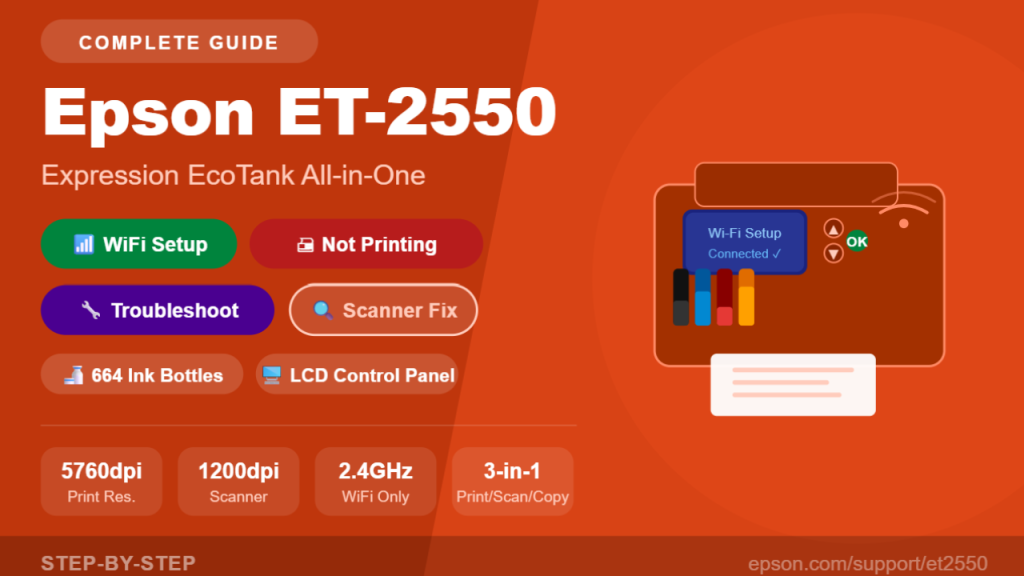
Epson ET-2550 WiFi Setup, Not Printing & Troubleshooting – Complete Guide
Complete Setup & Troubleshooting Guide
Epson EcoTank ET-2550
WiFi Setup · Not Printing · Scan · Troubleshooting Fixes
The complete guide for your Epson Expression ET-2550 EcoTank printer — WiFi setup with the LCD control panel, print quality fixes, scanner troubleshooting, error codes, and maintenance tips all in one place.
🖨️
Epson ET-2550 Expression EcoTank All-in-One
9.2 ipm
Print Speed (B&W)
The Epson Expression EcoTank ET-2550 is one of Epson’s original EcoTank all-in-one printers, designed to eliminate the cost of traditional ink cartridges by using refillable ink tanks. Unlike the newer ET-2400 and ET-2410 models, the ET-2550 uses the older Epson 664 series ink bottles (70ml each) — four of which are included in the box, providing approximately two years’ worth of ink for average home use. With a maximum print resolution of 5760 × 1440 dpi, a 1200 × 2400 dpi optical flatbed scanner, and a built-in LCD control panel with navigation buttons, the ET-2550 offers more hands-on control than the button-only models that followed it.
Despite being an older model, the ET-2550 remains in wide use — and users still encounter the same common issues: WiFi connection failures, the printer showing offline, print quality degradation, scanner errors, and paper jams. This guide covers all of these with step-by-step fixes for Windows 10/11, Mac, iOS, and Android.
⭐ What Makes the ET-2550 Different from Newer EcoTank Models
🖥️LCD screen with menu navigation
🍶Uses Epson 664 ink bottles (70ml)
📄Rear paper feed tray (not front)
📶WiFi setup via LCD menu + wizard
🖨️5760 × 1440 dpi max print resolution
🔌USB cable included in box
⚠️ Important: The ET-2550 uses Epson 664 ink bottles — NOT 502, 522, or any other series. Using the wrong ink will damage the printer. Also: the ET-2550 supports 2.4GHz WiFi only and is NOT compatible with 5GHz networks.
📦
Section 1
What’s in the Box & First-Time Setup
The ET-2550 box includes the printer unit, four Epson 664 ink bottles (70ml each — Black, Cyan, Magenta, Yellow), a power cord, a USB cable (included, unlike newer EcoTank models), a CD-ROM for software setup, and a Quick Start guide. A two-year limited warranty is included (second year requires product registration).
✅Epson ET-2550 Printer Unit
✅4× Epson 664 Ink Bottles (BCMY)
✅Power Cord
✅USB Cable (included!)
✅CD-ROM Setup Software
✅Quick Start Guide
🍶 First-Time Ink Filling — Epson 664 Specific Tips
- Remove all orange and blue shipping tape — including tape inside the print mechanism area.
- The 664 bottles are color-coded and keyed to their matching tank — Black, Cyan, Magenta, Yellow.
- Remove the bottle cap, then twist off the inner seal. Invert the bottle into the tank fill port.
- Do NOT squeeze the bottle. Let gravity fill the tank — it takes 30–60 seconds per color.
- Replace the ink tank cap securely after filling. Do NOT overfill past the maximum line.
- Power on and allow the printer to run the initial ink charging process — this takes 10–20 minutes and is normal. Do NOT turn off during this process.
📶
Section 2
Epson ET-2550 WiFi Setup — Step by Step
Unlike newer EcoTank models, the ET-2550 has a built-in LCD control panel with arrow buttons and an OK button — giving you direct access to the WiFi Setup Wizard from the printer’s menu. This makes setup slightly different from button-only models. Complete ink filling before starting WiFi setup.
🖥️ Method A: LCD Control Panel — WiFi Setup Wizard (Primary Method)
1
Power on the ET-2550. On the LCD panel, press the Home button (house icon) to reach the main menu if not already there.
2
Use the arrow buttons to navigate to Setup → press OK. Then select Network Settings → press OK.
3
Select Wi-Fi Setup → press OK. Then select Wi-Fi Setup Wizard → press OK.
4
The printer scans for available networks. Use arrow buttons to select your 2.4GHz network name (SSID) → press OK.
5
Use the arrow buttons to enter your WiFi password character by character → press OK to confirm each character → select Done when finished.
6
Select Yes to confirm settings. Wait 1–2 minutes. When the LCD shows Connection Successful and the WiFi indicator is solid, setup is complete.
7
Now install the driver on your PC or Mac: visit epson.com/support/et2550 → download the full software package → run as Administrator → print a test page.
🔘 Method B: WPS Push-Button Setup (If Router Supports It)
- On the printer LCD: Setup → Network Settings → Wi-Fi Setup → Push Button (WPS) → OK.
- Within 2 minutes, press the WPS button on your router.
- The printer connects automatically — LCD shows Connection Successful when done. No password entry needed.
🔌 Method C: USB Direct Connection
The ET-2550 includes a USB cable — an advantage over newer EcoTank models. For a wired connection:
- Download and run the Epson setup software from epson.com/support/et2550.
- When prompted for connection type, select USB.
- Connect the USB cable from the printer to your PC/Mac when instructed.
- Complete the driver installation and print a test page.
⚠️ Password Entry Tip:
Entering a WiFi password via the ET-2550’s LCD arrow buttons is slow and error-prone. Take your time — use the arrows to cycle through characters and press OK after each one. A long or complex password can take several minutes to enter. Double-check your entry before confirming — a single wrong character means the connection will fail.
The Epson ET-2550 was a pioneering model in the EcoTank lineup when it launched, and it introduced millions of users to the refillable ink tank concept. Its LCD control panel — a feature dropped in many of the lower-cost EcoTank models that followed — gives it an advantage in usability: you can access WiFi settings, run maintenance functions, and check status directly on the printer without needing a phone or computer. The 5760 × 1440 dpi print resolution is also higher than several newer EcoTank entry-level models, making the ET-2550 a capable photo and document printer for its era. Users still running this printer today often report excellent results when the printhead is properly maintained — making this guide particularly valuable for those looking to extend the life of their ET-2550.
❌
Section 3
ET-2550 WiFi Not Connecting — Fixes
WiFi setup fails or the printer can’t connect to your network? Here are the most common causes specific to the ET-2550 and exactly how to fix them:
📡
5GHz Band Selected
The ET-2550 only supports 2.4GHz WiFi. If your SSID doesn’t appear in the printer’s WiFi list, it’s likely broadcasting on 5GHz only. Log into your router and separate your 2.4GHz and 5GHz SSIDs so the printer can find the 2.4GHz network.
⌨️
Password Entry Error via LCD
Entering passwords via arrow buttons is error-prone. A single wrong character causes connection failure. Reset network settings and re-enter carefully. Consider temporarily simplifying your WiFi password for setup, then changing it back afterward.
🔄
Router Changed / New ISP
The ET-2550 stores old WiFi credentials. After getting a new router, you must go into Setup → Network Settings → Restore Default Settings to clear old credentials, then redo the WiFi Setup Wizard from scratch.
📶
Weak WiFi Signal
Move the printer within 15–20 feet of your router during initial setup. The ET-2550’s WiFi antenna is adequate for typical home distances but struggles through multiple walls. A WiFi extender near the printer can solve persistent signal issues.
🔒
Firewall Blocking Setup
Your PC’s firewall can block the Epson Setup Utility from communicating with the printer during driver installation. Temporarily disable your firewall (Windows Defender or third-party), complete the setup, then re-enable the firewall.
♻️
Full Network Reset
On the LCD: Setup → Network Settings → Restore Default Settings → Yes. This clears all network configuration. Power off the printer for 60 seconds, then power on and redo WiFi setup from the beginning.
💡 Print a Network Status Sheet on ET-2550:
On the LCD panel, go to Setup → Network Settings → Network Status → Wi-Fi Status → press OK to print. This sheet shows the printer’s current IP address, MAC address, connected SSID, and WiFi signal strength — essential for diagnosing any connection problem.
🖨️
Section 4
Epson ET-2550 Not Printing — Diagnosis & Fixes
WiFi connected but nothing prints? Printer offline in Windows? Jobs stuck in queue? These are the most common ET-2550 printing failures and how to resolve each one:
PROBLEM
Printer Shows “Offline” on Windows 10 / 11
- Go to Control Panel → Devices and Printers → right-click ET-2550 → See what’s printing.
- Click Printer menu → uncheck “Use Printer Offline”.
- Cancel all queued jobs. Set ET-2550 as Default Printer.
- Restart Print Spooler: press Win + R → type
services.msc → find Print Spooler → Restart.
PROBLEM
Print Jobs Stuck in Queue / Won’t Clear
- Press Win + R → type
services.msc → find Print Spooler → click Stop.
- Open C:\Windows\System32\spool\PRINTERS and delete all files inside (keep the folder).
- Return to services → Start Print Spooler → retry printing.
PROBLEM
Driver Not Compatible with Windows 11 / macOS Ventura+
⚠️ ET-2550 Specific Issue — Important!
The ET-2550 is an older model and Epson may no longer release new drivers for the latest OS versions. Check epson.com/support/et2550 for the most current available driver for your OS.
- Uninstall all existing Epson software from Control Panel → Programs.
- Restart your computer.
- Download the latest available driver from Epson’s support page for your OS version.
- Install as Administrator and choose WiFi connection type.
- If no driver is available for your OS, try using AirPrint (Mac) or Mopria Print Service (Android).
PROBLEM
Printer Not Found on Network After IP Address Change
- Print a Network Status Sheet (Setup → Network Settings → Wi-Fi Status) and note the new IP address.
- On your PC: go to Printers → ET-2550 → Printer Properties → Ports tab → Add Port → Standard TCP/IP Port → enter the new IP address.
- Alternatively, assign the printer a static IP address via your router’s DHCP reservation settings to prevent this happening again.
PROBLEM
Printing Blank Pages
- Visually check all four ink tanks through the transparent windows — all must have ink.
- Run a Nozzle Check: Setup → Maintenance → Nozzle Check → Print.
- If nozzle check prints blank or incomplete, run Head Cleaning: Setup → Maintenance → Head Cleaning → Color (or specific color). Run 1–2 cycles.
- Check the document is not actually blank or contains white-colored text on a white background.
🔍
Section 5
Scanner & Copy Problems — Fixes
The ET-2550 features a 1200 × 2400 dpi optical flatbed scanner. Scanning issues are usually caused by software conflicts, network misconfiguration, or glass cleanliness. Here are the most common scanner problems and solutions:
🌐
“Unable to Connect to Network Scanner”
Open Epson Scan (the ET-2550 uses Epson Scan, not the newer Epson Scan 2) → Settings → confirm the IP address matches your printer’s current IP. Make sure printer and PC are on the same 2.4GHz network.
❌
Epson Scan Not Opening / Crashing
The ET-2550 uses the older Epson Scan software (not Epson Scan 2). Uninstall and reinstall from epson.com/support/et2550. On Windows 10/11, run Epson Scan as Administrator. On Mac, check Privacy settings for scanner access.
🖼️
Poor Scan Quality / Blurry
Clean the flatbed scanner glass with a soft, dry, lint-free cloth — dust and fingerprints are the #1 cause of blurry scans. In Epson Scan, increase resolution to 300 dpi for documents, 600 dpi for photos. Use Professional Mode for full resolution control.
⚡
Scanning Very Slow Over WiFi
Network scanning over WiFi is slower than USB. Lower the scan resolution for documents (200–300 dpi is sufficient for most text documents). For large photo scans, use USB connection for faster data transfer.
📄
Copy Has Wrong / Faded Colors
Check all four 664 ink tanks — all colors must be present for copying to work correctly. Run a Nozzle Check and Head Cleaning if needed. Also confirm original is placed fully flat on the scanner glass, aligned with the corner arrow.
🔌
Scan Works via USB but Not WiFi
This is a common ET-2550 issue. Check Windows Firewall — it may be blocking Epson Scan from reaching the printer on the network. Add Epson Scan to Windows Firewall’s allowed apps list. Also verify the printer’s IP hasn’t changed since setup.
One important note for ET-2550 users on modern operating systems: Epson’s driver support for older models like the ET-2550 may lag behind the latest Windows and macOS releases. If you’ve recently upgraded your OS and the ET-2550 stopped working, always check epson.com/support/et2550 first for the latest driver. If no updated driver is available, Mac users can often print via AirPrint (which doesn’t require a separate driver) and scan via Image Capture. Windows users may be able to use the generic Microsoft Print to PDF workaround or Mopria print service for basic functionality while waiting for updated drivers. Epson’s support team (1-562-276-4382) can advise on compatibility with specific OS versions.
🎨
Section 6
Print Quality Problems & Ink Fixes
The ET-2550 uses Epson’s Micro Piezo technology with 5760 × 1440 dpi resolution — excellent for photos and documents alike. Print quality issues are almost always caused by clogged nozzles, empty 664 tanks, or paper setting mismatches:
👻
Faded / Light Prints
Visually inspect all four 664 ink tanks — each has a transparent window. Refill any low or empty tank with the correct Epson 664 color bottle. Also check: print quality is not set to Draft/Economy mode in driver settings.
〰️
Horizontal Lines / Banding
Clogged printhead nozzle. On the LCD: Setup → Maintenance → Head Cleaning → select color → Start. Run 1–2 cycles then print a Nozzle Check to confirm improvement before continuing.
🟥
Wrong Colors / Missing Color
Ensure each 664 ink bottle was filled into the correct tank (Black → Black, Cyan → Cyan, etc.). Run Nozzle Check to identify which color is missing, then run Head Cleaning for that specific color.
💧
Ink Smearing / Wet Prints
Set paper type in the driver to match what’s loaded. The ET-2550’s 664 ink can take 30–60 seconds to dry on plain paper, and longer on photo paper. Allow prints to dry fully before handling or stacking.
📐
Misaligned / Skewed Prints
On the LCD: Setup → Maintenance → Print Head Alignment. Print the alignment pattern and select the best-aligned option. Also ensure paper guides in the rear tray are snug against the paper edges.
⬛
No Black Ink Printing
Check the Black 664 tank. If full but still not printing, run up to 3 Head Cleaning cycles for Black. If still failing, run Power Cleaning: Setup → Maintenance → Power Cleaning (uses more ink, clears severe clogs).
🔍 How to Run a Nozzle Check on ET-2550
The ET-2550 allows you to run the Nozzle Check directly from the LCD — no computer needed:
- On the LCD: press Setup → navigate to Maintenance → press OK.
- Select Nozzle Check → press OK → press Start.
- Examine the printed grid. All color rows should be solid with no gaps or breaks.
- Gaps in any row = clogged nozzles. Navigate back to Maintenance → Head Cleaning → select the affected color → Start.
- After cleaning, re-run the Nozzle Check. Repeat up to 3 times if needed. If still not clear, wait 12 hours and try Power Cleaning.
⚠️
Section 7
Error Codes & LCD Error Messages
The ET-2550’s LCD screen displays error messages directly — giving it an advantage over button-only models. Here’s what common error messages mean and how to fix them:
| Error / LCD Message |
Meaning |
Fix |
| Paper Out / No Paper |
Rear paper tray is empty or paper isn’t loaded correctly |
Load paper in the rear tray. Fan the stack, align the edge guides snugly, then press OK to resume. |
| Paper Jam |
Paper stuck inside the printer |
Power off. Open the rear cover and gently pull out the jammed paper. Check for any torn fragments. Restart. |
| Ink Low / Ink Out (color) |
One or more 664 ink tanks is low or empty |
Refill the indicated color tank with the correct Epson 664 ink bottle. All four colors must have ink to print. |
| Communication Error |
USB or WiFi connection lost during print job |
Cancel the print job. Check the USB cable or WiFi connection. Restart the printer and resend the job. |
| Scanner Error |
Internal scanner component failure or stuck scanner head |
Power off. Unplug for 5 minutes. Ensure scanner glass is clear of obstructions. Power on and retry. |
| Printer Error / W-XX code |
Internal hardware warning |
Power off and unplug for 5 minutes. Power on again. If error persists, contact Epson support with the error code. |
| Ink Pad End of Life |
Waste ink pad saturated — requires service |
Contact Epson support for service. Advanced users can use the Waste Ink Pad Reset Utility but this voids warranty. |
| Wi-Fi Connection Error |
Failed to connect to the selected network |
Check SSID is 2.4GHz, re-enter password via LCD wizard. Reset network settings if repeated failures occur. |
🔧
Section 8
Maintenance Tips to Keep ET-2550 Running Like New
As an older model, the ET-2550 benefits even more from regular maintenance. Printhead clogs are more likely in older printers that aren’t used frequently. These tips will extend the life of your ET-2550 significantly:
📅
Print Every WeekEspecially critical for the ET-2550 — the older 664 ink formula is prone to drying in nozzles during periods of inactivity. Print at minimum a nozzle check pattern weekly if not using the printer for regular jobs.
🍶
Use Only Epson 664 InkOnly use genuine Epson 664 ink bottles. Third-party ink can permanently clog the Micro Piezo printhead. The 664 bottles are sold individually or in multi-packs at Epson retailers and online.
🧹
Clean Scanner Glass RegularlyWipe the flatbed scanner glass gently with a soft, lint-free cloth. Do not use paper towels or solvents. Even small dust marks reduce scan quality significantly.
🔌
Always Power Off ProperlyAlways use the power button to shut down — never unplug from the wall while printing or in standby. Proper shutdown caps the printhead, preventing ink from drying in the nozzles.
📄
Use Good Quality PaperFan paper before loading in the rear tray. Use 20lb (75gsm) or heavier paper. Cheap paper sheds dust into the print mechanism, clogging nozzles over time.
💾
Check for Driver UpdatesPeriodically visit epson.com/support/et2550 and check for updated drivers. Epson still releases patches for some older models to maintain compatibility with newer OS versions.
🔄
How to Reset Epson ET-2550 to Factory / Network Defaults
Last resort when all troubleshooting fails — or when selling / donating the printer.
The ET-2550’s LCD menu makes resetting much simpler than on button-only models. You can reset just the network settings, or restore all settings to factory defaults.
📶 Network Settings Reset Only
- LCD: Setup → OK
- Network Settings → OK
- Restore Default Settings → OK
- Select Yes → OK to confirm
- Printer restarts. WiFi cleared. Redo setup.
🏭 Full Factory Reset (All Settings)
- LCD: Setup → OK
- Restore Default Settings → OK
- Select All Settings → OK
- Select Yes → OK to confirm
- All settings, network, and preferences cleared.
⚠️ After a full factory reset, you will need to redo WiFi setup, reinstall the driver on your PC/Mac, and re-enter all printer preferences. Ink levels will not be affected.
The Epson EcoTank ET-2550 may be one of the older models in the EcoTank lineup, but it remains a capable all-in-one printer for home users who don’t need the latest features. Its high print resolution, solid scanner, LCD navigation panel, and included USB cable make it practical and easy to use day-to-day. The key to keeping an ET-2550 running well in 2025 is consistent maintenance: print regularly to prevent nozzle clogs, use only genuine Epson 664 ink, and keep drivers updated for your operating system. For users who are experiencing persistent issues that no amount of troubleshooting resolves — particularly waste ink pad errors or hardware-level failures — it may be worth comparing the cost of service against upgrading to a newer EcoTank model like the ET-2800 or ET-4800, which offer improved connectivity, updated ink systems, and current OS driver support.
📋 Quick Reference — ET-2550 Cheat Sheet
Find your fix fast using the LCD menu
WIFI SETUP
LCD: Setup → Network Settings → Wi-Fi Setup → Wi-Fi Setup Wizard → select 2.4GHz SSID → enter password
WIFI NOT CONNECTING
2.4GHz only • Re-enter password • Reset network settings • Disable firewall during setup • Move closer to router
PRINTER OFFLINE
Uncheck “Use Printer Offline” • Clear queue • Restart Print Spooler • Set as Default • Update driver
FADED / BANDING
Check 664 ink levels • LCD: Setup → Maintenance → Nozzle Check → Head Cleaning (1–3 cycles)
SCANNER NOT WORKING
Reinstall Epson Scan (not Scan 2) • Check IP in Scan settings • Unblock firewall • Same WiFi network
FULL RESET
LCD: Setup → Restore Default Settings → All Settings → Yes → redo WiFi setup → reinstall driver
Epson Support: 1-562-276-4382 | epson.com/support/et2550
This guide is for informational purposes only. Epson ET-2550, EcoTank, Expression, and MicroPiezo are trademarks of Seiko Epson Corporation. Always refer to your official Epson documentation for warranty-related service. Epson 664 ink bottle availability subject to regional retailer stock.