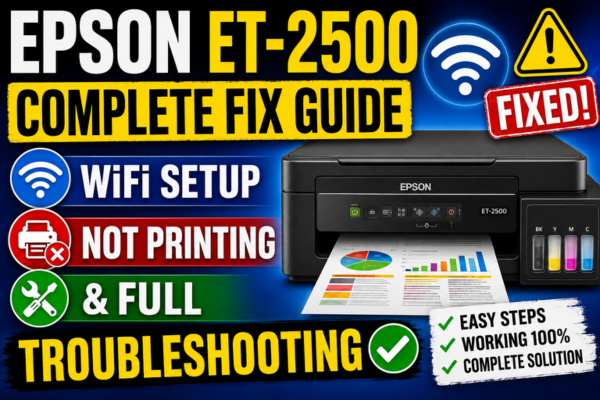

Epson ET-2500 Complete Fix Guide
WiFi Setup, Not Printing
& Full Troubleshooting
The complete ET-2500 troubleshooting guide — WiFi setup not connecting, not printing, blank pages, ink issues, and offline errors — all in one place.
The Epson ET-2500 is an older EcoTank model that continues to be used by many households thanks to its refillable ink tank system and low running costs. However, being an older model, it comes with some specific quirks — particularly around WiFi connectivity and its older firmware — that make troubleshooting slightly different from newer EcoTank models like the ET-2760 or ET-2800.
This guide is written specifically for the ET-2500 and covers every major problem category: WiFi setup not working, the printer not printing or showing offline, blank page problems, ink flow issues, and driver installation failures. Each section has model-specific guidance that accounts for the ET-2500’s particular hardware and firmware characteristics.
Which ET-2500 Problem Do You Have?
WiFi Not Connecting
Can’t get the ET-2500 onto WiFi or setup wizard fails.
→ See Section 3
Printer Not Responding
Jobs sent but nothing prints — printer appears offline.
→ See Section 4
Blank Pages
Printer runs but nothing appears on the page.
→ See Section 5
Black Ink Missing
Colours print fine but black is faint or absent.
→ See Section 5
Lines / Poor Quality
Horizontal lines, streaks or banding across prints.
→ See Section 5
What Makes the ET-2500 Different — Know Before You Troubleshoot
The Epson ET-2500 is a 2.4GHz-only WiFi printer — it does not support 5GHz at all. It uses the older Epson Connect platform rather than the newer Epson Smart Panel app. It has no touchscreen — navigation is via physical buttons only. It supports USB and WiFi connection but not Ethernet. The ET-2500 uses the same 4-colour EcoTank ink system (black, cyan, magenta, yellow) with pigment-based black ink that is prone to nozzle clogging on idle printers. These characteristics directly affect both the WiFi setup process and print quality troubleshooting.
The ET-2500’s firmware is no longer actively updated by Epson. This means some modern router security protocols (WPA3) and newer encryption standards may cause connection problems that cannot be resolved by firmware update alone.
The ET-2500 uses the older Epson iPrint mobile app and Epson Connect cloud service — not the newer Epson Smart Panel. Download Epson iPrint for iOS and Android for mobile printing with this model.
Before troubleshooting any specific problem on the ET-2500, it is worth doing two quick checks that apply to all problem types. First, confirm the printer’s ink tanks are all filled above the minimum line — a low tank on any colour can cause unexpected behaviour across all print functions, not just that colour. Second, print a nozzle check pattern from the printer’s menu (Menu → Maintenance → Nozzle Check) and note the result. These two checks take under three minutes and often immediately reveal the root cause of whatever problem you are experiencing.
ET-2500 WiFi Setup Not Connecting — Complete Fix
⚠️ ET-2500 is 2.4GHz Only — This Is the #1 Setup Failure Cause
The ET-2500 does not support 5GHz WiFi. If your router broadcasts both bands under the same network name, the ET-2500 may attempt to connect to 5GHz and fail silently every time. You must separate the bands in your router settings and connect the ET-2500 only to the 2.4GHz network before setup will succeed.
ET-2500 WiFi Setup — Step by Step
Using the printer’s button-based WiFi setup wizard
Separate your 2.4GHz and 5GHz networks in the router
Log into your router admin panel and give the 2.4GHz and 5GHz bands different names — e.g. “HomeWiFi” and “HomeWiFi_5G”. This ensures the ET-2500 can only see and connect to the 2.4GHz network.
Router Admin → WiFi → Separate band namesReset the ET-2500 network settings
On the printer press the Menu button. Navigate to Wi-Fi Setup → Restore Network Defaults → Yes. This clears any previous failed setup data that would interfere with a fresh connection attempt.
Menu → Wi-Fi Setup → Restore Network DefaultsPlace printer within 2 metres of router for setup
Temporarily move the ET-2500 next to the router for the initial WiFi setup. The authentication handshake requires a stronger signal than normal printing — weak signal during setup causes silent connection failures.
Run the WiFi Setup Wizard
Press Menu → Wi-Fi Setup → Wi-Fi Setup Wizard. Use the printer’s arrow buttons to scroll through and select your 2.4GHz network name. Enter your WiFi password carefully using the button interface.
Menu → Wi-Fi Setup → Wi-Fi Setup WizardConfirm connection and print a network status sheet
After a successful connection the WiFi light will turn solid blue/green. Confirm by going to Menu → Wi-Fi Setup → Print Status Sheet. The sheet shows the assigned IP address and signal strength — keep this for troubleshooting later.
Menu → Wi-Fi Setup → Print Status Sheet📌 If WiFi Setup Still Fails — Also Check These
Router security set to WPA3-only → change to WPA2 or WPA2/WPA3 Mixed. MAC address filtering enabled → add the ET-2500’s MAC to the allowed list (find it on the network status sheet). Network name contains special characters → rename to simple alphanumeric only. Router channel congested → manually set 2.4GHz to channel 1, 6, or 11.
Once the ET-2500 is connected to WiFi, the most important follow-up step is to assign it a static IP address in your router’s admin panel. The ET-2500’s older firmware handles dynamic IP changes poorly — when the router assigns a new IP after a restart, the ET-2500 often fails to reconnect automatically and starts showing as offline on your PC. A reserved IP in the router prevents this entirely and is the single most effective way to avoid recurring connection problems on this model.
ET-2500 Not Printing or Showing Offline
Fix: ET-2500 Not Printing / Offline
Jobs sent but printer doesn’t respond — Windows or Mac shows offline
Power cycle printer and router
Turn off the ET-2500 and unplug the router. Wait 60 seconds. Plug the router in first, wait 30 seconds, then power on the printer. Allow the printer to fully reconnect to WiFi before sending a test print.
Clear the print queue on your PC
On Windows: Win+R → control printers → right-click ET-2500 → See what’s printing → cancel all jobs. On Mac: System Settings → Printers → ET-2500 → open queue → clear all. Stuck jobs block all subsequent printing.
control printers → ET-2500 → See what’s printing → cancel allCheck “Use Printer Offline” is disabled (Windows)
In the control printers window, right-click the ET-2500. If “Use Printer Offline” has a tick — click to uncheck it. This Windows setting forces the printer offline regardless of its actual connection status.
Restart Print Spooler (Windows)
Press Win+R → services.msc → Enter. Find Print Spooler → right-click → Restart. This refreshes Windows’ print management service and often immediately restores the printer to online status.
services.msc → Print Spooler → RestartUpdate the printer port IP address
Print a network status sheet from Menu → Wi-Fi Setup → Print Status Sheet. Note the IP. Then in Windows: Printer Properties → Ports → Configure Port — update the IP to match. IP mismatch is the most common “offline” cause on the ET-2500.
Printer Properties → Ports → Configure Port → update IPReinstall the ET-2500 driver
Uninstall all Epson software from Settings → Apps. Visit epson.com/support, search “ET-2500”, and download the latest Full Feature Driver for your OS. Reinstall as administrator and select WiFi connection when prompted.
epson.com/support → ET-2500 → Full Feature DriverThe ET-2500’s older firmware makes it particularly susceptible to the IP address offline problem. Unlike newer Epson models that handle DHCP changes more gracefully, the ET-2500 frequently fails to update its network identity when the router assigns a new IP — causing it to appear offline even when it is physically connected to WiFi. If you experience this problem repeatedly, assigning a static IP in the router is the only reliable permanent solution for this model.
ET-2500 Blank Pages, Black Ink & Print Quality Issues
⚠️ ET-2500 Pigment Black Clogs Faster Than Colour Inks
Like all EcoTank models, the ET-2500 uses pigment-based black ink which dries in the nozzles faster than the dye-based colour inks. Printers left idle for 7–14 days commonly develop black nozzle clogs. Always run a nozzle check before troubleshooting any print quality issue — it immediately identifies which nozzles are affected.
Nozzle Check + Head Cleaning — ET-2500 Protocol
For blank pages, missing black, faded output, or lines
Print a nozzle check pattern
Press Menu → Maintenance → Nozzle Check → Start. Load plain A4 paper. The printer outputs a grid of coloured lines. Inspect each row — gaps or missing lines confirm clogged nozzles. A perfect pattern means the issue is settings or ink level, not a clog.
Menu → Maintenance → Nozzle CheckRun head cleaning + print flush trick
Press Menu → Maintenance → Head Cleaning → Start. Immediately after the cycle completes — print a full page of solid colour blocks (all four colours). This push-flush combination is significantly more effective than cleaning alone for ET-2500 clogs.
Menu → Maintenance → Head Cleaning → flush print immediatelyRepeat up to 3 times — check nozzle pattern after each
Run the head cleaning + flush print combination up to 3 times. Print a nozzle check after each round to measure improvement. Stop when all rows are solid and complete. Do not run more than 3 consecutive cycles — wait 8 hours between sessions of 3.
Check and refill any low ink tanks
Open the ink tank compartment and confirm all 4 tanks are filled above the minimum line. A tank at or below minimum — even the black — allows air into the feed tube causing blank or faint output. Refill with genuine Epson EcoTank ink before retrying.
Manual nozzle soak for severe persistent clogs
For clogs surviving 3 cleaning cycles: power off and unplug. Apply 2–3 drops of distilled water directly to the print head nozzle surface. Wait 15 minutes. Blot dry with a lint-free cloth. Power on and run one head cleaning cycle followed by a flush print.
ET-2500 All-Problems Quick Fix Cards
Separate 2.4GHz & 5GHz Bands
ET-2500 is 2.4GHz only. Give the bands different names in router settings. Connect ET-2500 to the 2.4GHz name only — always.
Reset Network Settings & Retry
Menu → Wi-Fi Setup → Restore Network Defaults. Always do this before retrying a failed WiFi setup — old credentials block new attempts.
Try WPS Push Button
Menu → Wi-Fi Setup → Push Button Setup (WPS). Within 2 minutes press the WPS button on your router. Bypasses password entry — often works when the wizard fails.
Assign Static IP in Router
Reserve a fixed IP for the ET-2500 in your router’s DHCP settings. Prevents recurring offline errors caused by IP changes — critical for this older model.
Clear Print Queue
control printers → ET-2500 → See what’s printing → cancel all. Then restart Print Spooler in services.msc. Resolves most “not printing” cases immediately.
Disable “Use Printer Offline”
control printers → right-click ET-2500 → uncheck “Use Printer Offline”. Single most common cause of ET-2500 appearing offline in Windows.
Update Port IP Address
Print network status sheet. Go to Printer Properties → Ports → Configure Port. Update IP to match the status sheet. Fixes “offline” caused by IP change after router restart.
Run Nozzle Check First
Menu → Maintenance → Nozzle Check. Always do this before cleaning. Identifies exactly which nozzles are blocked — avoids cleaning where it isn’t needed.
Head Cleaning + Flush Print
Menu → Maintenance → Head Cleaning. Immediately print solid colour blocks after each cycle. Repeat ×3. The flush print is the key step most users skip — it dramatically improves cleaning effectiveness.
Refill All Ink Tanks
Confirm all 4 tanks are above the minimum line. Low black tank = air in feed = blank pages. Use genuine Epson EcoTank ink only — third-party inks cause faster clogging on this model.
Manual Nozzle Soak
For severe clogs: apply 2–3 drops distilled water to print head nozzles. Wait 15 min, blot dry, run one cleaning. Highly effective for ET-2500 pigment black clogs surviving multiple cleaning cycles.
Reinstall ET-2500 Driver
Uninstall all Epson software from Settings → Apps. Download the latest driver from epson.com/support → ET-2500. Reinstall as administrator. Select WiFi connection during setup.
Keep Your ET-2500 Running Reliably
ET-2500 Frequently Asked Questions
The ET-2500 WiFi setup wizard finds my network but fails during connection — why?
The most common cause is the router using WPA3-only security, which the ET-2500’s older firmware does not support. Log into your router admin panel and change the security mode to WPA2 or WPA2/WPA3 Mixed. Also confirm the 2.4GHz channel is set manually to 1, 6, or 11 — auto channel selection sometimes picks congested channels that cause the ET-2500’s older WiFi module to fail during authentication.
My ET-2500 ink tanks are full but it prints blank pages — what’s happening?
Full tanks with blank output is the classic nozzle clog symptom on the ET-2500. The ink is in the tanks but dried ink is blocking the nozzles. Run a nozzle check (Menu → Maintenance → Nozzle Check) — the pattern will show gaps confirming a clog. Run the head cleaning plus flush print combination up to 3 times. For severe clogs on this model, the manual nozzle soak with distilled water is highly effective.
Can I use Epson Smart Panel with the ET-2500?
No — Epson Smart Panel does not support the ET-2500. This model uses the older Epson Connect platform. For mobile printing use the Epson iPrint app (available on iOS and Android). For cloud printing use Epson Connect at epsonconnect.com. For PC printing use the standard driver downloaded from epson.com/support.
My ET-2500 goes offline every time I restart my router — how do I fix this permanently?
This is the most common recurring problem on the ET-2500. The printer’s older firmware does not reliably update its network identity when the router assigns a new IP address. The permanent fix is to log into your router admin panel and assign a reserved (static) IP address to the ET-2500 so it always receives the same IP on every restart. This single change permanently resolves recurring offline-after-router-restart issues on this model.
When to Contact Epson Support for the ET-2500
The ET-2500 is an older model — if all fixes have been applied without success, the printer may have reached end of serviceable life or have a hardware fault. Contact Epson support in these situations: