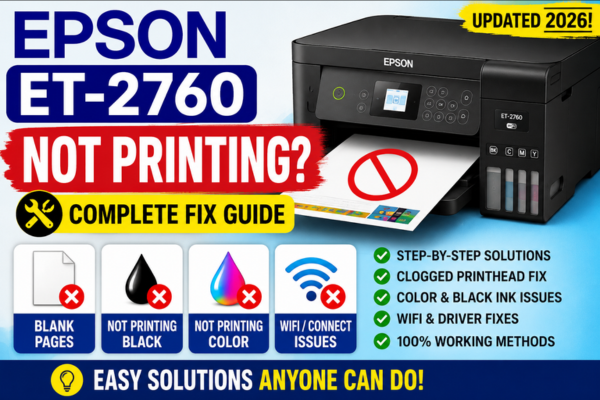

Epson ET-2760 Not Printing?
Blank Pages, Black Ink
& Color Issues — Fixed!
The complete ET-2760 troubleshooting guide — covering every print failure from blank pages and missing black ink to colour problems and WiFi issues.
The Epson ET-2760 EcoTank is one of the most popular home printers on the market — loved for its refillable ink tanks that eliminate the need for expensive cartridges. But when it stops printing, or starts producing blank pages, missing black ink, or faded colours, users often find the troubleshooting process confusing because EcoTank models work differently from standard cartridge printers in several important ways.
Unlike cartridge printers where you simply replace an empty cartridge, the ET-2760 uses a continuous ink supply system — meaning the causes of print failures are different, the fixes are different, and the diagnostic steps are different. This guide is written specifically for the ET-2760 and covers every common failure scenario with targeted, model-specific fixes that account for the unique way EcoTank printers work.
Which ET-2760 Printing Problem Do You Have?
Blank Pages
Printer runs but nothing appears on paper — completely blank output.
→ Clogged nozzles or low ink
Black Ink Not Printing
Colours work fine but black text is missing or very faint.
→ Clogged black nozzles
Colour Issues
Wrong colours, faded output, or one colour completely missing.
→ Nozzle clog or low tank
Lines / Banding
Horizontal white lines or stripes across the page.
→ Partially clogged nozzles
Printer Not Responding
Jobs sent but nothing prints — printer appears offline or stuck.
→ Driver or connection issue
What Makes the ET-2760 Different from Regular Printers
The ET-2760 stores ink in four fixed refillable tanks (black, cyan, magenta, yellow) rather than replaceable cartridges. This means there are no chips to reset, no cartridges to reseat, and no protective tape to remove. When the ET-2760 fails to print, the causes and fixes are specific to the tank-and-tube ink delivery system — including air in the feed lines, tank levels below minimum, and nozzle clogs from the higher-viscosity pigment black ink used by this model.
The ET-2760 uses pigment-based black ink and dye-based colour inks. Pigment black clogs faster than dye ink — making the black nozzle the most common failure point on this model.
The ET-2760 has well-documented phantom paper jam errors and a higher-than-average black nozzle clog rate. Both are covered with specific fixes in this guide.
Why Is Your ET-2760 Not Printing?
Clogged Print Head Nozzles (Most Common)
The ET-2760’s pigment black ink is particularly prone to drying in the nozzles when the printer sits unused. Even 1–2 weeks of idle time is enough to cause black nozzle clogs on this model. Partially clogged nozzles produce blank pages, missing black, or horizontal white lines depending on severity.
Ink Tank Below Minimum Line
When any ink tank drops below the minimum fill line, air can enter the feed tube leading to the print head. This causes the affected colour to print faintly, inconsistently, or not at all — even if there is still some ink visible in the tank above the absolute bottom.
Air Bubble in Ink Feed Tube
Air can enter the ink feed system during refilling (if filled too quickly or overfilled), after the tank runs too low, or after the printer is moved or tilted. An air bubble between the tank and print head completely blocks ink flow for the affected colour.
Print Head Alignment Off
After moving the printer, during firmware updates, or after an extended period of use, the print head alignment can drift — producing blurry text, colour fringing on photos, and banding that appears to be a nozzle problem but is actually a positioning issue.
WiFi / Driver / Connection Issue
Jobs sent but nothing prints — the printer is powered on and connected but not responding. This is almost always a driver issue, a print spooler problem, or a WiFi IP address change rather than an ink or hardware fault.
Before working through any fixes, the most important diagnostic step for the ET-2760 is to print a nozzle check pattern. This takes under two minutes and immediately tells you whether you are dealing with a nozzle clog problem or a settings/connection problem. Go to the printer’s control panel and navigate to Setup → Maintenance → Nozzle Check. If the pattern shows gaps or missing rows — you have a clog and the head cleaning fixes below apply. If the pattern is perfect but documents still print blank — the issue is in the software, driver, or connection chain rather than the hardware.
ET-2760 Printing Blank Pages — Step-by-Step Fix
💡 Run Nozzle Check First
Go to Setup → Maintenance → Nozzle Check before any cleaning. Print the pattern and inspect each row. This tells you exactly which nozzles are affected and lets you measure improvement after each cleaning cycle.
Fix: ET-2760 Blank Pages
Nozzle clog, low ink, or air bubble in feed tube
Check all four ink tank levels
Open the ink tank compartment. Confirm all four tanks are filled above the minimum line. If any tank is at or below the minimum, refill with the correct Epson EcoTank ink bottle before proceeding — air in a low tank can cause blank output on all colours, not just the low one.
Run head cleaning + print flush trick
Go to Setup → Maintenance → Head Cleaning. Run one cycle. Immediately after — without waiting — print a full page of solid colour blocks (all four colours). This push-from-inside flush clears residual clogs that the suction cleaning misses. Repeat up to 3 times.
Setup → Maintenance → Head Cleaning → flush printRun Power Cleaning for stubborn clogs
If blank pages persist after 3 standard cycles: go to Setup → Maintenance → Power Cleaning. This uses significantly more ink but applies greater suction to severe clogs. Follow with the solid colour flush print immediately after.
Setup → Maintenance → Power CleaningLeave printer on overnight after Power Cleaning
After Power Cleaning, leave the printer powered on overnight. The residual heat from the cleaning process continues softening dried ink in the nozzles. Print a nozzle check the next morning — blank page issues often resolve overnight after Power Cleaning on the ET-2760.
Manual nozzle soak for severe clogs
For ET-2760 blank pages that survive Power Cleaning: power off and unplug. Place 2–3 drops of distilled water directly on the print head nozzle surface. Wait 10–15 minutes for the water to dissolve the dried ink. Blot gently with a dry lint-free cloth. Reinstall, run one head cleaning, and print a nozzle check.
ET-2760 Black Ink Not Printing — Step-by-Step Fix
⚠️ ET-2760 Specific — Pigment Black Clogs Faster
The ET-2760 uses pigment-based black ink which dries in the nozzles significantly faster than the dye-based colour inks. Black nozzle clogs are the most common single problem on this model and can develop in as little as 7–10 days of idle time in a warm, dry environment. Print a black test page at least once per week to prevent this.
Fix: ET-2760 Black Ink Not Printing
Colours work fine but black is missing or faint
Print nozzle check — confirm black row status
Go to Setup → Maintenance → Nozzle Check. Look specifically at the black row. Gaps confirm a clog. A completely missing black row means the clog is severe — go directly to Power Cleaning. Minor gaps — start with standard head cleaning.
Setup → Maintenance → Nozzle Check → inspect black rowHead cleaning + black flush print (×3)
Run one Head Cleaning cycle. Immediately print a page of large solid black rectangles. Check nozzle pattern. Repeat this combination up to 3 times. The black flush print — printing solid black after cleaning — is especially effective on the ET-2760’s pigment black nozzles.
Power Cleaning for stubborn black clog
Go to Setup → Maintenance → Power Cleaning. Run once, then immediately print the solid black flush page. Leave printer on overnight. This is the most effective sequence for ET-2760 black nozzle clogs that resist standard cleaning.
Setup → Maintenance → Power CleaningCheck black ink tank level and refill
Confirm the black ink tank is filled above the minimum line. On the ET-2760, the black tank runs dry faster than colour tanks due to heavier usage. An air gap from a low black tank prevents ink flow even after cleaning.
Manual black nozzle soak
For severe persistent black clogs on the ET-2760: power off, unplug, and apply 2–3 drops of distilled water specifically to the black nozzle area on the print head. Wait 15 minutes. Blot dry. Reinstall. Run one head cleaning cycle and print solid black test page to check improvement.
ET-2760 Colour Issues — Wrong or Missing Colours
Fix: ET-2760 Colour Problems
Missing colour, wrong colour cast, or faded colour output
Run nozzle check to identify affected colour
Print a nozzle check (Setup → Maintenance → Nozzle Check). The pattern has a row for each colour — black, cyan, magenta, yellow. Identify which row has gaps. That colour’s nozzles are clogged and need targeted cleaning.
Setup → Maintenance → Nozzle CheckCheck the affected colour’s ink tank level
Open the ink tank compartment and locate the tank for the missing colour. Confirm it is above the minimum fill line. If low or below minimum — refill with the correct Epson EcoTank ink colour before running any cleaning cycles.
Head cleaning + targeted colour flush print
Run a head cleaning cycle. Then print a page with a large solid block of the missing colour — cyan, magenta, or yellow. This flush print targets the specific clogged nozzle row. Repeat up to 3 times checking the nozzle pattern after each round.
Run Print Head Alignment if colours appear shifted
If colours are printing but appear slightly off-register — with colour fringing around edges or a colour cast on photos — go to Setup → Maintenance → Print Head Alignment. Follow the alignment wizard to correct colour-to-colour positioning.
Setup → Maintenance → Print Head AlignmentET-2760 Not Responding — Jobs Sent But Nothing Prints
Fix: ET-2760 Not Responding to Print Jobs
Printer powered on but not printing — driver or connection issue
Clear the print queue on your PC
On Windows: go to Control Panel → Devices and Printers → right-click ET-2760 → See what’s printing. Cancel all queued jobs. A stuck job at the top of the queue blocks everything behind it — clearing the queue often immediately restores printing.
Devices and Printers → ET-2760 → See what’s printing → Cancel allRestart Print Spooler service
Press Windows + R → services.msc. Find Print Spooler, right-click → Restart. This refreshes the print management service without rebooting. After restarting, send a test print from Notepad.
services.msc → Print Spooler → RestartConfirm ET-2760 is not set to “Use Printer Offline”
In Devices and Printers, right-click the ET-2760. If “Use Printer Offline” has a tick next to it — click it to uncheck. This Windows setting forces the printer into offline mode regardless of actual connection status.
Check WiFi connection on the printer
On the ET-2760 control panel: go to Setup → Network Settings → Wi-Fi Status. Confirm the printer shows as connected with an IP address. If not connected — run the WiFi Setup Wizard to reconnect to your router.
Setup → Network Settings → Wi-Fi StatusReinstall the ET-2760 driver
Uninstall all Epson software from Settings → Apps. Download the latest ET-2760 Full Feature Driver from epson.com/support. Reinstall as administrator and select your connection type when prompted.
epson.com/support → ET-2760 → Full Feature DriverThe ET-2760’s black nozzle clog problem is almost entirely preventable with one simple habit. Because the pigment black ink dries faster than the dye-based colour inks, printing at least one page with significant black content every 7–10 days keeps the black nozzles clear. Users who print regularly — even just a few pages per week — almost never experience the blank black ink problem that affects users who leave the printer idle for weeks. If you know you will not be printing for more than two weeks, run a nozzle check before your last print session and run a head cleaning cycle proactively — clearing the nozzles before the ink has a chance to dry thoroughly saves time later.
ET-2760 Quick Fix Reference — All Problems
Run Nozzle Check First
Setup → Maintenance → Nozzle Check. Always start here. Gaps confirm clogged nozzles. A perfect pattern means the issue is settings or connection — not ink.
Head Cleaning + Flush Print
Run Head Cleaning then immediately print a solid colour flush page. Repeat up to 3 times. The flush print is the key — it forces ink through while nozzles are warm.
Power Cleaning
Setup → Maintenance → Power Cleaning. For clogs that survive 3 standard cycles. Uses more ink but resolves deep dried-ink blockages. Follow with flush print and leave on overnight.
Refill Ink Tanks
Check all 4 tanks are above the minimum line. Low tank = air in feed tube = blank or faint output. Refill with genuine Epson EcoTank ink bottles only.
Print Head Alignment
Setup → Maintenance → Print Head Alignment. Fixes blurry text, colour fringing, and banding that appears after moving the printer or replacing software.
Clear Print Queue
In Devices and Printers → ET-2760 → See what’s printing — cancel all queued jobs. A stuck job at the front of the queue blocks all subsequent print jobs from processing.
Restart Print Spooler
services.msc → Print Spooler → Restart. Refreshes the Windows print management service. Resolves the ET-2760 appearing to accept jobs but never printing them.
Reconnect to WiFi
On the printer panel: Setup → WiFi Setup → WiFi Setup Wizard. Reconnect to your 2.4GHz network. The ET-2760 only supports 2.4GHz — connecting to 5GHz causes a silent connection failure.
Assign Static IP
In your router admin panel, reserve a fixed IP for the ET-2760. Prevents the printer going offline after every router restart — the most common cause of recurring “printer not found” errors on this model.
Reinstall ET-2760 Driver
Uninstall all Epson apps from Settings → Apps. Download the latest driver from epson.com/support for your OS. Reinstall as administrator — fixes colour management issues and job processing failures.
Manual Nozzle Soak
For severe clogs surviving Power Cleaning: apply 2–3 drops distilled water directly on the print head nozzle surface. Wait 15 minutes, blot dry, run one head cleaning. Highly effective for ET-2760 pigment black clogs.
Factory Reset
Setup → Restore Default Settings → All Settings → Yes. Last resort — resolves software-level errors and persistent offline states. You will need to reconnect to WiFi and reinstall the driver after resetting.
Keep Your ET-2760 Printing Perfectly
ET-2760 Frequently Asked Questions
My ET-2760 ink tanks are full but it’s still printing blank — why?
Full tanks with blank output is the classic ET-2760 nozzle clog symptom. The ink is present in the tanks but the dried ink in the nozzles is preventing it from flowing to the paper. Run a nozzle check to confirm — the pattern will show gaps or missing rows. The head cleaning plus flush print combination resolves this in 2–3 rounds for most ET-2760 cases. If the nozzle check pattern is perfect with full tanks and still blank documents — the issue is a settings or driver problem, not ink.
How often should I run head cleaning on the ET-2760?
Only run head cleaning when the nozzle check shows gaps — not as a preventive measure. Head cleaning uses ink from all four tanks and contributes to waste ink pad saturation. The better preventive approach is to print regularly (at least weekly) which keeps the nozzles clear naturally without consuming cleaning ink. If you know the printer will be idle for more than 2 weeks, run one cleaning cycle proactively before the long idle period.
My ET-2760 shows an error about the waste ink pad — what does that mean?
The ET-2760 has an internal waste ink pad that absorbs ink from head cleaning cycles. When this pad reaches capacity, the printer displays an error and refuses to print. This is a known maintenance item on EcoTank models — particularly ones used heavily or on which many cleaning cycles have been run. The solution is to use the Epson Adjustment Program or WIC Reset Utility to reset the waste ink counter. If the pad is genuinely saturated, it should be replaced or the printer serviced.
Can I use third-party ink in my ET-2760?
Technically yes, but Epson strongly advises against it and it is not recommended for the ET-2760 specifically. The ET-2760’s pigment black nozzles are particularly sensitive to ink viscosity — third-party pigment black inks with different formulations cause faster and more severe nozzle clogs than genuine Epson 502 black ink. Third-party colour inks can also produce colour accuracy problems and smearing. For the ET-2760, sticking to genuine Epson 502 EcoTank ink is the most reliable approach long-term.
When to Contact Epson Support for the ET-2760
If all twelve fixes have been applied — including Power Cleaning, manual nozzle soak, and driver reinstall — and the ET-2760 is still not printing correctly, the print head may have permanent damage. Contact Epson support in these situations: