
How to Rename Printers
in HP Smart
3 easy methods to rename your HP printer on Windows 11 — through HP Smart, Settings, and Control Panel.
Why Rename Your HP Printer?
Multiple Printers at Home
Distinguish between an upstairs and downstairs printer instead of seeing two identical model names in your print dialog.
Office or Shared Network
Label printers by department or location — “Finance Printer” or “3rd Floor Color” — so every user picks the right one instantly.
Cleaner Print Dialog
Replace long default names like “HP ENVY 6455e (1C:2B:3A)” with something short and human-readable.
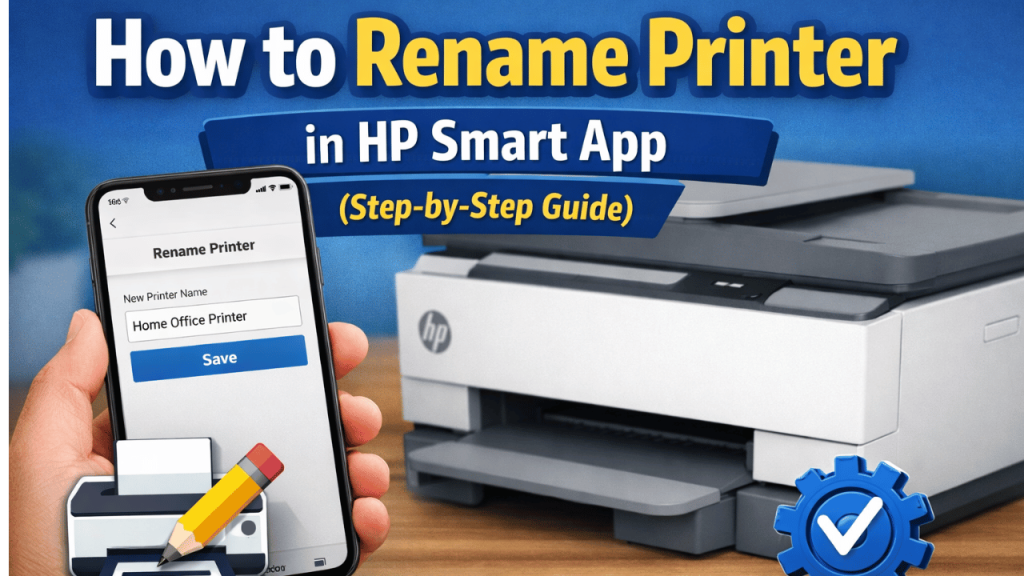
Rename via the HP Smart App
📌 Best Method for Most Users
The HP Smart app is the easiest and most reliable way to rename your printer. This name change syncs across all devices using the same HP account, including mobile. Make sure HP Smart is updated to the latest version from the Microsoft Store before starting.
HP Smart App (Windows 11)
Requires HP Smart installed and printer connected
Open HP Smart
Click the Start menu, search for HP Smart, and open the app. Sign in with your HP account if prompted.
Select Your Printer
On the HP Smart home screen, locate your printer tile and click on it to open the printer dashboard.
Open Printer Settings
Click the gear icon ⚙ (Settings) or the three-dot menu ⋯ in the top-right corner of the printer tile.
Settings → Printer ProfileEdit the Printer Name
Find the Printer Name or Nickname field. Click on it, clear the existing name, and type your new custom name.
Save the Changes
Click Save or Apply. The new name will appear on the HP Smart home screen immediately and sync to your HP account.
Rename via Windows 11 Settings
📌 Changes the System-Level Printer Name
This method renames the printer at the Windows operating system level. The new name will appear in all apps’ print dialogs on this PC — not just in HP Smart. This does not affect other computers on the network.
Windows 11 Settings
No app required — built into Windows 11
Open Windows Settings
Press Windows + I to open Settings, or click Start and select the gear icon.
Go to Bluetooth & Devices
In the left sidebar, click Bluetooth & devices, then select Printers & scanners.
Settings → Bluetooth & devices → Printers & scannersSelect Your HP Printer
Click on your HP printer from the list to open its management page.
Open Printer Properties
Click Printer properties from the options shown. A dialog box will open with the printer details.
Change the Name & Save
On the General tab, the first field at the top is the printer name. Clear it, type your new name, then click Apply → OK.
Rename via Control Panel
📌 Classic Method — Still Works on Windows 11
The Control Panel route is the traditional way to manage printer names and still works fully on Windows 11. Use this if the Settings method didn’t show your printer or if you prefer the classic Devices and Printers view.
Control Panel — Devices & Printers
Classic Windows method — works on all Windows versions
Open Control Panel
Press Windows + R, type control, and press Enter. Or search “Control Panel” in the Start menu.
Run → control → EnterOpen Devices and Printers
Click Hardware and Sound, then select Devices and Printers. Your HP printer will appear as an icon.
Right-Click Your Printer
Right-click on your HP printer icon and select Printer properties from the context menu.
Edit the Name Field
On the General tab, the printer name field appears at the very top of the dialog. Highlight the text, delete it, and type your new printer name.
Apply and Close
Click Apply, then OK. The printer will immediately show the new name in Devices and Printers and in all print dialogs.
Naming Tips & Best Practices
Frequently Asked Questions
Will renaming the printer affect my print settings or drivers?
No. Renaming is purely cosmetic — it changes the display name only. All drivers, preferences, print queues, and network connections remain completely intact.
Why does my printer show the old name in some apps after renaming?
Some apps cache the printer list and need to be restarted to refresh it. Close and reopen the app, or restart Windows if the old name persists across multiple applications.
Can I rename a printer that is connected over Wi-Fi?
Yes. All three methods work for both Wi-Fi and USB-connected printers. The printer does not need to be actively connected — it just needs to appear in your printer list.
Does the HP Smart name change show up on my phone too?
Yes — if you are signed into the same HP account on your mobile device, the nickname you set in HP Smart on Windows will sync and appear in the HP Smart app on iOS and Android as well.