Epson ET-2720 WiFi Setup, Not Printing & Troubleshooting – Complete Guide
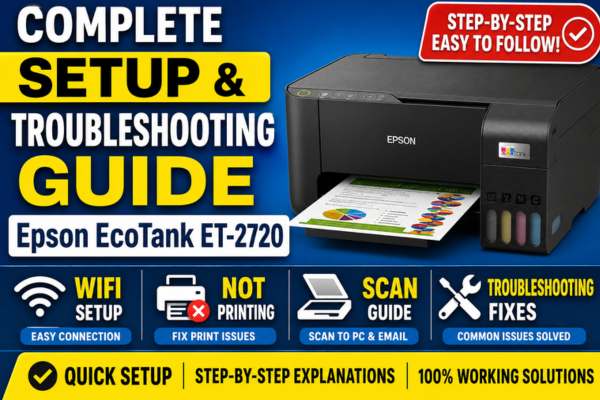
Complete Setup & Troubleshooting Guide
Epson EcoTank ET-2720
WiFi Setup · Not Printing · Scan · Troubleshooting Fixes
Your complete resource for the Epson EcoTank ET-2720 — WiFi setup using every available method, print quality fixes, scanner troubleshooting, error codes, and maintenance tips all in one guide.
Available in Black & White — same internals, same guide
The Epson EcoTank ET-2720 is Epson’s entry-level EcoTank all-in-one supertank printer, available in both Black and White finishes. It uses Epson 522 EcoFit ink bottles — uniquely keyed so each color can only be inserted into its correct tank — and delivers up to 4,500 black pages and 7,500 color pages per bottle set, equivalent to approximately 80 individual ink cartridges. According to Consumer Reports testing, the estimated yearly ink cost is just $6 per year at typical home use volumes — an extraordinary figure that demonstrates the EcoTank concept’s long-term value.
The ET-2720 includes print, scan, and copy functionality, a color display, WiFi, AirPrint, Epson iPrint and Smart Panel app support, Alexa voice printing, and borderless 4×6 photo printing. Notably, this model does not include auto-duplex printing or an auto document feeder — it is a focused, affordable home printing solution. This guide covers every setup method, troubleshooting scenario, and maintenance tip for the ET-2720.
⭐ ET-2720 Key Features
🍶522 EcoFit ink bottles — keyed, no mess
🎙️Alexa voice printing — hands-free
🍎AirPrint — iPhone/iPad support
📱Epson Smart Panel app compatible
📸Borderless 4×6 photo printing
🔗WiFi Direct — no router needed
⚠️ No auto-duplex printing — manual 2-sided only
⚠️ 2.4GHz WiFi only — 5GHz not supported
📦
Section 1
What’s in the Box & First-Time Setup
Your ET-2720 box includes the printer unit, four Epson 522 EcoFit ink bottles (Black 65mL, Cyan/Magenta/Yellow 65mL each), a power cord, a CD-ROM for software setup, and a Quick Start guide. Note: a USB cable is NOT included — purchase a USB 2.0 Type-A to Type-B cable separately if needed for a wired connection.
✅Epson ET-2720 Printer Unit
✅4× Epson 522 EcoFit Ink Bottles
✅Power Cord
✅CD-ROM Setup Software
✅Quick Start Guide
❌USB Cable (NOT included)
🍶 First-Time Ink Filling — Epson 522 EcoFit Method
- Remove ALL blue shipping tape and orange transport clips — inside and outside the printer.
- The 522 EcoFit bottles are uniquely shaped and color-coded — each bottle only fits its matching tank color. Wrong-color insertion is physically prevented.
- Remove the bottle cap. Insert the bottle tip firmly into the matching fill port — push until it locks in place and ink begins flowing.
- Ink flows automatically. The EcoFit design prevents overfilling — the bottle stops when the tank is full.
- Twist and remove the bottle. Replace the tank cap. Repeat for all four colors (Black, Cyan, Magenta, Yellow).
- Power on the printer. Allow the initialization process (10–20 minutes) to complete. Do NOT power off during this process — it permanently primes the Micro Piezo printhead.
💡 Important — 522 vs 522XL:
The ET-2720 uses Epson 522 ink bottles (65mL). The 522XL black bottle (127mL) is also compatible for the black tank only and provides higher yield. Never use 502, 664, T664, or any other series — they will not fit and are not compatible.
📶
Section 2
Epson ET-2720 WiFi Setup — Step by Step
The ET-2720 supports the Epson Smart Panel app for setup (unlike older models that only supported iPrint), as well as the traditional PC setup utility and WPS push-button method. The Smart Panel app method is the easiest and most reliable for first-time setup.
⚠️ Before You Start:
- ET-2720 connects to 2.4GHz WiFi only — 5GHz will not appear in the setup list.
- Complete ink filling and initialization before starting WiFi setup.
- Do NOT connect the USB cable until specifically instructed by the setup software.
📱 Method A: Epson Smart Panel App (Easiest — Recommended)
1
Download Epson Smart Panel from the App Store (iOS) or Google Play (Android). Make sure your phone is connected to your 2.4GHz WiFi network.
2
Power on the ET-2720. Open Epson Smart Panel → tap the “+ Product is not selected” banner → tap No on the pop-up to start fresh setup.
3
Follow the guided chat-style setup wizard. Select your 2.4GHz WiFi network name (SSID) → tap Yes → tap Next → enter your WiFi password → tap OK → confirm.
4
Wait 1–2 minutes. The WiFi indicator light on the printer turns solid when connected. Smart Panel confirms connection and you can print a test page.
💻 Method B: Epson Setup Utility — Windows / Mac
- Visit epson.com/support/et2720 → download the Epson Setup Utility for your OS. Run as Administrator.
- Select Wireless (Wi-Fi) as connection type — do NOT choose USB at this stage.
- Select your 2.4GHz SSID → enter password → the utility sends credentials to the printer wirelessly.
- Complete driver installation → print a test page to confirm setup.
🔘 Method C: WPS Push-Button (Fastest — No Password Needed)
- On the ET-2720: press and hold the WiFi button for 3 seconds until the WiFi light flashes.
- Within 2 minutes, press the WPS button on your router.
- WiFi light turns solid when connected — no password needed. Then install driver from epson.com/support/et2720.
🔗 Method D: WiFi Direct (No Router Needed)
- Press and hold the WiFi Direct button for 3 seconds until the WiFi Direct light turns on.
- On your device: go to WiFi settings → connect to the network starting with “DIRECT-“.
- Enter the WiFi Direct password (printed on the network status sheet or inside the printer cover).
- Use Epson Smart Panel, Epson iPrint, or AirPrint to print directly without a router.
The Epson EcoTank ET-2720 stands out in the home printer market primarily because of its extraordinary running cost advantage. Consumer Reports testing found the estimated yearly ink cost at typical home printing volumes to be just $6 — a figure that makes virtually every competing cartridge printer look expensive by comparison. One set of 522 replacement ink bottles costs approximately $56 and lasts over 5 years at average use. The printer’s entry-level price point combined with this minimal running cost makes the ET-2720 particularly attractive for families and light users who don’t need the additional features of higher-tier EcoTank models. The inclusion of both the Epson Smart Panel app and Alexa voice printing also gives it modern connectivity features that were previously found only on more expensive models.
❌
Section 3
ET-2720 WiFi Not Connecting — Proven Fixes
WiFi light blinking but not connecting? Smart Panel can’t find the printer? Setup keeps failing? Here are the top causes and fixes for every ET-2720 WiFi connection problem:
📡
#1: Connected to 5GHz Band
The ET-2720 only supports 2.4GHz WiFi. Log into your router admin page → separate your 2.4GHz and 5GHz bands into different SSIDs (e.g., “HomeWiFi_2G” and “HomeWiFi_5G”) → connect the printer to the 2.4GHz network. This fixes the majority of WiFi failures.
📱
Smart Panel App Frozen / Password Field Unresponsive
Update Epson Smart Panel to the latest version. Restart your phone completely. Ensure your phone is on 2.4GHz WiFi (not 5GHz). If the issue persists, uninstall and reinstall Smart Panel, or switch to Method B (PC setup utility) instead.
🔄
New Router / Changed WiFi Password
The ET-2720 stores old WiFi credentials and won’t auto-reconnect after a router change. Hold the WiFi + Cancel buttons simultaneously for 3 seconds to reset network settings, then redo the complete WiFi setup.
🔥
PC Firewall Blocking Setup Utility
If using the PC setup utility (Method B), Windows Firewall or antivirus can block the utility from detecting the printer. Temporarily disable both during driver installation. Re-enable after setup is complete.
📶
Weak WiFi Signal
Place the ET-2720 within 15–20 feet of your router for initial setup. After confirming the WiFi connection works, you can move the printer. A WiFi extender helps if the printer’s permanent location has poor signal.
🔒
Router AP Isolation / MAC Filtering
Disable AP Isolation in your router’s wireless settings. If MAC address filtering is enabled, add the printer’s MAC address — found by holding the WiFi button for 10 seconds to print a Network Status Sheet.
🔄 Reset Network Settings:
Hold WiFi + Cancel (×) buttons simultaneously for 3 seconds → WiFi light flashes → release → redo setup.
💡 Network Status Sheet:
Hold the WiFi button 10 seconds to print — shows IP address, MAC address, SSID, and signal strength.
🖨️
Section 4
Epson ET-2720 Not Printing — Diagnosis & Fixes
WiFi connected but nothing prints? Printer showing offline in Windows or Mac? Jobs frozen in queue? Here are every common ET-2720 printing failure with step-by-step resolution:
PROBLEM
Printer Shows “Offline” on Windows 10 / 11
- Go to Settings → Bluetooth & devices → Printers & scanners → click ET-2720 → Open print queue.
- Printer menu → uncheck “Use Printer Offline”. Cancel all pending jobs.
- Right-click ET-2720 → Set as Default Printer.
- Restart Print Spooler: Win + R → type
services.msc → find Print Spooler → click Restart.
PROBLEM
Print Jobs Stuck / Queue Won’t Clear
- Press Win + R → type
services.msc → find Print Spooler → click Stop.
- Navigate to C:\Windows\System32\spool\PRINTERS → delete all files inside (keep the folder).
- Return to services → click Start for Print Spooler → retry printing.
PROBLEM
Driver Broken After Windows / macOS Update
- Uninstall all Epson software from Control Panel → Programs → Uninstall a program. Restart computer.
- Download the latest driver from epson.com/support/et2720 for your exact OS version.
- Install as Administrator → choose Wireless/Network connection type.
- Mac users: after reinstalling, re-add the printer via System Settings → Printers & Scanners → +.
PROBLEM
Printer Not Found — IP Address Changed
- Print a Network Status Sheet (hold WiFi button 10 seconds) and note the current IP address.
- On PC: Printers → ET-2720 → Properties → Ports tab → Add Port → Standard TCP/IP → enter the new IP address.
- Permanently fix: log into your router and assign a static IP reservation to the ET-2720 using its MAC address.
PROBLEM
Alexa Voice Printing Not Working
- Set up an Epson Connect account at epsonconnect.com and register your ET-2720.
- In the Alexa app: Skills & Games → search “Epson” → enable → link your Epson Connect account.
- Say “Alexa, ask Epson to print [item]” — lists, calendars, and documents work best.
- Ensure the printer is set as your default in the Epson Connect dashboard.
PROBLEM
Printing Blank Pages
- Check all four 522 ink tanks through the transparent windows on the front — all must have ink.
- Run a Nozzle Check from Epson Smart Panel → Maintenance → Nozzle Check → Print.
- If blank or incomplete: run Head Cleaning 1–2 cycles → reprint Nozzle Check → retry.
🔍
Section 5
Scanner & Copy Problems — Fixes
The ET-2720 features a high-resolution flatbed scanner. It uses Epson Scan 2 software on modern systems. Scanning text documents takes approximately 10 seconds, color images around 25 seconds. Here are the most common scanner issues and their fixes:
🌐
“Cannot Connect to Network Scanner”
Open Epson Scan 2 → Settings → verify the printer’s IP address matches the Network Status Sheet. If the IP changed, update it here. Both devices must be on the same 2.4GHz WiFi network.
❌
Epson Scan 2 Not Opening
Uninstall and reinstall Epson Scan 2 from epson.com/support/et2720. On Windows: run as Administrator. On Mac Ventura/Sonoma: grant scanner access in System Settings → Privacy & Security → Files and Folders.
🖼️
Poor Scan Quality / Blurry
Clean the scanner glass with a soft, lint-free cloth. Set resolution to 300 dpi for documents, 600 dpi for photos in Epson Scan 2. Use Professional Mode for full control over resolution and color settings.
🔌
Scans via USB but Not WiFi
Add Epson Scan 2 to Windows Firewall allowed apps list. Check the IP address in Epson Scan 2 settings — if it changed, update it. Assign the printer a static IP via your router to prevent future changes.
📄
Copy Output Faded / Wrong Colors
Check all four 522 ink tanks — all colors required. Run Nozzle Check then Head Cleaning via Epson Smart Panel → Maintenance. Place original face-down, fully flat, aligned to the corner arrow on the glass.
📱
Can’t Scan from Epson Smart Panel
Ensure the printer is on and connected to WiFi. Ensure your phone is on the same WiFi network. Update Epson Smart Panel to the latest version. If scanning fails, try scanning from Epson Scan 2 on your computer as a fallback.
One important distinction between the ET-2720 and its predecessors (ET-2650, ET-2700, ET-2750) is the scanner software: the ET-2720 uses Epson Scan 2 — the newer generation scanning software — rather than the classic Epson Scan application. This means better compatibility with modern OS versions including Windows 11 and macOS Ventura and later, as Epson has focused its driver updates on Scan 2. If you previously owned an older EcoTank model and are used to Epson Scan, the Epson Scan 2 interface is slightly different but more feature-rich. Both support Professional Mode for full resolution and color control. The Epson Smart Panel app also enables scanning directly from your smartphone, which is a convenient feature for quick document digitization without sitting at a computer.
🎨
Section 6
Print Quality Problems & Ink Fixes
The ET-2720 delivers 5760 × 1440 dpi print resolution using Micro Piezo inkjet technology. Print quality issues almost always trace back to clogged nozzles, low 522 ink, or incorrect settings:
👻
Faded / Light Prints
Check all four 522 tanks through the transparent windows on the front panel. Refill any that are low. Also check: driver quality setting is not on Draft/Economy — switch to Standard or Best.
〰️
Horizontal Lines / Banding
Clogged nozzle. Epson Smart Panel → Maintenance → Head Cleaning → run 1–2 cycles → print Nozzle Check. Repeat up to 3 cycles if needed. Wait 12 hours then run Power Cleaning if still banding.
🟥
Wrong or Missing Colors
Run Nozzle Check to identify which color row has gaps. Run Head Cleaning specifically for that color. Also verify all four 522 tanks are filled — an empty tank prevents that color from printing entirely.
💧
Ink Smearing
Match the paper type setting in the driver to the paper you’re using. 522 ink needs 30–60 seconds to dry on plain paper. Don’t handle prints immediately or stack them wet. Using the wrong paper type causes over-inking.
📐
Misaligned / Skewed Prints
Run Print Head Alignment: Epson Smart Panel → Maintenance → Print Head Alignment. Print the alignment pattern and select the best-aligned row. Also ensure paper guides in the rear tray are snug against the paper edges.
📸
Borderless Photo Issues
Load 4×6 photo paper in the rear tray. In driver: set paper size to 4×6 inch, paper type to photo paper type, and check the Borderless box. The ET-2720 cannot auto-detect paper size — always set it manually.
🔍 How to Run a Nozzle Check on ET-2720
The ET-2720 has no display screen — run Nozzle Check from Epson Smart Panel or the Epson printer utility on your PC/Mac:
- Via Smart Panel: Open Epson Smart Panel → tap your printer → Maintenance → Nozzle Check → Print.
- Via PC: Control Panel → Devices and Printers → right-click ET-2720 → Printing Preferences → Maintenance → Nozzle Check.
- Examine the printed pattern — solid complete rows = healthy nozzles. Gaps in any row = clogged nozzles.
- Run Head Cleaning for affected colors → reprint Nozzle Check. Repeat up to 3 cycles maximum.
- If still clogged after 3 cycles: wait 12 hours → run Power Cleaning (Smart Panel → Maintenance → Power Cleaning). Note: Power Cleaning uses significantly more ink but clears severe clogs.
⚠️
Section 7
Error Codes & LED Light Patterns
The ET-2720 has no LCD display screen — errors are communicated through LED light patterns on the control panel and error messages in the Epson Smart Panel app or driver software:
| Error / Light Pattern |
Meaning |
Fix |
| Power + Error lights flash |
Paper jam or out of paper |
Power off. Remove jammed paper. Check for torn fragments. Reload paper. Restart. |
| Ink light flashing (one color) |
522 ink tank low or empty |
Refill with correct Epson 522 EcoFit bottle. All four colors must be present to print. |
| WiFi light off |
WiFi not configured |
Hold WiFi button 3 seconds to enter setup mode. Redo WiFi setup via Smart Panel or setup utility. |
| WiFi light blinking slowly |
Connecting / searching for network |
Wait up to 2 minutes. If doesn’t go solid: verify 2.4GHz band and correct password. Retry setup. |
| WiFi light blinking rapidly |
Connection failed |
Reset network (hold WiFi + Cancel 3 sec). Restart router. Check 2.4GHz SSID. Redo setup. |
| All lights flashing rapidly |
Internal hardware error |
Unplug from power for 5 minutes. Reconnect and power on. Contact Epson if persists. |
| “Ink Pads End of Life” (driver) |
Waste ink pad saturated |
Contact Epson support (1-562-276-4382). Advanced: Waste Ink Reset Utility (voids warranty). |
| Error code 0x97 (driver) |
Internal hardware component failure |
Unplug printer. Hold Power button 60 seconds. Reconnect power and restart. |
| “Printer Offline” (driver/Smart Panel) |
PC cannot reach printer over network |
Check WiFi light is solid. Uncheck Use Printer Offline. Restart Print Spooler. Update IP in Printer Ports tab. |
🔧
Section 8
Maintenance Tips to Keep ET-2720 Running Like New
With minimal maintenance, the ET-2720 can deliver years of reliable printing at an estimated $6 per year ink cost. These habits prevent the most common issues:
📅
Print WeeklyRun at least a Nozzle Check print weekly during periods of inactivity. Keeps 522 ink flowing and prevents nozzle clogs — the most common maintenance issue on all EcoTank models.
🍶
Only Use Epson 522 EcoFit InkOnly genuine Epson 522 (or 522XL for black) ink bottles are compatible. Third-party inks can permanently clog the Micro Piezo printhead and void the 2-year warranty.
🔌
Always Power Off ProperlyUse the power button — never unplug the printer from the wall while it’s on or in standby. Proper shutdown seals the printhead, preventing ink from drying in the nozzles.
🧹
Clean Scanner Glass MonthlyWipe the flatbed scanner glass gently with a soft, lint-free cloth. Dust and fingerprints noticeably reduce scan quality. Avoid solvents, alcohol, or paper towels.
💾
Update Firmware via Smart PanelOpen Epson Smart Panel → check for firmware updates. Firmware updates improve WiFi stability, fix bugs, and maintain OS compatibility with Windows 11 and macOS updates.
📄
Use Quality PaperFan paper before loading in the rear tray. Use 20lb (75gsm) or heavier paper. Paper dust from cheap reams accelerates nozzle clogging. Store paper in sealed packaging.
🔄
How to Reset Epson ET-2720 Network Settings
Use when all other troubleshooting fails or before selling the printer.
The ET-2720 has no display screen, so resets are done via button combinations on the control panel:
📶 Network Settings Reset
- Make sure printer is powered ON.
- Hold WiFi + Cancel (×) simultaneously.
- Hold for 3 seconds until WiFi light flashes.
- Release. WiFi credentials cleared.
- Redo WiFi setup from Section 2.
🏭 Full Factory Reset
- Power off the printer completely.
- Press and hold the Cancel (×) button.
- While holding, press the Power button.
- Hold both until the power light turns on.
- All settings cleared. Redo complete setup.
⚠️ After reset: redo WiFi setup via Epson Smart Panel and reinstall the driver on your PC/Mac. Ink levels and printhead status are not affected.
The Epson EcoTank ET-2720 is an outstanding choice for home users who print documents, school assignments, and occasional photos without needing duplex printing or an auto document feeder. At an estimated $6 per year in ink costs — backed by Consumer Reports testing — it’s one of the most economical home printers available, period. The inclusion of the Epson Smart Panel app (which brings a significantly better setup and management experience than the older iPrint app used on earlier EcoTank models), Alexa voice printing, AirPrint, and WiFi Direct gives the ET-2720 modern connectivity that serves the whole family. As with all EcoTank models, the most important rule is to print regularly — at least once a week — to prevent 522 ink from drying in the Micro Piezo nozzles and to keep the printer in peak condition for years to come.
📋 Quick Reference — ET-2720 Cheat Sheet
Find your fix fast
WIFI SETUP
Download Epson Smart Panel → follow guided wizard → select 2.4GHz SSID → enter password → confirm
WIFI NOT CONNECTING
2.4GHz only • Update Smart Panel • Disable firewall • Try WPS • Reset: hold WiFi + Cancel 3 sec
PRINTER OFFLINE
Uncheck “Use Printer Offline” • Clear queue • Restart Print Spooler • Set as Default • Reinstall driver
FADED / BANDING
Check 522 ink levels • Smart Panel: Maintenance → Nozzle Check → Head Cleaning 1–3 cycles
SCANNER NOT WORKING
Use Epson Scan 2 • Check IP in Scan 2 settings • Allow in Windows Firewall • Same WiFi network
NETWORK RESET
Hold WiFi + Cancel (×) 3 seconds → WiFi light flashes → redo Smart Panel setup → reinstall driver
Epson Support: 1-562-276-4382 | epson.com/support/et2720
This guide is for informational purposes only. Epson, EcoTank, EcoFit, and MicroPiezo are trademarks of Seiko Epson Corporation. Page yield data based on ISO/IEC 24712 methodology with Epson 522 ink bottles. Cost data referenced from Consumer Reports testing. Always refer to official Epson documentation for warranty-related service.