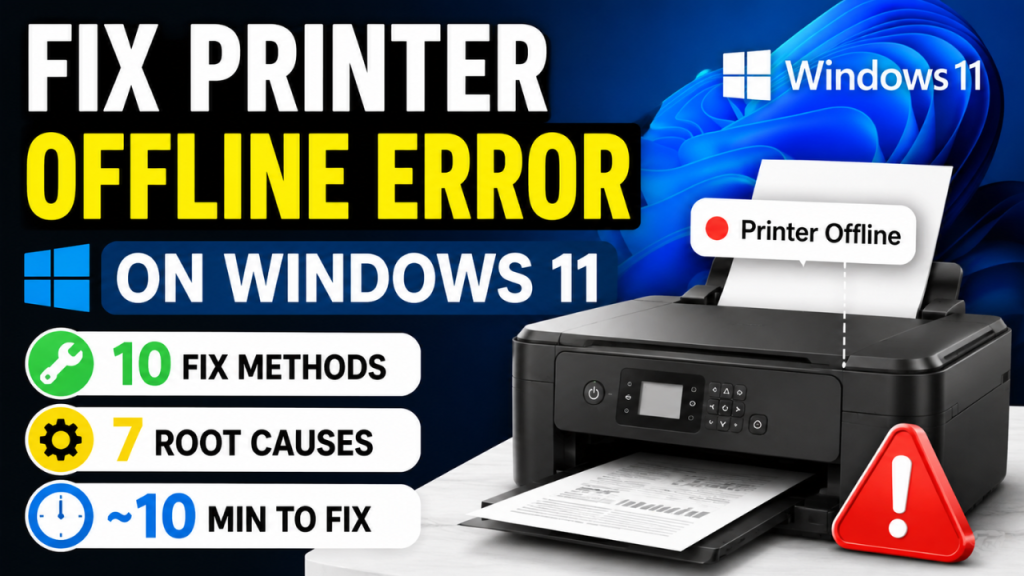

Fix Printer Offline Error
on Windows 11
Your printer shows as offline in Windows 11 — even though it’s powered on and connected. This guide covers every cause and 10 targeted fixes to get it printing again.
Seeing your printer labelled as “Offline” in Windows 11 is one of the most common and frustrating printing problems — made even more irritating by the fact that the printer is clearly powered on and, in many cases, showing a ready status on its own display. The disconnect between what the printer thinks and what Windows 11 thinks is the core of the problem.
The “printer offline” status in Windows 11 does not mean the printer has a physical fault. It means Windows has lost communication with the printer and is displaying the last known status — which defaults to “offline” when communication is interrupted. The fix is almost always one of a small number of well-known issues: the “Use Printer Offline” setting, an IP address change, a stalled Print Spooler, or a driver issue. Every one of these is fixable in minutes.
Why Does Windows 11 Show Printer as Offline?
“Offline” in Windows 11 means the operating system cannot reach the printer — not that the printer itself has a fault. This can happen over WiFi (when the printer’s IP address changes), over USB (when the driver communication breaks), or due to Windows 11’s own print management service having a problem. The printer is almost always perfectly functional and will print normally the moment the communication path is restored.
Windows 11 has a setting that manually forces a printer into offline mode. It is extremely easy to enable accidentally — and once on, it keeps the printer offline regardless of its actual connection status.
This guide applies to all printer brands on Windows 11 — HP, Epson, Canon, Brother, Samsung, and any other make. The offline error and its fixes are at the Windows level, not brand-specific.
This Guide Covers Every Printer Brand on Windows 11
How the Printer Offline Error Shows Up
Why Is the Printer Showing Offline in Windows 11?
“Use Printer Offline” Setting Is Enabled
Windows 11 includes a “Use Printer Offline” option in the printer context menu that, when enabled, forces the printer into an offline state and blocks all print jobs. It can be enabled accidentally with a single misclick and is one of the most commonly overlooked causes of a printer that was working perfectly and then suddenly went offline.
Printer’s IP Address Changed After Router Restart
When a WiFi printer or router is restarted, the router may assign a new IP address to the printer via DHCP. Windows 11’s printer driver is still pointed at the old IP — so it cannot find the printer at that address and marks it offline. The printer is connected to WiFi perfectly but unreachable by Windows.
Print Spooler Service Crashed or Frozen
The Windows Print Spooler is the service that manages all print jobs and printer communication. If it crashes, hangs, or gets stuck on a corrupt job — all printers appear offline and all pending jobs stall. Restarting the Spooler immediately restores all printer statuses.
Stuck or Corrupt Print Jobs in the Queue
A print job that errored mid-print can lock the entire print queue. Every subsequent job — including new ones — gets stuck behind the corrupt first job. The printer appears offline because the Spooler cannot process the queue past the stuck job.
Outdated or Corrupt Printer Driver
A Windows 11 update can overwrite or corrupt the printer driver — causing the printer to appear offline even though the hardware connection is intact. This is particularly common immediately after a major Windows 11 feature update that modifies print subsystem components.
Printer and PC on Different Networks or Bands
If the printer is on the 2.4GHz WiFi band and the PC switches to 5GHz (or vice versa), or if either device connects to a guest network or different SSID, they can no longer see each other — and the printer shows as offline even though both are on WiFi.
Windows 11 “Let Windows Manage Default Printer” Interfering
Windows 11 has a setting that automatically switches the default printer based on the last printer used at the current location. This can cause an unexpected printer to become default — and the desired printer to appear as offline — particularly when working across different locations or networks.
The most important first step is to check whether “Use Printer Offline” is enabled in Windows 11. This setting is found by right-clicking the printer in the old Control Panel view — not the new Settings app — and it is often overlooked because many Windows 11 users are not aware the old Control Panel view is still accessible. Press Windows + R, type control printers, and press Enter. Right-click your printer in this window. If you see a tick next to “Use Printer Offline” — that single click is your entire fix. Uncheck it and your printer will come back online immediately.
How to Fix Printer Offline Error on Windows 11 — 10 Methods
💡 Try Fix 01 First — It Resolves the Majority of Cases in 30 Seconds
The “Use Printer Offline” toggle is the single most common cause of a printer suddenly going offline in Windows 11. Check and disable it before anything else — it takes 30 seconds and fixes the problem for most users immediately.
Disable “Use Printer Offline”
Press Win + R → control printers → Enter. Right-click your printer. If “Use Printer Offline” has a tick — click it to uncheck. The printer status will change to Ready immediately.
Restart Printer, Router & PC
Power off the printer, router, and PC. Wait 60 seconds. Power router on first, wait 30 sec, then printer, then PC. This refreshes all connections and resolves most sudden offline issues.
Clear the Print Queue
In control printers — right-click printer → See what’s printing → cancel all jobs. If jobs won’t cancel: stop Print Spooler in services.msc, delete files in C:\Windows\System32\spool\PRINTERS, restart Spooler.
Restart Print Spooler Service
Press Win + R → services.msc → Enter. Find Print Spooler in the list. Right-click → Restart. This refreshes the entire print management service and often immediately brings printers back online.
Update Printer Port IP Address
In control printers → right-click printer → Printer properties → Ports → Configure Port. Compare the IP to your printer’s actual IP (print a network status page from the printer). Update if different.
Assign Static IP to Printer
In your router admin panel, find the printer and assign it a reserved IP address. This permanently prevents IP changes from causing the printer to go offline after every router restart.
Run Windows Printer Troubleshooter
Go to Settings → System → Troubleshoot → Other troubleshooters → Printer → Run. Windows will automatically detect and fix common offline causes including driver issues and spooler misconfiguration.
Remove and Reinstall the Printer
Go to Settings → Bluetooth & devices → Printers & scanners. Click your printer → Remove. Download the latest driver from the manufacturer’s website. Reinstall — choose WiFi or USB connection during setup.
Update or Reinstall Printer Driver
Go to Device Manager → Printers → right-click → Update driver. If no update found: Uninstall device, restart PC. Or download the manufacturer’s latest driver directly and install manually as administrator.
Disable “Let Windows Manage Default Printer”
Go to Settings → Bluetooth & devices → Printers & scanners. Scroll down and turn OFF “Let Windows manage my default printer”. Then manually set your printer as default. This prevents Windows from switching to a different default printer automatically.
Step-by-Step: Fix Printer Offline on Windows 11 in 5 Minutes
Complete Windows 11 Printer Offline Fix — In Order
Follow these steps in sequence — most users are printing again by Step 3
Open the classic Devices and Printers view
Press Windows + R, type control printers, and press Enter. This opens the classic Devices and Printers window — not the new Settings app — which shows the full printer status and context menu options.
Win + R → control printers → EnterCheck and disable “Use Printer Offline”
Right-click your printer in the Devices and Printers window. Look for “Use Printer Offline” in the context menu. If it has a tick/checkmark next to it — click it to uncheck. The printer status should change to Ready within a few seconds.
Clear all jobs from the print queue
Right-click your printer → See what’s printing. If any jobs are listed — select all (Ctrl+A) and press Delete to cancel them all. A stuck job at the front of the queue blocks all subsequent printing even after the offline setting is cleared.
Right-click printer → See what’s printing → Cancel allRestart the Print Spooler service
Press Windows + R → services.msc → Enter. Scroll down to Print Spooler. Right-click → Restart. Wait for it to restart fully (5–10 seconds). This refreshes all printer statuses and clears any service-level offline state.
services.msc → Print Spooler → right-click → RestartSend a test print
Open Notepad (search in Start menu), type a few words, press Ctrl+P, confirm your printer is selected, and click Print. If the job prints — the offline issue is fully resolved. If not — proceed to Fix 05 (IP address update) or Fix 08 (reinstall driver).
How to Fully Clear the Windows 11 Print Spooler
Complete Print Spooler Reset — Windows 11
For printers that won’t come online even after restarting the Spooler
Stop the Print Spooler service
Press Win + R → services.msc. Find Print Spooler. Right-click → Stop. The service must be stopped before you can delete the spool files.
services.msc → Print Spooler → StopDelete all files in the PRINTERS spool folder
Open File Explorer. Navigate to C:\Windows\System32\spool\PRINTERS. Select all files inside the folder (Ctrl+A) and delete them. Do not delete the PRINTERS folder itself — only the files inside it.
C:\Windows\System32\spool\PRINTERS → delete contentsRestart the Print Spooler service
Return to services.msc. Right-click Print Spooler → Start. The service will restart with a clean spool folder — no stuck jobs, no corrupt queue data. All printer statuses will refresh.
services.msc → Print Spooler → StartCheck printer status and send a test print
Open control printers (Win+R). Confirm your printer now shows as Ready instead of Offline. Right-click the printer → See what’s printing — confirm the queue is empty. Send a test print from Notepad to confirm full restoration.
For users who experience the printer offline error repeatedly — going online and offline every few days — the permanent fix is almost always a combination of two settings changes: assigning a static IP to the printer in the router, and disabling “Let Windows manage my default printer” in Settings. The static IP prevents IP address changes from breaking the Windows-to-printer connection after router restarts. Disabling Windows’ automatic default printer management prevents Windows 11 from unexpectedly switching to a different printer and leaving the desired one showing as offline. Both changes together typically produce a permanently stable printer connection.
Prevent the Printer Offline Error from Recurring
Frequently Asked Questions
My printer keeps going offline every day — how do I stop it permanently?
Daily offline recurrence is almost always caused by the router reassigning a new IP address to the printer via DHCP — and Windows losing the connection to the old IP. The permanent fix is to log into your router’s admin panel and assign a reserved (static) IP address to your printer. This ensures the printer always gets the same IP on every restart, and Windows never loses the connection path. Combine this with disabling “Let Windows manage my default printer” for a permanently stable setup.
Why did my printer go offline after a Windows 11 update?
Windows 11 updates can reset printer settings — re-enabling “Use Printer Offline,” overwriting manufacturer-specific drivers with generic versions, or resetting the default printer to a different device. After any major Windows 11 update, check three things: confirm “Use Printer Offline” is unchecked, confirm the printer driver is still the manufacturer’s version (not a generic Microsoft one), and confirm your desired printer is still set as the default.
The printer shows Ready on its own screen but Offline in Windows 11 — what’s wrong?
This specific symptom — printer’s own display says Ready but Windows says Offline — is a classic IP address mismatch. The printer is on the network at a new IP address, but Windows is still pointing to the old one. Print a Network Status Sheet from the printer (Setup → WiFi Setup → Print Status Sheet), note the current IP address, then go to Printer Properties → Ports → Configure Port in Windows and update the IP to match.
Can I fix the printer offline error without reinstalling the driver?
In most cases, yes — driver reinstallation is Fix 08 or 09 out of 10, meaning it is only needed when simpler fixes have failed. The majority of printer offline errors in Windows 11 are resolved by Fix 01 (disabling Use Printer Offline), Fix 03 (clearing the print queue), or Fix 04 (restarting the Print Spooler) — none of which require touching the driver. Only proceed to driver reinstallation if the first four fixes do not resolve the problem.
When to Contact Your Printer Manufacturer
If all ten fixes have been applied and the printer still shows as offline in Windows 11, the issue may be a hardware fault with the printer’s network module or a deeper Windows system corruption. Contact your printer manufacturer’s support in these situations: